Excerpt:
Successful deployment of QuickBooks Desktop 2024 requires a preparatory review of system specifications and a clear understanding of the installation process specific to the business network. Before downloading any edition (Pro, Premier, Enterprise, or international versions), users must verify their computer meets the latest system requirements, including a 64-bit Windows OS and adequate RAM scaling for server environments. The installation sequence demands a crucial decision between the Express Install (for single-user setups) and the Custom and Network Options for multi-user networks or servers hosting company files. Furthermore, users should create a comprehensive data backup before proceeding and have their license and product key ready for the final activation step via the 'Help' menu.
 Add As A Preferred
Reality Check — read this before you download anything
- Intuit stopped selling new U.S. subscriptions of Pro Plus, Premier Plus, and Mac Plus after September 30, 2024. If you don’t already own a license, you generally can’t buy these editions new anymore — QuickBooks Desktop Enterprise remains the only Desktop line still sold to new U.S. customers.
- This restriction applies to new purchases only. If you already have an active Pro, Premier, Accountant, or Mac Plus subscription, you can still download, reinstall, and renew it.
- QuickBooks Desktop 2024 is the final annual release for Pro/Premier/Mac Plus — there is no 2025 or 2026 version. Intuit is shipping periodic “R” maintenance releases (R9, R10, etc.) on top of the 2024 codebase instead.
- Support for Desktop 2024 ends September 30, 2027. After that date, security patches, payroll updates, and bank feeds stop working for that version.
- The only fully official download path is through your Intuit account / CAMPs (Customer Account Management Portal), not a bare .exe link found via search. Treat any direct-download link you find outside your own account as unverified.
This guide explains how to download, install, and activate QuickBooks Desktop 2024 — Pro, Premier, Accountant, Enterprise, and Mac — and, just as importantly, whether you’re even in a position to download it in 2026.
QuickBooks Desktop’s sales model changed materially in late 2024, and most existing how-to guides haven’t caught up. If you’re an existing license holder reinstalling, migrating to a new PC, or setting up a new workstation, this guide walks you through the correct process end to end. If you’re a new customer hoping to buy Pro or Premier for the first time, you need to know upfront that this generally isn’t possible anymore in the U.S. — Enterprise is the only new-purchase path, and QuickBooks Online is the realistic alternative for most small businesses.
Below, you’ll find: how to confirm your system meets requirements, how to check what your license actually entitles you to, the official download route through your Intuit/CAMPs account, step-by-step installation for both single-user and multi-user/server environments, activation, common failure points, and what changes once support ends in September 2027.
Before downloading, it’s worth confirming Desktop 2024 is actually the right move for your situation — not just the familiar one.
| Situation | Recommended Path |
|---|---|
| You already have an active Pro/Premier/Accountant/Mac Plus subscription | Reinstall/download the same edition via CAMPs — no action needed beyond normal reinstallation |
| You’re a new U.S. customer wanting Desktop | Only Enterprise is available for new purchase; evaluate it or consider QuickBooks Online |
| You want cloud access, multiple devices, or don’t need Desktop-only features (sales orders, advanced costing) | QuickBooks Online is generally the better long-term fit |
| You need Desktop-specific features (industry editions, advanced inventory, offline use) and can use Enterprise pricing | Enterprise is the only Desktop line with a long-term outlook — no announced end date |
| You’re staying on Desktop 2024 short-term | Fine through September 30, 2027, but plan your next step before then — payroll, bank feeds, and security updates stop after that date |
| Factor | Desktop 2024 (Pro/Premier) | QuickBooks Online | Desktop Enterprise |
|---|---|---|---|
| New purchase available (US) | No — existing subscribers only | Yes | Yes |
| Access | Installed, local machine/network | Browser-based, anywhere | Installed, local machine/network |
| Offline use | Yes | No (requires internet) | Yes |
| Multi-user limit | Up to 5 (Premier/Accountant) | Plan-based, cloud-native | Up to 40 |
| Support horizon | Ends Sept 30, 2027 | Ongoing | No announced end date |
| Best for | Existing Desktop users staying put short-term | Businesses wanting cloud/mobility | Larger businesses needing Desktop long-term |
If you fall into the “existing subscriber” category, continue below for the download and installation process.
A few checks before you start prevent most installation failures:
| Requirement | Minimum |
|---|---|
| Operating system | Windows 10 or 11, 64-bit only (no 32-bit, no ARM, not supported in a virtualized/emulated environment) |
| Server OS (multi-user) | Windows Server 2016–2022 |
| RAM | 8 GB minimum; 16 GB+ recommended for larger files or Enterprise |
| Processor | 2.4 GHz minimum |
| Disk space | 2.5 GB free, plus space for company files and backups |
| .NET Framework | .NET 4.8 (installed automatically if missing) |
| Security | TLS 1.2 required for connections to Intuit servers |
| Display | 1280 x 1024 minimum resolution |
| Internet | Required for download, activation, updates, payroll, and bank feeds |
| Office integration | Microsoft Office 2019, 2021, or Microsoft 365 (32- or 64-bit) for Word/Excel integration |
| Mac | Current supported macOS releases (Intel or Apple silicon) — separate installer from Windows |
Important: QuickBooks Desktop 2024 does not support 32-bit Windows, ARM-based Windows devices, or installation inside a standard virtual machine/emulator without specific hosting support. Confirm your hardware and OS architecture — not just the version number — before downloading.
| Edition | Recommended RAM | Multi-user Support | Best For |
|---|---|---|---|
| Pro Plus 2024 | 8 GB | Up to 3 users | Small businesses (existing subscribers only) |
| Premier Plus 2024 | 8 GB | Up to 5 users | Industry-specific reporting (existing subscribers only) |
| Accountant Plus 2024 | 8 GB | Up to 5 users | Accounting firms managing client files (existing subscribers only) |
| Enterprise 24.0 | 16 GB+ | Up to 40 users | Larger businesses; the only edition open to new purchases |
Sign in to CAMPs — the Customer Account Management Portal — to see your Products & Services list. This is where you confirm your active subscription, edition, and version, and it’s also the source for your official download and your license/product numbers. If you can’t sign in, use Intuit’s official License Look-Up Tool rather than searching for your numbers elsewhere.
The only fully official way to download QuickBooks Desktop 2024 is through your own Intuit account:
Step 1: Sign in to CAMPs at camps.intuit.com, or go to the Downloads & Updates page if you’re downloading a trial or already know your product details.
Step 2: Open Products & Services and locate your active QuickBooks Desktop subscription. Select Details, then Download.
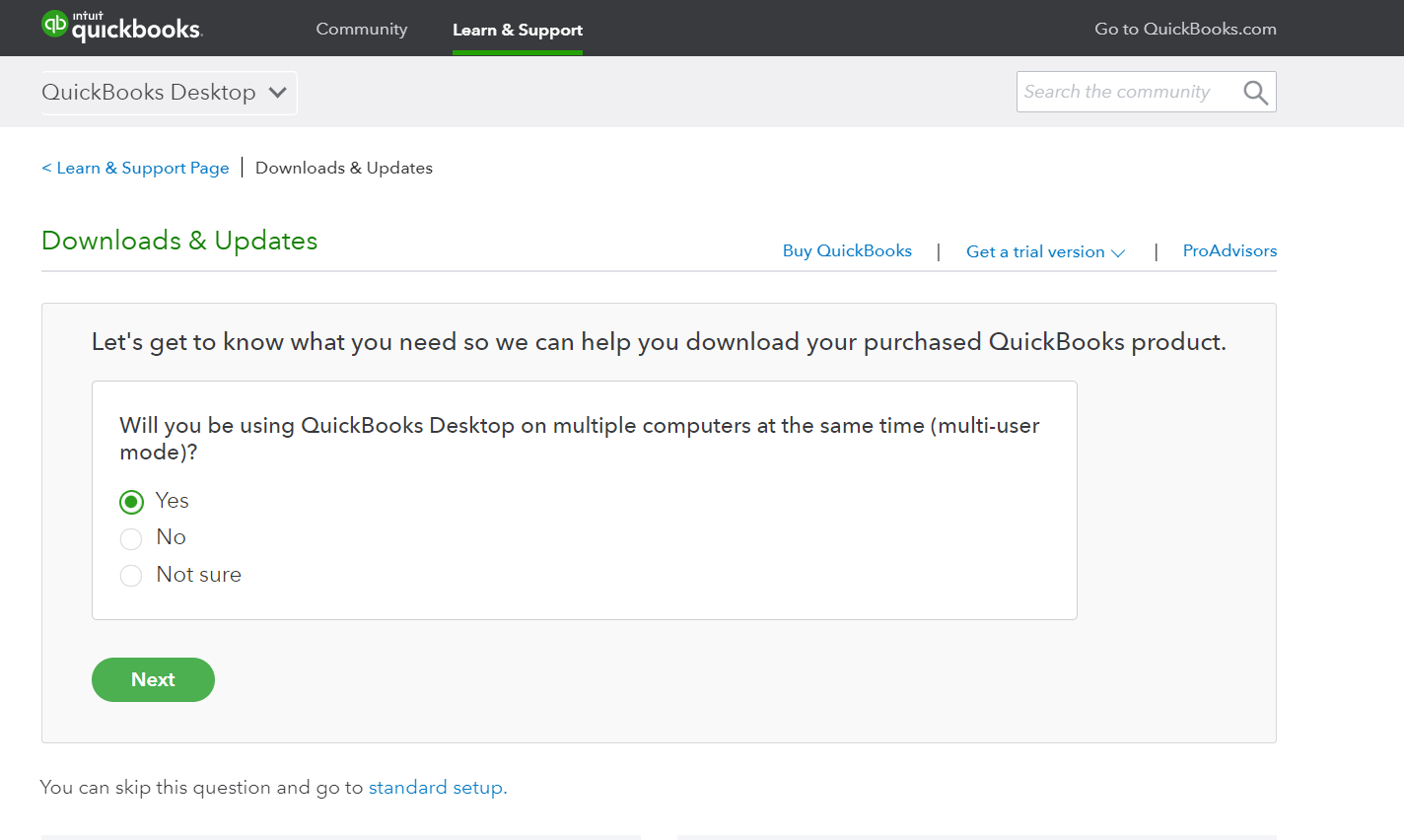
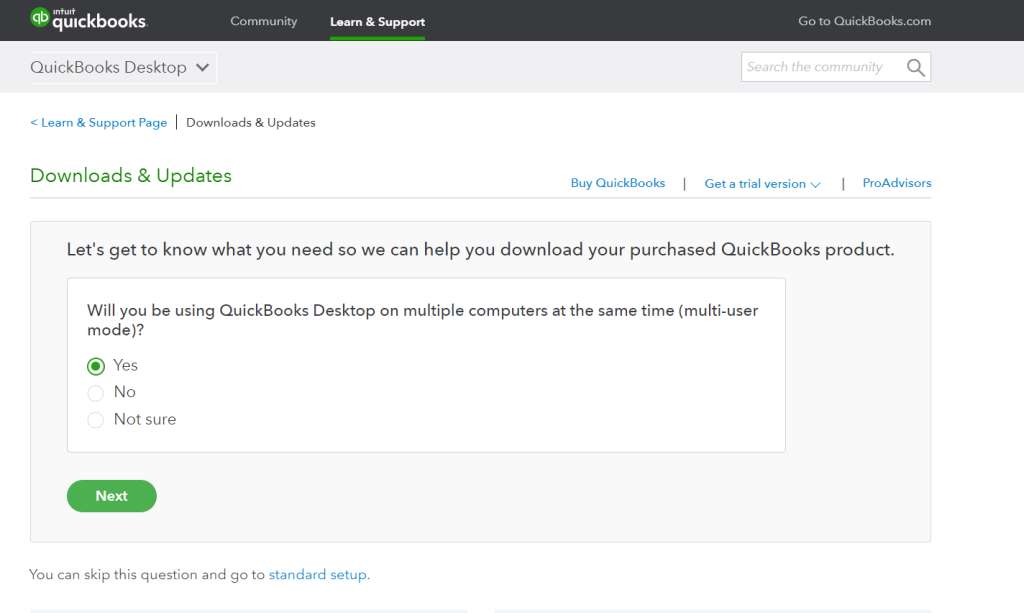
Step 3: Confirm multi-user mode — indicate whether multiple people will use the file at once, if prompted.
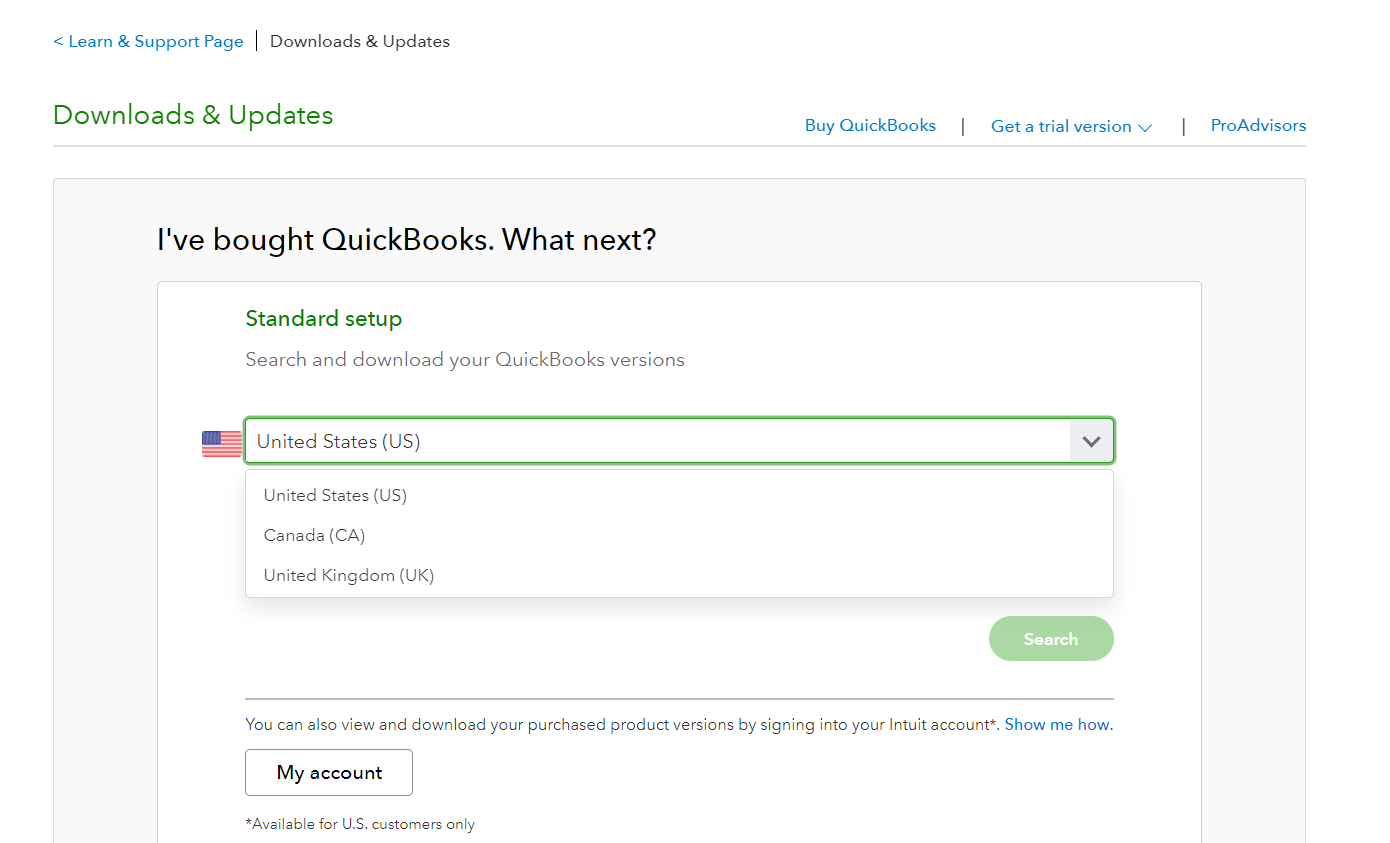
Step 4: Confirm country and edition — make sure the listing matches your actual license (US, Canada, or UK; Pro, Premier, Accountant, or Enterprise).
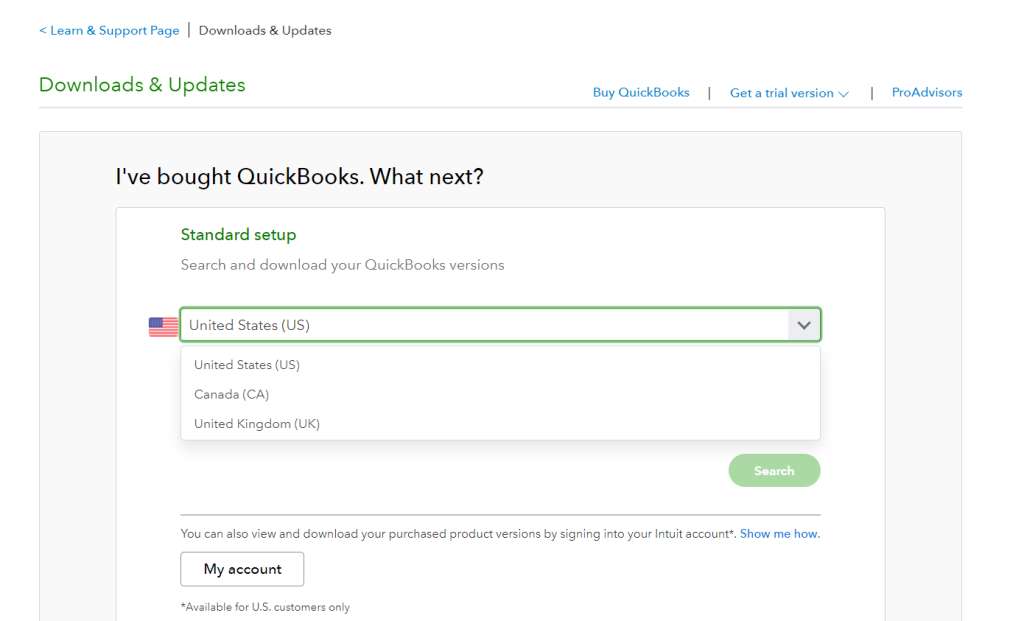
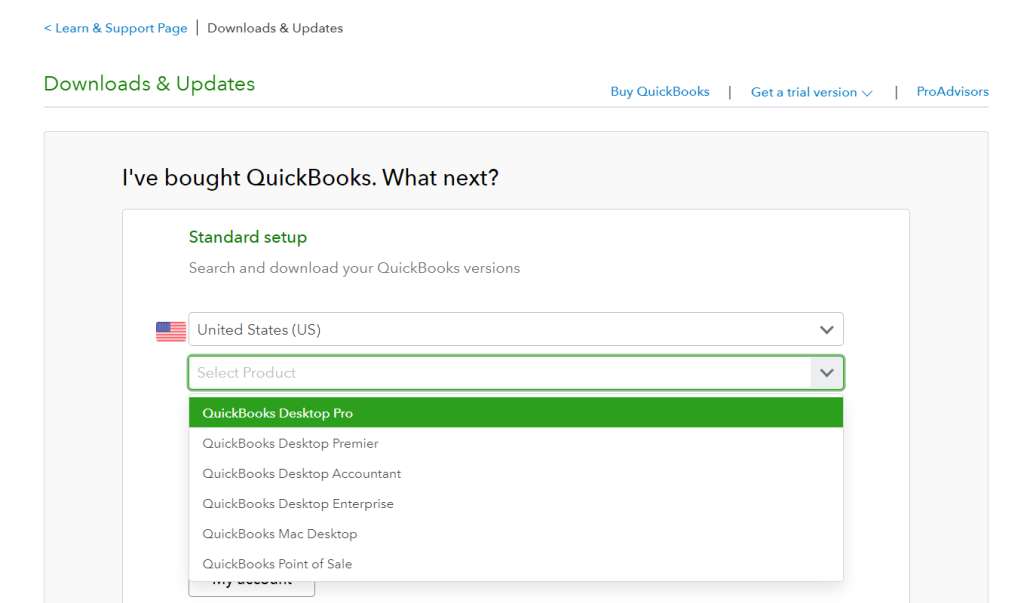
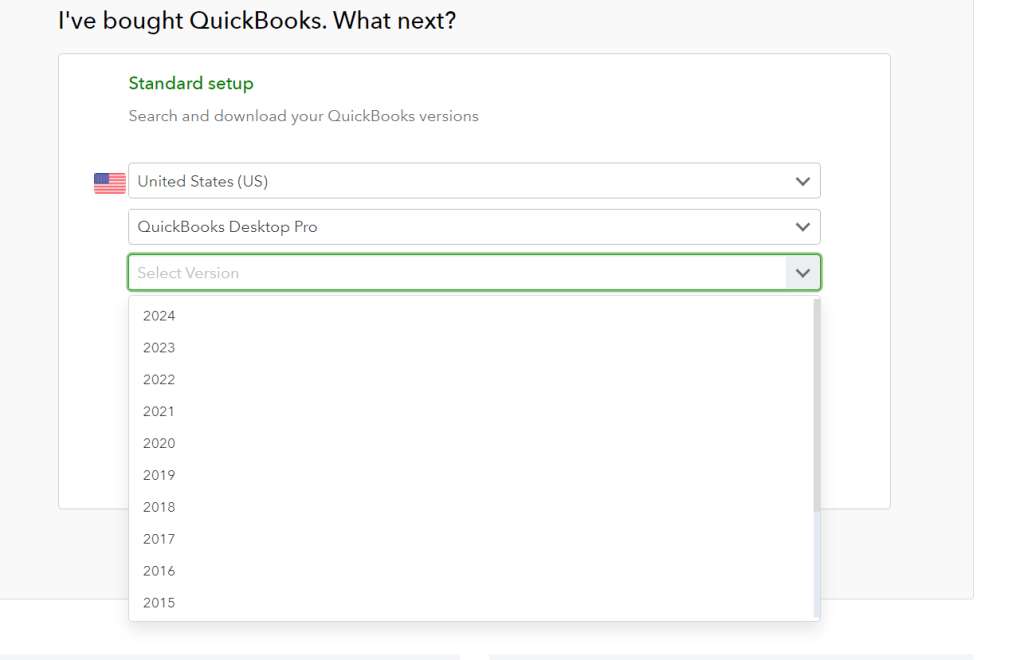
Step 5: Download the installer tied directly to your account.
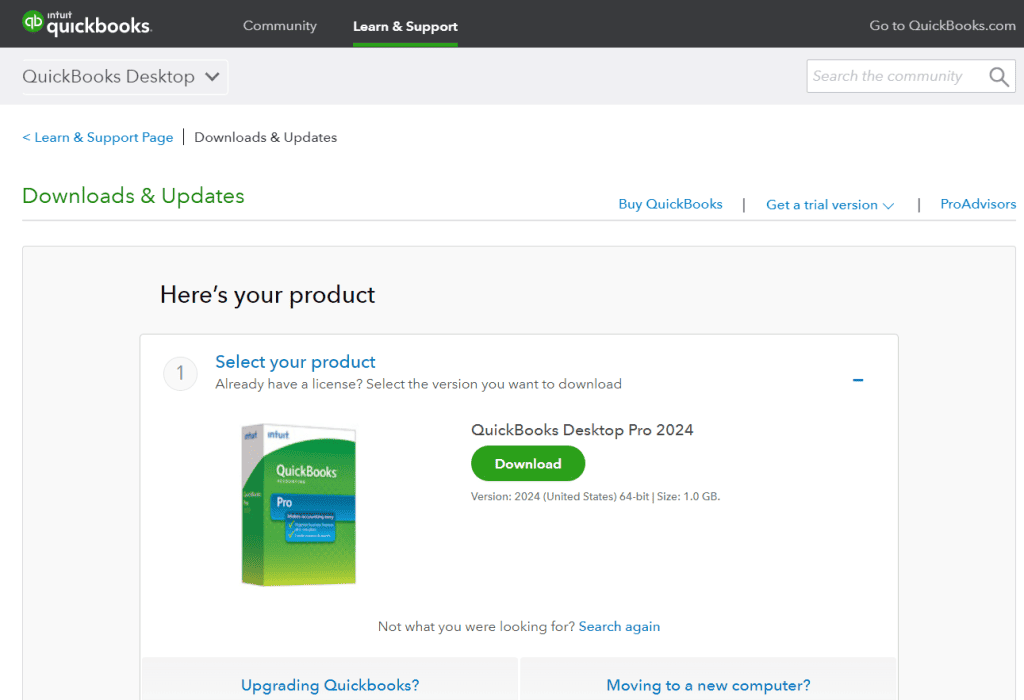
Why this matters: Downloads served through your own CAMPs account are matched to your actual license, country, and edition automatically, which avoids the most common cause of activation failure — an installer that doesn’t match the license being entered. Third-party “direct download” links circulating online may be outdated, region-mismatched, or simply unofficial mirrors, and should not be treated as a substitute for your account-based download.
Because regional installer links go stale quickly and are a common source of activation failures, this guide intentionally does not publish standalone regional .exe links. Use your CAMPs account, which always serves the current, correctly matched build for your country and edition.
Once downloaded, save the installer somewhere easy to find (e.g., your desktop), and keep your license and product number on hand — from your purchase email or from CAMPs.
Before upgrading or migrating: Back up your company file first. Keep either your previous accounting records or exported backups; consult current IRS/tax-authority guidance for how long financial records need to be retained in your jurisdiction, since requirements vary.
Two install types are available:
Step 1: Confirm your internet connection is active.
Step 2: Run the installer (double-click the downloaded file).
Step 3: Choose Express Install for a standard single-computer setup.
Step 4: Click Next, then Install.
Step 5: Open QuickBooks once installation finishes.
This path suits solo users and small businesses that don’t share a company file over a network. If you’re moving QuickBooks to a different computer, use Intuit’s Migrator Tool rather than a fresh manual install.
Use this for a dedicated server, Terminal Server, or workstations accessing a shared company file. Always connect to the company file using the direct network path.
Step 1: Confirm your network connection is active.
Step 2: Run the installer.
Step 3: Choose Custom and Network Options, then click Next.
Step 4: Select the server’s role:
Step 5: Click Next twice to begin installation.
Step 6: Set the install location if needed (Change the install location, then Browse).
Step 7: Open QuickBooks once complete.
Multi-user/network checklist:
Activation requires the license and product number from your purchase (email or CAMPs) and typically requires an internet connection to validate against Intuit’s servers.
1. Open the Help menu in QuickBooks.
2. Select Activate QuickBooks.
3. Enter your license and product number exactly as shown in CAMPs or your confirmation email.
4. Choose the activation method — online (standard) or manual, if offered for your license type.
5. Accept the license terms, then click Next/Accept.
6. Click Activate to complete validation.
You can confirm activation succeeded by reopening the Help menu (Activate QuickBooks will no longer prompt) or by pressing F2 inside QuickBooks to view the Product Information window, which shows your license, product number, and activation status directly.
Common activation errors:
| Problem | Likely Cause | Quick Fix |
|---|---|---|
| Installer won’t open | Incomplete/corrupted download, or an unofficial mirror | Re-download from your CAMPs account directly |
| Installation freezes | Background programs interfering | Close other applications; run installer as administrator |
| Error 1603 during install | Damaged Windows components or permissions | Run the QuickBooks Tool Hub’s Install Diagnostic Tool |
| Missing Windows components (.NET 4.8, etc.) | Required frameworks not installed | Let the installer auto-install them, or update via Windows Update |
| License/edition mismatch after install | Installer didn’t match your actual license (common with third-party links) | Re-download the exact edition/country shown in CAMPs |
| Activation failed | Wrong license/product number or no internet during activation | Recheck entries against CAMPs; confirm connectivity |
| Company file won’t open | Version mismatch between file and installed edition | Update to the latest release, then reopen |
| Firewall blocking install or network access | Security software blocking QuickBooks ports | Allow QuickBooks in firewall settings |
| “Access Denied” errors | Installer not run as administrator | Right-click the installer, choose Run as administrator |
If installation fails outright, right-click the installer and select Run as administrator. Persistent issues are usually resolved by QuickBooks’ own Install Diagnostic Tool, available through the QuickBooks Tool Hub.
Once Desktop 2024 reaches its support end date, expect the following to stop functioning or being maintained:
The company file itself doesn’t stop working immediately, but running an unsupported, unpatched version connected to bank feeds and payroll carries growing security and compliance risk over time. Businesses intending to stay on Desktop long-term should plan a move to Enterprise (no announced end date) well before the 2027 deadline; businesses open to cloud software should evaluate QuickBooks Online in the meantime.
Can I still buy QuickBooks Desktop Pro 2024 or Premier 2024 in 2026?
Generally, no — as a new U.S. customer. Intuit stopped selling new subscriptions to United States customers for QBDT Pro Plus, Premier Plus, Mac Plus, and Enhanced Payroll after September 30, 2024. Existing subscribers can still renew and download their editions normally. If you need a Desktop product as a brand-new customer, Enterprise is currently the only option Intuit continues to sell.
What happens when support for Desktop 2024 ends in September 2027?
QuickBooks Desktop 2024 is supported until September 30, 2027, after which security patches, payroll tax updates, and bank feed connections for that version stop. The software may continue to run, but without ongoing patches or feed support, so most businesses plan a move to Enterprise or QuickBooks Online before that date.
Is the download link I found online safe to use?
Only use links from your own Intuit account (CAMPs) or Intuit’s official Downloads & Updates page. Standalone direct-download links circulating on third-party sites can be outdated, mismatched to the wrong region or edition, or simply unreliable — leading to activation failures even when the file itself installs.
How do I know if my license is still valid?
Sign in to CAMPs and check the Products & Services section, which lists your active subscriptions, edition, and renewal status. If you can’t sign in, use Intuit’s official License Look-Up Tool.
Should I move to QuickBooks Online or Enterprise instead of staying on Desktop 2024?
It depends on your needs. If you rely on Desktop-only features like advanced inventory costing or offline use and can accommodate Enterprise pricing, Enterprise is the only Desktop line without an announced end date. If cloud access and mobility matter more, QuickBooks Online is generally the better long-term fit. Staying on Desktop 2024 is workable short-term, but only through September 2027.
Can I install Desktop 2024 if I already have an older company file?
Yes. Back up your company file first, then install using Express Install, which can upgrade in place while preserving your data and preferences. QuickBooks will prompt you to update the file format on first open after installation.
Does activation require constant internet access?
Activation itself needs an internet connection to validate your license against Intuit’s servers. Day-to-day use of QuickBooks Desktop can be offline once activated, though features like bank feeds, payroll updates, and product updates require periodic internet access.
Can I use the same license on multiple computers?
This depends on your license’s seat count. Pro, Premier, and Accountant licenses generally support a limited number of installations matching purchased seats; Enterprise scales to more users. Installing beyond your licensed seats can cause activation conflicts — check your exact entitlement in CAMPs.
Is QuickBooks Desktop 2024 available for Mac?
Yes, as Mac Plus 2024, a separate installer from the Windows editions with some feature differences. Like Pro and Premier, Mac Plus is renewal-only for existing subscribers as of late 2024 — it is not available as a new purchase for first-time customers.
Where do I find my license and product number?
The fastest method is pressing F2 inside an already-installed copy of QuickBooks, which opens the Product Information window showing both numbers. If you haven’t installed it yet, find them in your purchase confirmation email or under Products & Services in CAMPs.
How do I complete a QuickBooks Desktop version 2024 download for single-user or multi-user networks?
Executing a QuickBooks Desktop version 2024 download and setting up the installer depends on whether the installation is intended for a single standalone machine or a multi-user server environment. Intuit structures the installation framework through two distinct deployment pathways:
The download process for QuickBooks Desktop 2024 hasn’t fundamentally changed, but the context around it has: new U.S. purchases of Pro, Premier, and Mac Plus ended in September 2024, Desktop 2024 is the final annual release for those lines, and support runs out September 30, 2027. Enterprise remains the only Desktop edition open to new customers, with QuickBooks Online as the cloud alternative.
If you’re an existing subscriber, confirm your license status in CAMPs, verify your system meets requirements before downloading Quickbooks desktop, download directly through your account rather than an external link, install using the method matching your setup (single-user or multi-user/server), and activate immediately using your license and product number.
Key takeaway: In 2026, the most important step isn’t finding a download link — it’s confirming what your license actually entitles you to and downloading through your own Intuit account. That single step avoids the majority of installation and activation problems users run into with this product today.
This guide reflects Intuit’s published policies as of August 2026. Sales and support timelines are set by Intuit and may change — confirm current status in your CAMPs account or on Intuit’s official site before making purchasing decisions.


