



Fix QuickBooks Company File Error 6000 83 by renaming the .ND and .TLG files, running QuickBooks File Doctor, or adjusting multi-user hosting settings to restore access to your company file.
If you’re struggling with repeated company file access problems in QuickBooks Desktop, our detailed QuickBooks company file errors guide provides step-by-step solutions and prevention tips to help you resolve them faster.
QuickBooks Error 6000 83 appears when users are unable to access, open, restore, or back up their company files. This error blocks normal business operations by preventing access to your financial data, especially in multi-user environments. It typically occurs due to hosting configuration problems or insufficient folder permissions when QuickBooks tries to open the company file.
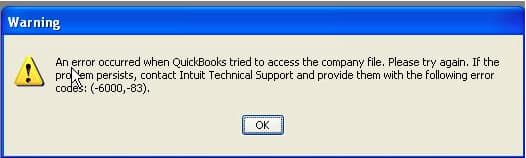
Common error messages include: “An error occurred when QuickBooks tried to access the company file. Please try again. If the problem persists, contact Intuit Technical Support and provide them with the following error codes: (-6000, -83)” or “The user doesn’t have sufficient permissions to access the specified folder.”
If you’re facing other QuickBooks issues and need a broader range of solutions, visit our complete QuickBooks error codes list for more troubleshooting resources and guides.
This article provides a diagnostic framework, risk assessment, and complete solution guide. Hosting configuration errors and permission issues require immediate attention.
Error Classification: Which Series Does 6000 83 Belong To?
Error 6000 83 belongs to the 6000 series handling company file access problems and multi-user hosting issues. The 6000 series represents file access failures rather than data corruption. QuickBooks uses this code when hosting settings become incorrect or folder permissions block file access. For a complete breakdown of all errors in this category check out out QuickBooks company file errors guide.
QuickBooks organizes errors into series: C= series (internal processing), H series (multi-user hosting configuration), 6000 series (file access and permissions). Related 6000 errors include 6150 (structural damage), 6144-82 (network configuration), 6105 (condensed data failures). These share common causes: incorrect hosting settings, damaged network files, or insufficient permissions.
Can QuickBooks Error 6000 83 Trigger Other Errors?
QuickBooks errors create cascading failures across multi-user environments. One underlying problem generates multiple error codes at different access points.
| Cause of Error 6000 83 | Possible Triggered Errors |
| Incorrect multi-user hosting | H202 (multi-user hosting cannot be turned on) |
| Damaged ND and TLG files | Error 6150 (company file structural damage) |
| Insufficient folder permissions | Windows permission errors (Access Denied) |
| Wrong file extension | File open failures (various error codes) |
- Incorrect multi-user hosting causes Error 6000 83 by enabling hosting on workstations. This configuration prevents proper server communication. Users encounter Error H202 when attempting to enable multi-user access. The H202 code indicates hosting conflicts between server and workstations. Both errors stem from identical hosting misconfiguration.
- Damaged ND and TLG files trigger Error 6000 83 when QuickBooks cannot read network settings. These configuration files enable multi-user access. As file damage increases, Error 6150 appears indicating structural problems. The company file becomes inaccessible requiring file repair operations.
- Insufficient folder permissions create distinct patterns. QuickBooks requires full control permissions on company file folders. Lack of permissions triggers Error 6000 83 during file access. Windows displays Access Denied messages when users attempt to open files. The QBDataServiceUser account needs specific permissions for multi-user operations.
- Wrong file extensions follow predictable failure sequences. QuickBooks requires a .qbw extension for company files. Backup files use the .qbb extension. Portable files use the .qbm extension. Using wrong extensions triggers Error 6000 83 during file opening. Users must rename files to correct extensions before access attempts.
The Root Cause For QuickBooks Error 6000 83
Match your symptom to find the correct solution path. Start by identifying when the error appears. Check if the error occurs in single-user or multi-user mode to determine the appropriate fix.
| Possible Causes and QuickFix for Error 6000 83 | ||
| Error Event | Likely Cause | Recommended Fix (When to Perform) |
| Error 6000 83 when opening file | Damaged ND and TLG files | Before attempting to reopen the company file, rename the ND and TLG files and then try opening QuickBooks again |
| Error 6000 83 in multi-user mode | Incorrect hosting settings | When the error appears in multi-user environment and before relaunching QuickBooks, disable hosting on all workstations |
| Error 6000 83 during backup restore | Wrong file extension or special characters | Right after error appearance and before retry, verify file name has no special characters and correct .qbw extension |
| Error 6000 83 with permission message | Insufficient folder permissions | When permission error displays and before accessing file, configure folder permissions for QBDataServiceUser |
Data Safety Advisory Section For QuickBooks Error 6000 83
Understanding QuickBooks file types prevents data loss during repairs. Follow these data safety advisories for QuickBooks Error 6000 83:
- ND and TLG Files: ND files manage network connections enabling multi-user access. They track which workstations access the company file. TLG files record transaction history for crash recovery. Corruption in these files prevents file opening operations. QuickBooks recreates these files automatically when renamed.
- File Extensions: Using wrong extensions prevents file access. Correct extensions enable proper file operations. QuickBooks uses specific file extensions for different purposes.
- .qbw files are active company files.
- .qbb files are backup copies.
- .qbm files are portable company files.
- .adr files are auto data recovery files.
- Folder Permissions: Windows folder permissions control file access rights. QBDataServiceUser account needs full control permissions. Every group needs read/write access for network sharing. Incorrect permissions trigger Error 6000 83. Proper permissions enable multi-user file access.
- Multi-User Hosting: Only server computers should host company files. Workstations must not host files in multi-user mode. Hosting on multiple computers causes access conflicts. Proper hosting configuration enables stable multi-user operations.
Steps to Fix QuickBooks Company File Error 6000 83
Solutions are organized by skill level, risk level, and success probability. This tiered approach protects your data while maximizing repair chances. Start with Level 1 solutions and move to higher tiers only if lower-tier solutions fail.
Level 1 – Beginner Safe Fixes
These solutions require no technical expertise. The risk of data loss is minimal. Anyone can perform these steps safely.
| Solution 1.1: Run QuickBooks File Doctor | |||
| Skill Level | Risk Level | Success Probability | Approximate Time Required |
| Beginner | Low | High | 30-45 minutes |
| Risk Explanation | File Doctor repairs files automatically. The tool rarely causes problems. Scan may take significant time for large files. | Solution Explanation | QuickBooks File Doctor tool detects and repairs company file corruption and network issues. The tool fixes common problems causing Error 6000 83. File Doctor is part of QuickBooks Tool Hub. |
Steps to Implement Solution 1.1
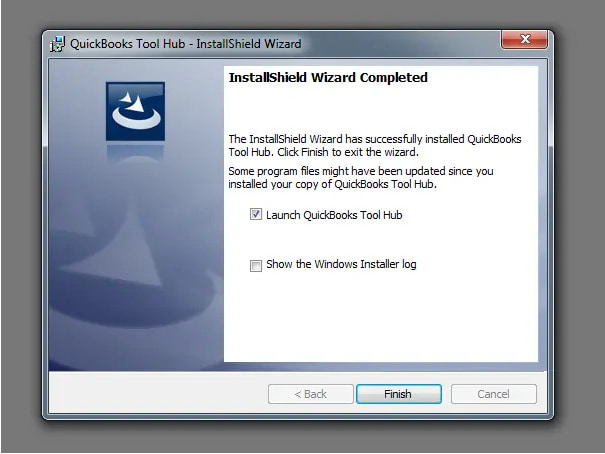
- Close QuickBooks on all computers accessing the company file. Download QuickBooks Tool Hub from Intuit website. Search “QuickBooks Tool Hub download” in the browser. Save QuickBooksToolHub.exe to the Downloads folder.
- Double-click to install. Click Yes for permission. Follow the installation wizard. Click the Install button. Installation takes 2-3 minutes.

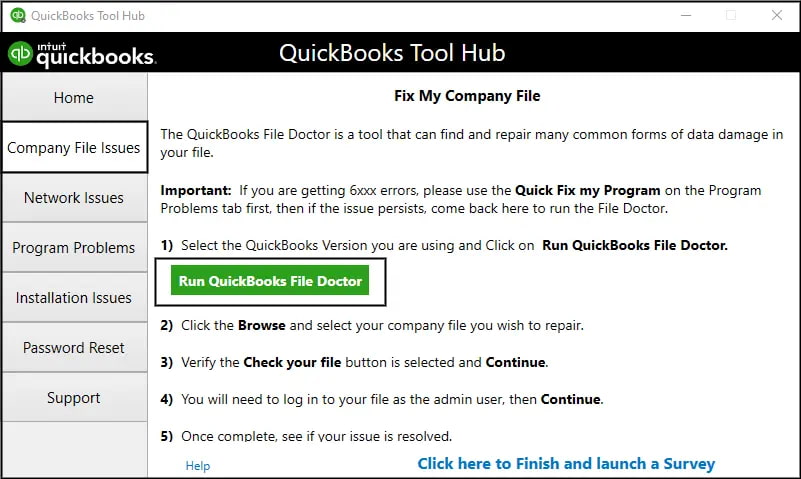
- Open Tool Hub after installation. Click Company File Issues. Select Run QuickBooks File Doctor. File Doctor opens in a new window.
- Choose the company file from the dropdown. If the file does not appear, click Browse. Navigate to file location. Select .QBW file and click Open. Select “Check your file” option. Click Continue.
- Enter QuickBooks administrator username and password. Click Next to begin the scan. File Doctor examines files for corruption and network issues. Scan takes 20-40 minutes depending on file size. Progress bar shows status.
- File Doctor displays results after completion. Green checkmarks indicate successful repairs. Click View Report for detailed findings. Close File Doctor and open QuickBooks. Test file access.
| Solution 1.2: Verify and Remove Special Characters from File Name | |||
| Skill Level | Risk Level | Success Probability | Approximate Time Required |
| Beginner | Low | Moderate | 5-10 minutes |
| Risk Explanation | Renaming files requires caution but carries low risk. QuickBooks must be closed before renaming. Improper renaming can prevent temporary file access. | Solution Explanation | QuickBooks cannot access files with special characters in names. Special characters include symbols like !, @, #, $, %, &, *, “, ‘. Removing these characters resolves file access issues. Spaces and long paths also cause problems. |
Steps to Implement Solution 1.2
- Close QuickBooks on all computers. Navigate to the company file location on server. The default location is C:\Users\Public\Documents\Intuit\QuickBooks\Company Files. Locate the company file.
- Right-click the company file and select Properties. Check the General tab for file name. Look for special characters like $, %, &, *, “, ‘ in the name. Check for spaces at beginning or end of name.
- If special characters exist, right-click file and select Rename. Remove all special characters from the name. Remove extra spaces. Keep only letters, numbers, hyphens, and single spaces between words. Example: Change “My Company $2024.qbw” to “My-Company-2024.qbw”.
- Press Enter to save a new name. Open QuickBooks and browse to the renamed file. The file should open without Error 6000 83.
| Solution 1.3: Verify File Extension is .qbw | |||
| Skill Level | Risk Level | Success Probability | Approximate Time Required |
| Beginner | Low | Moderate | 5-10 minutes |
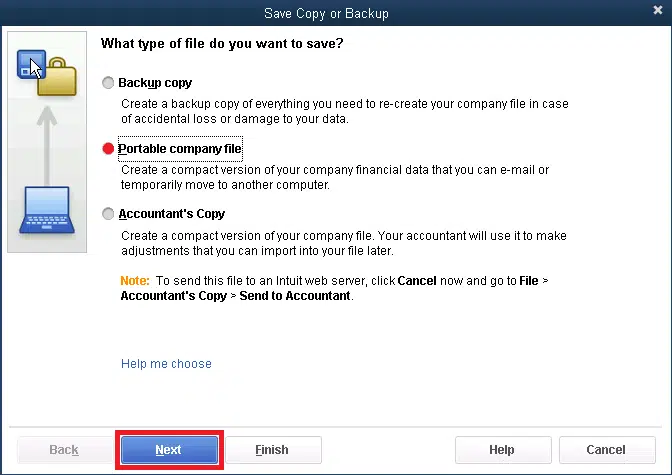
| Risk Explanation | Changing file extensions requires caution. Incorrect extensions prevent file access. Follow instructions exactly to avoid problems. | Solution Explanation | QuickBooks requires .qbw extension for active company files. Backup files use the .qbb extension. Portable files use the .qbm extension. Auto recovery files use the .adr extension. Using the wrong extension triggers Error 6000 83. Renaming to correct extension enables file access. |
Steps to Implement Solution 1.3
- Close QuickBooks on all computers. Press Windows key + E to open File Explorer. Navigate to C:\Users\Public\Documents\Intuit\QuickBooks\Company Files.
- Click the View tab in the File Explorer ribbon. Check box for “File name extensions” to show extensions. File names now display with extensions like .qbw, .qbb, .qbm.
- Locate your company file. Check the extension after the file name. If extension shows .qbb, .qbm, or .adr instead of .qbw, the file needs renaming. Note: .qbb files are backups and should be restored, not renamed.
- For .qbm or .adr files, right-click file and select Rename. Change extension from .qbm or .adr to .qbw. Example: Change “CompanyName.qbm” to “CompanyName.qbw”. Press Enter to save.
- Windows displays a confirmation dialog asking if you want to change the extension. Click Yes to confirm. Open QuickBooks and try to open the renamed file. The file should open without Error 6000 83.
Level 2 – Intermediate Fixes
These solutions modify network configurations or file settings. Basic computer knowledge is helpful but not required. Risk increases because operations affect multi-user access. Always create backup before attempting Level 2 solutions.
| Solution 2.1: Rename ND and TLG Files | |||
| Skill Level | Risk Level | Success Probability | Approximate Time Required |
| Intermediate | Low to Moderate | High | 15-20 minutes |
| Risk Explanation | Renaming does not delete transaction data. QuickBooks creates new files automatically. Original files remain as backup with .OLD extension. Follow naming instructions exactly. | Solution Explanation | Corruption in ND and TLG files triggers Error 6000 83 by preventing multi-user access. Renaming forces QuickBooks to generate fresh configuration files. New files contain clean network data without corruption. |
Steps to Implement Solution 2.1
- Close QuickBooks on all computers in the network. Press Windows key + E on the server to open File Explorer. Navigate to the company file folder. The default location is C:\Users\Public\Documents\Intuit\QuickBooks\Company Files.
- Find files with .ND and .TLG extensions matching the company file name. If the company file is ABC-Corp-2024.qbw, look for ABC-Corp-2024.qbw.nd and ABC-Corp-2024.qbw.tlg. These files may be hidden. Click the View tab in File Explorer. Check the box for Hidden items to show all files.
- Right-click .ND file and select Rename. Add .OLD to end: ABC-Corp-2024.qbw.nd.OLD. Press Enter. Repeat for .TLG file: ABC-Corp-2024.qbw.tlg.OLD. Press Enter to save.
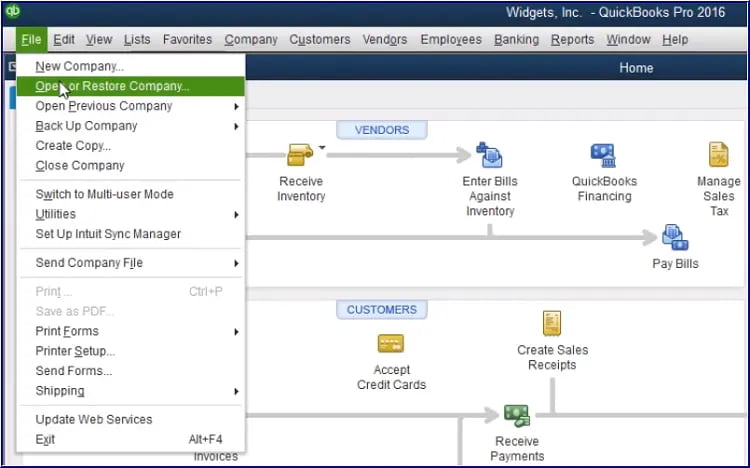
- Open QuickBooks on the server. Navigate to File > Open or Restore Company. Browse to the company file and click Open. QuickBooks automatically creates new .ND and .TLG files with fresh configurations. Enable multi-user access after the file opens. Test access from workstations.
| Solution 2.2: Disable Hosting on All Workstations | |||
| Skill Level | Risk Level | Success Probability | Approximate Time Required |
| Intermediate | Moderate | High | 15-20 minutes |
| Risk Explanation | Changing hosting settings affects multi-user access temporarily. Incorrect configuration prevents file access. Follow steps exactly to avoid multi-user problems. | Solution Explanation | Only server computers should host company files. Workstations must not host files. Hosting on multiple computers triggers Error 6000 83. Disabling hosting on workstations resolves conflicts. Proper hosting configuration enables stable multi-user access. |
Steps to Implement Solution 2.2
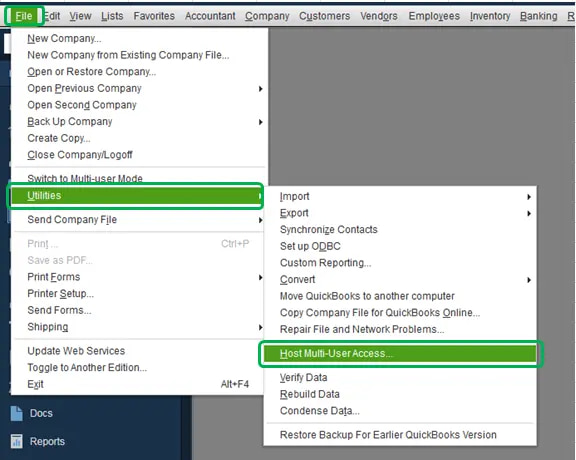
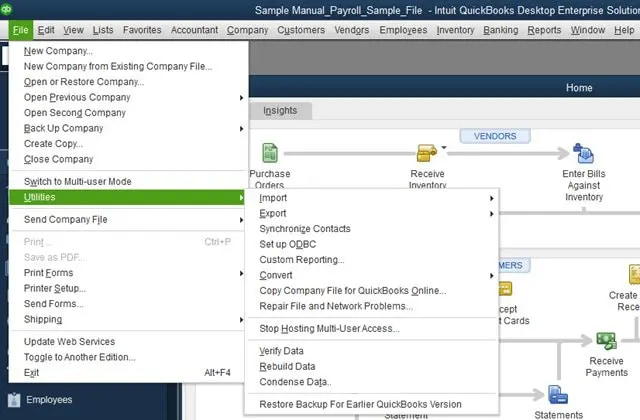
- Open QuickBooks on the first workstation. Do not open any company file. Navigate to File menu. Select Utilities option.
- Check menu options displayed. If “Stop Hosting Multi-User Access” appears, select it. This disables hosting on the current workstation. If “Host Multi-User Access” appears instead, do not select it. This workstation is already configured correctly.
- Repeat these steps on each workstation computer. Open QuickBooks without opening the company file. Check File > Utilities menu. Disable hosting if “Stop Hosting Multi-User Access” appears.
- After disabling hosting on all workstations, navigate to the server computer. Open QuickBooks on the server. Navigate to File > Utilities. Select “Host Multi-User Access” to enable hosting on the server.

- Open company file on server. The file menu should show the option “Switch to Single-User Mode” option. This confirms the server is hosting correctly. Workstations can now connect without Error 6000 83.
| Solution 2.3: Move Company File to New Location | |||
| Skill Level | Risk Level | Success Probability | Approximate Time Required |
| Intermediate | Moderate | Moderate to High | 20-30 minutes |
| Risk Explanation | Moving files changes network paths. Incorrect moves may prevent access. Company data remains safe during move. Follow location instructions exactly. | Solution Explanation | Corrupted folder locations trigger Error 6000 83. Moving the company file to a new folder location resolves location-specific corruption. Fresh folder location eliminates path-related access problems. |
Steps to Implement Solution 2.3
- Close QuickBooks on all computers. Navigate to this PC on the server. Double-click C: drive. Right-click in the folder and select New > Folder. Name the new folder “QB-Test”. This creates a test location at C:\QB-Test.
- Navigate to the current company file location. The default is C:\Users\Public\Documents\Intuit\QuickBooks\Company Files. Right-click the company file and select Copy.
- Navigate to C:\QB-Test folder. Right-click inside the folder and select Paste. Company file copies to new location. Wait for the copy operation to complete.
- Open QuickBooks on the server. Navigate to File > Open or Restore Company. Click Open a company file. Browse to C:\QB-Test folder. Select the company file and click Open.
- If the file opens without Error 6000 83, the original location has corruption. Create backup from a new location. Use this new location as a permanent company file location. Delete old file from original location to avoid confusion.
Level 3 – Advanced / Professional Intervention
These solutions require technical knowledge and carry higher risk. System-level changes can affect network operations. Contact professional support if uncomfortable with these procedures. Data backup is mandatory before attempting Level 3 solutions.
| Solution 3.1: Configure Folder Permissions for QBDataServiceUser | |||
| Skill Level | Risk Level | Success Probability | Approximate Time Required |
| Advanced | Moderate to High | High | 20-30 minutes |
| Risk Explanation | Modifying folder permissions affects file access security. Incorrect permissions may prevent legitimate access or allow unauthorized access. Changes apply to all files in the folder. Professional assistance recommended for unfamiliar users. | Solution Explanation | QuickBooks requires specific folder permissions for multi-user access. The QBDataServiceUser account needs full control permissions. Every group needs full control for network sharing. Incorrect permissions trigger Error 6000 83 by blocking file access. Setting proper permissions restores multi-user access. |
Steps to Implement Solution 3.1
- Navigate to the company file folder on the server. The default location is C:\Users\Public\Documents\Intuit\QuickBooks\Company Files. Right-click Company Files folder. Select Properties from the menu.
- Click the Security tab in the Properties window. Security settings show current permissions. Click the Edit button to modify permissions. User Account Control asks for administrator permission. Click Yes to continue.
- Click the Add button in the Permissions window. Select Users or Groups dialog opens. Click the Advanced button. Click the Find Now button. Search results show all available user accounts.
- Scroll through the list to find the QBDataServiceUserXX account. XX represents QuickBooks version number. QuickBooks 2024 shows QBDataServiceUser. Select account and click OK. Click OK again to close the dialog.
- Select QBDataServiceUser account from permissions list. Check box for Full Control in the Allow column. This grants complete access to the folder. Click Apply to save changes.
- Click the Add button again to add the Everyone group. Type “Everyone” in the object names field. Click the Check Names button. Name should underline indicating recognition. Click OK to add a group.
- Select Everyone from the permissions list. Check the box for Full Control in the Allow column. Click Apply to save all changes. Click OK to close the permissions window. Click OK to close the Properties window.
- Restart server computer. Open QuickBooks and enable multi-user access. Workstations should connect without Error 6000 83. Proper permissions allow network file sharing. For detailed multi-user setup instructions and related H-series errors, refer to our QuickBooks multi-user mode errors guide.
| Solution 3.2: Create Backup and Restore to New Location | |||
| Skill Level | Risk Level | Success Probability | Approximate Time Required |
| Advanced | Moderate | High | 30-45 minutes |
| Risk Explanation | Backup and restore operations are safe when following steps exactly. Incorrect restore locations may cause confusion. The original file remains intact during the process. | Solution Explanation | Creating fresh backup and restoring to a new location eliminates corruption in the original file path. The restore process creates a clean company file with .qbw extension. This comprehensive approach resolves persistent Error 6000 83 issues. |
Steps to Implement Solution 3.2
- Open QuickBooks on the server. Navigate to File > Back Up Company > Create Local Backup. QuickBooks opens a backup wizard.
- Select Local Backup option. Click Next. Browse to save location. Create a new folder on C: drive named “QB-Backup-New”. Select this folder as a backup location. Click OK.
- Click the Options button to configure backup settings. Click OK to accept default settings. Click Next to continue. QuickBooks creates a backup file with .qbb extension. Wait for backup to complete.
- After backup completes, navigate to File > Open or Restore Company. Select “Restore a backup copy” option. Click Next.
- Select Local Backup option. Click Next. Browse to C:\QB-Backup-New folder. Select the .qbb backup file created earlier. Click Open.
- QuickBooks asks for a restore location. Browse to the new location on C: drive. Create a new folder named “QB-Restored”. Select this folder. Click Save.
- QuickBooks restores the company file to a new location. The restore process creates a .qbw file from .qbb backup. Wait for restoration to complete. Open restored file and test for Error 6000 83.
- If the file opens without error, use this restored file as the main company file. The old file location had corruption preventing access. Keep backup for safety.
| Solution 3.3: Run Database Server Manager Scan | |||
| Skill Level | Risk Level | Success Probability | Approximate Time Required |
| Advanced | Moderate | High | 20-30 minutes |
| Risk Explanation | Database Server Manager scan modifies network configuration. Scan creates new ND files for network publishing. The process requires administrator rights on the server. | Solution Explanation | QuickBooks Database Server Manager publishes company file locations to network. Scanning folders creates network data files enabling multi-user access. Manager configures network paths for workstation connections. This scan resolves Error 6000 83 caused by network configuration problems. |
Steps to Implement Solution 3.3
- Navigate to server computer hosting company file. Close QuickBooks on all computers. Press Windows key on server. Type “Database” in the search box. Click QuickBooks Database Server Manager from search results.
- The Database Server Manager window opens showing multiple tabs. Click the Scan Folders tab at top. Window displays currently scanned folders. Click the Browse button to add the company file folder.
- Navigate to the folder containing the company file. The default location is C:\Users\Public\Documents\Intuit\QuickBooks\Company Files. Select the folder and click OK. Folder path appears in the scanned folders list.
- Click the Start Scan button to begin scanning. Database Server Manager examines folder for company files. Scan creates new ND files for each company file found. Progress indicator shows scan status. Scanning takes 5-10 minutes depending on folder size.
- Scan completes showing “Network Diagnostics: Check successful – no issues found” if successful. QuickBooks company files found appear in the lower section. Click Close to exit Database Server Manager.
- Open QuickBooks on the server and enable multi-user access. Workstations should now connect without Error 6000 83. Fresh network configuration enables proper multi-user operations.
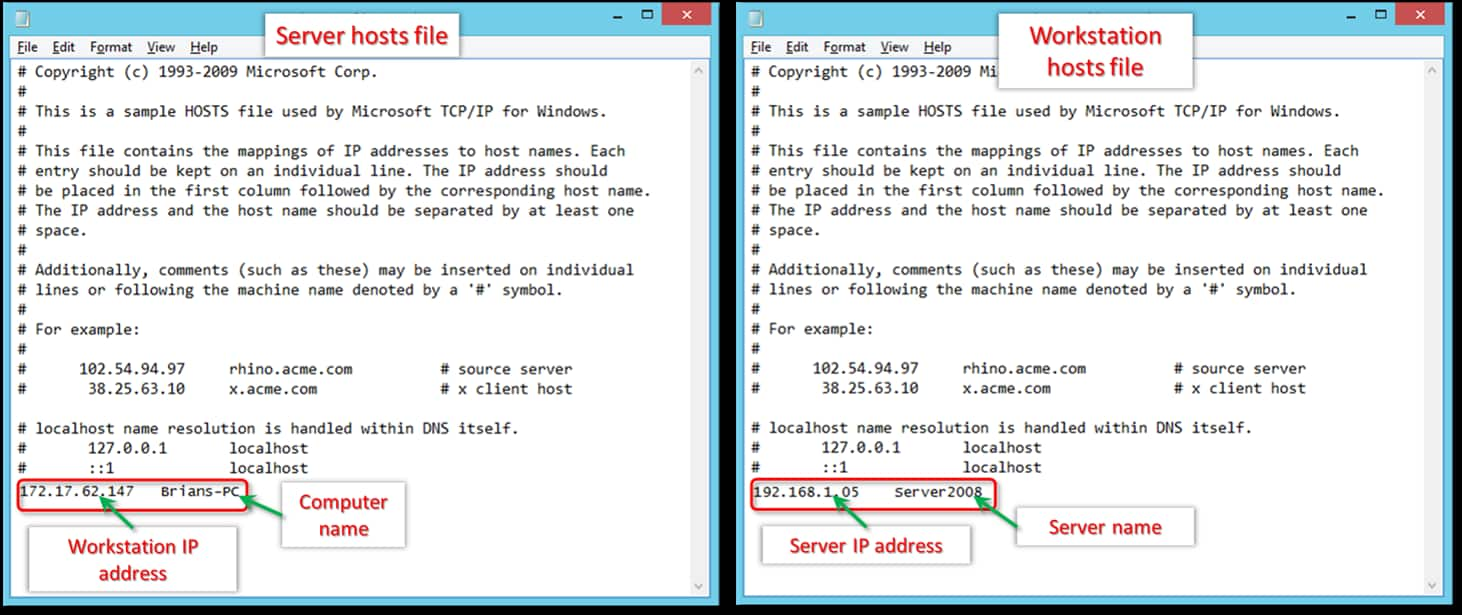
Related QuickBooks Errors
If you are experiencing company file access issues beyond Error 6000 83, these related errors may also be affecting your QuickBooks Desktop:
| Error | Description |
|---|---|
| QuickBooks Desktop Error 6154 | Company file cannot be opened due to incorrect file path or missing network permissions |
| QuickBooks Desktop Pro 2024 Transaction Missing Not Showing Up | Transactions disappear or fail to display due to data file or filter issues |
| QuickBooks Desktop Company File Already in Use Problem | File access blocked because another user or process has the company file open |
Scenarios Requiring Expert Support
Some situations require professional assistance. Attempting DIY repairs risks permanent data loss. Stop attempting solutions if:
- You see “unrecoverable” or “fatal” error messages indicating severe file damage.
- QuickBooks File Doctor reports extensive problems after multiple scans.
- Multiple solutions fail and error persists across all approaches.
- Folder permission changes cause network connectivity loss for other applications.
- File size exceeds 2GB and access failures occur repeatedly.
Prevention Strategy
Preventing Error 6000 83 requires consistent maintenance practices.
- Multi-User Configuration: Verify hosting settings monthly. Only the server should host company files. Check File > Utilities on each computer. Verify “Host Multi-User Access” appears only on the server. Incorrect hosting causes Error 6000 83.
- Backup Discipline: Create daily backups before processing transactions. Store in three locations: local drive, external drive, cloud storage. Use File > Back Up Company > Create Local Backup > automatic backup. Test restoration quarterly.
- Network Configuration: Run Database Server Manager scans monthly. QuickBooks Database Server Manager > Scan Folders > Start Scan. Monthly scans detect configuration issues. Verify network stability.
- Folder Permissions: Verify folder permissions quarterly. Check QBDataServiceUser has full control. Verify Everyone has full control. Windows updates sometimes reset permissions.
- File Naming: Maintain file names without special characters. Avoid symbols like !, @, #, $, %, &, *, “, ‘ in names. Use only letters, numbers, hyphens, single spaces. Keep paths under 255 characters.
- File Storage: Store company files on local drives, not external drives. Use direct UNC paths for network access. Avoid removable storage for active company files.
- Regular Verification: Run QuickBooks File Doctor monthly. Tool Hub > Company File Issues > Run QuickBooks File Doctor. Monthly scans detect corruption early.
Conclusion
If QuickBooks Error 6000 83 continues after following the tiered solutions above, do not keep experimenting with repeated repairs. Escalating corruption can increase the risk of permanent data damage and network configuration destruction. At this stage, a structured professional diagnosis is the safest path forward.
If you’ve already tried renaming the ND and TLG files, running File Doctor, fixing hosting settings, and checking file names and permissions — but QuickBooks Error 6000 83 is still stopping you from restoring or opening your company file, you’re not alone. This error can make it really hard to get back to your normal work and access your important data.
You can find more practical steps and clear guidance on our QuickBooks support and troubleshooting page.
Frequently Asked Questions!
Why does QuickBooks Desktop warn me about my company file location even when I’m not trying to restore a backup?
In many cases, QuickBooks flags folder or hosting issues before you even attempt a restore. If your company files are stored in a restricted Windows folder, synced cloud folder (OneDrive, Dropbox, Google Drive), or a network share with partial permissions, QuickBooks may warn you because these locations can later cause restore failures—especially errors like 6000 83. It’s QuickBooks’ way of telling you your current setup may impact future file operations.
Can switching between workstations or moving my QB file between computers increase the chances of errors like 6000 83?
Yes. When different systems use different Windows permissions, antivirus rules, or network paths, QuickBooks may struggle to read or write the file. Many users run into problems right after moving a .QBW or .QBB from one machine to another—especially if it came from a USB drive, email attachment, or a cloud-synced folder. Keeping files on a stable, local location or properly hosted server minimizes these issues.
Is it risky to keep my company files inside cloud sync folders like OneDrive or Dropbox?
For backup storage, it’s fine. But for active company files, it’s a major issue. These services lock, sync, and rewrite files in the background, which can interrupt QuickBooks during tasks like verifying, backing up, or restoring. This is one of the most common patterns behind file-based errors users report, including issues closely related to error 6000-series. QuickBooks files should always live in a stable, non-syncing local or server folder.
Can I bypass Error 6000 83 by restoring the file locally first?
Yes, and this is actually one of the best ways to isolate the problem. If you are trying to restore your backup directly to a server or a network drive and getting Error 6000 83, try restoring the file to your local desktop (C: drive) first.
This removes the network, firewall, and server permissions from the equation. If the restore works locally, you know your backup file is healthy.
You can then simply copy the restored Company File (.qbw) and paste it into your server folder manually, bypassing the restoration process over the network entirely.
Could my antivirus or security software be triggering Error 6000 83 during a restore?
Absolutely. When you restore a company file, QuickBooks is essentially unzipping a massive amount of data and writing it to your hard drive. Aggressive security software (like Bitdefender, Malwarebytes, or Windows Defender) often flags this rapid creation of files as suspicious activity or ransomware behavior.
What to do: Temporarily pause your real-time protection while restoring the file. If the error vanishes, you need to add the specific QuickBooks folder path to your antivirus exclusion list to prevent future conflicts.
I’m seeing Error 6000 83, but is my actual backup data corrupted?
Likely not. It is easy to panic, but Error 6000 83 is almost exclusively a connectivity and permissions issue, not a data corruption issue. It means QuickBooks is having trouble communicating with the location where you are trying to put the file, or the “QBDatabaseUser” service doesn’t have the rights to write to that folder.
Note: If the data were actually corrupted, you would typically see C-series errors (like C-224) or an assertion failed error, not a 6000 series code.
Disclaimer: The information outlined above for “How to Fix QuickBooks Error 6000 83 – While Restoring Company File?” is applicable to all supported versions, including QuickBooks Desktop Pro, Premier, Accountant, and Enterprise. It is designed to work with operating systems such as Windows 7, 10, and 11, as well as macOS.