Excerpt:
This article explains how businesses can effectively record customer deposits and retainers in QuickBooks, ensuring proper accounting and liability management. It provides step-by-step instructions for setting up liability accounts, creating deposit items, and applying deposits to invoices. By accurately tracking these upfront payments, businesses can maintain accurate financial records and foster trust with clients, while ensuring deposits are properly converted into income when services are rendered.
 Add As A Preferred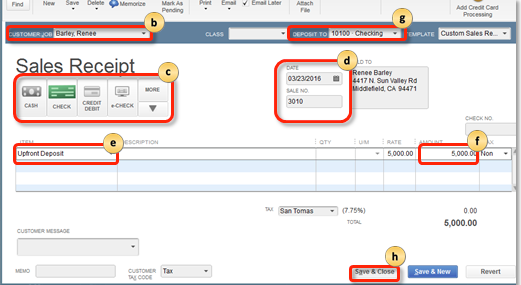
Accurately recording and managing customer deposits and retainers in both QuickBooks Desktop and QuickBooks Online is critical for maintaining precise financial health and ensuring tax compliance. These advance payments must be treated strictly as liabilities (unearned revenue) upon receipt, not as immediate income, to avoid overstating profits and tax obligations according to GAAP and IRS guidelines. The central workflow involves creating a specific liability account, such as “Trust Accounts – Liabilities,” and a linked deposit item. Users must then correctly record the initial payment via a sales receipt and, upon service completion, apply the deposit as a negative line item against the final invoice to officially convert the liability into earned income. For users maintaining separate trust accounts, a final bank transfer must be documented to move the earned funds into the main operating account. Following these steps and regularly reconciling the liability account helps businesses prevent common errors, such as misstating revenue on cash basis reports, and provides a clear, audit-ready paper trail for all client funds.
Highlights (Key Facts & Solutions)
Retainers in QuickBooks
Retainers and deposits are defined as advance payments which are made by the clients to secure the services or products which you provide. In QuickBooks, controlling these payments ensures correct accounting and maintains trust with the clients.
When recording customer deposits in QuickBooks, whether using the Desktop or Online version, there are several important points to consider to ensure accurate financial management.
If you receive upfront deposits or retainers for products or services, you must take many steps to account for that money. To record a customer deposit in QuickBooks Desktop, first set up a liability account and create an item for the deposit. Record the deposit via “Enter Sales Receipts,” then create invoices and apply deposits as credits or line items on those invoices.
Following the step-by-step information below:
When you accept the upfront deposits or retainers prior, you’re required to set up a current liability account for them. This step needs to be taken before as the upfront deposits and retainers are defined liabilities, not income, even though you deposit your money into a bank account.
To create a liability account, follow the steps mentioned below:
Note: You need to set up an account with a zero opening balance, except you are tracking the existing upfront deposits or retainers.
Once the account is created, then you need to create an item to utilize when recording the upfront deposits or retainers.
To receive the upfront deposits or retainers, you should set up an item to use when you enter the associated transactions.
This item is related to the liability account you have to set up to record upfront deposits correctly.
To create an item, follow the steps mentioned below:
Now, you have the choice to utilize this item to note upfront deposits or retainers you receive.
When you accept an upfront deposit or retainer from a customer, you are supposed to record it.
The deposit and retainer are recorded as a liability.
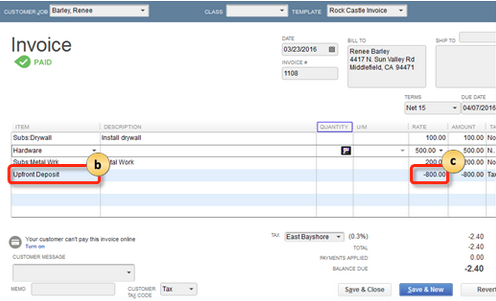
When you accept a retainer or an upfront deposit for a product or service, you’re supposed to make an invoice for that product or service.
To create an invoice, follow the steps mentioned below:
When you offer the product or service for which you’ve received the upfront deposit or retainer, and it’s time to collect payment, you have the option to apply the upfront deposit or retainer as payment on the invoice. This shifts the deposit from the liability account to your income account. There are two ways you can do this.
The sections below provide the steps for each method. Choose the method best suited for your business.
Option A: Enter upfront deposits or retainers as line items
You can add an upfront deposit or retainer as a line item to a customer’s invoice, which will subtract the deposit amount from the invoice’s total.
Follow the mentioned step below to enter an upfront deposit or retainer as a line item on an invoice:
On the invoice, the deposit is entered, and the amount due is decreased.
If the deposit that is applied is for the full amount of the invoice, then the transaction is marked as paid.
Option B: Apply upfront deposits or retainers as credits
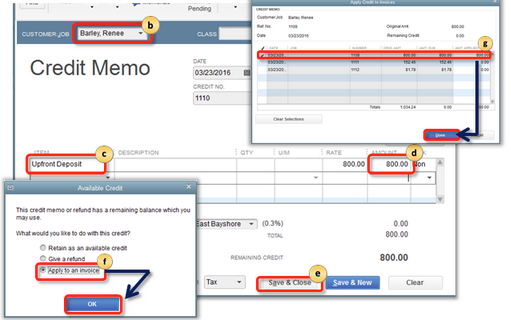
If you’ve applied an upfront deposit or retainer to a customer’s invoice, then you can apply the upfront deposits or retainer as a credit towards paying the invoice by following the steps below:
The upfront deposit or retainer is credited to the specified invoice.
To handle a cancelled job with an upfront deposit, either retain part or all of it by creating an invoice with a negative deposit amount, or issue a full refund via a credit memo. Suppose a customer cancels a job for which you’ve received an upfront deposit or retainer; the deposit doesn’t stay as a liability.
There are two options through which you can handle initial deposits or retainers for cancelled orders, depending on your business process:
The following points give the detailed steps for each option.
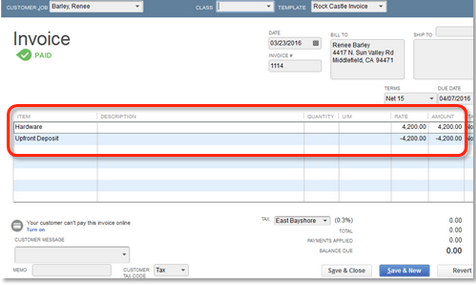
Option A: Retain all or part of the deposit of an upfront deposit or retainer
To keep all or a section of the deposit after a job or order gets cancelled:
The section of the upfront deposit or retainer you keep is recorded as income, and the part you don’t keep is recorded as refunded to the customer.
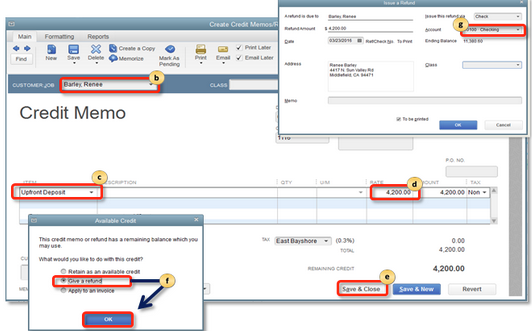
Option B: Repay an upfront deposit or retainer
Follow the steps mentioned below to issue a refund:
You have the option to specify how to refund the customer utilizing the options on the Issue this refund via drop-down section.
The refund is provided for the full amount of the upfront deposit or retainer.
Some businesses collect retainers or deposits from customers before performing any services. When they invoice customers for services, the money from the deposits is used to pay the invoices.
You can establish a deposit or retainer process for your company in QuickBooks Online. The retainer or deposit is recorded as a liability to indicate that, although your business is holding the money from a deposit or retainer, it will be used to pay for the services. Upon invoicing the customer and receiving payment, you will convert the liability into income.
To record a customer deposit in QuickBooks Online, first create a liability account and a retainer item. Then, record the deposit via a sales receipt or invoice, and convert it to income upon invoicing. If using a separate trust account, transfer funds to your operating account once income is recognized.
Following the step-by-step information below:
First, you must create a liability account to keep track of the money you’ve received from your customers.
The retainer item can be selected when generating an invoice or sales receipt to document a deposit or retainer payment.
Only some people are required to complete this step, so follow this step only if you keep the money from customer retainers and deposit it in a different trust account.
If you keep your money in an operating account, then this method is unnecessary. When you’re in doubt, try to reflect on your real-world situation as much as possible.
Once the account is set up and the retainer or deposit item, you can start making the Sales receipts for the deposits or retainers you receive.
If you would like to invoice customers for deposits or retainers rather than receiving them directly, jump to Option 2.
Option 1: Create a sales receipt
Moreover, adding the retainer or deposit amount to the specified bank account increases the amount in your liability account to appear that the funds are not yet yours and should not be treated as income until a later time.
Option 2: Invoice customers for deposits or retainers
Rather than creating Sales receipts, you also have the option to invoice customers. Here’s how.
All the steps are similar to creating a Sales receipt, except you will select a Deposit to account once you receive payment against the invoice.
Note: Cash-basis reports will not reflect deposits/retainers considered received until the invoice is paid in full. Consult with your accountant regarding a workaround that includes a journal entry.
When you charge for the services you’ve performed for your customers, you can turn the retainer or deposit you’ve previously received as a credit on an invoice and accept it as payment.
Note: An invoice can have a zero total, but it cannot have a negative one.
This reduces the amount in your liability account and credits it towards your customer’s invoice, making it into income. The money becomes yours.
If you’ve created a different trust liability account to hold retainers or deposits, once the retainer is turned into income, you can move that money to your operating bank account.
The funds are documented as transferred from the designated trust account to your business’s operating account.
Recording customer deposits accurately is essential for maintaining precise financial records and building client trust. QuickBooks Desktop and Online offer tailored tools to manage deposits and retainers efficiently. This guide walks you through essential steps to set up liability accounts, record deposits, apply them to invoices, and handle refunds. By following these practices, businesses can avoid common accounting errors, ensure compliance, and improve cash flow management. Whether you’re new to QuickBooks or looking to refine your process, this guide equips you with clear, actionable insights for seamless deposit management.
Customer deposits and retainers differ in purpose, timing, and accounting treatment. Deposits are funds given before delivery of goods or services. Retainers are advance payments to secure ongoing services. Properly distinguishing these helps avoid misclassifying liabilities and income, ensuring accurate financial reporting. For example, deposits must be tracked as liabilities until service completion, while retainers may be recognized as income over time. According to accounting standards, mixing these can cause tax errors, mislead stakeholders, and complicate audits. In 70% of small businesses, unclear deposit handling leads to cash flow issues. Clear differentiation supports compliance, improves transparency, and builds client trust.
Many businesses make five common mistakes when recording customer deposits in QuickBooks. First, 60% fail to set up a separate liability account, mixing deposits with income. Second, 45% forget to apply deposits to invoices, causing overstated liabilities. Third, 50% do not reconcile deposits regularly, leading to discrepancies. Fourth, 30% neglect tracking deposits by customer, reducing reporting accuracy. Lastly, 40% incorrectly refund deposits without proper documentation. Avoiding these errors ensures precise financial records, simplifies audits, and improves cash flow visibility. Proper training reduces mistakes by 70%, helping businesses maintain trust and compliance effortlessly.
Customizing liability accounts in QuickBooks helps track various deposit types accurately. For example, 3 main categories are customer deposits, retainers, and security deposits. Assigning separate accounts for each enhances clarity and financial control. Businesses using 2-5 liability accounts report 30% fewer reconciliation errors. This practice simplifies month-end closing and audit preparation. Tailored accounts allow detailed reporting by deposit type, improving decision-making. For companies handling over 100 deposits monthly, customization boosts efficiency by 40%. Clear segregation prevents misstatements, aligns with accounting standards, and builds stronger client confidence through transparent records.
Managing partial deposits and retainers accurately in QuickBooks is critical for cash flow and client relations. Around 35% of businesses receive partial payments, requiring clear tracking to avoid revenue confusion. Recording partial deposits as liabilities until service completion ensures precise financial statements. Applying portions of retainers against invoices prevents double counting and maintains balance accuracy. QuickBooks lets you split payments, improving transparency and reporting by 25%. Clear documentation of partial payments reduces disputes and accelerates payment reconciliation by up to 30%. Efficient handling supports better forecasting, client trust, and compliance with accounting principles.
Reconciling customer deposits monthly prevents errors and ensures accurate financial records. Best practices include matching your account balances with monthly bank statements to catch discrepancies early. Use QuickBooks reports to verify deposit liabilities and confirm they align with invoices. Around 80% of businesses that reconcile monthly avoid cash flow misstatements. Set reminders to perform reconciliation within 5 days of month-end closing. Document any adjustments with explanations to support audits. Consistent reconciliation improves financial visibility, reduces errors by 40%, and builds stakeholder confidence. Automating reconciliation can save up to 3 hours weekly, boosting efficiency.
Managing customer deposits effectively is critical for maintaining financial accuracy, ensuring regulatory compliance, and building long-term trust with clients. In QuickBooks, whether using the Desktop or Online version, deposits and retainers must be handled with strategic foresight — not just recorded as transactions, but aligned with broader cash flow, reporting, and client management goals. This guide offers strategic insights into optimizing the deposit process, minimizing common accounting pitfalls, and leveraging QuickBooks features to transform deposit handling into a streamlined, audit-ready, and client-friendly operation. By refining your deposit management strategy, you not only protect your business from financial misstatements but also position it for scalable, client-centric growth.
Monitoring customer deposit liabilities through QuickBooks reports ensures accurate financial oversight and accountability. QuickBooks offers specialized liability and customer reports that track deposits in real-time. About 75% of businesses using these reports detect discrepancies early, reducing errors by 40%. Regularly reviewing the “Accounts Receivable Aging” and “Liability Account” reports helps reconcile deposits with invoices efficiently. Customizing report filters allows tracking deposits by customer, date, or job, improving cash flow analysis. Using these reports monthly supports timely decision-making, audit preparedness, and strengthens client trust by demonstrating transparent accounting practices.
Automating deposit tracking with QuickBooks integrations streamlines accounting and reduces manual errors by up to 50%. Tools like payment processors and CRM software sync deposits directly into QuickBooks, updating liability accounts instantly. Over 60% of businesses report saving 3+ hours weekly by automating deposit entries. Automated workflows improve accuracy in applying deposits to invoices, preventing double entries. Integration also enables real-time cash flow visibility, helping businesses forecast more reliably. By reducing administrative tasks, automation allows finance teams to focus on strategy and compliance, enhancing overall operational efficiency.
Customer deposits play a crucial role in managing business cash flow by providing upfront working capital. Approximately 65% of small businesses rely on deposits to fund operational expenses before service delivery. Properly recorded deposits ensure liquidity, reduce reliance on credit lines, and improve budgeting accuracy. Mismanagement of deposits can cause cash shortages and disrupt vendor payments. Tracking deposits as liabilities helps distinguish between available cash and owed income. Timely conversion of deposits into revenue, after service fulfillment, strengthens cash flow forecasting and financial stability, supporting sustainable business growth and client trust.
Customer deposits and retainers have distinct tax implications that businesses must handle carefully. Deposits are not taxable until goods or services are delivered, while retainers may be taxable based on contract terms. Misreporting can lead to penalties, with 40% of small businesses flagged during audits due to incorrect timing of income recognition. Recording deposits as liabilities delays tax liability until conversion to income. Consulting a tax professional ensures alignment with local laws and GAAP standards. Accurate classification helps avoid double taxation, ensures compliance, and protects the business from legal and financial risks during audits.
Training your team to handle deposits and retainers in QuickBooks boosts accuracy, compliance, and efficiency. Businesses that implement structured training reduce entry errors by 55% and improve reconciliation speed by 35%. Staff should learn to set up liability accounts, record payments correctly, and apply them to invoices without misclassifying income. Using real-world scenarios in training ensures clarity and retention. Regular refresher sessions help teams stay updated with QuickBooks updates and tax regulations. Clear internal procedures supported by training minimize miscommunication, ensure audit readiness, and enhance client satisfaction through reliable financial practices.
Recording customer deposits in QuickBooks is very easy and helpful. By constantly recording these payments, businesses can improve their cash flow management and can promote strong client relationships.
Under generally accepted accounting principles (GAAP), a customer deposit or retainer is classified as a liability because it represents an unfulfilled obligation to the customer.
The transfer transaction in QuickBooks Online should only involve your bank accounts, as the accounting adjustment (converting the liability to income) is completed on the customer invoice.
The required steps are:
Using the correct Account Type and Detail Type ensures your deposit account is properly classified on your Balance Sheet as a current obligation.
The required setup in QuickBooks Online is:
This classification places the account in the Liabilities section of your Balance Sheet, correctly indicating money owed to others, and not in the Income section of your Profit & Loss report.
The recommended workflow involves using the Undeposited Funds asset account as a temporary holding area to ensure your books exactly match your bank statements.
The best practice workflow is:
Goal: This method prevents reconciliation errors because the single amount recorded in QuickBooks via the “Make Deposits” window will perfectly match the single deposit line item on your bank statement.
You must use the Create Credit Memos/Refunds function to reverse the original liability and generate the refund check in a single, auditable process.
The correct procedure is:
This process ensures the liability account balance is reduced by the refund amount, and the bank account accurately reflects the outflow of cash.
The primary risk is misstated financial health due to an inflated Balance Sheet.
Failing to reconcile means:
This is the correct, intended behavior under cash basis accounting when the deposit is properly recorded as a liability.
The cause and effect are:


