 Add As A Preferred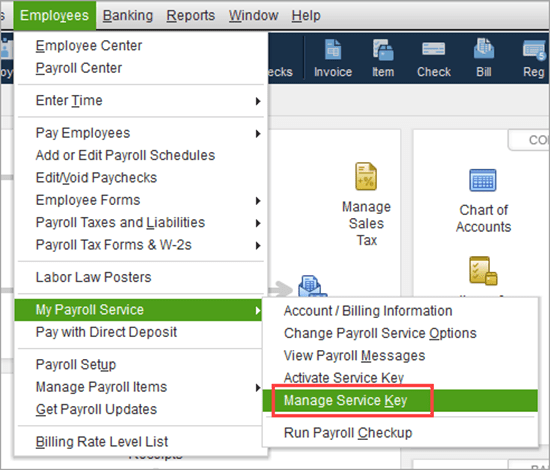
Payroll updates in QuickBooks Desktop Pro or Premier can fail due to outdated software, expired Intuit sessions, damaged company files, inactive subscriptions, incorrect system settings, or unstable internet connections.
These failures prevent the system from downloading tax table updates or verifying payroll credentials, which can stop paycheck processing and delay tax filings.
QuickBooks displays specific error codes during update failures—such as PS032, 15222, or 15106—each pointing to a different system or configuration issue that blocks the update.
When payroll updates don’t apply correctly, core features stop working. This includes tax form generation (Form 941, W-2), direct deposit, payroll tax table downloads, employee record access, and automated compliance too.
This section diagnoses update errors in QuickBooks Desktop Pro or Premier. Each case outlines a specific failure point and provides exact steps to resolve it, from reactivating subscriptions to repairing data files.
Case 1: Outdated QuickBooks Desktop Version
QuickBooks updates may fail if you’re using an outdated version.
Follow these steps to update QuickBooks Desktop:
If these steps don’t work:
Case 2: Expired or Inactive Payroll Subscription
If your payroll status shows “Not Active” or “Expired,” reactivate it using either of the following methods.
Note: Reactivation may take up to 24 hours to reflect in QuickBooks.
Case 3: PS032 Error – Damaged Payroll Tax Table
The PS032 error appears when QuickBooks fails to validate the payroll tax table file, usually due to damage or corruption.
To resolve:
Case 4: Error 15222 – Internet Connection Problem
Error 15222 occurs when QuickBooks can’t connect to the update server due to a weak or unstable internet connection.
To resolve:
If the page loads completely, your internet is working fine.
Case 5: Error 15271 – SSL Conflict or File Corruption
This error usually occurs during payroll updates when system files are corrupted or security software interferes.
If the problem persists, take the following steps to ensure that your QuickBooks Pro or Premier payroll subscription is functioning correctly.
Case 6: Payroll Subscription Not Activated After Software Upgrade
After updating QuickBooks, your payroll service may show as inactive if the service key is not recognized.
Case 7: Cancelled Payroll Subscription
Your QuickBooks payroll subscription may be cancelled due to:
To reactivate your account follow these steps, and gain access to payroll services.
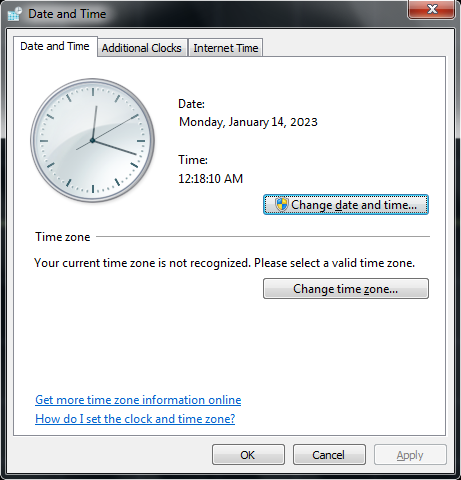
Case 8: Incorrect System Date and Time Settings
Incorrect date and time settings may prevent QuickBooks from validating your payroll subscription.
If the system date and time are out of sync, the user may encounter issues when updating their QuickBooks Desktop Pro or Premier payroll subscription.
Follow the below mentioned steps to adjust Date/Time:
Case 9: Incorrect Firewall or Security Settings
Your firewall or antivirus may block QuickBooks from connecting to Intuit’s update servers.
To resolve:
Case 10: Error 15106 – Update Program Cannot Be Opened
This error usually occurs due to antivirus interference or a corrupted update folder.
QuickBooks Error 15106 usually occurs when the update program cannot be opened or is damaged.
To fix this, follow these steps:
Keeping QuickBooks running smoothly requires proactive steps. Here’s a quick guide to essential weekly maintenance, update practices, and security tips to protect your data and payroll operations.
You can’t update payroll in QuickBooks due to the following reasons:
After May 31, 2025, QuickBooks Desktop 2022 will no longer automatically calculate payroll taxes or provide payroll tax forms. As a result, your paychecks may be inaccurate, and your subscription will be deactivated.
After a software upgrade, QuickBooks might not automatically reconnect to your payroll subscription. To correct this, go to Employees > My Payroll Service > Account/Billing Information and confirm your payroll is active. Reactivate it if necessary.
Here’s how:


