Excerpt:
QuickBooks Error 15106 occurs when you attempt to update QuickBooks but encounter issues such as lacking administrator privileges or antivirus software blocking the update. This error can hinder payroll updates, system performance, and data synchronization. To resolve it, disable antivirus software, ensure you're logged in as an administrator, adjust User Account Control (UAC) settings, and follow steps to reset QuickBooks updates or repair its installation. Addressing these causes promptly restores proper functionality.
 Add As A Preferred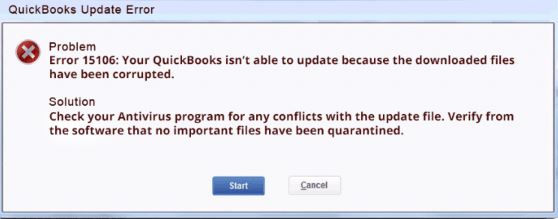
QuickBooks Error 15106 is a system-generated payroll update failure that typically occurs during the software’s update or maintenance phase. It indicates an interruption in the update process that results from restricted administrative permissions, antivirus or security software interference, or damaged QuickBooks program files. The error prevents QuickBooks Desktop from downloading or applying essential payroll updates, which can directly affect the accuracy of employee records and compliance functions.
This article explains QuickBooks Error 15106, its main causes, and reliable methods to fix it. The error occurs when administrative permissions are restricted, antivirus software blocks QuickBooks processes, or update files are corrupted. These issues prevent the payroll service from downloading or applying the latest updates, which can delay payroll processing and compromise software performance.
Error 15106 appears when users update QuickBooks Desktop and shows one of two messages: “The update program cannot be opened” or “The update program is damaged.”
Intuit names a blocking antivirus app as one of two documented triggers. The block keeps the update program from starting, which matches the “cannot be opened” message.
Intuit names the second documented trigger as a user who is not signed in to Windows as an admin. A standard account can’t run the update program with full access.
The “update program is damaged” message points to the update files themselves. Intuit’s steps include renaming the QuickBooks update folder inside the Components directory (for example, DownloadQB18 for 2018), which shows that this folder affects whether a new update can run.
Intuit directs users who have no antivirus app to reinstall QuickBooks Desktop in Selective Startup, so the program installation itself is a suspect. Third-party sources name two installation conditions.
QuickBooks Error 15106 occurs when the QuickBooks Desktop update process is interrupted due to restricted administrative access or interference from antivirus software. This error typically appears during a payroll or software update, indicating that QuickBooks is unable to open or execute the update program because it has been blocked or damaged.
When QuickBooks Error 15106 occurs (typically during a QuickBooks Desktop or payroll update), users typically see one of these messages:
15106 belongs to the 15XXX update-error series, most commonly appearing on machines where antivirus software is actively scanning the update download. Per Intuit’s own troubleshooting article, it resolves in most cases by running QuickBooks as Administrator and, if needed, temporarily allowing QuickBooks through antivirus software.
Confirmed via Intuit’s own “Fix error 15106 in QuickBooks Desktop” support article.
QuickBooks Error 15106 affects the software’s update process, preventing payroll and program updates from installing properly. It may cause repeated update failures, system slowdowns, or data synchronization issues in multi-user mode, reducing overall QuickBooks performance and stability.
To resolve QuickBooks Error 15106, ensure proper user permissions, schedule backups, and disable conflicting add-ons. Restart QuickBooks processes, run Quick Fix My Program, adjust User Account Control, and check antivirus settings.
To close all QuickBooks related programs running in the background, follow these steps:
Step 1: Hold and press Ctrl + Alt + Delete to open the Task Manager.
Step 2: Click on the More Details dropdown at the bottom.
Step 3: Hit the Processes tab.
Step 4: Click the Image Name column to index all open processes.
Step 5: Choose and close every single QuickBooks process by right-clicking on the process name and selecting End Task.
Step 6: Once all the QB Processes are closed, exit from the Task Manager and try logging in to the QB company data file.
Step 7: If you continue to experience issues with QuickBooks, move to the next solution.
If you continue to experience issues with QuickBooks, move to the next solution.
You can use the Quick Fix My Program tool which is available under QuickBooks Tool Hub Tool. When you run Quick Fix My Program in your system, it will shut down any open background processes QuickBooks uses and run a quick repair on your program. This process helps you to diagnose and fix the errors that are related to your program or data.
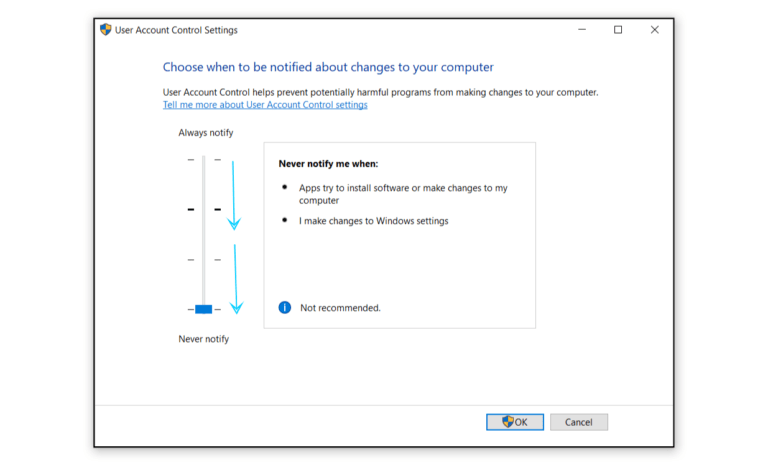
Follow these steps to disable the User Account Control (UAC) on Windows:
Step 1: Press the Windows+R button simultaneously to display the Run window.
Step 2: Type control panel and click on OK.
Step 3: Select User Accounts.
Step 4: Click on User Accounts again.
Step 5: Choose the control settings named Change User Account Control Settings.
Step 6: A prompt will be displayed. Select Yes to proceed.
Step 7: Move the slider to the bottom-most position.
Step 8: Select Never Notify if you want to disable UAC.
Step 9: Click on OK.
Step 10: Now set the slider and then restart the system.
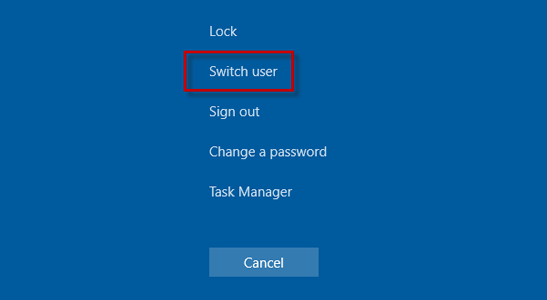
First, login to the admin account by switching the account:
Step 1: Click on the Start menu.
Step 2: Click on the Switch user option from the bottom right-side arrow.
Step 3: Enter the admin credentials.
Step 4: This will easily switch the user account to the admin account.
Step 5: Now, Login with Admin credentials:
Now, Login with Admin credentials:
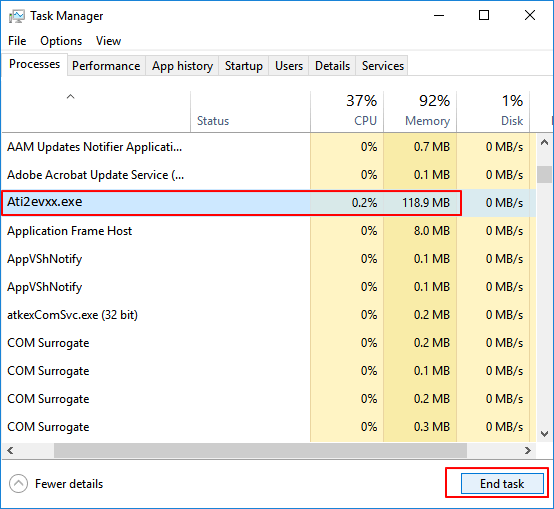
To fix QuickBooks error code 15106, first uninstall the antivirus program:
Step 1: Open the Task Manager by pressing Ctrl + Shift + Esc keys.
Step 2: Go to the Processes tab and search for the antivirus software.
Step 3: Select the antivirus software and click on the End Process button.
Note: If you encounter any issues while performing the task, it is important to uninstall the antivirus software.
To rename the QuickBooks update folder:
Step 1: Open the File Explorer by pressing Windows + E keys.
Step 2: Go to the following path:
Step 3: Right-click the downloadqbXX folder and select the Rename option.
Step 4: Replace the XX with the version year of QuickBooks.
Step 5: Add the .old extension to the end of the name.
Follow these steps to reset QuickBooks updates:
Step 1: Open QuickBooks Desktop.
Step 2: Click on the Help button.
Step 3: Select Update QuickBooks.
Step 4: Click on the Options button.
Step 5: Choose Mark all.
Step 6: Click Save.
Step 7: Click on the Update now button.
Step 8: Check the Reset Update box.
Step 9: Click Get Updates.
You can run the reboot.bat file to limitate the unexpected QuickBooks behavior and problems. This will enable the system to re-register .DLL and .OCX QB files on Microsoft Windows.
Step 1: Restart your system.
Step 2: Right-click the QuickBooks application and select Properties.
Step 3: In the Properties tab, click on Open File Location.
Step 4: In the search space at the upper right corner, type reboot.bat.
Step 5: When you see the reboot.bat or reboot file, right-click and select Run as Administrator option.
Step 6: Windows will close after the reboot.bat file runs.
Follow the instructions to repair QuickBooks Desktop installation:
Step 1: Press the Windows + R buttons to open the Run window.
Step 2: Type appwiz.cpl in the Run window and hit Enter.
Step 3: The Uninstall or Change a Program display will open. Go through the list of installed programs and find QuickBooks.
Step 4: Double-click on QuickBooks and click on the Change/Remove button.
Step 5: Click on Next and select the Repair option.
Step 6: Click on Next again and initiate the repairing of QuickBooks installation by clicking on Repair.
Step 7: If you receive a “File in Use” message, choose the Ignore button.
Step 8: Start with the repairing procedure and restart the system.
Step 9: Open QuickBooks software and visit the QuickBooks has recently downloaded an updated display.
Step 10: Click on the Install Now button.
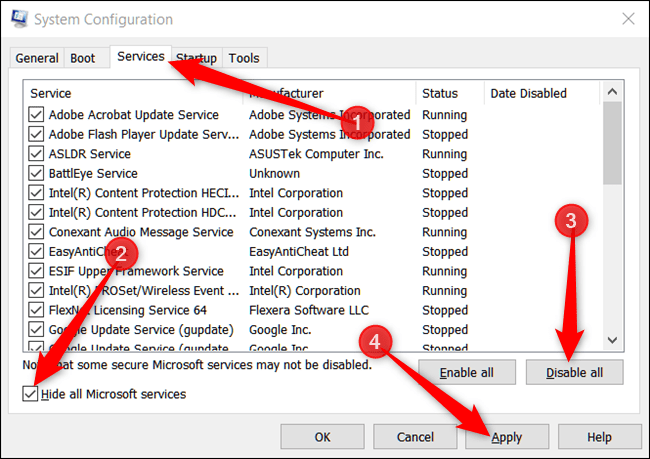
Follow the instructions to backup your QuickBooks data and log in to the system using Selective Startup Mode:
First, you need to create a backup of the company files and a copy of the QuickBooks desktop or product and license information.
To switch to Selective Startup Mode, follow these steps:
Step 1: Press the Windows + R keys to open the Run box.
Step 2: Type msconfig and click the OK tab.
Step 3: Navigate to the General tab and select the Selective Startup mode. This will load the system services.
Step 4: Check the box labeled “Hide all Microsoft services” under the Services tab.
Step 5: Click the “Disable all” button after checking the “Hide all Microsoft services” box.
QuickBooks Error 15106 is a common payroll update issue that arises from restricted administrative access, antivirus interference, or incomplete installations. The error disrupts the update process and affects payroll accuracy and system performance.
By following structured troubleshooting steps such as adjusting User Account Control (UAC) settings, running Quick Fix My Program, or reinstalling QuickBooks, users can restore full administrative control, adjust antivirus configurations, and ensure that all system updates are properly installed.
Most of the time, it’s just a false alarm. Some antivirus tools especially ones with “Spy Sweeper” protection like Webroot are very strict. When QuickBooks updates, it needs to change certain program files. Your antivirus sees this and thinks a virus is trying to modify important files, so it blocks the update and causes Error 15106.
The update is safe your antivirus is just being extra cautious. Adding the QuickBooks folder to your antivirus “allowed” or “whitelist” list usually fixes the problem.
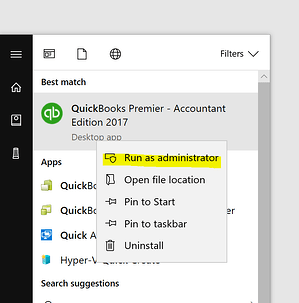
There is a difference between being an Admin and running as one. Even if your Windows user profile has administrative privileges, QuickBooks doesn’t always utilize them automatically. Error 15106 often pops up because the software is trying to write new data to the Program Files folder a highly protected area of Windows and the application itself wasn’t launched with elevated rights.
You need to specifically right-click the QuickBooks icon and select “Run as Administrator” to force Windows to grant the software the “write access” it needs to install the update.
UAC blocks applications from making system-level changes without admin approval. Since payroll updates replace protected program files, strict UAC settings may silently deny the process. That’s why running QuickBooks as an Administrator or temporarily adjusting UAC helps many users bypass the blocker and complete the update without errors.
Payroll updates run an executable called the QuickBooks Update Agent, which some security tools mistakenly treat as a potential threat because it modifies program files and downloads patches. Webroot, in particular, is known for aggressively blocking QB’s updater. When the updater is quarantined, renamed, or restricted, QuickBooks throws Error 15106. Adding QuickBooks program folders to the antivirus exception list usually resolves the conflict.
A digital signature certificate will not fix QuickBooks error 15106, which is usually caused by issues like antivirus interference, insufficient permissions, or a corrupted update file. It does not address these underlying problems.
Error 15106 is usually computer-specific, not company-file specific. It stems from local machine permissions, UAC settings, antivirus blocks, or damaged update components. That means one user on the network might see it repeatedly while everyone else updates Payroll successfully. This is why IT teams often troubleshoot the affected workstation individually rather than the entire QB environment.


