Excerpt:
Reactivating a QuickBooks Desktop Pro or Premier Payroll subscription is a critical procedure that ensures uninterrupted payroll processing and tax compliance. The initial step is mandatory: users must check the subscription status, as the solution differs based on whether the service is genuinely Inactive/Canceled (requiring renewal) or simply "Subscribed" but non-functional (requiring a technical fix). For technical issues, the core reactivation method involves performing a Payroll Update to refresh tax settings, followed by accessing the Manage Service Key window to Remove and immediately re-add the existing service key . This precise removal and re-addition clears any corrupt cached data, forcing a fresh, clean registration with Intuit's servers to restore service functionality.
 Add As A Preferred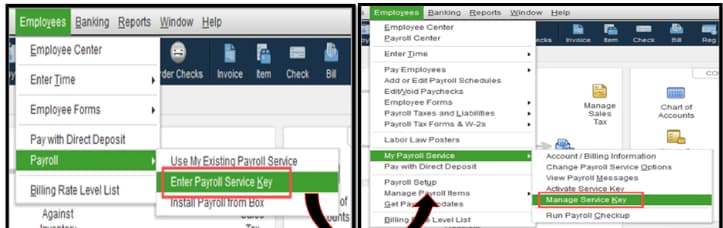
Highlights (Key Facts & Solutions)
Overview
To re-activate QuickBooks Desktop Pro or Premier Payroll Subscription, first log in as an administrator and then under the menu item “Employee”, go to “My Payroll Services/ Payroll Services” and then to “Manage Service Key”.
Before reactivating payroll subscription services, you must check the status (active or inactive) and version (Assisted or enhanced) of payroll services. Depending on the status of subscription the method of reactivation will be different.
If your payroll subscription is already active, then you need to just reactivate your payroll subscription by entering a new service key but if your subscription is inactive or cancelled then you need to first renew your subscription and then reactivate it.
When the payroll status shows, “subscribed”, then payroll inactivation can be due to the reasons given below:
In the above cases, you do not need to purchase or renew the subscription because it is already active.
Below given are the cases, where payroll subscription is inactive and you need to first renew the payroll subscription and then reactivate:
If your subscription is inactive or cancelled, you must renew it by following the necessary steps before reactivating it.
Step to Check the Payroll Subscription Status
Step to Check the Payroll Subscription Version
There are 3 methods, including a pay payroll update to refresh your payroll settings, reactivate your payroll subscription, and contact desktop support team for re-activating your QuickBooks Desktop pro or premier payroll subscription.
Method 1: Payroll Update to Refresh Your Payroll Settings
To update your payroll settings, you need to follow the steps given below, as it is important to ensure accurate employee compensation, compliance with changing tax laws, prevent errors in paychecks, and maintain up-to-date records.
Step 1: Open your QuickBooks Desktop company file
Method 2: Reactivate Your Payroll Subscription
After updating your payroll setting, you need to reactivate your payroll subscription by following these steps:
“If prompted, sign in using your Intuit Account login.”
“If necessary, provide updated payment information to complete the reactivation process.”
Method 3: Contact Desktop Support Team
Reactivating your QuickBooks Desktop Pro or Premier Payroll subscription ensures uninterrupted payroll processing and compliance with tax updates. Always check your subscription status first—renew if inactive, then update your service key to reactivate.
Checking your payroll status (Active/Inactive) and version (Enhanced/Assisted) is the necessary first step because it determines the correct path for resolution, preventing wasted effort.
Failure to check the status may lead to attempting technical fixes when a simple billing update is required. The status can be verified by navigating to Employees > My Payroll Service > Account/Billing Info.
When your billing status is active (“subscribed”) but the payroll service is non-functional, the issue is typically a technical mismatch rather than a billing problem.
Common causes for this disruption include:
Performing a Payroll Update before attempting to reactivate the service key ensures that your software is running the latest tax tables and payroll parameters, which is essential for successful authentication.
The step of removing the existing service key and then immediately re-adding it is an expert troubleshooting technique used to clear any cached or corrupted key data.
If the subscription is inactive due to billing issues, such as an expired card or failed payment, the primary cause is outside the QuickBooks software. You must renew the subscription first.
Attempting to reactivate the service key without a successful renewal will not work, as the service remains canceled or suspended.
The Disk Delivery Key is a licensing component primarily associated with older or retail-box versions of QuickBooks payroll, used to validate the installation source. It is sometimes requested during reactivation.
If prompted during the reactivation process, you must re-enter this key to complete the re-registration of the service.
If both the Payroll Update (Method 1) and the Service Key reactivation (Method 2) fail, contacting support directly from within the software is the most efficient escalation method.
The steps for in-product escalation are:


