Excerpt:
If your QuickBooks Desktop Pro 2024 subscription shows as expired despite being active, it’s likely due to a temporary licensing sync issue, outdated billing info, or firewall interference. This guide walks you through practical solutions—from syncing license data and updating billing to disabling antivirus blocks—to quickly restore access. It helps resolve sudden access loss by aligning system settings with Intuit’s validation process, ensuring uninterrupted business operations.
 Add As A Preferred
Hey, I really need help with this because it’s starting to impact my work. My name is Lorrie Smith, and I’ve been using QuickBooks Desktop Pro 2024 for a few months now without any issues. Everything was working fine until today when I tried to open QuickBooks like I normally do, and it suddenly said that my subscription has expired.
This caught me off guard because I already paid for the subscription earlier this year, and my Intuit account still shows that it’s active. I didn’t make any recent changes to my system, and nothing new has been installed or updated. I use this software daily to manage invoices, reconcile accounts, and run payroll, so now I’m stuck and can’t move forward with anything until this gets resolved.
I tried restarting my computer, reconnecting to the internet, and even signing in and out of my Intuit account inside the software, but it’s still throwing the same subscription expired message. I’m not sure if it’s some kind of licensing glitch or a connection issue with Intuit’s servers, but it’s incredibly frustrating—especially when you rely on QuickBooks for your business every day.
Has anyone else experienced this kind of issue recently with QuickBooks Desktop 2024? What did you do to get past it? I’d appreciate any advice or steps I can try, because I really need to get back into my books ASAP.
Thanks,
Lorrie Smith
Hi Lorrie,
Thanks for reaching out — I completely understand how stressful this must be, especially when QuickBooks is such an essential part of your daily work. It’s clear you’ve already taken all the right steps from restarting your computer, reconnecting to the internet to signing in and out of your Intuit account within QuickBooks. This shows how proactive and patient you’ve been, and it truly matters. When QuickBooks suddenly displays a subscription expired message — especially after months of smooth use — it can be both confusing and disruptive.
But the good news is: this is often a temporary licensing hiccup or a network connectivity issue with Intuit’s servers. In most cases, it can be resolved quickly without losing access to your data. We’re right here to walk you through every step and help you get back to your books without any delay.
Even though your account is paid up, encountering a subscription status error in QuickBooks is usually caused by a temporary licensing glitch, a syncing failure with Intuit’s servers, or a local system setting blocking online verification.
Make sure the license number and product code match.
Check your purchase confirmation email for your license number and product code. When you can’t find them, you can sign in to your Customer Account Management Portal to get them.
Search for the sticker on the original CD envelope.
Lorrie, since you’re seeing the “QuickBooks Desktop Pro 2024 subscription expired” message even with an active subscription, it’s most likely a temporary glitch—often related to a licensing sync issue or a brief connection problem with Intuit’s servers. Here’s how you can resolve it and regain full access to your QuickBooks account:
Updating your billing information or payment method helps to avoid payroll service disruptions due to failed transactions, ensure timely subscriptions renewal, maintain accurate account records, and resolve subscription renewal and payment issues before access is restricted.
Regular updates ensure access to the latest tools, automation, performance improvements and critical security patches. To get started, make sure you use a reliable QuickBooks Update Download to protect your financial data from vulnerabilities and cyber threats.
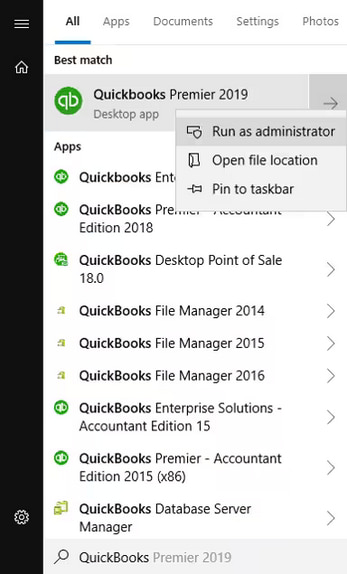
Make sure to run QuickBooks as an Administrator if your QuickBooks Desktop Subscription has expired unexpectedly.
Since QuickBooks Desktop Pro lets 3 users work in the same company file at the same time, syncing your license data with Intuit’s servers helps fix temporary subscription status mismatches and clears out any temporary glitches.
You can manually update your new license info if you install QuickBooks on a computer that doesn’t have internet access.
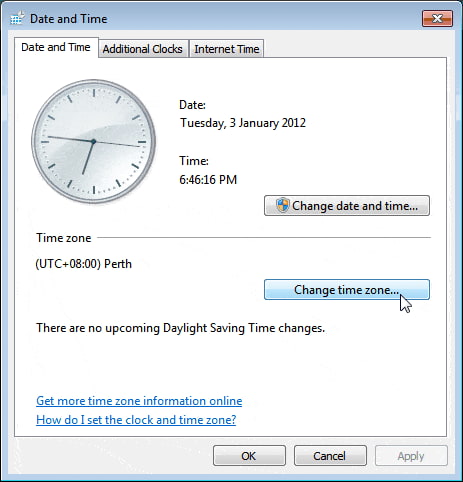
An incorrect or wrong system date and time on your computer can interfere with the update process. To check the system date and time on the computer:
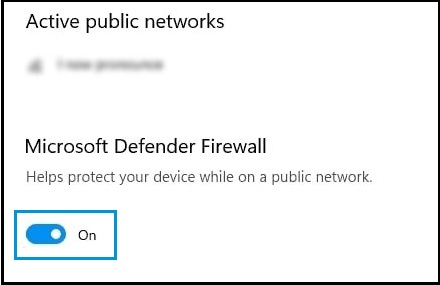
Sometimes, security software like firewalls or antivirus programs can unintentionally block QuickBooks from connecting to Intuit’s servers which can ultimately lead to the subscription expired error.
For Windows 10/11
Managing your QuickBooks license can re-establish the connection between your software and Intuit’s servers, confirming that your subscription is valid. This process won’t affect your company data and can help troubleshoot general registration and licensing issues in just a few clicks.
If you get an error when you use, install, or update QuickBooks, run Quick Fix My Program from the tool hub, and use the QuickBooks install diagnostic tool to fix common errors right away.
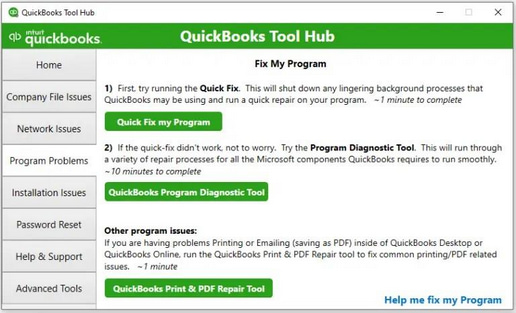
The Quick Fix will shut down any open background processes QuickBooks uses. It’ll run a quick repair on your program.
If you still get the error, follow the next step.
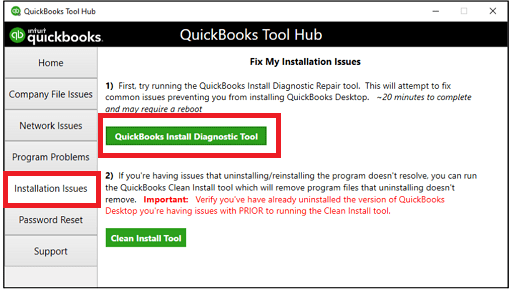
If something went wrong during the QuickBooks installation process, it may cause problems when you try to use it. Run the QuickBooks Install Diagnostic Tool to fix common installation issues.
QuickBooks Desktop saves a file with your product and license info to your hard drive. If there’s a problem with it, the file is easy to restore. Let’s see how to find it.
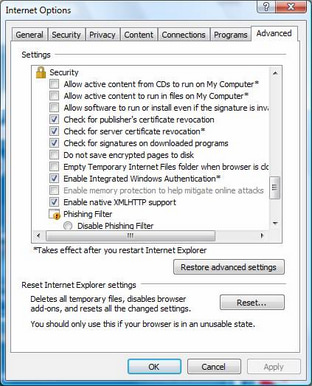
Your unstable and poor internet connection could be the reason for update issues. To test your secure internet connection, open a web browser and visit Chase Banking. If you can’t open the Chase banking web page, you won’t get updates from QuickBooks. Contact your internet service provider (ISP) for further assistance.
If you’re able to find the Chase banking website, open QuickBooks Desktop, and do the following:
QuickBooks Desktop Pro 2024 Subscription has Expired error can be alarming especially when everything was working fine before. But don’t worry — your data isn’t lost, and the issue is usually fixable. This error can temporarily disrupt your workflow, so it’s important to fix it quickly. If left unresolved, it could:
Follow some proactive tips to keep your QuickBooks Desktop running smoothly:
Lorrie, you’re doing an amazing job handling a situation that can frustrate anyone — and I want to remind you that this is only temporary. Most importantly, your data is safe, and you’re not alone in this. You’ve already taken the right steps like restarting your system and reconnecting to the Internet, and with just a little more guidance, you’ll be back to managing your books without missing a beat.
It’s completely okay to feel overwhelmed when things don’t go as planned. But please trust — there is a solution. In this case, it’s just about re-establishing that trusted connection between QuickBooks and Intuit’s servers. Whether you follow the steps above or reach out for a little extra help from QuickBooks support or your IT expert, you’re already moving in the right direction. You’re doing everything right — and we’re right here with you, every step of the way.


