Excerpt:
If you're encountering login issues with QuickBooks Online on Google Chrome, this article provides effective solutions. Common causes include firewall settings, incorrect sign-outs, outdated cache, or conflicts with password managers. The guide recommends troubleshooting steps such as clearing cache, using incognito mode, adding Intuit as a trusted site, and creating a new Chrome user. These actions help resolve login errors, ensuring smooth access to your QuickBooks Online account.
 Add As A Preferred
To fix QuickBooks Online login problems on Chrome, you can troubleshoot by clearing the cache and cookies, using Chrome’s incognito mode, adding Intuit as a trusted site, making sure your browser is up to date, and turning off any extensions that could be interfering with QuickBooks Online.
Intuit’s security features, such as multi-factor authentication (MFA), may also create login issues, if browser extensions or privacy settings prevent required scripts or cookies from being loaded.
Common login issues are caused by:
If these measures do not solve the problem, further investigation of your network settings or a consultation with QuickBooks support may be required.
This error usually occurs due to security measures developed by Intuit. If you want to get rid of this error, you need to update your account to a new Intuit account with enhanced security. If this account appears, the user will need to update to a new Intuit account with better security. When this problem occurs, the error message “Account services unavailable, please try back later” appears.
You may run into the following issues when using Chrome to log into QuickBooks Online:
Google Chrome is a popular browser and a perfect match for accounting software. However, many variables, which we’ll review in more detail in this article, can lead to login problems. Let’s investigate the potential causes of these issues and identify solutions.
When such login issues occur on your browser, you may notice the following error prompt on your screen: “Account services unavailable; please try back later.”
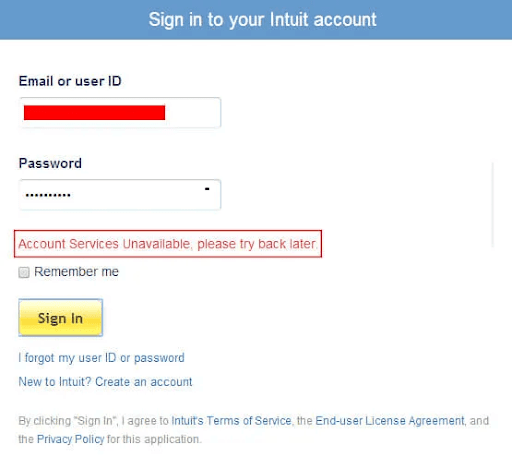
Sometimes, different types of issues can be observed while logging into QuickBooks Online on Google Chrome, which include:
Login issues in QuickBooks Online when using Google Chrome often arise due to a combination of browser conflicts, network restrictions, user account misconfigurations, or server-related disruptions. Cached or corrupted browser data, outdated Chrome versions, incompatible extensions, or blocked JavaScript settings can interfere with how QuickBooks Online loads and operates. On the network side, strict firewall rules, antivirus blocks, or unstable internet connections may prevent access to QuickBooks servers. Additionally, user-side problems such as incorrect credentials, improper logout, or two-step verification errors can interrupt the login flow. In rare cases, server-side outages from Intuit can also temporarily restrict access. These issues can lead to login loops, blank screens, timeouts, or repeated authentication errors. To fix them, users should clear Chrome’s cache, disable conflicting extensions, verify network connectivity, review security software settings, and ensure credentials and two-step verification are correct. To effectively address login issues with QuickBooks Online on Chrome, it’s essential to identify the common causes. The table below highlights several factors that may disrupt the login process.
Common Causes of QuickBooks Online Login Issues on Chrome:
| Error Causes | Description |
|---|---|
| Browser Cache and Cookies | Accumulated cache and cookies in the Chrome browser can interfere with the login process. Outdated or corrupted cache data might prevent the browser from rendering the login page properly. |
| Browser Extensions and add-ons | Certain Chrome extensions or add-ons can conflict with QuickBooks Online’s website, causing login issues. |
| JavaScript or Browser Settings | Incorrect or blocked JavaScript settings in the Chrome browser can prevent the login page from functioning correctly. |
| Network Connectivity | Poor or unstable internet connectivity can lead to timeout issues when attempting to access QuickBooks Online. |
| Firewall and Security Software | Overly strict firewall or security software settings can block the connection to QuickBooks Online servers, causing login problems. |
| Browser Updates | Outdated versions of the Chrome browser might lack necessary security updates or compatibility with QuickBooks Online. |
| User Credentials Issues | Incorrect username or password or account-related issues can lead to login failures. |
| Two-Step Verification | If two-step verification is enabled for your QuickBooks Online account, issues with receiving verification codes can prevent a successful login. |
| Issue | Antivirus or Windows firewall |
|---|---|
| Cause | Antivirus or other Windows firewall applications are blocking QuickBooks from accessing the Internet connection, restricting you from accessing your company files, or restricting you from tracking invoices on the Chrome browser. |
| Solution | It is recommended that you run Chrome Browser in an Incognito Window and add Intuit as a Trusted Site so that such security applications don’t interfere with your software and let you enjoy all its exclusive features. |
| Issue | Inappropriate QuickBook sign-out |
| Cause | Inappropriate sign-out from the previous QuickBooks online session generates errors while logging in to your QBO software with Chrome due to various security purposes released by Intuit. |
| Solution | Restarting your browser is important to fix several issues, such as frozen pages, slow loading times, and crashes, which ultimately help you tackle logic-associated errors. |
| Issue | Saved Login Credentials in Password Manager |
| Cause | The Login credentials of current Chrome users are saved in a password manager, so you are not able to enter your login details on the browser to access QuickBooks Online. |
| Solution | You need to create an Additional Chrome User so that you can access QuickBooks Online software on Chrome without difficulty using your login credentials. |
| Issue | Old History or Cache Issues |
| Cause | Old History or Cache slows down the Browser’s Performance and creates different loading problems when you try to access your company files. This also prevents you from opening your QuickBooks Online software on Google Chrome. |
| Solution | Clearing your Chrome browser’s Cache or History is the only way to root out certain issues, like site loading or formatting problems. It also enables you to log in to QuickBooks Online without any hindrances and integrate it with the Google Chrome browser. |
To effectively address issues with QuickBooks Online not functioning properly on Chrome, users can try the following methods:
These troubleshooting methods will help ensure optimal performance and resolve common technical issues.

Google Chrome can cause login issues for QuickBooks Online, so switching to Internet Explorer allows you to export your data to QuickBooks Desktop and continue to work and transfer their data seamlessly.
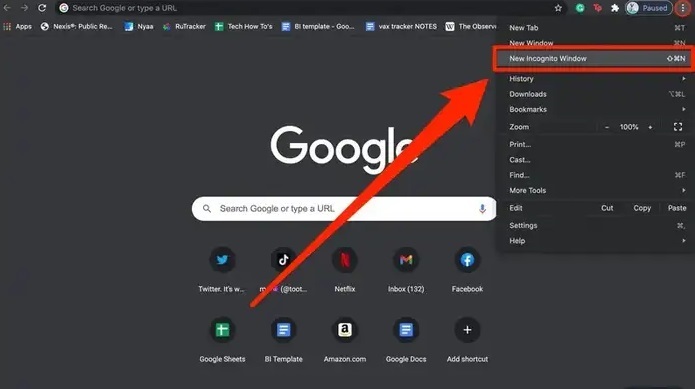
Users can log into the website using Google Chrome’s “incognito mode.” This mode doesn’t save cookies or browsing history, which may cause login issues.
To open incognito mode, follow the below mentioned steps:
Your Google Chrome browser may run slowly because of cached data and old history. To increase the browser’s performance, consider removing browsing history or clearing the cache. This will make the browser function more effectively and help improve the surfing experience.
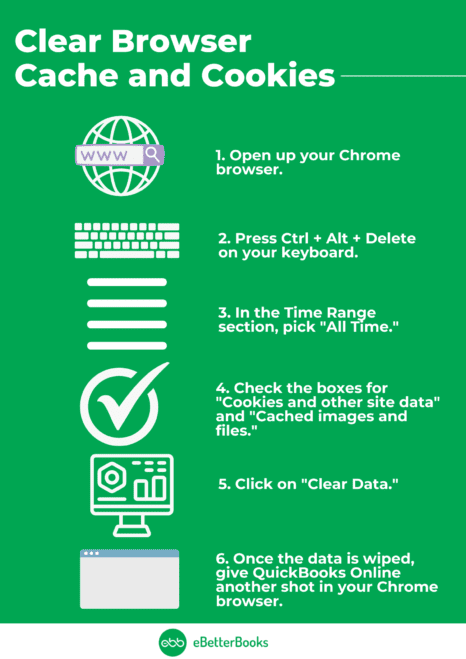
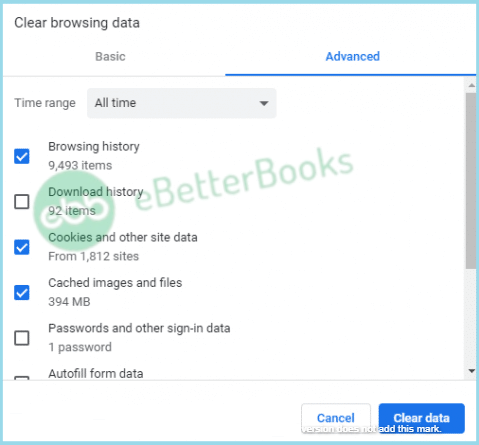
Follow the below mentioned steps to clear browsing data:
Inappropriate sign out from QuickBooks Online can cause login issues when trying to access your account again.
Restarting your browser is important to fix several issues, such as frozen pages, slow loading times, and crashes, which ultimately help you tackle logic-associated errors and allow you to access QBO software on the Chrome browser.
To restart your chrome browser, follow the below mentioned steps:
Adding a new Chrome user separates browsing profiles and helps resolve login conflicts:
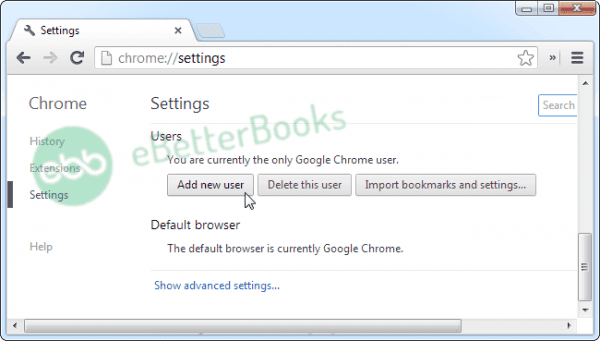
Now that a second user icon has shown in the top left corner of your browser, you can switch between the two users.
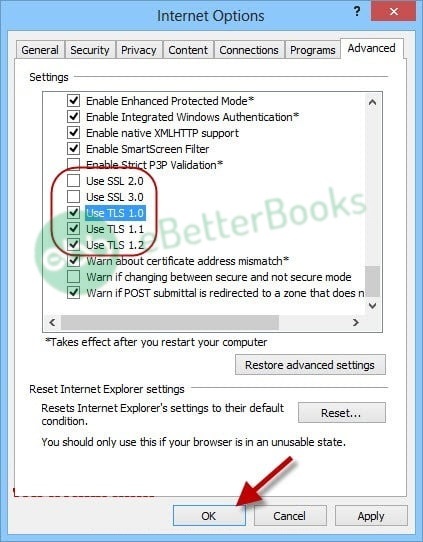
Adjust security settings to medium-high to ensure smooth QuickBooks access:
The main web browser that fully works with QuickBooks is Internet Explorer. Some users choose to use QuickBooks with Mozilla Firefox.
Use Internet Explorer and take the following actions:
When you use Mozilla Firefox:
High privacy settings may block QuickBooks, so follow the below mentioned steps to set your privacy settings:
Sometimes, antivirus and Firewall software can prevent your computer from accessing the QuickBooks server, leading to errors when attempting to load QuickBooks Online on the Chrome browser.
To resolve this issue, review your antivirus settings and ensure that QuickBooks is granted general permissions to prevent any blocking.
The steps for this may differ depending on the antivirus program you are using. You can search for instructions on how to configure permissions for your specific antivirus software or refer to McAfee.
Struggling to log in to QuickBooks Online with Google Chrome? Here are simple tips to quickly fix common login issues and get you back to managing your business smoothly.
When you’re having trouble logging into QuickBooks Online using Google Chrome, try clearing your browser cache, using an incognito window, disabling conflicting extensions, or updating Chrome. If problems persist, consider switching to another browser or resetting Chrome settings. Ensure you have a stable internet connection, and keep your QuickBooks credentials secure. If none of these solutions work, contact QuickBooks support for assistance.
Still have questions? Explore our detailed FAQs.


