Excerpt:
The article addresses the "QBDBMgrN Not Running on This Computer" error in QuickBooks, caused by firewall settings or installation issues blocking the QuickBooks Database Server Manager. It impacts multi-user mode functionality, remote file access, and database connections. The guide provides actionable solutions such as updating firewalls, repairing installations, reconfiguring network settings, and reinstalling QuickBooks using the Clean Install Tool to restore seamless operations. This ensures efficient multi-user access and uninterrupted QuickBooks performance.
 Add As A Preferred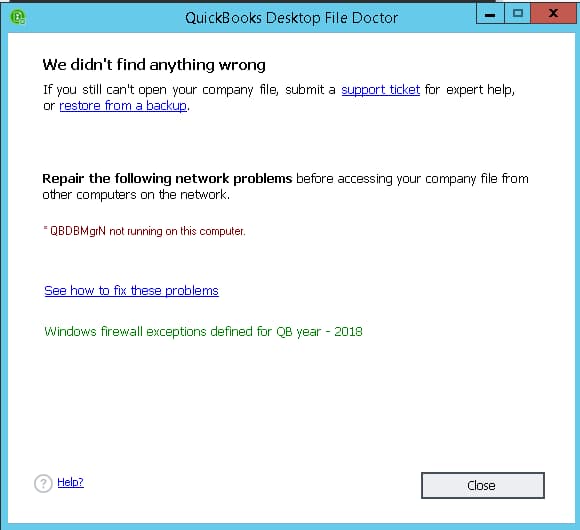
Highlights (Key Facts & Solutions)
QBDBMgrN.exe) to be running on the server.services.msc.QBDBMgrN.exe, QBW32.exe, and QBCFMonitorService.exe, alongside opening specific TCP ports (e.g., 8019, and the dynamic range specific to the QB version).QBDBMgrN not running error is a service-level disruption in the QuickBooks Database Server Manager (QBDBMgrN) that affects multi-user operations in QuickBooks Desktop. This error prevents multiple users from accessing company files simultaneously, causing workflow interruptions and reduced productivity.
This service-level interruption typically results from issues with the QuickBooks Database Server Manager, which is essential for multi-user environments, and can leave users unable to perform networked operations until the service is restored.
The article examines the operational role of QBDBMgrN, the factors that cause the stopped state, and the technical steps to restore the service stability. It also highlights how firewall configurations, network paths, installation errors, and version mismatches affect multi-user functionality in QuickBooks Desktop.
“QBDBMgrN not running on this computer” is an error caused when the firewall is blocking QuickBooks Desktop from connecting to the Intuit server. With the tool QBDBMgrN, created by Intuit, The corporate File stored on the file-hosting server and the database are both accessible by several users simultaneously.
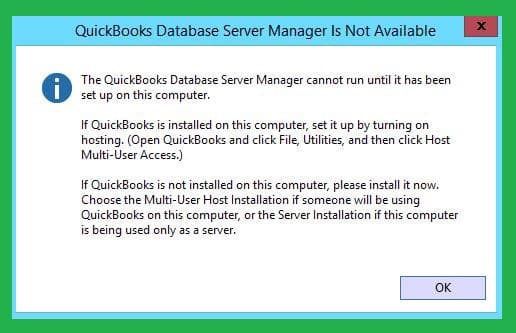
QuickBooks can only be used in single-user mode if the QBDBMgrN is not running on the computer or is disabled for other reasons. If you attempt to switch to multi-user mode, an error message stating “QBDBMgrN not running on this computer Issue” or “Windows Firewall: Disabled exceptions not defined” will appear.
The error is displayed through several system-generated messages, including:
You can notice QBDBMgrN running in your computer’s task manager as an executable process on Windows with a.exe extension. Now that we understand what the database manager service does let’s talk about the ‘QuickBooks DB31 service won’t start’ errors. It suggests something is stopping the QuickBooks program from executing on this service. Additionally, limitations appear while attempting to access company files or operate on QuickBooks.
Therefore, QuickBooks users cannot access company data remotely, run in multi-user mode, or build reliable connections between QuickBooks and corporate files. The QBDBMgrN not operating on this machine error denotes that the application is either not installed on your computer or isn’t working properly, and you must look into the issue.
The effort to update or upgrade QuickBooks to a newer version frequently results in the disappearance of the QBDBMgrN service. If the Windows firewall isn’t upgraded simultaneously, it flags QBDBMgrN as an unusual service and blocks its access to the internet.
To fix company files and networks, QuickBooks File Doctor flashes the following error message: “Before other computers on the network can view your corporate file, fix the following network issues: *QBDBMgrN not running on this machine Server..”
Despite its ability to repair networks, QuickBooks File Doctor struggles to set up the firewall, which is the main source of problems. This firewall friction brings on a glitch.
The workaround entails manually setting the firewall and its ports to allow QDSM access to the internet. So let’s examine these elements individually to learn why the QuickBooks database manager service faltered initially.
QBDBMgrN not running error indicates disruptions in QuickBooks Desktop operations when the Database Server Manager fails to maintain a stable hosting environment. The error affects company-file access, network communication, and service availability across connected workstations. The following indicators represent the primary conditions observed when the Database Server Manager is inactive or unresponsive.
QBDBMgrN not running error involve operational, network, and configuration factors that interrupt the runtime behavior of QBDBMgrN (QuickBooks Database Server Manager). The service depends on correct installation, current version alignment, stable network paths, and unrestricted communication through system security layers. Any disruption in these factors causes the QBDBMgrN service to stop. The primary factors responsible for triggering this error are:
Users must therefore recognize any of these triggers to identify the problem’s core cause and do the proper troubleshooting.
There are certain negative effects that the QuickBooks database server manager not working problem may have.
Let’s go through it:
QBDBMgrN not running error requires verifying system compatibility, checking QuickBooks installation integrity, and verifying that network and user configurations support multi-user operations. Completing these preparatory steps reduces service interruptions and allows corrective actions to be applied effectively.
Before diving into the solution process for the “QBDBMgrN not working on this computer” error, let’s establish some essential prerequisites to simplify the fix:
1. Check QuickBooks Installation: Verify that QuickBooks is correctly installed on the computer where the “QuickBooks server not running” error occurs. Ensure you have installed the appropriate QuickBooks version compatible with your license and operating system.
2. Meet System Requirements: Verify that your operating system satisfies the minimal specifications needed to run QuickBooks. This includes checking supported operating systems, processor speed, RAM, disk space, and other hardware specifications. This can result in the QuickBooks Database Server Manager St-oped error if these conditions are not met.
3. Update QuickBooks: Always use the latest version of QuickBooks, which includes updates and patches to address bugs, performance issues, and compatibility problems.
4. Install QuickBooks Database Server Manager: Install the QuickBooks Database Server Manager on the computer hosting the company file to allow access to workstations connected to the network. Ensure proper setup enables multiple QuickBooks users to access the company file over the network without errors.
5. Verify Network Connectivity: Ensure consistent network connectivity between the computer hosting the company file and the one encountering the “QuickBooks QBDBMgrN not running on this computer” error. Confirm that both computers are connected to the same network and can communicate with each other by inspecting network cables, routers, firewalls, and other network devices.
6. Review Firewall and Antivirus Settings: Examine your firewall and antivirus software settings to ensure they are not blocking the QuickBooks Database Server Manager service. Configure exceptions or settings for QuickBooks and its associated services to function properly.
7. Check User Permissions and Access: Review the user account running QuickBooks on the affected computer and ensure it has the necessary permissions and access rights to utilize the QuickBooks company file. Verify user permissions, administrator rights, and security settings for proper configuration.
8. Create a File Backup: Before addressing the “QBDBMgrN not running on this computer” error, make backups of your company files and critical components. Secure these backups in a secure location to prevent data loss during troubleshooting.

This easy manual provides simple guidance in overcoming this problem. You are not alone if the QBDBMgrN (QuickBooks Database Server Manager) service is giving you trouble. When using QuickBooks, a lot of Windows users run into this issue. Common errors like “QuickBooks Database Server Manager Stopped” or “QBDBMgrN not running on this computer” indicate that the QBDBMgrN service isn’t functioning.
The Windows firewall is frequently blamed for blocking QBDBMgrN from connecting to the internet. The good news is that you may resolve the issue by changing firewall settings and ports. But be careful-errors could result in data loss.
Below are certain situations and their solutions for “QBDBMGRN Not running on this computer” problem in QuickBooks desktop.
“QBDBMgrN Not Running on This Computer Issue”, could be due to the installation files of QuickBooks hosted on a Server or Host.
To resolve this issue, follow these steps:
Next, right-click on the necessary or appropriate data manager:
Repairing QuickBooks installation files can be a solution to the error: “QBDBMgrN Not Running on This Computer Issue”.
Follow these steps:
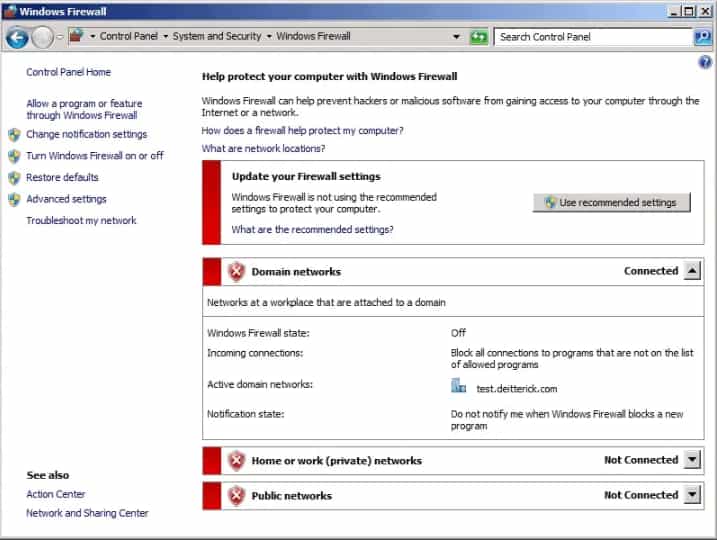
Many a times, the QBDBMgrN file is blocked in the firewall settings of your desktop resulting in the error showing: “QBDBMgrN Not Running on This Computer Issue?”.
For configuring your firewall settings, follow these steps:
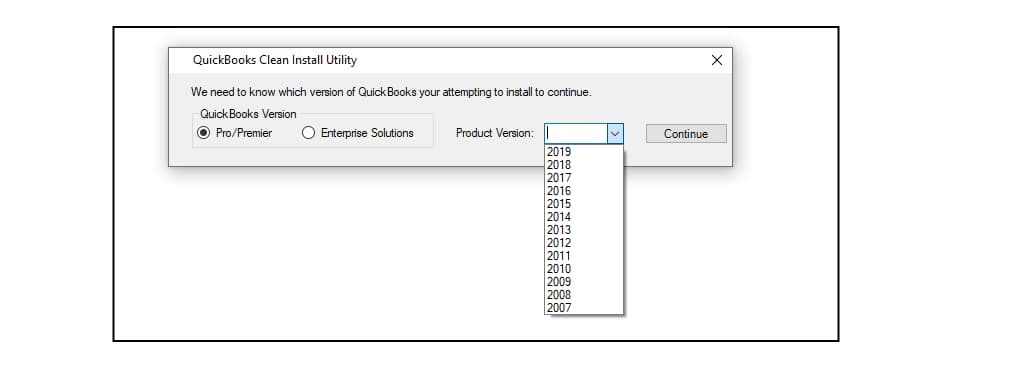
A clean installation of QuickBooks will give your computer a brand-new copy of the software. All the little issues you can’t remedy by mending the application will be resolved. It is generally advised to back up the QuickBooks company file before reinstalling the software to prevent data loss under unfavorable situations.
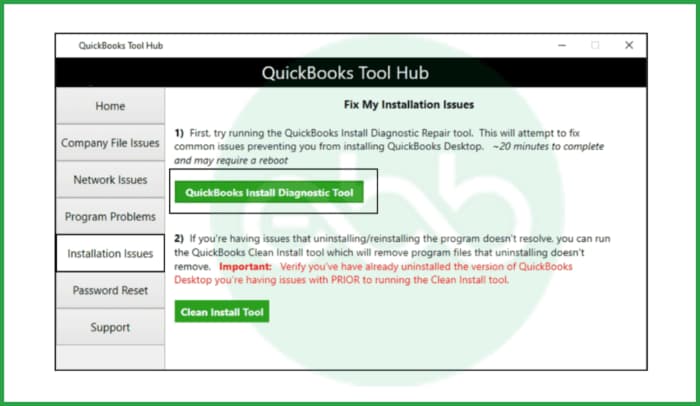
To repair QBDBMgrN not running on this computer server, perform these instructions if the QB application is installed on the server or the host:
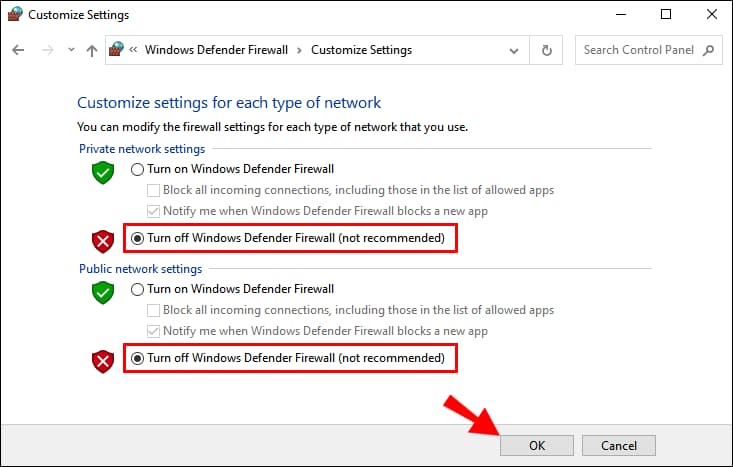
Installing the Windows Firewall updates may acquire the most recent security updates and fixes. By updating the firewall, you may ensure that QuickBooks isn’t being mistakenly prevented from accessing the company file and resolving the QuickBooks DB32 issue.
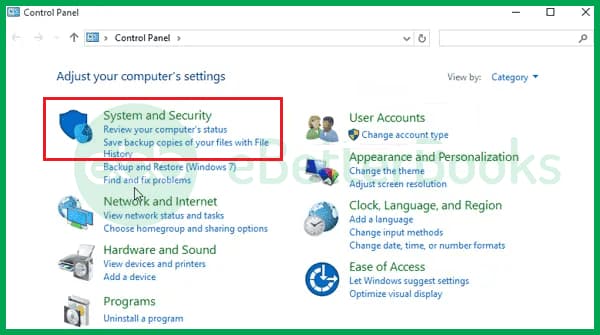
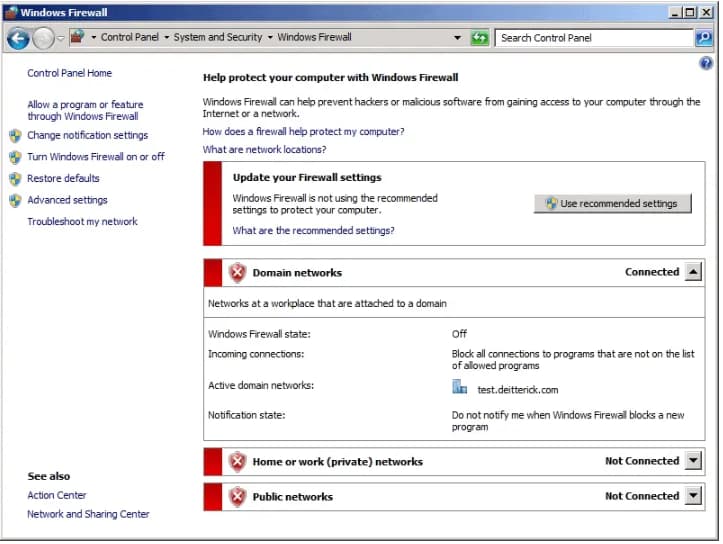
If the QuickBooks File Doctor problem warning “QBDBMgrN not running on this computer” persists, proceed to the next troubleshooting step.
If there are network issues resulting in the error: “QBDBMgrN Not Running on This Computer”, then manually configuring the software can be an option.
Follow the steps to manually configure the Windows software for network installation:
Eliminating the QB Database Server Manager from the Windows Firewall settings will prevent the Windows Firewall from blocking the connection or interfering with QBDBMgrN.
To resolve the “QBDBMgrN not running on this computer after update” error, permit the below-given services in Windows firewall settings. The services listed below must be permitted through the firewall’s inbound and outbound connection settings. Ports for versions QuickBooks 20 and 80, 8019, 56725, 56728, 55363, and 55382.
To ensure that the QuickBooks database server manager won’t open errors enveloping the system, the network communication strength between the server and workstation must be strong and reliable.
Use the following actions to apply these connectivity tests:
The following steps must be taken to activate the network detection and sharing settings right away:
Use the following command prompt launch options on the workstation and server device:
To access the QuickBooks company file, you must know the computer’s IP address or hostname. Therefore, opening the command prompt window on the server computer would be wise.
When the CMD cursor allows it, simply write “ipconfig/all” and press Enter. The hostname in the IP Configuration page will be next to the Host Name section, allowing you to resolve Intuit’s QBDBMgrN not operating on this computer issue.
You can contact your network administrator overseeing the QuickBooks server if you need clarification.
Once you know the hostname, you can use the Command Prompt window on the workstation computer(s) experiencing the QuickBooks database server manager not operating problem to start the pinging procedure. To start, you must give the following command and press Enter: “Ping [IP address] [or server hostname].”
It is essential to run this mistake rectification technique by replacing the [IP address or hostname] part with the QuickBooks server’s real IP address or hostname. For instance, if you wrote “192.168.1.100” as the IP address in the step above, you would enter it as “ping 192.168.1.100” in your CMD window.
The IP address or hostname will receive several ICMP echo request packets from the Command Prompt. After that, it will show the outcomes of each packet so that you can tell if the QuickBooks database server has stopped. If the network link is working properly, answers indicating successful pings should be visible, along with details on the response time.
QBDBMgrN not running error signifies a critical service interruption within the QuickBooks Database Server Manager, preventing QuickBooks Desktop from maintaining a stable multi-user hosting environment. This issue typically results from version misalignment, network instability, security restrictions, or configuration inconsistencies, each of which can disrupt company-file accessibility and overall hosting performance.
When this error occurs, it often disrupts network communication, service availability, and application responsiveness. Maintaining correct installation, synchronized QuickBooks versions, proper firewall settings, and stable network pathways ensures smooth QBDBMgrN operation. These measures offer a strong foundation for diagnosing and resolving the root causes of the service interruption.
Hopefully, the information given above will be useful to you. But if you are still facing any kind of issues with your software and need professional assistance regarding accounting, bookkeeping & accounting software-related issues, then feel free to get technical support with us at +1-802-778-9005, or you can email us at support@ebetterbooks.com
The QuickBooks Desktop application is the software interface that users interact with to manage company data (creating invoices, viewing reports, etc.).
➜The QuickBooks Database Server Manager (QBDBMgrN) is a utility/service that runs in the background on the computer hosting the QuickBooks company file (the server). Its sole job is to allow multiple QuickBooks Desktop applications (on other workstations) to access and securely share that central company file simultaneously, ensuring data integrity in a multi-user environment
No. If you only use QuickBooks Desktop on a single computer and never need to access the company file from other workstations, you generally do not need the QBDBMgrN service running. This service is specifically designed and required to enable and manage Multi-User Mode connections.
The specific ports required by the QBDBMgrN service vary by QuickBooks version. It typically uses two sets of ports:
➜QuickBooks 2020 and newer: Uses a dynamic port and a static port in the 8019 range, such as 8019 and ports in the 55363 through 55370 range.
➜QuickBooks 2019 and older: Uses specific static port numbers (e.g., 8019, 56728, 56727, etc.).
These port exceptions must be configured in your Windows Firewall and any third-party firewall software on the server.
A very common issue is that the QuickBooks company file folder permissions are incorrect. Even if the service is running, it may not have the necessary Read/Write/Modify permissions to the folder containing the company file (.QBW) to share the file with other users. You must ensure the user account running the service (often the built-in system user) or a specific Windows user group has full access to that folder.
Many users are unsure if the Database Server Manager (QBDBMgrN) was installed with their version of QuickBooks Desktop. Intuit documentation confirms that hosting service files requires installing the QuickBooks Desktop Database Server Manager on the server machine—even if QuickBooks Desktop is not fully installed. This FAQ helps users identify installation status without discussing error fixes.
Network configuration can significantly impact the QBDBMgrN service by causing connectivity issues or preventing it from running properly.
Key factors include:
➜Incorrect firewall settings can block the QBDBMgrN service from accessing necessary network ports or the internet. Ensure QBDBMgrN is allowed through the firewall and that relevant ports are open.
➜If network discovery is turned off, QBDBMgrN might have trouble detecting and connecting to other devices on the network. Make sure network discovery is enabled on both the server and client machines.
➜If there are conflicts or issues with IP addresses on your network, QBDBMgrN might not be able to communicate effectively. Verify that all devices have unique and correctly assigned IP addresses.
➜Problems with network paths or drive mappings can prevent QBDBMgrN from accessing company files. Ensure that the server’s network path is correct and that all connections are properly configured.
If QBDBMgrN isn’t running on a networked server, check these network settings:
➜Make sure the firewall isn’t blocking QBDBMgrN. Add QBDBMgrN to the firewall’s exceptions list and open the necessary ports.
➜Ensure that network discovery is turned on for both the server and other devices on the network. This helps QBDBMgrN detect and connect to the network.
➜Verify that all devices have unique and correctly assigned IP addresses to avoid conflicts.
➜Check that the network path to the server is correct and that file-sharing settings are properly configured.
Understanding the roles of these two executables is critical for troubleshooting:
QBW32.exe: This is the main QuickBooks Desktop application executable. It handles the user interface, reporting, transactions, and single-user file access. It is present on both the server and the workstation.
QBDBMgrN.exe: This is the Database Server Manager service. It is responsible only for hosting the company file and managing concurrent connections for multi-user access. It typically runs only on the server or the computer hosting the file.
Interdependence: The QBW32.exe process on a workstation relies entirely on the QBDBMgrN service on the server being active and accessible via the network to open a company file in multi-user mode.
A version mismatch prevents seamless communication because the database manager service uses version-specific ports and protocols:
Port Specificity: Each major version of QuickBooks Desktop (e.g., 2024, 2025) requires a unique set of dedicated TCP ports for the QBDBMgrN service to communicate.
Protocol Conflict: If a workstation is running an older QuickBooks version (client) while the server has a newer Database Server Manager (host), or vice versa, the communication protocols and required port numbers will not align.
Failure: This misalignment causes the server firewall to block the connection, or the client application fails to find the expected version of the database service, resulting in the “QBDBMgrN not running” error.