Excerpt:
The QuickBooks Desktop Update Failed Error is a common technical issue that prevents the software from downloading or installing necessary patches, often disrupting payroll and security functions. The root causes are categorized into connectivity failures (12xxx errors) and file integrity issues (15xxx errors), frequently stemming from factors like an incorrect system clock, firewall restrictions, or damaged program files. To successfully fix the problem, users must follow a structured procedure: first, verifying the system time and running QuickBooks as an administrator; second, configuring the firewall to allow specific executables (like QBUpdate.exe and QBW32.exe) ; and third, utilizing the QuickBooks Tool Hub to run the Quick Fix My Program feature, ensuring the software environment is free from corruption and ready for a secure update.
 Add As A Preferred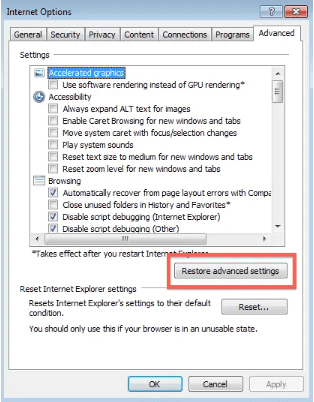
Highlights (Key Facts & Solutions)
QBUpdate.exe and QBW32.exe.QBW32.exe to resolve integrity-based errors like 15215.Overview
QuickBooks Desktop Update Error is a system-level issue that prevents QuickBooks Desktop from downloading or installing update packages. It disrupts network communication, authentication validation, firewall interaction, and installation processing, leading to incomplete updates, error prompts, or application instability. This update error can occur during both minor updates, such as patches and security fixes, and major version upgrades, potentially affecting payroll processing, invoicing, and overall software functionality.
This article examines the primary causes of the QuickBooks Desktop Update Error, including network instability, firewall restrictions, incorrect system time, corrupted installation files, and conflicts from multiple QuickBooks instances. It provides step-by-step diagnostic and corrective procedures, including network configuration, firewall adjustment, system-time calibration, installation repair, and program-level permission alignment.
Do you need help updating your QuickBooks (QB) application or accessing the latest QB features? Don’t worry!
Read this article until the end as we will be providing step-by-step instructions on how to update your QuickBooks Desktop software.
The QuickBooks Desktop Update Error displays numerical prompts that indicate failures in network communication, authentication processing, firewall permissions, or installation integrity. These prompts categorize the update interruption into groups such as the 12xxx connectivity errors and the 15xxx payroll-update errors, providing the initial diagnostic basis for identifying the underlying issue.
Some of the prevalent update errors include:
The following error codes display when trying to update QuickBooks Desktop or download the latest tax table update.
| 15102 | 15103 | 15104 |
| 15105 | 15106 | 15107 |
| 15212 | 15215 | 15222 |
| 15223 | 15240 | 15241 |
| 15270 | 15271 | 15276 |
| Problem | Solution |
| A user notices that he’s unable to update his QuickBooks application to access the latest features. Whenever he tries to update, he encounters an error message indicating a failure in the update process. The user suspects that the issue might be related to his internet connection. | To resolve this problem, verify the internet connection, troubleshoot connectivity issues, and retry to update. |
| If a user is trying to update QB software, the problem may lie in the firewall settings, which are preventing QB from connecting to the update servers. | The user needs to check firewall settings, configure firewall exceptions, and verify security software. |
| The update process is disrupted due to inaccurate date and time settings on the computer. This can lead to various issues, including security vulnerabilities, failed installations, and synchronization problems. | Adjust the time and date settings, select the correct time zone, apply changes, and test the Update. |
| Running multiple instances of QuickBooks from the same version year can lead to conflicts, data corruption, and unexpected behavior. Addressing this situation is essential to ensuring smooth operations. | Run separate instances on different computers, avoid running QuickBooks via remote desktop, toggle multi-user mode, and check third-party applications. |
| The absence of a valid DSC or outdated DSC settings can prevent the successful e-verification of your income tax returns, leading to delays and non-compliance. | Check DSC installation and verify DSC settings. |
| You can successfully update QuickBooks Desktop with proper administrator privileges. Not doing so can result in missing critical features, security patches, and performance improvements. | Close QuickBooks, run QuickBooks as administrator, and install the Update. |
| Damaged or Incomplete QuickBooks Installation causes missing files and limited functionality of the program | Using the QuickBooks Install Diagnostic Tool will help you to identify the exact cause and repair missing QuickBooks installation files so you can avail all the features and functionalities without any hindrances. |
QuickBooks Desktop Update Error occurs when system-level conditions disrupt update communication, authentication, or installation processing. It displays when network instability, firewall restrictions, incorrect system time, corrupted installation files, or multiple QuickBooks instances prevent the update service from completing the validation process. These factors create the technical basis for the update interruption.
Consider reading the major factors listed below which led to the issue QuickBooks Desktop Update:
Unable to install the latest update due to QuickBooks Update Error? Just sit relaxed as our QB experts know how to recognize and troubleshoot the error without delays. So call us at our toll-free number +1-802-778-9005 and get all your doubts cleared in just a few clicks.
QuickBooks Desktop Update Error requires a structured troubleshooting approach that targets the network environment, firewall permissions, system-time configuration, installation integrity, and program-level access control. The troubleshooting sequence restores update communication, validates security components, and re-establishes installation stability so the update process can complete without interruption.
These errors hinder the update process and affect the work, but can be resolved by following the steps mentioned below:
A stable internet connection is important for successful updates. To check the internet connection, open a browser and go to the Chase banking page.
If you face any issues accessing the page, consider following the steps below:
Step 1: Go to the Help Menu and select Internet Connection Setup.
Step 2: Please select if you want this application to access the Internet, and select the option Use My Computer’s Internet Connection Settings to establish a connection.
Step 3: Click on the Next tab.
Step 4: Select Advanced Connection Settings.
Step 5: Select Restore Advanced Settings on the Advanced tab.
Step 6: Select Ok.
Step 7: Select Done.
Step 8: Update QuickBooks Desktop software again.
| Important Notes: Users who use dial-up connections should use the internet speed at least 28.8 kilobytes per second. AOL users should log in to their account using the master login ID, if available. They should also turn off parental control settings. For further guidance, users can consult AOL’s online support. If you frequently use download accelerators, it’s crucial to turn off them during QuickBooks updates. Otherwise, the download accelerator might disrupt the installation of the latest QuickBooks updates. |
Checking and verifying the internet security and firewall software settings to avoid hindrances in the updating process is the next important step.
Follow the below mentioned steps in order to configure firewall settings:
Step 1: Go to Start.
Step 2: Select QuickBooks Database Server Manager.
Step 3: Choose the Port Monitor.
Step 4: Do not downsize the port number of the QuickBooks Desktop version.
Step 5: Go to Start again and click on Windows Firewall.
Step 6: Click on the Advanced Settings option.
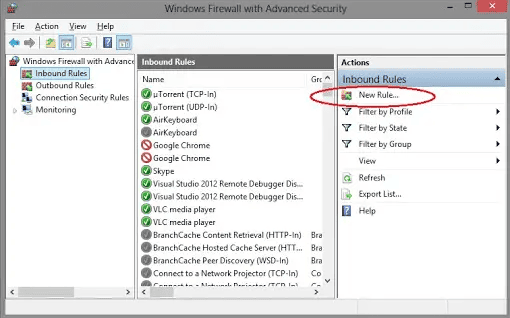
Step 7: Right-click on Inbound Rules.
Step 8: Click on New Rule.
Step 9: Click on the Port option.
Step 10: Click on Next.
Step 11: Enable the TCP option.
Step 12: Checkmark the Specific Local Ports.
Step 13: Enter the Port Number.
Step 14: Click on Next.
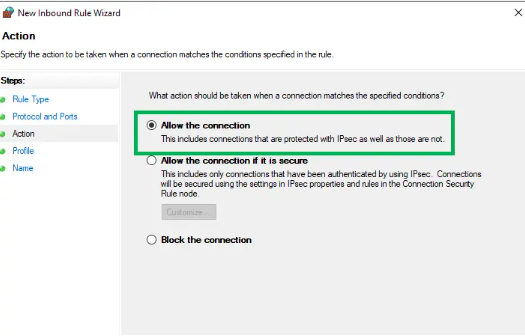
Step 15: Select Allow the Connection.
Step 16: Click on Next and name the New Rule.
Step 17: Follow the same steps for Outbound Rules to end the process.
Note: Ensure that ports 80 and 443 are enabled and access is granted to necessary files.
Here’s a list of some executable files, along with their locations, Give access to the following files:
| Executable files | Location |
| IntuitSyncManager.exe | C:\Program Files\Common Files\Intuit\Sync |
| QBCFMonitorService.exe | C:\Program Files\Common Files\Intuit\QuickBooks |
| AutoBackupExe.exe | C:\Program Files\Intuit\QUICKBOOKS YEAR |
| QBW32.exe | C:\Program Files\Intuit\QUICKBOOKS YEAR |
| QBLaunch.exe | C:\Program Files\Common Files\Intuit\QuickBooks |
| OnlineBackup.exe | C:\Program Files\QuickBooks Online Backup |
| FileManagement.exe | C:\Program Files\Intuit\QUICKBOOKS YEAR |
| QBServerUtilityMgr.exe | C:\Program Files\Common Files\Intuit\QuickBooks |
| QuickBooksMessaging.exe | C:\Program Files\Intuit\QUICKBOOKS YEAR |
| FileMovementExe.exe | C:\Program Files\Intuit\QUICKBOOKS YEAR |
| QBUpdate.exe | C:\Program Files\Common Files\Intuit\QuickBooks\QBUpdate |
| QBDBMgrN.exe | C:\Program Files\Intuit\QUICKBOOKS YEAR |
| Dbmlsync.exe | C:\Program Files\Intuit\QUICKBOOKS YEAR |
| DBManagerExe.exe | C:\Program Files\Intuit\QUICKBOOKS YEAR |
Incorrect system date or time settings can interfere with the update process. Always ensure that date and time settings on your operating system are accurate.
Follow the below mentioned instructions to correct your system’s time and date:
Step 1: Right-click on the System Clock on the desktop screen.
Step 2: Select the Adjust date and time option.
Step 3: Choose Change date and time.
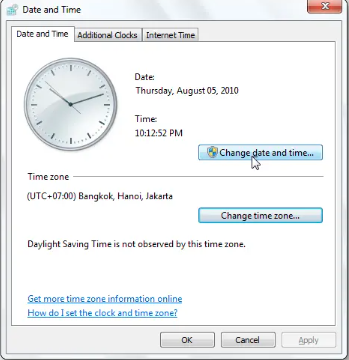
Step 4: Double-click on OK.
Step 5: Close and open the QuickBooks program.
Step 6: Run the update process of QuickBooks again to finish the process.
If you find yourself in a situation where you have multiple installations of QuickBooks Desktop software of the same version year on the same system (for instance, QuickBooks Enterprise Solutions 19.0 and QuickBooks Premier 2019), follow these steps:
Step 1: Open QuickBooks Desktop.
Step 2: Press F2 (or Ctrl+1) to open the Product Information window.
Step 3: Check your current version and release.
Step 4: Select Update available.
Step 5: Select Install Now.
Step 6: Wait for the Update to get installed. It might take a while for the Update to be installed.
Step 7: Open QuickBooks once the Update is installed.
Update errors may arise due to an outdated Digital Signature Certificate or the absence of a certificate on your system.
Consider the following steps to address this:
Step 1: Move to C:\Program Files\Intuit\QuickBooks.
Step 2: Click on QBW32.exe.
Step 3: Select the Properties option.
Step 4: Navigate to the Digital Signatures tab and select an entry from the Signature list field. Then, click on Details to view additional information.
Step 5: Select View Certificate on the Digital Signature Details window.
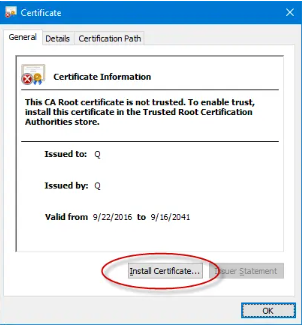
Step 6: Select Install Certificate on the Certificate window under the General tab.
Step 7: Ensure that the Store Location is on Current User on the Certificate Import Wizard welcome screen.
Step 8: Click on Next.
Step 9: Windows already selected the certificate store based on the type of certificate on the Certificate Store window.
Step 10: Select Next, then Finish.
Step 11: When the import process completes successfully, a prompt will appear asking you to confirm. Select OK to proceed.
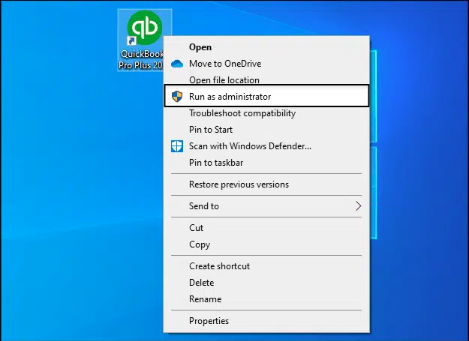
The QuickBooks Desktop update issue may arise if you need administrator credentials to install the latest version.
To resolve this, follow these steps:
Step 1: Close QuickBooks Desktop.
Step 2: Switch off and on the system.
Step 3: Right-click on QuickBooks and open the Menu.
Step 4: Choose Run as Administrator.
To resolve various installation and update errors in QuickBooks, you can use the QuickBooks Install Diagnostic Tool from the QuickBooks Tool Hub.
Follow the steps to run the QuickBooks Install Diagnostic Tool:
Step 1: Relaunch the QuickBooks Tool Hub.
Step 2: Click on the “Installation Issues” tab.
Step 3: Select the “QuickBooks Install Diagnostic Tool.”
Step 4: Allow the tool to fix any installation issues, and then restart your system once the process is complete.
Step 1: Download and install the QuickBooks Tool Hub from the Intuit website.
Step 2: Once you have the Tool Hub installed, open the program and select the “Program Problems” tab.
Step 3: Click on the “Quick Fix My Program” option to allow the tool to scan your software for any issues.
Step 4: After the scan is complete, reopen QuickBooks and your company file.
Step 5: Finally, download and install any available updates and check if the error has been resolved.
Safe Mode is a diagnostic mode that lets you run a basic version of Windows without any non-essential files and drivers.
Here are the steps to download updates in Safe Mode:
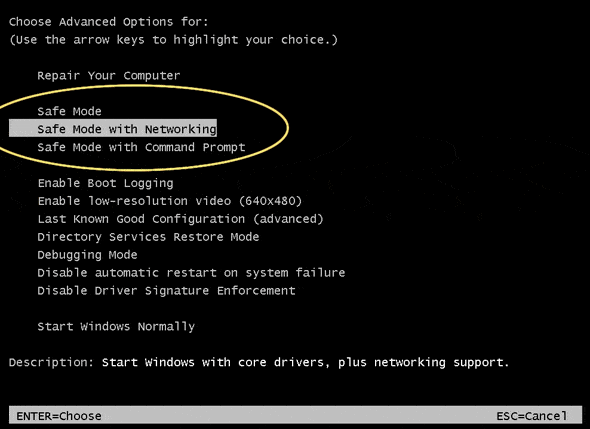
Step 1: Start your system in safe Mode.
Step 2: After restarting, repeatedly press the F8 key until the advanced boot options appear on the screen.
Step 3: Now, select “Safe Mode with Networking” and click ‘Enter.’
Step 4: Download the update again.
If the update downloads successfully, reboot the system to normal Mode and then download the update once more.
Using the QuickBooks Install Diagnostic Tool will help you to identify the exact cause and repair missing QuickBooks installation files that enable you to avail all the features and functionalities without any hindrances.
The steps for the same are as follows:
QuickBooks Desktop Update Error is avoided when the system environment maintains stable connectivity, controlled security settings, accurate time configuration, and consistent installation integrity. The following practices support uninterrupted update execution.
QuickBooks Desktop Update Error is a system interruption that affects update communication, authentication validation, firewall interaction, and installation processing within the QuickBooks Desktop environment. The diagnostic steps address the main technical attributes involved, including network configuration, system-time calibration, firewall rule adjustment, installation integrity assessment, and program-level permission alignment. These procedures restore the update process and maintain stability during future update cycles, while the preventive measures improve the system configuration and support consistent performance across subsequent releases.
Hopefully, the information given above will be useful to you. But if you are still facing any kind of issues with your software and need professional assistance regarding accounting, bookkeeping & accounting software-related issues, then feel free to get technical support with us at +1-802-778-9005, or you can email us at support@ebetterbooks.com
These two error series indicate distinct types of failures during the update process:
Incorrect date and time settings interfere directly with the software’s security validation process.
For QuickBooks to successfully download and install updates, the Windows Firewall must be configured to allow communication for several key program executables, not just the main application. These files are essential for network communication, update monitoring, and the core database service:
The Digital Signature Certificate is a security measure that guarantees the update files are genuine, have not been tampered with, and originate from a trusted publisher (Intuit).
Running multiple instances of the same version year of QuickBooks on a single machine can lead to update conflicts because both programs may attempt to use the same shared update components and registry keys.
The Quick Fix My Program utility within the QuickBooks Tool Hub is a foundational troubleshooting step designed to reset the program’s core operational environment without affecting user data.
Its functions include:
Windows Safe Mode with Networking is a diagnostic environment that loads only the minimal required drivers and services, including essential network drivers.


