Excerpt:
QuickBooks Error 12007 prevents updates when the software can't connect to the internet. This often stems from issues like incorrect settings, firewall blocks, or third-party software interference. To resolve this, adjust your browser settings, clear SSL states, run QuickBooks' TLS 1.2 tool, and ensure firewall exceptions for QuickBooks. Follow this guide for a smooth update experience and avoid disruptions to your QuickBooks functionality.
 Add As A Preferred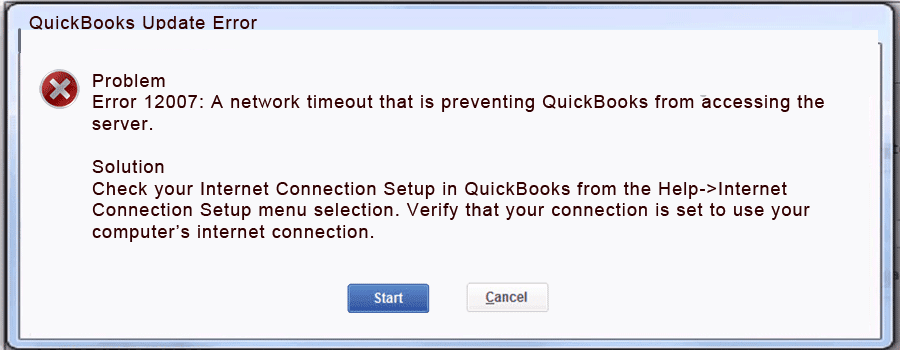
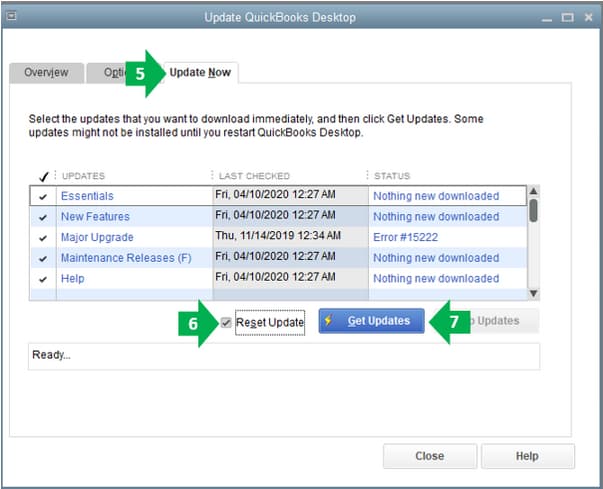
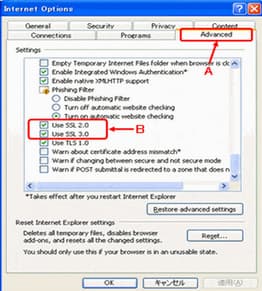
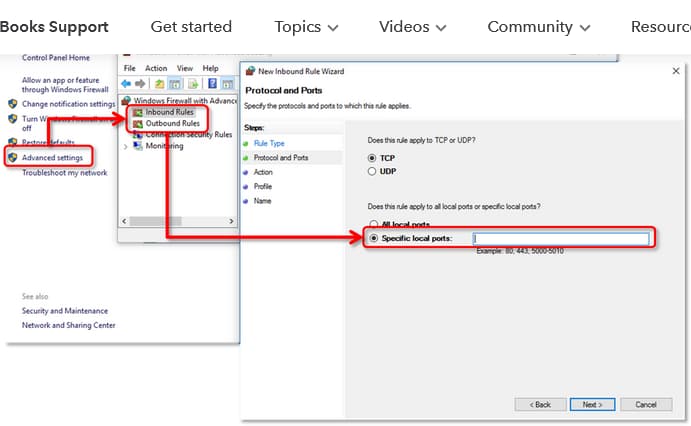
QuickBooks Update Error 12007 is a common connectivity failure encountered when the desktop application cannot securely access Intuit’s update servers, often interrupting payroll or software updates. This persistent issue is generally caused by three primary factors: a lack of compliance with the mandatory TLS 1.2 encryption protocol, the misconfiguration of the foundational Internet Explorer settings the software relies on, or blocking by the Windows Firewall or third-party security programs. Resolving the error requires a multi-step approach that involves resetting update settings, ensuring SSL 2.0 and SSL 3.0 are checked along with TLS 1.2 settings, and meticulously configuring the firewall to allow specific TCP ports and the necessary QuickBooks executable files to communicate freely. Successful resolution depends on the user methodically applying these targeted system and application configuration changes, often concluding with a mandatory system restart to activate the new settings.
Highlights (Key Facts & Solutions)
Sometimes, QuickBooks Desktop can’t successfully connect to the internet, which causes issues when updating. This may be because there are incorrect browser and security settings in place, or an application such as an antivirus or firewall program is interfering with the update.
QuickBooks Desktop shows Error 12007 when it cannot connect to the internet while it downloads payroll or program updates. Intuit groups it with errors 12002, 12009, 12029 and 12031.
Intuit’s support team says Error 12007 means QuickBooks could not connect to the internet during the update. The cause often sits in the connection itself.
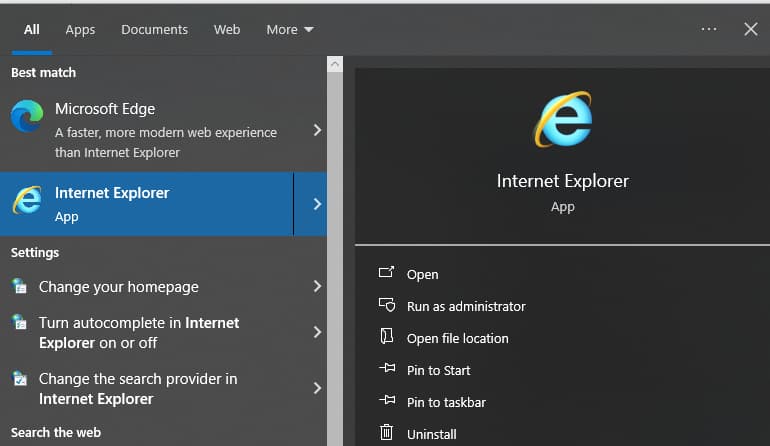
Intuit’s older guidance says QuickBooks uses Internet Explorer settings to reach the internet. A wrong value there can block updates while a modern browser loads pages normally.
Intuit says an antivirus or firewall program can interfere with the update. The same article also lists parental-control applications among the programs that need configuring for QuickBooks updates.
Intuit retires each QuickBooks Desktop version about 3 years after release. A retired version loses maintenance updates, connected services such as payroll, and critical security patches.
Some of the common signs that users can relate to such error are:
To resolve this payroll update error 12007
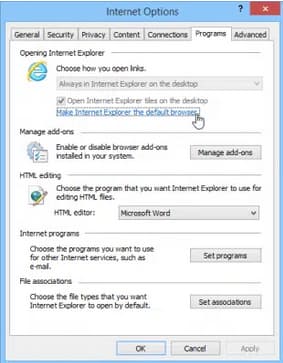
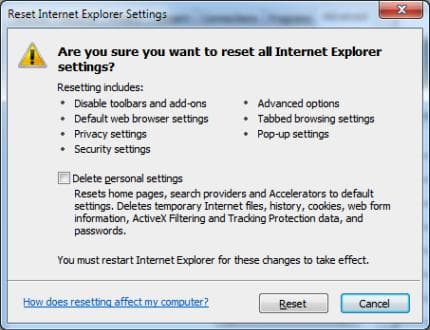
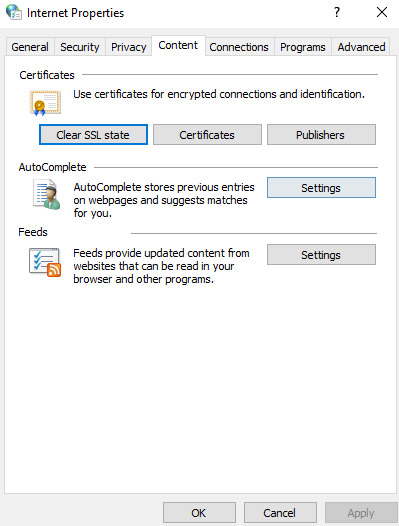
To resolve QuickBooks Error 12007 setting Internet Explorer as your default browser, resetting web browser settings, clearing SSL state, using TLS 1.2 tool, or adjusting firewall settings.
Further detailed steps are provided below:
Before going through the solution part, here’s a list of certain precautionary steps that must be implemented carefully.
To communicate with the server or access the company file, below we have discussed some possible solutions for the antivirus application that may help you to prevent QuickBooks from being scanned and fix QuickBooks Error 6094.
For this, adhere to the steps listed below:
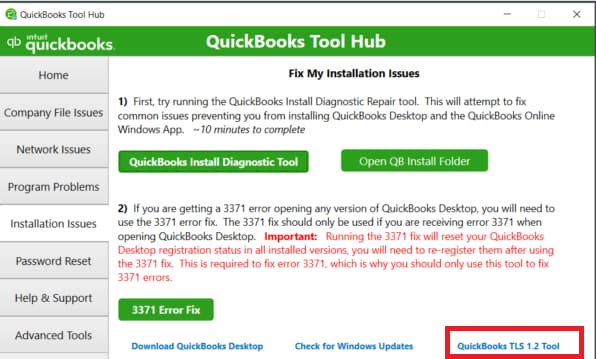
Note: When you run this tool, you’ll update your operating system to be TLS 1.2 compliant.
Note: The most recent tool hub version is 1.6. 0.3.
Remember: If you have already installed Tool Hub, you need to find out which version you’re using.
For this, do the following:
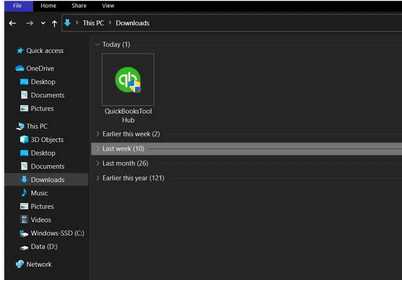
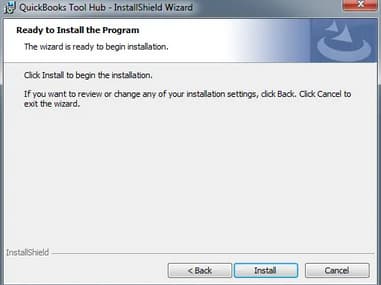
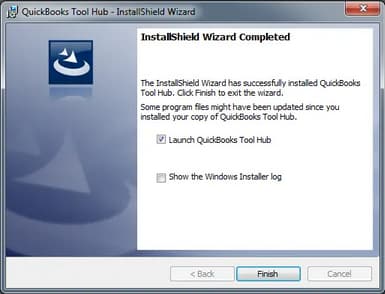

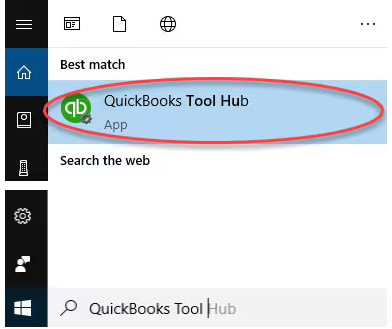
Important Note: Hold and Press the Windows or Start key if you are unable to locate the icon, and then search for QuickBooks Tool Hub. Once found, choose the program to open it.
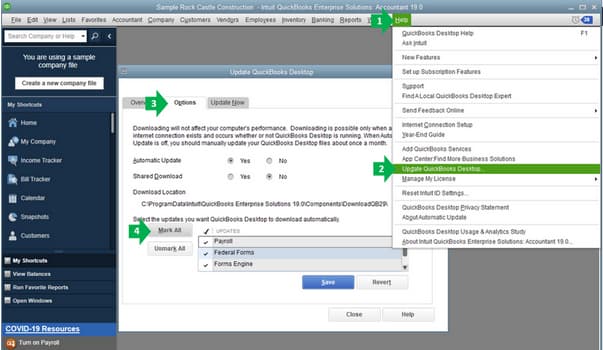
Note: Make sure QuickBooks is added as an exception in the Firewall.
If Windows Firewall Settings are misconfigured, it may hamper every single operation running in your system and restrict QuickBooks from connecting to the multi-user network.
Let’s set up Windows Firewall exceptions by following the below-listed steps:
Adhere to the following instructions for each QuickBooks Desktop version if you’re using multiple versions on the same computer.
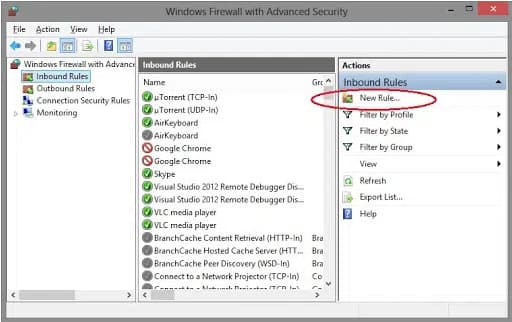
QuickBooks Desktop 2021, 2022, and later versions use dynamic ports.
Let’s see how to get a dynamic port number:
QuickBooks makes use of executable files (.exe) to perform many accounting operations.
To create exceptions for each executable on the table, adhere to the following steps:
Below is a list of some executable files, along with their locations:
| Executable files | Location |
| IntuitSyncManager.exe | C:\Program Files\Common Files\Intuit\Sync |
| QBCFMonitorService.exe | C:\Program Files\Common Files\Intuit\QuickBooks |
| AutoBackupExe.exe | C:\Program Files\Intuit\QUICKBOOKS YEAR |
| QBW32.exe | C:\Program Files\Intuit\QUICKBOOKS YEAR |
| QBLaunch.exe | C:\Program Files\Common Files\Intuit\QuickBooks |
| OnlineBackup.exe | C:\Program Files\QuickBooks Online Backup |
| FileManagement.exe | C:\Program Files\Intuit\QUICKBOOKS YEAR |
Once you have set your firewall permissions, open QuickBooks on your workstations and try downloading the payroll or updating the QuickBooks Desktop software.
All the aforementioned solutions can be easily performed to fix QuickBooks Update Error 12007. In case, you are facing trouble while applying any of the solutions, feel free to talk to our QuickBooks Experts. We have a team of highly skilled professionals who have years of experience in resolving QuickBooks errors.
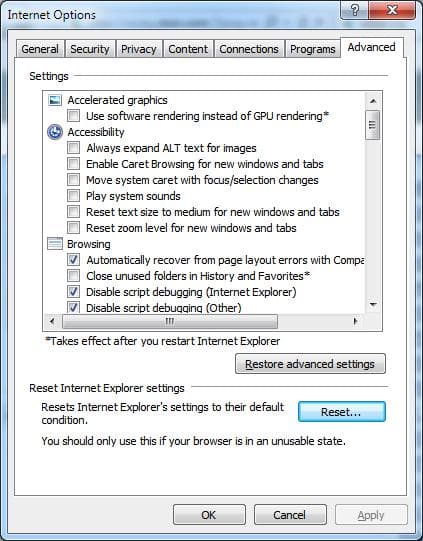
QuickBooks Desktop relies on Internet Explorer’s (IE) core connection settings and components to establish secure connections with Intuit’s servers for updates, payments, and payroll. This dependency exists regardless of the user’s default browser (like Chrome or Edge). Error 12007 often stems from misconfigured security or SSL settings within IE, which block QuickBooks’s ability to communicate securely. Resetting IE’s advanced settings (Method 2) ensures critical protocols like TLS 1.2 are properly enabled.
TLS 1.2 (Transport Layer Security 1.2) is the modern, mandatory encryption protocol for secure internet communication. Intuit migrated all connected services (including updates and payroll) to rely exclusively on this standard for enhanced security. If a user’s operating system or QuickBooks installation is not compliant with TLS 1.2, the connection will be rejected, triggering Error 12007. The TLS 1.2 Readiness Tool (Method 4), found in the QuickBooks Tool Hub, automatically updates the system’s components to meet this security standard.
A firewall can block a connection at two distinct network levels, requiring a two-part solution:
Both steps (Method 8) must be completed for both inbound and outbound rules to ensure comprehensive access for the QuickBooks application and its associated services.
QuickBooks Desktop versions from 2019 and later (including 2021, 2022, and 2023) primarily use a dynamic port instead of a static range. This port number is unique and changes with each installation or update.
Users must find this dynamic number and add both 8019 and the XXXXX port to the firewall rules (Method 8, Step 1).
.exe files) must be granted firewall exceptions?To ensure all necessary program functions can access the internet, exceptions must be explicitly created for the following key executable files (Method 8, Step 2):
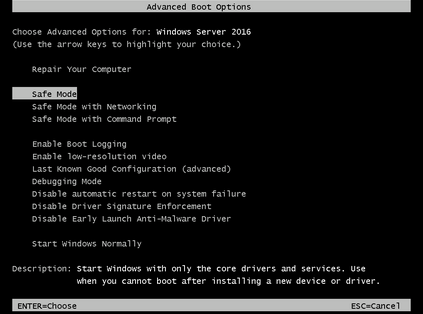
Yes, it is a safe and recommended diagnostic step (Method 7). Safe Mode with Networking loads Windows with only the essential drivers and services, temporarily disabling most third-party applications, including non-Windows firewalls and antivirus programs. If the QuickBooks update succeeds in this mode, it confirms that a third-party security application is the sole cause of the connection error, allowing the user to focus on creating permanent firewall or antivirus exclusions.
Restarting the computer is essential because system-level configurations, especially those related to networking, security protocols, and firewalls, are not fully finalized until the operating system performs a clean reboot. The restart ensures that:


