Excerpt:
QuickBooks Error 15103 occurs during payroll updates or while downloading software updates, often due to improper installation, network issues, or incorrect settings. This guide provides effective solutions such as using Quick Fix My Program, adjusting Internet Explorer settings, running the Reboot.bat file, or ensuring a stable internet connection to resolve the issue and restore smooth QuickBooks operations for your business.
 Add As A Preferred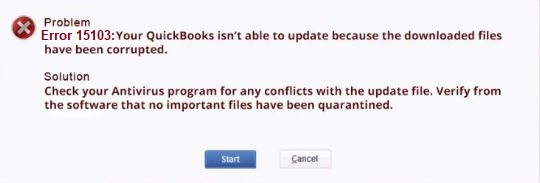
To fix QuickBooks error 15103, first ensure you’re running the update as an administrator and try resetting the updates. If that doesn’t work, you can disable your firewall, install the digital signature certificate, or run the QuickBooks Install Diagnostic Tool to troubleshoot installation and configuration issues.
QuickBooks Desktop Error 15103 occurs when the accounting program fails to download, verify, or apply a product or payroll update. This issue is linked to incorrect network drive mapping, damaged update files, or interference from system security settings. It primarily affects QuickBooks Desktop (QBDT) editions such as Pro, Premier, Enterprise, and Accountant, especially during payroll or software update processes.
Variant-wise Relevance:
Possible Secondary Issues Triggered by Error 15103:
Understanding these variant-specific impacts helps diagnose the source of Error 15103 more precisely. The following sections explain its causes, step-by-step troubleshooting methods, and preventive measures to ensure stable QuickBooks Desktop updates.
When QuickBooks Error 15103 occurs (typically while updating QuickBooks Desktop or downloading a payroll tax table), users typically see one of these:
15103 is a genuine, Intuit-documented member of the 15XXX series, most commonly appearing on standard (non-administrator) Windows user accounts, though the precise on-screen error text wasn’t directly quoted in the sources retrieved for this research.
Existence and cause confirmed via an Intuit Community thread linking to Intuit’s own “Fix error updating desktop payroll” article; exact wording not independently quoted in results.
To fix QuickBooks Error 15103, try these steps: use Quick Fix my Program from the QB Tool Hub, run the Reboot.bat file, or adjust Internet Explorer settings. Check the detailed methods below for more information:
This method helps repair common update-related issues in QuickBooks Desktop by automatically detecting and resolving problems that interrupt the payroll or software update process. It is particularly effective when the QuickBooks update service is running in the background or when damaged program files prevent the software from completing an update.
Running QuickBooks Tool Hub ensures that all QuickBooks processes are properly closed and reinitialized before applying updates.
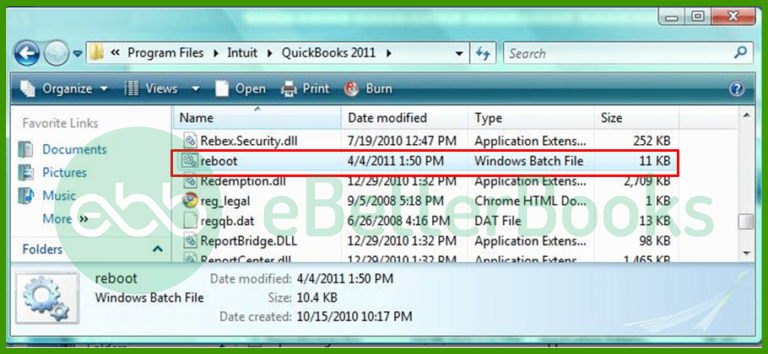
This method re-registers QuickBooks components and Windows system files that are required for proper update installation. Running the Reboot.bat file helps reset the QuickBooks environment by clearing temporary processes and restoring essential configuration paths.
It is especially useful when the update process fails due to a missing or unregistered DLL.OCX files that prevent QuickBooks from launching or updating correctly. Executing this file ensures that QuickBooks services start cleanly after reboot.
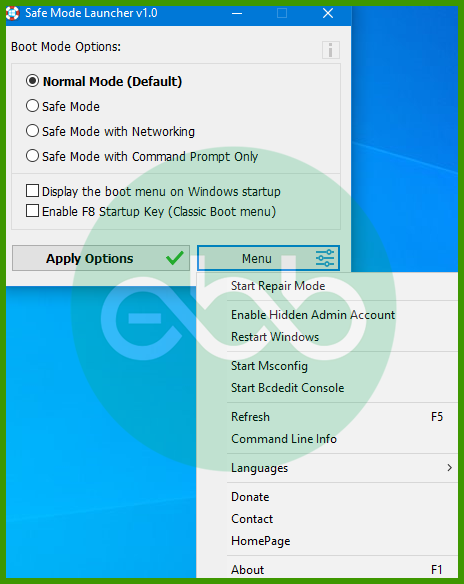
This method helps ensure that QuickBooks loads with all necessary system services and dependencies required for smooth operation. Sometimes, the system may be set to a selective or diagnostic startup mode, which restricts essential background services needed for QuickBooks updates.
Switching to Normal Startup Mode enables all Windows components and QuickBooks services to run properly during updates. This process helps eliminate configuration conflicts that could trigger Error 15103 during payroll or software updates.
This method isolates QuickBooks from third-party interference during the update process. Running the system in Safe Mode ensures that only essential Windows drivers and services are active, which prevents antivirus programs or background applications from blocking the update connection.
It is especially useful when the error is caused by security software, network restrictions, or corrupted temporary files. Performing the update in Safe Mode allows QuickBooks to install necessary files without interruptions or permission conflicts.
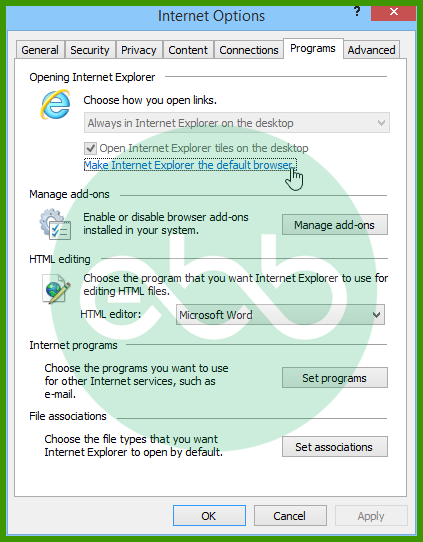
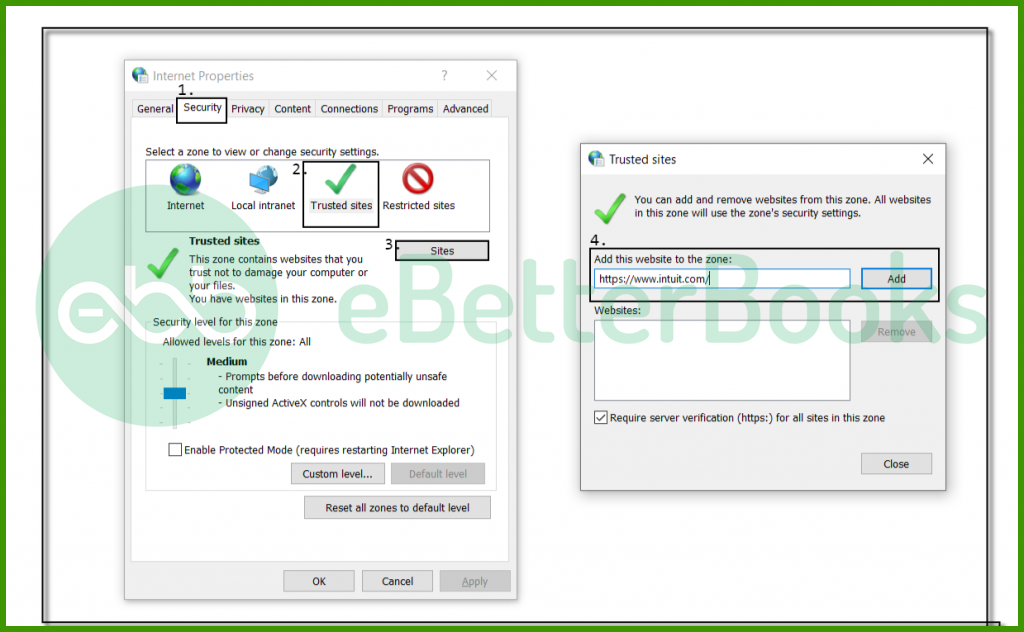
This method helps QuickBooks establish a secure and uninterrupted connection with Intuit’s update servers. Incorrect or restrictive Internet Explorer settings can block access to essential QuickBooks domains, leading to update failures and triggering Error 15103.
By adding QuickBooks and Intuit URLs to the list of trusted sites, users ensure that the software can communicate freely with the update server without being stopped by browser or system-level security filters. Adjusting these settings also aligns QuickBooks with the default Windows Internet configuration, improving stability during updates.
This method ensures that QuickBooks recognizes Intuit as a verified and trusted publisher during update installations. When the digital signature for the QuickBooks executable file (QBW32.exe) is missing, outdated, or corrupted, Windows may block the update process, resulting in Error 15103.
Installing the digital signature certificate re-establishes the trust relationship between the system and Intuit’s update files, allowing updates to be downloaded and installed securely. This step also helps verify file authenticity and prevents installation issues caused by unsigned or altered components.
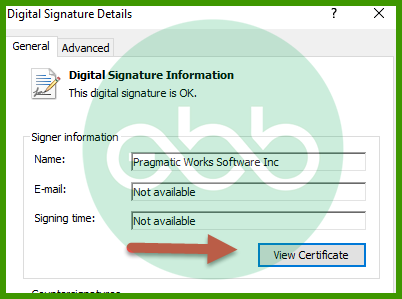
This method helps remove damaged QuickBooks installation files and ensures that all program components are reinstalled correctly. When previous installations leave behind corrupted or incomplete files, they can interfere with new updates and cause Error 15103.
The QuickBooks Clean Install Tool completely deletes old program folders, registry entries, and configuration files before reinstalling the software. This process creates a fresh QuickBooks environment, free from file conflicts or permission issues that may block updates.
This method ensures that QuickBooks has uninterrupted access to the internet and that system security tools are not blocking its update services. Error 15103 can occur when firewall or antivirus settings restrict QuickBooks from connecting to Intuit’s servers.
Verifying the network connection, adjusting firewall permissions, and confirming QuickBooks’ update configurations help maintain stable communication with the update system. This step prevents network timeouts, blocked ports, and connectivity errors that disrupt the download or installation of updates.
To conclude, we hope this guide has helped you understand and resolve QuickBooks Error Code 15103 effectively. However, if the issue persists or you encounter additional complications while performing the steps, do not hesitate to seek expert assistance.
Our certified QuickBooks professionals are available to provide step-by-step guidance and ensure your software runs smoothly without interruptions. For immediate help, contact our support team at our toll-free number +1-802-778-9005.
QuickBooks Error 15103 occurs when QuickBooks encounters issues while attempting to download or install updates, particularly payroll updates. This error can be caused by problems with internet connectivity, damaged installation files, or conflicts with antivirus or firewall settings.
Common causes of Error 15103 include:
You may encounter this error if QuickBooks fails to download or install updates, or if an update process is interrupted with the error code 15103 displayed on your screen. The update process may also fail or freeze.


