 Add As A Preferred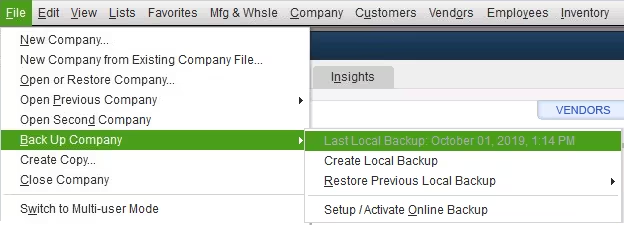
Payroll update failure affects payroll calculations, tax table synchronization, and software stability in QuickBooks Desktop Pro/Premier. The failure results from large company file sizes that slow or block updates, corrupted or damaged company files, and system configuration issues such as insufficient RAM, low disk space, outdated operating system components, misconfigured network settings, or security software restrictions.
These factors can prevent the payroll update from downloading, validating, or installing correctly, leading to inaccurate tax tables and interrupted payroll processing. This article describes tools such as Quick Fix My Program, QuickBooks File Doctor, and the Condense Data Utility to resolve file size issues, and outlines steps to ensure system compatibility with TLS 1.2, .NET Framework, and Microsoft XML Core Services (MSXML).
It provides a structured approach to diagnosing, fixing, and preventing payroll update failures and explains symptom identification, file size management, system configuration verification, and maintenance practices. Addressing these technical factors ensures accurate tax withholding, smooth payroll processing, and regulatory compliance.
Payroll update failure indicates a point where the payroll data package does not move through the download stage, validation stage, or installation stage as expected. Each symptom shows which underlying factor, such as file size attributes or system configuration attributes, is affecting the update process.
Review the list to pinpoint the exact issue and determine the right troubleshooting path:
Users will face update failure in QuickBooks Desktop due to file size or system configuration if they encounter any of these issues.
File size affects how quickly QuickBooks processes payroll data, and system settings affect how reliably the update installs. These factors determine whether the payroll update completes without interruption.
As your company file accumulates more transactions, lists, and attachments, it demands greater system resources to load and process efficiently. When the file exceeds optimal size limits, QuickBooks struggles to complete updates, often resulting in timeouts or crashes.
Large or oversized company files have various consequences, such as;
| Performance Degradation | Memory Overload | File Corruption Risk |
|---|---|---|
| An oversized company file slows down internal processes, including the payroll update routine. | Large files consume excessive RAM. This condition can result in update failures or application freezing. | Oversized files become more prone to data corruption over time, especially during write-intensive operations like updates. |
| Note: For QuickBooks Pro and Premier, keep your company file under 150 MB for optimal stability and performance. Files larger than this need to be condensed or split. |
To complete payroll updates, you need enough memory, a good processor speed, and a stable internet connection. When the system does not meet QuickBooks’ requirements, or firewalls, antivirus software, or outdated software interfere, the update fails to complete due to insufficient system compliance.
| Tip: Check system compatibility and make sure QuickBooks ports and services are allowed through your firewall and antivirus. |
Before you fix payroll update errors in QuickBooks Desktop Pro or Premier, meet the following prerequisites, which will help you to prevent further issues during the troubleshooting process.
Always back up your QuickBooks company file before making any changes. This protects your data in case the troubleshooting steps affect file integrity.
The user must log into both Windows and QuickBooks as an administrator. Certain tools and updates require elevated permissions to execute correctly.
Verify that your QuickBooks Payroll subscription is active. Updates won’t install if the subscription has expired or if the license is not recognized.
A stable and high-speed internet connection is essential for downloading payroll updates. Avoid using public or unstable networks during the update process.
Ensure your computer meets the system requirements, such as RAM and Processor Speed, or available disk space for QuickBooks Desktop Pro/Premier.
To Check RAM and Processor Speed:
To Check Available Disk Space:
Outdated QuickBooks versions can conflict with payroll data formats.
Close any unnecessary programs running in the background, especially antivirus software or third-party utilities that interfere with QuickBooks.
To resolve payroll update failures, users need to address two errors: company file size and system configuration. These steps help you reduce file-related strain on QuickBooks and ensure your system environment supports successful payroll updates. This approach restores stable functionality, prevents recurring errors, and maintains accurate tax calculations.
Fix issues related to large company files to improve system performance and minimize payroll update failures.
To ensure QuickBooks runs smoothly and remains stable during updates, follow these steps:
This step checks if the file size is causing payroll update failures. It helps you decide what to do next.
To confirm if your file size is a problem:
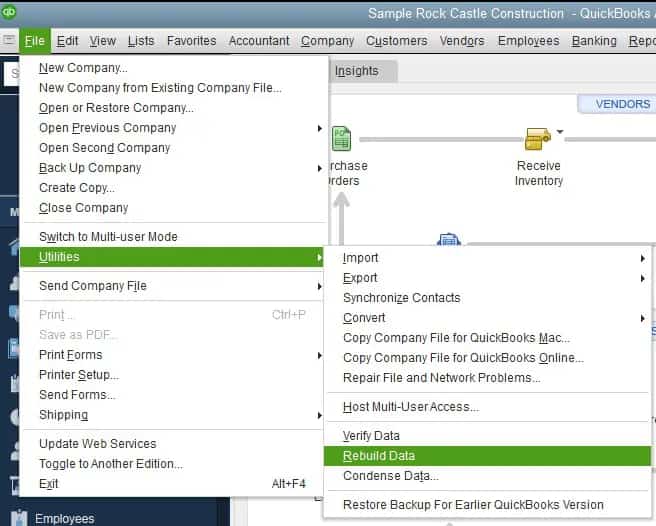
The Condense Data tool helps reduce the company file size by eliminating old or inactive data, which improves performance and reduces the risk of payroll update failures.
| Note: The condense operation cannot be undone. Ensure a backup is created. |
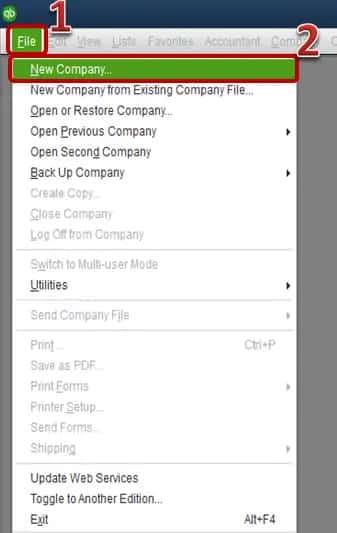
Create a new company file if condensing the data does not enhance performance. You can export critical data, such as customer and vendor lists, from the old file and import it into a new, clean file.
Reducing clutter from inactive or duplicate customers, vendors, and items reduces the file size and enhances system performance without affecting active data.
These tools detect and fix minor data corruption that can build up in large files. Repairing these issues improves system stability and reduces the risk of payroll update failures.
QuickBooks File Doctor scans for and fixes data damage and network-related issues. It helps restore file integrity and resolve update errors stemming from underlying file problems.
QuickBooks updates can get stuck or fail when the system doesn’t meet the requirements, components are outdated, or network settings are incorrect.
Fixing these issues helps QuickBooks run smoothly, reduces interruptions during payroll updates, and boosts performance.
Follow the steps below to keep QuickBooks working well and stable during updates:
Check hardware and OS compatibility to ensure smooth processing of updates. QuickBooks requires adequate system resources to function correctly. If your system is lacking power, payroll updates freeze, fail, or crash.
When to use:
Steps to fix the error:
Proper configuration is essential for stable and secure payroll downloads, as QuickBooks uses secure protocols like TLS 1.2 to connect with Intuit servers. Misconfigurations or outdated protocols, such as SSL, can lead to communication issues and update errors.
When to use:
Steps to fix the error:
Updating Microsoft components like the .NET Framework, Internet Explorer, and Visual C++ Redistributables ensures QuickBooks has the correct runtime environment for stable performance. If these are outdated or broken, payroll functions fail.
When to use:
Steps to fix the error:
This tool scans and repairs issues with QuickBooks installation and its dependencies. It’s particularly useful if the problem stems from damaged or missing Windows components that affect the update process.
When to use:
Steps to fix the error:
QuickBooks sometimes hangs or crashes due to background processes or temporary memory issues. This utility force-stops those processes and refreshes the application environment, helping it recover and complete updates successfully.
When to use:
Steps to fix the error:
Payroll update failure in QuickBooks Desktop Pro/Premier occurs due to large company files and system misconfiguration that interfere with the update process. These problems cause delays in payroll, incorrect tax calculations, data corruption, and tax compliance issues.
The article explains the symptoms, the file size effects, the system setting effects, the prerequisite conditions, and the resolution procedures in a linear structure. Managing file size, maintaining stable system settings, and applying the required update procedures support accurate payroll execution and consistent tax table installation.
Keep your QuickBooks Desktop Pro and Premier company file under 150 MB to avoid performance issues and payroll update failures. If it exceeds this limit, use the Condense Data Utility or create a new file.
Check your system specifications against QuickBooks’ minimum requirements. Ensure you have at least 4GB of RAM (8GB recommended), a processor speed of 2.4 GHz or higher, and enough free disk space for updates. You can find your system specifications using the “System Information” tool on your computer.
If your company file is too large and causing payroll update errors, select the Condense Data utility to reduce the file size. This process helps improve performance and minimizes the risk of file corruption. If the issue persists, you want to consider creating a new company file by exporting essential data and starting fresh.
Yes, oversized company files can cause memory overload and increase the risk of data corruption, which may prevent payroll updates from completing successfully.
Payroll update failure can be identified if QuickBooks shows error messages, freezes during download or installation, closes unexpectedly, or if the tax table version remains unchanged after the update.
Yes, users must have administrative rights in both Windows and QuickBooks to run update tools and apply changes that resolve payroll update failures.


