


QuickBooks is a software that is commonly used by companies to handle finances, and as with every other software application, it is not devoid of errors. QuickBooks Error 15270 is one of the most widespread errors encountered by the users, and it is one of the series of update errors in 15xxx. This is the most common mistake that takes place when QuickBooks is unable to update its payroll, which interferes with the processing of payroll and adherence to tax regulations.
QuickBooks Error 15270 is an error which is caused by an update and which does not allow the user to install or download payroll updates. It is categorized under the 15xxx-series of errors, which usually get associated with the issues of installing updates to payroll or internet connectivity or system setup.
This mistake is normally caused by incomplete payroll updates, wrong program settings, or the problems with the QuickBooks update service. It might also happen when QuickBooks is not started in the administrator mode or when the update file is corrupted.
Error 15270 mostly appears when users attempt to install payroll updates, tax table updates or when they are updating QuickBooks desktop itself. It can also be unexpected when QuickBooks fails to update and the system collapses.
The Typical Error Message:
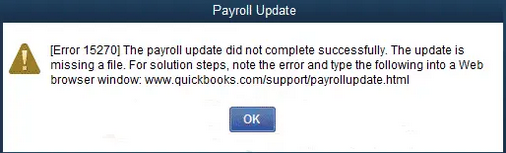
The error is usually displayed in a dialogue box with the message:
“Error 15270: The payroll update did not complete successfully. The update is missing a file.”
Preventing this error is crucial because it can halt payroll operations, cause compliance issues, and disrupt workflow. Regular updates, proper configuration, and correct system permissions help safeguard against recurrence, ensuring smooth payroll management and uninterrupted productivity.
Symptoms of QuickBooks Error 15270
Identifying the error becomes easy once you understand the basic signs and symptoms. You may be experiencing this error if:
- You are unable to open or use QuickBooks.
- QuickBooks crashes or freezes while opening.
- An error message pops up on the screen.
- The system’s performance slows down significantly.
- Other programs on the system encounter errors while QuickBooks is running.
Causes of QuickBooks Error 15270
There are a few factors leading to QuickBooks update error 15270:
- Corrupted or damaged programs related to the operating system.
- Improper QuickBooks installation (can be resolved using the QuickBooks Clean Install Tool).
- Outdated QuickBooks software.
- Internet Explorer is not set as the default browser.
- QuickBooks not being run with administrator privileges.
Solutions to Fix QuickBooks Error 15270
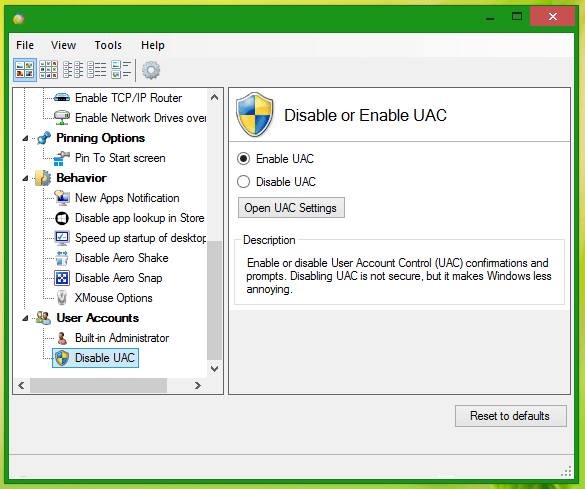
Method 1: Turn Off User Account Control (UAC)
Sometimes UAC interferes with QuickBooks updates. Temporarily disabling it can help:
- Windows 7/8:
- Press Windows + R, type Control Panel, and press Enter.
- Select User Accounts > Change User Account Control Settings.
- Move the slider to Never Notify and click OK.
- Retry QuickBooks update, then turn UAC back on afterward.
- Windows Vista:
- Open Control Panel > User Accounts.
- Select Turn User Account Control On or Off.
- Clear the “Use User Account Control” checkbox and click OK.
- Restart your PC and QuickBooks.
Manually updating QuickBooks often resolves the error:
- Restart QuickBooks. If the Update Service window appears, click Install Later.
- Go to Help > Update QuickBooks Desktop.
- On the Update Now tab, check Reset Update, then click Get Updates.
- Once updates complete, restart QuickBooks and click Install Now when prompted.
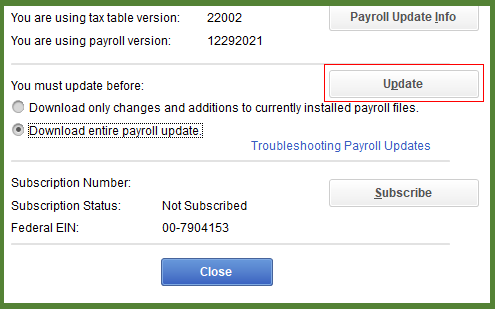
- To update payroll, go to Employees > Get Payroll Updates, select Download Entire Update, and click Update.
Method 3: Use Reboot.bat File
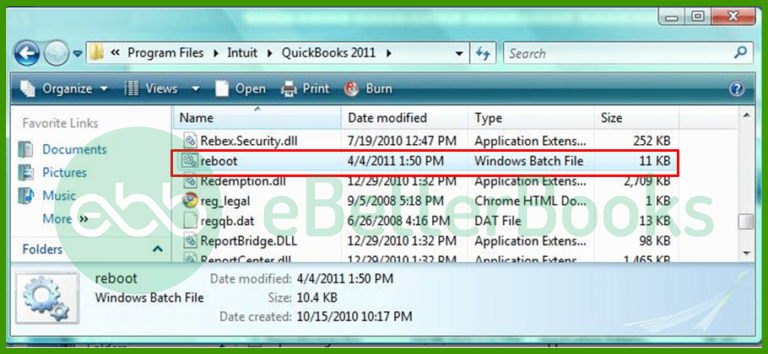
Running the reboot.bat file resets QuickBooks settings and can fix update issues:
- Verify payroll subscription is active under Employees > My Payroll Service > Account/Billing Information.
- Ensure you are using an EIN and have entered the service key.
- Run reboot.bat from the QuickBooks installation folder.
- Set Internet Explorer as the default browser under Programs > Internet Options.
- Switch from Wi-Fi to a wired internet connection.
- Repair QuickBooks installation if needed.
- Use Selective Startup to perform a clean install of QuickBooks.
Method 4: Download and Install QuickBooks Tool Hub
QuickBooks Tool Hub helps fix common errors:
- Close QuickBooks Desktop.
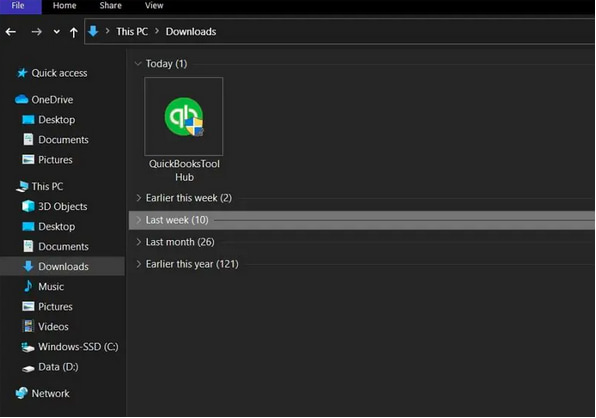
- Download QuickBooksToolHub.exe from Intuit’s official site.
- Install the tool by following on-screen instructions.
- Open QuickBooks Tool Hub and use the Program Problems tool to resolve update issues.
Preventive Measures
To avoid encountering QuickBooks Error 15270 in the future:
- Always run QuickBooks with administrator privileges.
- Keep QuickBooks Desktop updated to the latest release.
- Ensure Internet Explorer is set as the default browser.
- Maintain stable internet connectivity during updates.
- Regularly verify payroll subscription status.
Conclusion
QuickBooks Error 15270 is not easy to troubleshoot until the right set of steps is put in place. It may be to disable UAC, manual updating of QuickBooks, running reboot.bat, or within QuickBooks Tool Hub, all these options may help to fix the situation. In case the issue continues, one may need to contact the people at QuickBooks to make sure that the payroll works without problems.
Frequently Asked Questions:
Can I still run payroll if I skip a failed payroll update (e.g. Error 15270)?
No if a payroll update fails (such as with Error 15270), running payroll or generating updated tax tables may be risky. Payroll updates often include the latest tax tables, forms, and compliance changes. Without applying them successfully, paychecks might use outdated tax rates or forms. Intuit’s support documentation emphasizes completing payroll updates properly before continuing payroll operations.
Can other software (e.g. firewall, antivirus) or Windows settings interfere even after I’ve fixed Error 15270 once?
Yes, interference can recur if firewall, antivirus, or Windows permissions/settings are changed afterward. Official guidance for “15XXX” update errors (same category as 15270) lists misconfigured firewall or disabled system services (e.g. QuickBooks File Copy Service) among potential causes.
So, it’s good practice to occasionally verify security settings and permissions especially after OS updates or changes to system security software.
Do other QuickBooks error codes fall into the 15xxx series that relate to updates?
Yes, the 15xxx error series generally relates to issues encountered during the download or installation of QuickBooks and Payroll updates. Error 15270 is part of this group. Other commonly cited errors in this series include:
➜Error 15241: Update not completed successfully, often due to an incorrect service key or a locked payroll update file.
➜Error 15222/15215: Related to issues verifying the digital signature of the update file, often caused by security software or browser settings interfering with the secure download process.
Disclaimer: The information outlined above for “How to Resolve QuickBooks Payroll Update Error 15270?” is applicable to all supported versions, including QuickBooks Desktop Pro, Premier, Accountant, and Enterprise. It is designed to work with operating systems such as Windows 7, 10, and 11, as well as macOS.