Excerpt:
If you're facing QuickBooks Error 15241 while updating payroll, it's likely due to issues with the QuickBooks File Copy Service (FCS). This error disrupts payroll updates, often caused by missing or disabled services, security software interference, or improper installations. This guide provides step-by-step solutions to resolve the error, including restarting the FCS, using the reboot.bat file, and updating the payroll tax tables, ensuring smooth payroll updates in QuickBooks.
 Add As A Preferred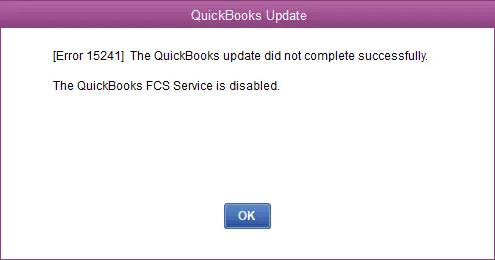
While Update Quickbook Payroll you might end up facing “The Quickbook update did not complete successfully”. QuickBooks Desktop Payroll Update Error 15241 is a payroll update failure that belongs to the 15000‑series of QuickBooks errors. These errors typically occur when background services are blocked, disabled, or misconfigured, preventing QuickBooks from downloading tax tables or applying updates.
Error 15241 specifically arises when the QuickBooks File Copy Service (FCS) is disabled. Since FCS manages file transfers during updates, its failure means QuickBooks cannot apply payroll changes. Users often encounter this error while updating tax tables or installing payroll patches, and the system may slow down, freeze, or crash during the process.
Error Message Variants (as they appear to users)
When QuickBooks Error 15241 occurs (typically during a QuickBooks Desktop product or payroll update), users typically see one of these messages:
15241 belongs to the same 15XXX update-error family as 15243, 15106, and 15103, most commonly appearing on systems with a stuck or corrupted update configuration, and is generally resolved the same way: running QuickBooks Tool Hub’s Quick Fix my Program, then retrying the update as administrator.
You may be facing this error if:
| Level | Step | Action | Time Limit |
| Beginner | 1 | Enable QuickBooks File Copy Service (FCS) | 5–10 minutes |
| 2 | Update Payroll Tax Tables | 5 minutes | |
| 3 | Download Latest QuickBooks Updates | 10–15 minutes | |
| 4 | Set Preferences in QuickBooks Desktop | 5 minutes | |
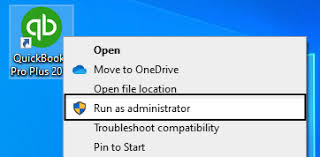
| 5 | Run QuickBooks as Administrator | 2 minutes | |
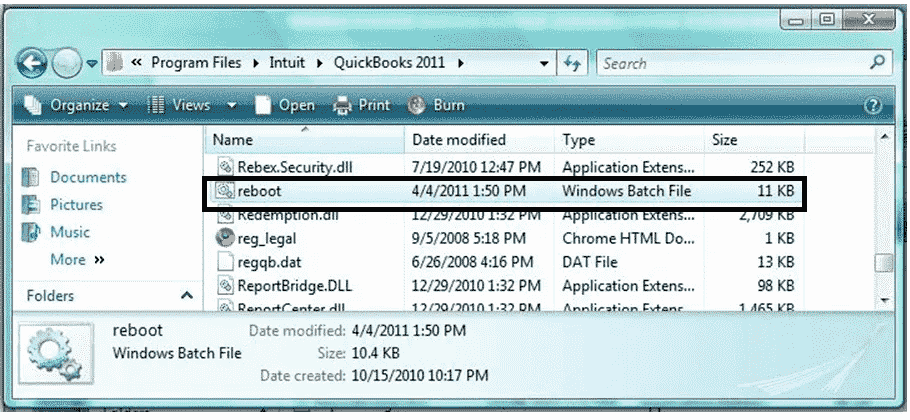
| Intermediate | 6 | Run Reboot.bat File | 5 minutes |
| 7 | Use Payroll Update CD | 10–15 minutes | |
| 8 | Check QBWin.log File | 10 minutes | |
| 9 | Refresh Payroll Connection (Service Key) | 5–10 minutes | |
| Advanced | 10 | Reinstall QuickBooks Desktop | 30–45 minutes |
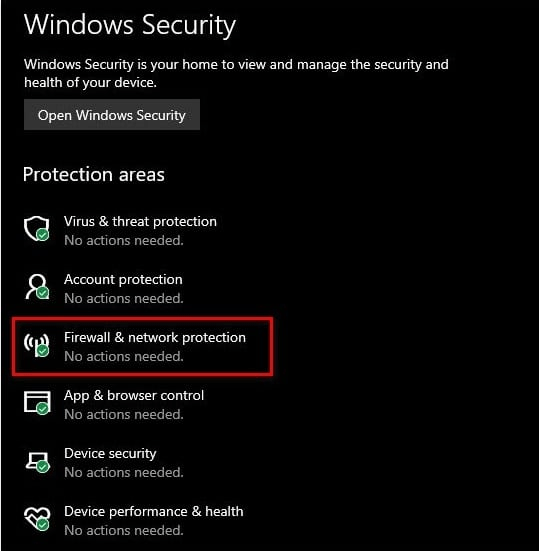
| 11 | Configure Firewall & Internet Security | 15–20 minutes | |
| 12 | Verify Intuit Digital Signatures | 10 minutes | |
| 13 | Check Windows Services Dependencies | 10–15 minutes |
QuickBooks Desktop Payroll Update Error 15241 is more than just a technical glitch; it’s a disruption that directly impacts payroll accuracy and compliance. Rooted in the disabled File Copy Service (FCS), this error is part of the broader 15000‑series, which often signals blocked or misconfigured background processes. Left unresolved, it can cause failed payroll updates, system slowdowns, and even crashes, putting businesses at risk of tax miscalculations and penalties.
With the right approach of using troubleshooting steps the error can be resolved. One can also recognize the symptoms of this error early by following all the prerequisites. The segregation of beginner to advanced level of troubleshooting steps will help the user to troubleshoot the error quickly.
In short, Error 15241 is preventable, identifiable, and fixable and with a structured approach, businesses can keep their payroll processes compliant, efficient, and uninterrupted.
Technically, yes, you can run payroll, but it is not recommended. Without the latest tax table update, QuickBooks will calculate paychecks using outdated tax rates, which can lead to incorrect withholdings, tax penalties, and compliance issues with the IRS or state agencies. It is safer to resolve the update error before issuing paychecks.
The File Copy Service (FCS) is a Windows background process that manages file transfers and updates for QuickBooks Desktop. It ensures payroll and software updates are downloaded, verified, and installed correctly.
If the FCS disables itself repeatedly after you fix it, the culprit is usually an aggressive third-party application. System optimization tools (like PC cleaners) or over-zealous antivirus software often flag the FCS as an unnecessary background process and shut it down to “save memory.” You may need to whitelist Intuit services in your security software settings to prevent this from happening again.
Yes, these errors are closely related. While Error 15241 indicates the update service (FCS) is disabled, Error 15270 usually means a specific file is missing or the update requires User Account Control (UAC) permissions to finish installing. If you see 15270 after fixing 15241, restarting QuickBooks as an Administrator usually resolves it.
Yes, most users can resolve this error manually by following the correct steps for their Windows version. However, if the FCS service fails to start or QuickBooks remains unresponsive, contacting QuickBooks support is recommended.
reboot.bat file delete my QuickBooks company data?No, running the reboot.bat file does not delete or damage your company data (.QBW files). This script simply re-registers the QuickBooks software components (DLL and OCX files) with Windows. It resets the program’s internal connections, not your financial records. However, it is always best practice to back up your data before performing any troubleshooting.
No, this error does not damage company files. It only affects the payroll update process by stopping the File Copy Service required for file transfers.
Open the Run window, type services.msc, locate Intuit QuickBooks FCS, right-click it, select Properties, set Startup type to Manual, and click Start followed by OK.
Yes. Modifying Windows Services (services.msc), such as the Intuit QuickBooks FCS, requires full Windows Administrator privileges. If you are logged into a standard user account or a guest profile, the options to change the startup type to “Manual” may be greyed out. You must log in as an Admin to apply this fix.


