Excerpt:
This article provides a comprehensive guide on managing user roles and admin rights in QuickBooks. It details how to add, change, or revoke admin access for users in both QuickBooks Desktop and Online, helping you control who can access sensitive company data and perform administrative tasks. The guide also explains the differences between primary and company admins, ensuring efficient user management for businesses. It is designed to help QuickBooks users securely assign and adjust admin rights to maintain effective control and streamlined operations.
 Add As A Preferred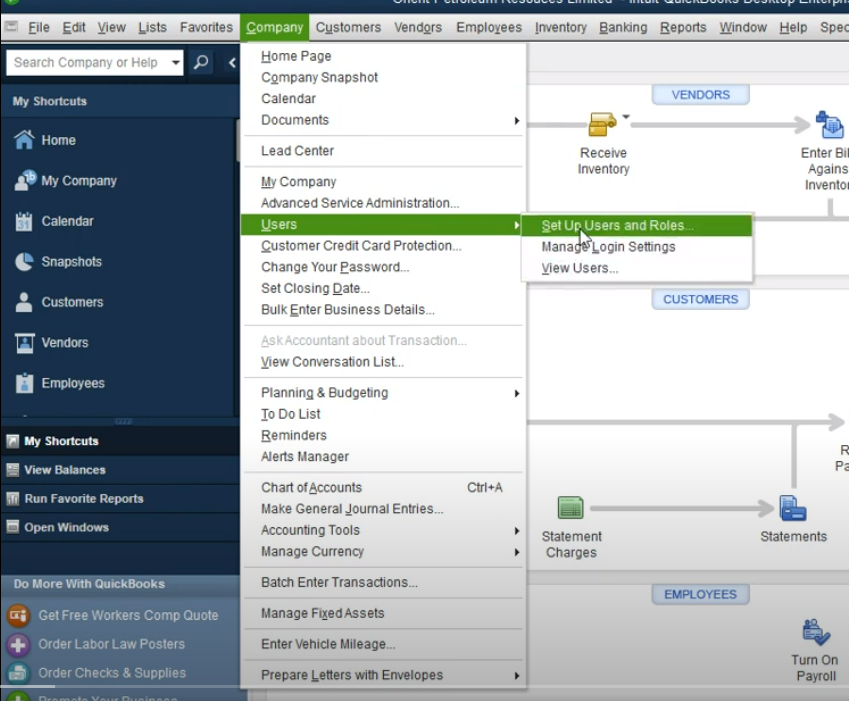
QuickBooks employs a mandatory, singular Primary Admin role that functions as the account owner, possessing exclusive control over billing, subscriptions, and the authority to transfer the admin role. This foundational administrative role is distinct from the optional Company Admin role, which provides full operational access but cannot modify the Primary Admin’s permissions. The content comprehensively covers the procedures for managing these roles across QuickBooks Desktop (QBD) and QuickBooks Online (QBO), detailing essential tasks such as adding new users, transferring the Primary Admin role (which requires the new user to accept an email invitation), and the necessary steps for submitting a formal Primary Admin Change Request to Intuit when the current admin is unavailable. Furthermore, the instructions emphasize that multi-user functionality in QBD depends heavily on granting the QuickBooks Database Service User appropriate Windows administrator permissions, a critical step beyond simply assigning the QuickBooks role. These actions, alongside all user role modifications, are tracked permanently in the Audit Log for full accountability.
Highlights (Key Facts & Solutions)
QBDataServiceUserXX (QuickBooks Database Service User) on the host server.There are two admins in QuickBooks:
Note: Primary admin and company admin are both billable roles, i.e., they are counted towards the user limit.
The primary and company Admin look alike as they are both able to perform many of the similar processes, but they aren’t. The primary Admin is required for each QuickBooks account, and you can’t set up Quickbooks for your business without creating a primary admin. Most importantly, you can only create a single primary admin for your business account. Quickbooks accounts are not compatible with multiple primary admins.
Whereas the Company admins are optional, which means you’re not bound to create Company admins when setting up your business Quickbooks account. They have a slightly lower level of permissions than primary admins. For example, company admins can’t remove the primary admins associated with their Quickbooks account. They can add or remove other users, like standard users, but can’t edit or remove the primary Admin.
You can easily transfer the primary admin role in QuickBooks. If the new admin is already a QuickBooks user, simply assign the role to them. If they’re not yet a user, add them as a new user first, then transfer the primary admin role to them.
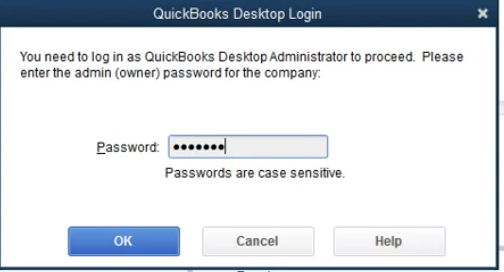
Perform the following steps to provide admin rights to existing users:
Note: Ensure that you’ve created a unique and strong password for the admin user.
Remember: We recommend you always keep your passwords secure and review or update user permissions at regular intervals so you can maintain efficiency with your accounting software.
Note: Only an admin can add new users and modify their roles.
Note: Make sure the password meets the security standards.
Note: If you haven’t set a password yet, select Set up Users to configure it immediately.
To Remove admin rights, follow the steps below:
Note: Only an admin can make changes to user access.
Note: Make sure that the User has proper access to all the accounting features without admin rights.
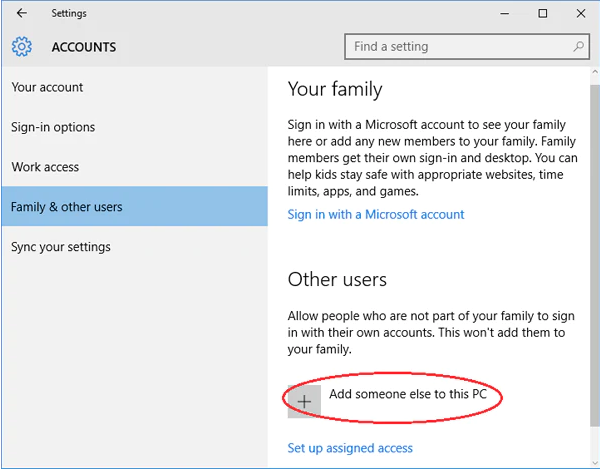
You are recommended to log in to Windows as a user with administrator rights if you run QuickBooks Desktop in a multi-user environment. This allows you to change things like your firewall settings and folder permissions. You also need to give permissions or admin rights to programs like Database Server Manager. Let’s create a Windows user using admin rights so you can set up programs and configure Windows settings.
Here are the steps from Microsoft to create Windows users and give them admin rights:
For Windows 10/11:
Create a local user account
Note: In some versions of Windows, you’ve to click on Other users.
Change a local user account to an Administrator Account
Note: If you choose an account that displays an email address or doesn’t say Local account, then you have to give administrator permissions to a Microsoft account, not a local account.
For Windows Small Business Server 2011 and 2008 R2
Some programs need admin rights to work on multi-user networks. For example, QuickBooks automatically creates a new Windows user when you install QuickBooks database server manager. You are just required to give this user admin rights so that it can run easily on your network. Go through the steps below to give admin rights to QB programs.
If you’re a primary admin, you can simply transfer the primary admin role to an existing QB user, or if the person is not a QuickBooks user yet, you can change the primary Admin or also add them as a new user. Later, transfer the primary admin role to them once they’re added successfully.
You are recommended to log in as the primary Admin to transfer/change the primary admin role. You can send a request to be the primary Admin in case the current primary Admin is no longer with the company.
Here’s how to transfer/change the Role to an existing user:
Note: Being an accountant, you need to be the primary Admin of your business to change the primary admin role in a client’s account.
To make a primary Admin, go through the following steps:
To change primary Admin, perform the steps below:
When the users are notified of the invitation email, they are prompted to click on the link and accept the Invitation to be the primary Admin.
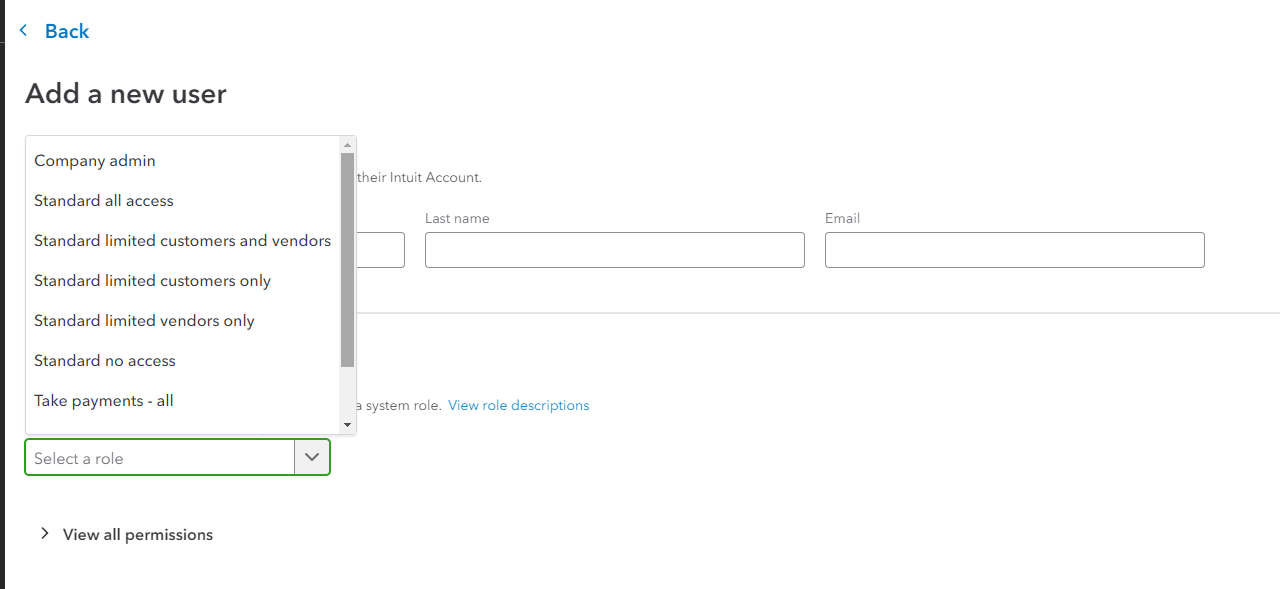
When you add users, this will help with different business operations and bookkeeping tasks. You can customize each role, give individual permissions, and also allow your accountant access to your company’s books.
Note:
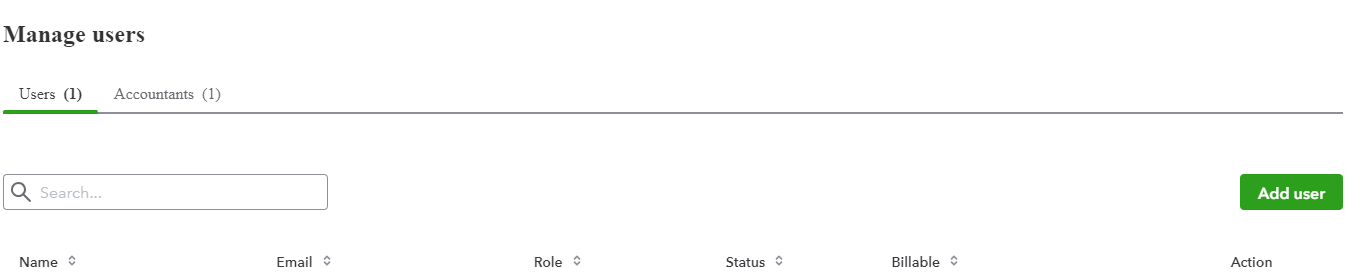
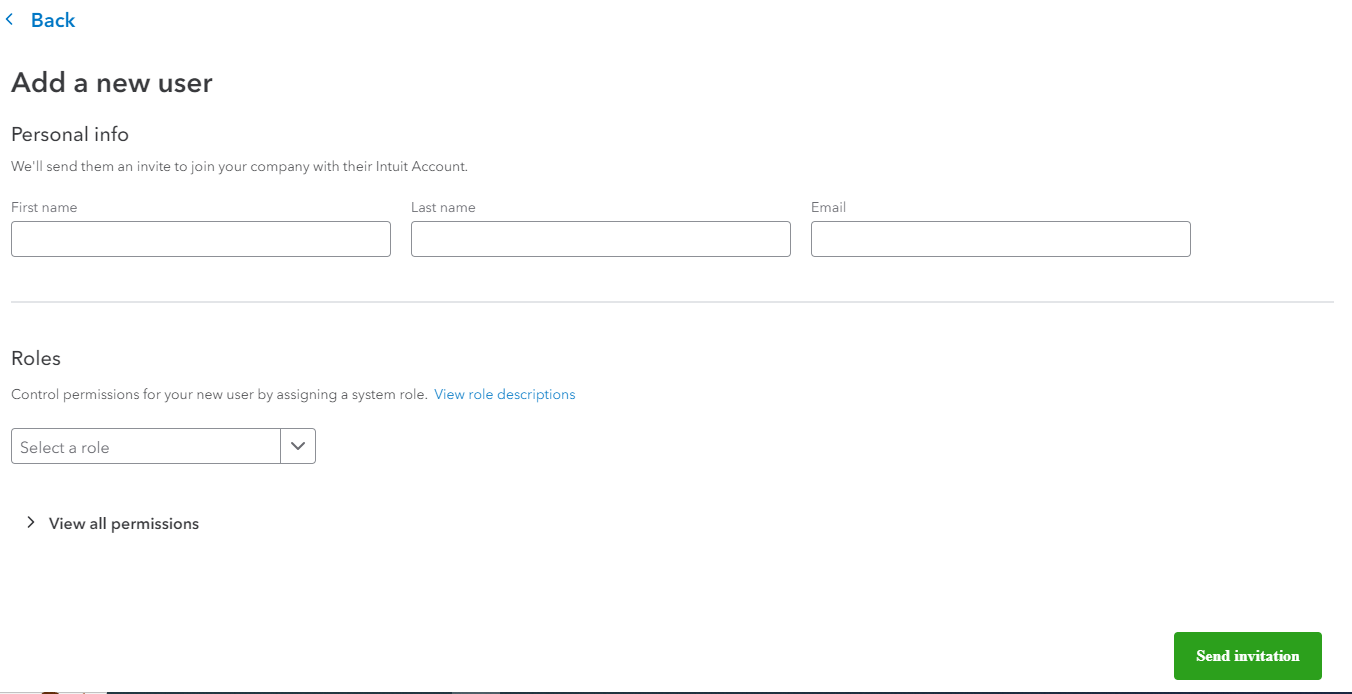
Add a New user
When you add a user, your subscription plan determines how many users you can add. Some certain roles don’t count toward your user limit, like Reports or Time tracking only.
Once done, new users receive an invite notification to join the company. Ask them to select the Let’s go! link in the email to accept the invite. From here, they can create a new Intuit Account or login if they already have one.
Giving admin rights to the users
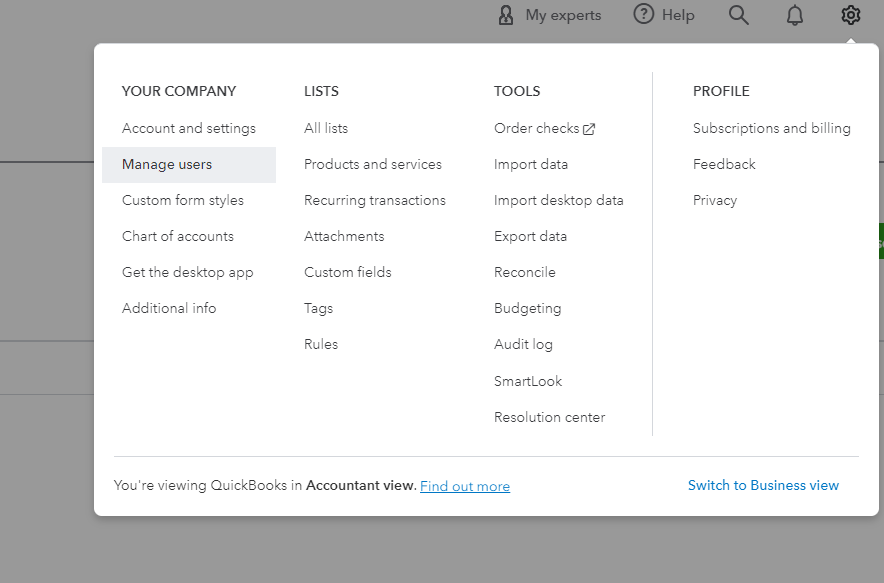
Delete a user
Note: After deleting a user, you can still view their history in the audit log.
Managing user access in QuickBooks is essential for smooth collaboration and security. Whether you’re using QuickBooks Desktop, adding users allows you to assign roles, set permissions, and control access levels. Here’s a simple guide to help you add users effortlessly.
For QuickBooks Desktop Enterprise, you can further customize access using the Advanced User Permissions feature.
Now you’re all set! Adding users in QuickBooks ensures secure and efficient teamwork.
If you need to transfer the Primary Admin role in QuickBooks Online or Desktop to another user, follow these steps to ensure a smooth transition. The Primary Admin has the highest level of control over the account, so transferring this role is crucial when changing business ownership or account management.
By following these steps, you can easily transfer admin rights and ensure smooth business operations.
The Primary Admin in QuickBooks holds the highest level of access and control over the account. If you need to transfer or remove the Primary Admin, follow these steps based on your QuickBooks version.
Note: Only the current Primary Admin can transfer the role. If you can’t access the account, you’ll need to submit a Primary Admin Change Request to QuickBooks Support.
Important: QuickBooks Desktop does not allow direct removal of the Primary Admin. Instead, you can change the role or create a new admin user.
If you need to update the primary admin email in QuickBooks, follow these simple steps to ensure uninterrupted access to your account.
By following these steps, you can easily change the primary admin email and keep your QuickBooks account secure and accessible.
Still have questions? Explore our detailed FAQs.


