 Add As A Preferred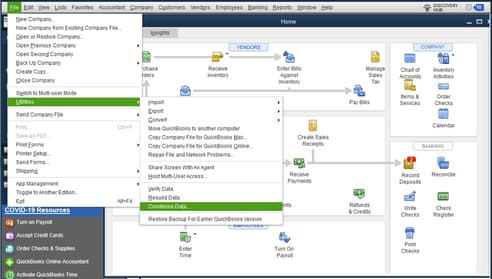
To fix payroll tax discrepancies in QuickBooks Desktop Enterprise Payroll, particularly those arising from file size limits or data corruption:
Payroll tax discrepancies often occur due to a large company file size, data file corruption, incomplete payroll tax table updates, damaged employee records, mismatched check payments and liability accounts, and more.
Failing to correct these discrepancies can lead to severe consequences, including late tax payments, filing rejections, penalties, failed tax submissions, or errors in year-end reporting and W-2 distributions. Fixing damaged or corrupted company files helps in accurate payroll tax calculations, improves compliance with tax laws, and restores system stability.
There are several reasons for payroll tax discrepancies particularly related to file size limits or corruption and how they affect them in QuickBooks Desktop Enterprise Payroll.
Large or oversized company files in QuickBooks Desktop Enterprise often trigger payroll errors by degrading system performance, increasing the risk of data corruption, and limiting efficient payroll processing. When the company file exceeds the 1.5 GB size limit, QuickBooks struggles to manage and update payroll data accurately.
| Reasons | How It Causes Payroll Tax Discrepancies |
|---|---|
| Large Company File Size | Reports such as 941, W-2, and Payroll Summary display missing or inaccurate tax data. |
| Corruption in Payroll Item lists | Taxes are calculated or reported incorrectly on paychecks. |
| Mismatch between checks and liability accounts | Withheld amounts mismatch the amount owed to tax agencies. |
| Failed or Partial tax table updates | Outdated or wrong tax rates are used on paychecks, and inconsistencies in filings and reports |
| Data File Corruption | Missing transactions, tax details, or employee data |
| Damaged Employee Records | Inaccurate tax totals are shown in filings or reconciliations |
Discrepancies in payroll tax withholding’s result in several issues that occur due to file size limits or data corruption in QuickBooks Desktop Enterprise Payroll.
Let’s have a look:
Common issues caused by oversized files include:
Oversized QuickBooks Desktop files disrupt payroll processing, reduce file stability, and degrade overall system performance.
QuickBooks may freeze or become unresponsive during paycheck calculations, direct deposit submissions, and payroll report generation.
Common error messages when updating payroll, paying taxes, or opening federal and state forms include:
Additional issues include:
If you’re facing payroll errors in QuickBooks Desktop Enterprise due to a large or damaged company file, follow these easy steps to fix the issue and avoid data loss:
Check your payroll subscription status to confirm compatibility with larger company files. The file size limit varies based on your active payroll plan in QuickBooks Desktop.
Payroll Tax Discrepancies in QuickBooks Desktop Payroll often occur due to damage or corruption in the company file or when the file size limit is exceeded. These conditions cause payroll-specific issues that affect tax accuracy, compliance, and system stability.
Let’s have a look at the solutions given below:
Before you condense your file, make sure to create a backup copy of your company file. If any changes happen, a backup copy allows you to restore it to undo the changes.
Here’s how to run the Condense Data utility:
The verify tool finds the most common issues in a company file, and the rebuild tool fixes them.
Note: Contact the QuickBooks Support Team before you rebuild your data in case you use Assisted Payroll.
Note: Don’t replace your existing company file. You need to re-enter the info into your company file since the backup was created.
Create a new company file for scratch in case you’re unable to reduce the file size.
Here’s how:
Here’s how to download the latest QuickBooks and payroll tax table updates.
An outdated QuickBooks version doesn’t allow you to download the QuickBooks Payroll Updates.
Here’s how you can update your software:
Set up automatic updates so that QuickBooks downloads payroll updates automatically whenever they are available.
You can also download the latest payroll update anytime while in QuickBooks:
Note: There will be no web patch available for the 2024 tax table updates; they must be completed within the product.
You can only do a Payroll Checkup if you have QuickBooks Desktop Basic, Standard, and Enhanced Payroll.
Note: Change your computer’s system date to the last day of that year if you need to run a payroll checkup for a previous year.
Note: Payroll Checkup will only correct wage base discrepancies.
Creating a portable company file will help you fix minor data corruption issues, such as payroll tax discrepancies, missing payroll transactions, and incorrect balances. This is a compressed version of your company file(.QBW) that’s small enough to send in an email or put on a USB. Here’s how to create and open a portable company file to move your data to another computer and fix issues.
Create a portable version of your company file, do the following:
You now have a portable company file you can send online or put on a USB. The file will look like this: [Unique company file name].qbm.
Note: In case you share a portable copy with someone, they can access everything in the file. It’s password protected, and they need a password to open the file.
To open a portable version of your company file, do the following:
Important: Don’t use the same name for your portable company file and regular company file. If you save them in the same folder, the portable file will overwrite the regular one. Either rename the portable company file or save it to a different folder.
QuickBooks automatically re-indexes your data once you open your portable company file. This helps to fix many data issues.
Before you manually run payroll in QuickBooks Desktop, enable payroll inside your QuickBooks settings.
Note: Make sure to update your version of QuickBooks so you get the latest fixes and improvements before setting up payroll manually.
You can now run your payroll manually.
You can split the company file by copying the existing file and adding the same vendors, customer contact information, chart of accounts, and lists.
Follow the steps below:
Your performance may be interrupted or slowed down if multiple users are logged in and working on the company file at the same time. You would be unable to complete your payroll processes, such as calculations, tax table updates, and paycheck creation, due to data conflicts and file locking issues. Stop hosting multi-user access in QuickBooks Desktop and allow only one user to work at a time.
Here’s how:
Before you start, create a backup copy of your company file, then download and install QuickBooks Tools Hub. Once done, run the Quick Fix My File and then make use of the QuickBooks File Doctor tool. This is a built-in tool that auto-detects and auto-fixes data damage issues within QuickBooks.
Note: If the QuickBooks File Doctor doesn’t open, look for QuickBooks Desktop File Doc and open it manually.
Note: If you’re unable to see your file, click Browse and search to find your file.
The scan time depends on your file size and can probably take up to 10–15 minutes. The scanning process may say it was unsuccessful even if it fixes your issue. When the scan finishes, open QuickBooks and then your company file.
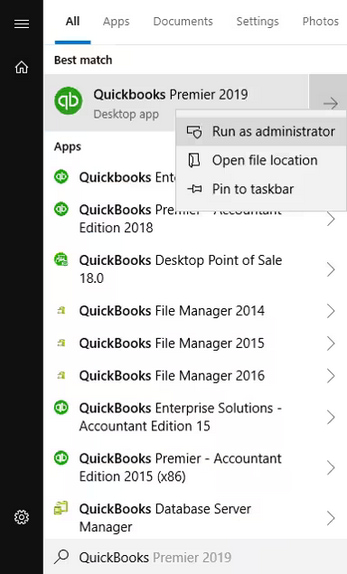
Running QuickBooks as an administrator grants the permissions to the program and allows it to work smoothly especially when managing company files, installing updates, or accessing payroll features.
Multiple users accessing the company file at the same time causes data conflicts, file locking, and delays. QuickBooks fails to calculate paychecks, update tax tables, or process direct deposits. Switch to single-user mode to run payroll without errors and maintain file stability.
To avoid tax discrepancies in QuickBooks Desktop Enterprise Payroll, you need to consider the best practices that ensure data accuracy, compliance with tax laws, and timely processing.
Your payroll may fail if your company file is too large (over 1.5 GB), corrupted, or outdated. QuickBooks struggles to calculate paychecks and process taxes accurately in oversized or damaged files.
To fix these issues, condense the data, verify and rebuild the file, run the QuickBooks File Doctor Tool, update your payroll tax table, and always open QuickBooks as an administrator.
Yes! Regularly update QuickBooks and payroll tax tables, back up your data, limit multi-user access during payroll, and clean up unnecessary data to keep your file size manageable.


