Excerpt:
Quickbooks Error 1723 is a window installer failure, not a Quickbooks bug. It stops installation, updates and uninstallation with the message "A DLL required for this install to complete could not be run" and affects Pro, Premier, Enterprise and Accountant on Window 10 and 11. This guide works through eight fixes in order of complexity, each with a check to confirm whether it worked.
 Add As A Preferred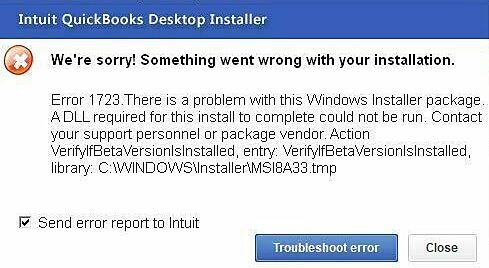
QuickBooks Error 1723 is an MSI (Microsoft Installer) engine failure that blocks QuickBooks Desktop from completing installation, updates, or uninstallation. The core issue is the system’s inability to run a required DLL file — usually due to permission gaps, corrupted Microsoft frameworks (.NET/MSXML), or a compromised temp directory.
Quick Fixes – Try in This Order:
| Priority | Action | Estimated Time |
|---|---|---|
| 1 | Confirm your Windows account has administrator rights | 5-10 min |
| 2 | Run the Quickbooks Install Diagnostic Tool from Tool Hub | 15-20 min |
| 3 | Grant Full Control on the %temp% folder | 20-25 min |
QuickBooks Error 1723 is a Windows Installer package failure that prevents QuickBooks Desktop from installing, updating, or uninstalling correctly. This is not a QuickBooks-specific bug but rather a Windows environment problem that blocks the installation process.
The error occurs when the Windows Installer engine cannot access or execute a required DLL file. The system fails to complete the setup because it cannot modify or access the files it needs.
Error Message Variants (as they appear to users)
When QuickBooks Error 1723 occurs (typically while installing, updating, or uninstalling QuickBooks Desktop), users typically see one of these messages:
- Error 1723: There is a problem with this Windows Installer package. The full message continues: “A DLL required for this install to complete could not be run. Contact your support personnel or package vendor.
- Error 1723 appears mid-update or mid-reinstall — shown when the Windows Installer service itself is damaged or a required system DLL cannot run.
- Installation halts with a Windows Installer error referencing a missing or unregistered component, most often linked to a corrupted Microsoft Visual C++ redistributable on the system.
QuickBooks Error 1723 belongs to the Windows Installer (MSI) error family and is triggered when Windows’ own installer engine can’t run a required DLL. It isn’t specific to QuickBooks data, and it typically clears once the Windows Installer service and related Microsoft components are repaired, most commonly appearing right after a Windows feature update changes those components.
Clarify the error comes from the Windows Installer engine itself, not a specific Windows build; state it appears identically on Windows 10 and 11 with the same fix order applying to both; note it often resurfaces right after a Windows feature update changes installer-related components — which is why re-running the Diagnostic Tool after major Windows updates helps prevent recurrence.
This message indicates that the installer is unable to access or execute a required file. If you’d rather skip the troubleshooting and get it fixed quickly, our QuickBooks support team is available to walk through the fix with you directly — just call +1-802-778-9005 or use the live chat on this page.
Error 1723 typically appears during:
Following are the main prerequisites that must be ensured before troubleshooting Error 1723 in QuickBooks Desktop:
| Level | Method | Key Steps (Short) | Time | Verification |
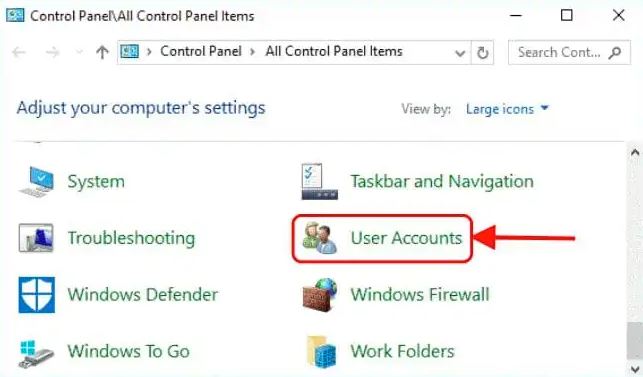
| Beginner | 1. Admin Privileges | Control Panel → User Accounts → Change to Admin → Restart | 5–10 min | QuickBooks update works |
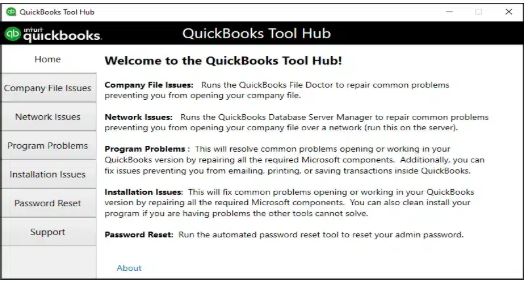
| 2. Diagnostic Tool | Install Tool Hub → Installation Issues → Run Diagnostic Tool → Restart | 15–20 min | QuickBooks opens without error | |
| Intermediate | 3. %temp% Permissions | %temp% → Properties → Security → Full Control → OK → Reinstall QuickBooks | 20–25 min | QuickBooks installs successfully |
| 4. System File Checker | Command Prompt (Admin) → SFC /scannow → Repair → Restart | 15–30 min | QuickBooks opens without error | |
| 5. Re-register MSI | Command Prompt (Admin) → msiexec /unregister → msiexec /regserver → Restart | 10-15 min | Installer runs without DLL error | |
| Advanced | 6. Component Repair | Repair .NET Framework → Rebuild MSXML → IT consult if needed | 30–45 min | QuickBooks installs/updates successfully |
| 7. Reinstall Java | Control Panel → Uninstall Java → Download latest → Install → Restart | 20-30 min | QuickBooks installs/updates without error | |
| 8. New Admin Profile | Settings → Accounts → New user → Set as Admin → Reinstall QB | 15-20 min | QuickBooks installs successfully |
Beginner Level (Low Complexity)
Estimated Time: 5–10 minutes
Steps:
Verification: Try updating QuickBooks Desktop. If successful, permissions were the issue.
Estimated Time: 15–20 minutes
Steps:
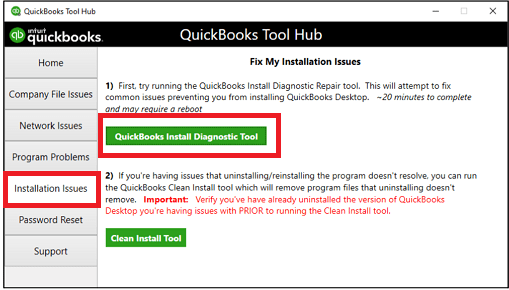
Verification: Launch QuickBooks Desktop and check if error 1723 is resolved.
Intermediate Level (Moderate Complexity)
Estimated Time: 20–25 minutes
Steps:
Clean Install (if needed):
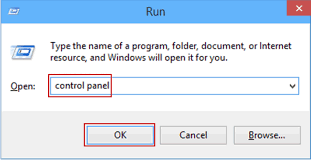
Verification: Launch QuickBooks Desktop and confirm installation completes without error.
Estimated Time: 15–30 minutes (depending on scan size)
Steps:
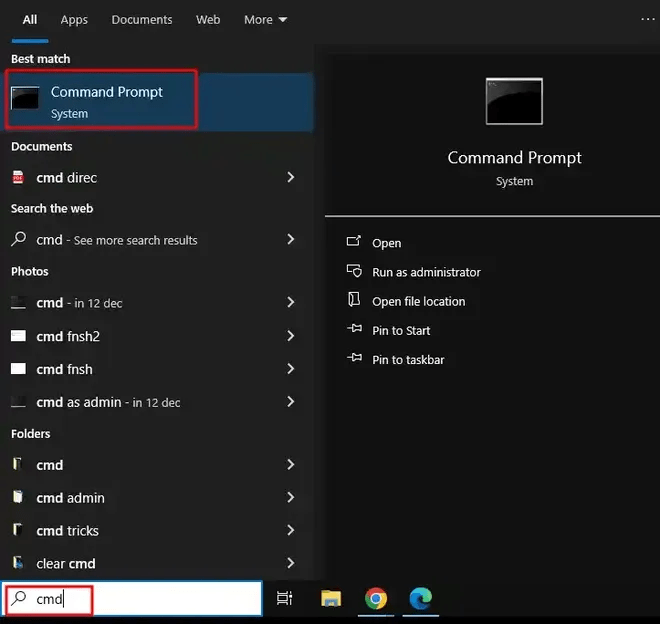
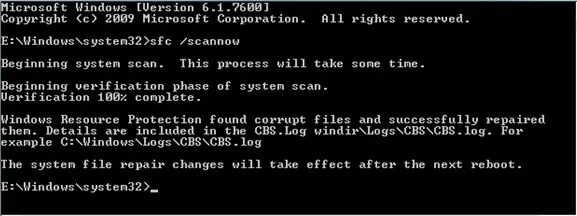
If SFC reports that it found corrupt files but could not fix some of them, the windows component store it copies replacements from is itself damaged. Run DISM/Online/Cleanup-Image / Restore health in the same elevated command prompt, wait for it to finish it often paused near 20 percent then run sfc/scannow a second time. SFC can now complete the repair it previously failed.
Verification: Reopen QuickBooks Desktop. If error persists, move to advanced methods.
Estimated Time: 10–15 minutes
Sometimes the Windows Installer service itself becomes unregistered or corrupted, which directly causes Error 1723. Re-registering it can resolve the issue without any deeper repair.
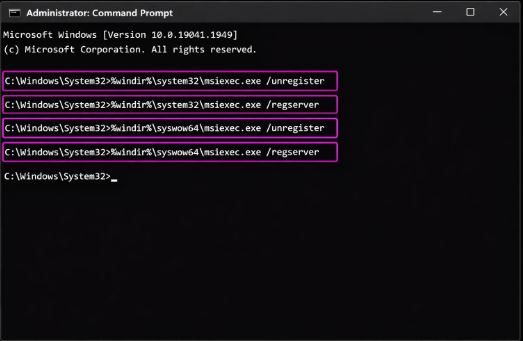
Steps:
Verification: The installer should now run without displaying the DLL error.
Advanced Level (High Complexity)
Estimated Time: 30–45 minutes
Steps:
1. Repair .NET Framework using the Microsoft .NET Framework Repair Tool. Apply every change it recommends, then restart.
2. Press Windows + R, type cmd, then Ctrl + Shift + Enter. Type regsvr32 MSXML6.dll and press Enter. A success dialog confirms it registered.
3. On 64-bit systems, also run regsvr32 %systemroot%\SysWOW64\msxml6.dll.
4. Restart and retry the installation.
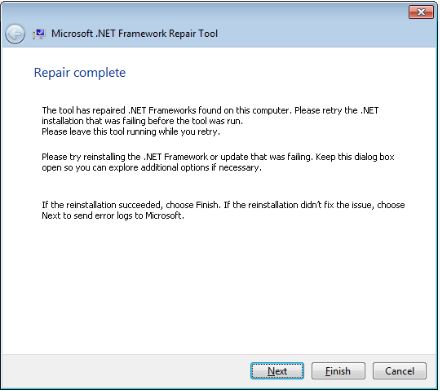
Verification: After repairs, reinstall/update QuickBooks Desktop.
Estimated Time: 20–30 minutes
Steps:
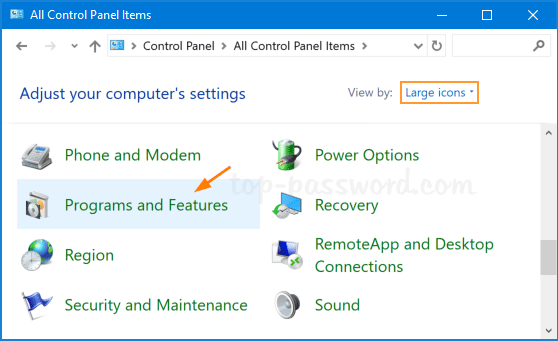
Verification: Try installing/updating QuickBooks Desktop again.
Estimated Time: 15–20 minutes
If your existing Windows user profile has become corrupted, QuickBooks may fail to install no matter what else you try. Creating a fresh profile rules this out.
Steps:
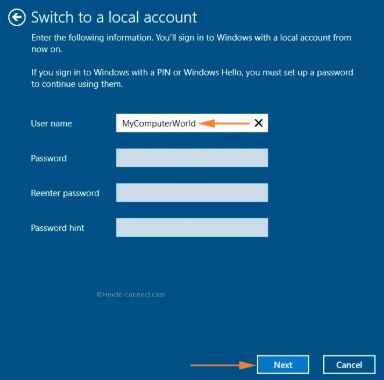
Verification: If installation succeeds under the new profile, your original profile was the source of the corruption.
Note: If you’d rather skip the troubleshooting and get fixed quickly, our Quickbooks support team is available ti walk through the fix with you directly just call at +1-802-778-9005 or use the live chat on this page.
Users may experience these symptoms when Error 1723 occurs:
Understanding these limitations helps set realistic expectations:
| Limitation | Explanation |
|---|---|
| Not a QuickBooks bug | Error originates from Windows Installer, not QuickBooks itself |
| System-level changes needed | Fixes may require changes to system settings outside QuickBooks |
| May need IT expertise | Advanced steps (.NET repair, MSXML rebuild, registry edits) may need professional help |
| Temporary work disruption | Clean install requires uninstalling QuickBooks |
| Hardware issues | If hard drive is failing, software fixes won’t resolve the error |
Below mentioned are the preventive steps that can be taken into consideration to avoid Quickbook error 1723:
QuickBooks Error 1723 is a Windows Installer package issue that prevents QuickBooks Desktop from installing, updating, or uninstalling correctly. It is triggered by permission restrictions, corrupted installation files, damaged system components, malware, an unregistered Windows Installer engine, or missing Java dependencies.
By following this structured troubleshooting approach — starting with simple fixes and escalating to advanced steps — users and technicians can resolve Error 1723 effectively. Regular maintenance and proactive checks ensure smoother QuickBooks performance and minimize installation failures in the future.
Error 1723 is caused by problems with the Windows Installer package — most often insufficient admin permissions, corrupted installation files, damaged .NET Framework or MSXML components, restricted %temp% folder access, malware, or an outdated Java installation.
Yes, in some cases. QuickBooks Desktop relies on certain Java components during installation. If Java is outdated, missing, or corrupted, it can trigger Error 1723. Uninstalling and reinstalling the latest version of Java often resolves this.
Re-register the Windows Installer engine using msiexec /unregister followed by msiexec /regserver in an elevated Command Prompt, run the System File Checker (SFC /scannow), and ensure Windows is fully updated. If the issue persists, use the QuickBooks Install Diagnostic Tool from Tool Hub.
Yes, in many cases. Error 1723 often indicates a missing or corrupt Windows Installer file or a problem with the installation package. Checking the Windows Installer service, updating Windows, and reinstalling from a fresh copy of the setup file commonly resolves it.
While Error 1723 is directly related to the Windows Installer, a stable QBDM environment indirectly supports a smooth installation and upgrade process. QBDM manages multi-user access to your .QBW file. If the QBDM service is corrupted or improperly registered, it can interfere with subsequent installer actions. If you’ve already run the QuickBooks Install Diagnostic Tool and still face issues, reinstalling QBDM followed by a reboot can clear deep registry conflicts.
The Windows Installer Engine (MSI) is Microsoft’s built-in service used to manage the installation, maintenance, and removal of software. For QuickBooks Desktop, it’s critical because it handles placing all necessary files, setting up registry keys, and configuring data paths. When the MSI engine has permission issues or file corruption, it prevents QuickBooks from writing to or reading from the system correctly.
They can be. While Error 1723 is a specific installation issue, the underlying problem — a damaged Windows component, corrupt system files, or insufficient hardware resources — can linger. If your system or hard drive health is poor, or your available RAM is too low, QuickBooks Desktop will perform poorly even after the installer error is fixed.
Sometimes, but not reliably. Windows Update often resolves generic Installer service bugs or updates components like .NET Framework, which QuickBooks relies on heavily. However, if the cause is specific temp-folder permission corruption or a damaged installation file, a Windows Update alone will not resolve the problem.
Yes. If you’re reinstalling QuickBooks after facing Error 1723, use the QuickBooks Clean Install Tool (accessed via QuickBooks Tool Hub). Error 1723 often leaves behind fragmented or corrupt registry entries and folder artifacts, and the Clean Install Tool removes these for a truly clean slate.
No. The underlying cause of Error 1723 is a flaw in the Windows operating system’s installer engine (MSI), not a difference in QuickBooks software tiers. Pro, Premier, and Enterprise all rely on the same Windows Installer technology, so they are equally susceptible when the system environment is compromised. Troubleshooting steps are the same regardless of your QuickBooks Desktop version.


