Excerpt:
If you're unable to create an Accountant’s Copy in QuickBooks, this guide helps resolve the issue efficiently. Common causes include outdated software, large file sizes, or damaged data. Solutions range from updating QuickBooks, fixing file damage with QuickBooks File Doctor, reducing file size, to ensuring no special characters are in the file name. Follow our step-by-step instructions to restore your Accountant’s Copy functionality and streamline your accounting tasks. For expert help, reach out to our support team.
 Add As A Preferred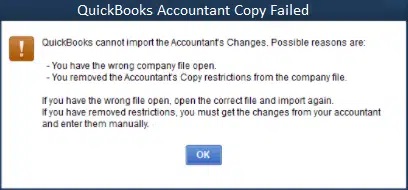
Fix QuickBooks “Accountant Copy Failed” error by running Verify and Rebuild Data, removing pending accountant changes, ensuring sufficient disk space, and updating QuickBooks to the latest release to restore accountant copy creation functionality.
QuickBooks “Accountant Copy Failed” error appears when the software cannot create the Accountant’s Copy transfer file (.QBX) that accountants need to review books while business owners continue working.
QuickBooks “Accountant Copy Failed” error blocks the accountant copy creation process during the File > Send Company File > Accountant’s Copy operation.
QuickBooks displays this error when the company file contains data damage, when hard drive space is insufficient, when a previous accountant’s copy is still pending, or when the file exceeds size limits for the accountant copy feature.
Common “Accountant Copy Failed” messages: “QuickBooks is unable to create an Accountant’s Copy of this company file” or “The Accountant’s Copy could not be created. Error occurred during file creation.”
This article provides a diagnostic framework, risk assessment, and complete solution guide. Accountant copy failures delay tax preparation and month-end close operations. The client cannot send files to the accountant until the error resolves. Business-critical accounting services stop until the transfer succeeds.
“Accountant Copy Failed” does not belong to a numbered error series. This is an operation failure message specific to the Accountant’s Copy feature in QuickBooks. The message indicates the copy creation process could not complete, not that the company file itself is damaged beyond repair.
The Accountant’s Copy feature creates a special locked transfer file (.QBX) that accountants open to make adjustments while the business continues recording transactions in the main file. The copy creation requires QuickBooks to analyze every transaction, create a dividing date snapshot, package data into a compressed transfer file, and verify integrity. Failure at any step triggers this error.
QuickBooks organizes errors by type: numbered codes (6000 series for file access), named messages (like “File in Use”), and feature-specific failures (like “Accountant Copy Failed”). Accountant Copy Failed is a feature-specific message. Related messages include “Send to Accountant failed” and “Accountant’s Changes Pending” blocks.
Can Accountant Copy Failed Trigger Other Errors?
Accountant copy problems create related failures when the root cause goes unresolved. One file issue prevents multiple sharing methods.
| Cause of Accountant Copy Failed | Possible Triggered Errors |
| Company file corruption | Verify Data reports integrity loss |
| Pending accountant changes not imported | “Cannot create copy while changes pending” |
| Insufficient disk space | Windows low disk space warnings |
| File size exceeds 1GB | “File too large” alternate message |
Check the complete error message for specific failure reasons. “Changes pending” points to the previous accountant copy. “Insufficient space” points to the hard drive. Generic “Failed” requires verification scan.
| Possible Causes and QuickFix for Accountant Copy Failed | ||
| Error Event | Likely Cause | Recommended Fix (When to Perform) |
| Failed with “changes pending” | Previous accountant copy still active | Before creating new copy, go to File > Accountant’s Copy > Remove Restrictions to cancel pending changes |
| Failed with “insufficient disk space” | Hard drive space too low | Before retry, free at least 10GB space by removing temporary files and emptying Recycle Bin |
| Failed with generic error message | Company file data damage | Right after failure and before retry, run Verify Data then Rebuild Data from File > Utilities |
| Failed with “file too large” | Company file exceeds 1GB | Before creating copy, condense data from File > Utilities > Condense Data to reduce file size |
Understanding accountant copy mechanics prevents data loss during troubleshooting.
Regular backups (.QBB files) contain all data for restoration. Accountant’s Copy files contain partial data for review only. Creating an accountant copy does not protect against data loss.
This lock prevents data conflicts but also prevents historical corrections. Choose dividing dates carefully – typically the last day of the period the accountant will review.
Solutions organized by skill level, risk level, and success probability. Start with Level 1 and move higher only if lower solutions fail.
These solutions require no technical expertise. Risk of data loss is minimal.
| Solution 1.1: Remove Pending Accountant Restrictions | |||
| Skill Level | Risk Level | Success Probability | Approximate Time Required |
| Beginner | Low | High (if applicable) | 5-10 minutes |
| Risk Explanation | Removing restrictions cancels the pending accountant copy. Accountant changes not yet imported will be lost. Confirm with the accountant before removing. | Solution Explanation | A previous accountant copy still actively blocks new copy creation. Removing restrictions cancels the pending copy and allows creating a fresh one. This resolves the “changes pending” variant of the failure error. |
Steps to Implement Solution 1.1
| Solution 1.2: Free Up Hard Drive Space | |||
| Skill Level | Risk Level | Success Probability | Approximate Time Required |
| Beginner | Low | High | 15-20 minutes |
| Risk Explanation | Deleting files frees space but files cannot be recovered after emptying the Recycle Bin. Review files before deleting. System files are protected and cannot be accidentally deleted. | Solution Explanation | Creating accountant copy requires temporary space equal to 3-4 times the company file size. Insufficient space stops the packaging process. Freeing at least 10GB ensures successful copy creation for most files. |
Steps to Implement Solution 1.2
| Solution 1.3: Update QuickBooks to Latest Release | |||
| Skill Level | Risk Level | Success Probability | Approximate Time Required |
| Beginner | Low | Moderate | 15-20 minutes |
| Risk Explanation | Updates do not modify company data. Always backup before updating. The computer may restart during installation. | Solution Explanation | Outdated QuickBooks versions contain bugs in accountant copy creation code. Intuit releases updates fixing known copy creation failures. Installing the latest version replaces buggy code with corrected file generation routines. |
Steps to Implement Solution 1.3
These modify company file structure. Always create backup before Level 2 solutions.
| Solution 2.1: Run Verify and Rebuild Data | |||
| Skill Level | Risk Level | Success Probability | Approximate Time Required |
| Intermediate | Moderate | High | 30-60 minutes |
| Risk Explanation | Rebuild Data rewrites company file structure. Interrupting Rebuild causes file damage. Always backup before Rebuild. Do not close QuickBooks during the process. | Solution Explanation | Company file corruption stops accountant copy creation. Verify Data identifies corruption. Rebuild Data fixes identified problems. Clean file structure allows successful copy creation. |
Steps to Implement Solution 2.1
| Solution 2.2: Condense Data to Reduce File Size | |||
| Skill Level | Risk Level | Success Probability | Approximate Time Required |
| Intermediate | Moderate | High | 45-90 minutes |
| Risk Explanation | Condense Data removes old transaction details. Summary records remain. Transaction-level detail older than the selected date is permanently removed. Backup mandatory before condensing. | Solution Explanation | Files exceeding 1GB fail accountant copy creation due to size limits. Condense Data removes old transaction details while keeping summary information. This reduces file size allowing copy creation. |
Steps to Implement Solution 2.2
| Solution 2.3: Create Portable Company File Instead | |||
| Skill Level | Risk Level | Success Probability | Approximate Time Required |
| Intermediate | Low | Moderate | 10-15 minutes |
| Risk Explanation | Portable files (.QBM) contain all data uncompressed. File size is smaller than a regular file. Accountants can open and work normally. No dividing date locks apply. | Solution Explanation | Portable Company Files bypass the accountant copy feature entirely. Accountants can open portable files and make adjustments. This workaround succeeds when accountant copy creation fails. |
Steps to Implement Solution 2.3
These require technical knowledge. Backup mandatory before Level 3.
| Solution 3.1: Run QuickBooks Install Diagnostic Tool | |||
| Skill Level | Risk Level | Success Probability | Approximate Time Required |
| Advanced | Moderate | Moderate to High | 20-30 minutes |
| Risk Explanation | Tool repairs Windows components QuickBooks depends on. Company data not affected. Process automatic with no user input required. | Solution Explanation | Damaged Windows components prevent accountant copy file generation. Install Diagnostic Tool repairs .NET Framework, MSXML, and Visual C++ components. Repaired system components restore copy creation functionality. |
Steps to Implement Solution 3.1
| Solution 3.2: Copy File to Desktop and Retry Creation | |||
| Skill Level | Risk Level | Success Probability | Approximate Time Required |
| Advanced | Low | Moderate | 15-20 minutes |
| Risk Explanation | Copying does not modify the original file. Tests if file location causes failure. The original file remains untouched in its original location. | Solution Explanation | Network paths or cloud-sync folders sometimes interfere with accountant copy creation of temporary files. Copying to desktop tests if storage location causes failure. Desktop location eliminates network and sync complications. |
Steps to Implement Solution 3.2
Professional assistance needed if:
If Accountant Copy Failed continues after completing solutions, professional file assessment is required. Persistent failures indicate deep file corruption or file type incompatibility requiring specialized recovery tools. Expert assistance can repair file structure or provide alternative sharing methods for accountant collaboration.
The Dividing Date is a crucial marker set by the client to split the company file’s activity, allowing both the client and the accountant to work simultaneously without conflict.
The 200 megabyte (MB) limit is a hard technical restriction for the Accountant’s Copy File Transfer Service (ACFT), which uses Intuit’s servers for secure exchange. Files larger than this size will fail to upload or generate an error message during the transfer process.
For files exceeding 200 MB, the following alternatives are recommended:
.QBX file on your local drive..QBX file to your accountant using a secure, third-party method such as:The “Accountant’s Changes Pending” message is a restriction marker that confirms a working copy was successfully created and sent to your accountant.
.QBY) to be imported. It locks transactions prior to the Dividing Date to prevent the client from making conflicting changes..QBY) back into your company file via the Import Accountant Changes function.These errors are distinct issues that block QuickBooks functionality necessary for creating or transferring the file.
entitlementDataStore.ecml) is damaged or missing, or if a core Microsoft component like MSXML is corrupted. QuickBooks cannot run—and thus cannot create a file copy—until the license is validated.Long dashes (specifically em dashes or en dashes) are considered special text characters.
Yes, removing the Accountant’s Copy restriction will void the current Accountant’s Copy (.QBX) and make any changes your accountant is working on completely unusable.
.QBY), and the main company file is unlocked for full client access. Any changes made by the accountant in their copy cannot be imported.While QuickBooks Desktop does not have a hard size limit, performance (and transfer reliability) degrades substantially above 500 MB, with the ACFT failing above 200 MB. You can reduce file size by using the following utilities:
.QBM to .QBW) re-indexes the entire database. This often removes database fragmentation and reduces the file size by optimizing the data structure.

