Excerpt:
This guide helps QuickBooks users import their accountant's changes to ensure accurate and organized financial records. It explains how to use QuickBooks' Import Accountant's Changes feature, addresses potential issues like file format errors or internet disruptions, and provides step-by-step instructions for both web and file-based imports. By following the guide, users can easily apply modifications made by their accountants, avoiding errors and maintaining seamless business operations.
 Add As A Preferred
The process of importing an accountant’s adjustments into a live QuickBooks file is essential for maintaining accurate financial records while ensuring daily business operations continue uninterrupted. QuickBooks uses the “Accountant’s Copy” feature, which creates a file containing a dividing date, allowing the client and the accountant to work on the books simultaneously. This workflow maximizes efficiency, resulting in timely and precise financial reporting.
The changes, usually provided in a .QBY file, can be incorporated into the main company file via two methods: directly from the Intuit web server or by importing the file locally. Successfully applying these modifications requires attention to detail, specifically ensuring both the client and the accountant are using compatible QuickBooks versions to prevent common issues such as version mismatch errors or partial imports. Implementing these steps confirms the accountant’s necessary edits, like year-end journal entries, are correctly applied to the company data.
Highlights (Key Facts and Solutions)
An accountant’s copy in QuickBooks is a file created by an accountant and then sent to the client after making any adjustments or edits for accounting purposes.
Now, the client imports this copy into a QuickBooks file and continues their regular business operations. The accountant’s copy is saved on the Intuit server, where a user can exchange data securely with accountants.
An accountant’s copy allows clients and accountants to work on the same set of books simultaneously. The importing process ensures accurate and timely financial reporting without losing any day-to-day transactions a user has entered in the meantime.
| Note: Accountants cannot update client company files into QuickBooks Desktop 2024. You have two options. First, use the older version of QuickBooks Desktop Accountant, and second, ask your client to update their file to QuickBooks Desktop 2024 and then send a new accountant’s copy. |
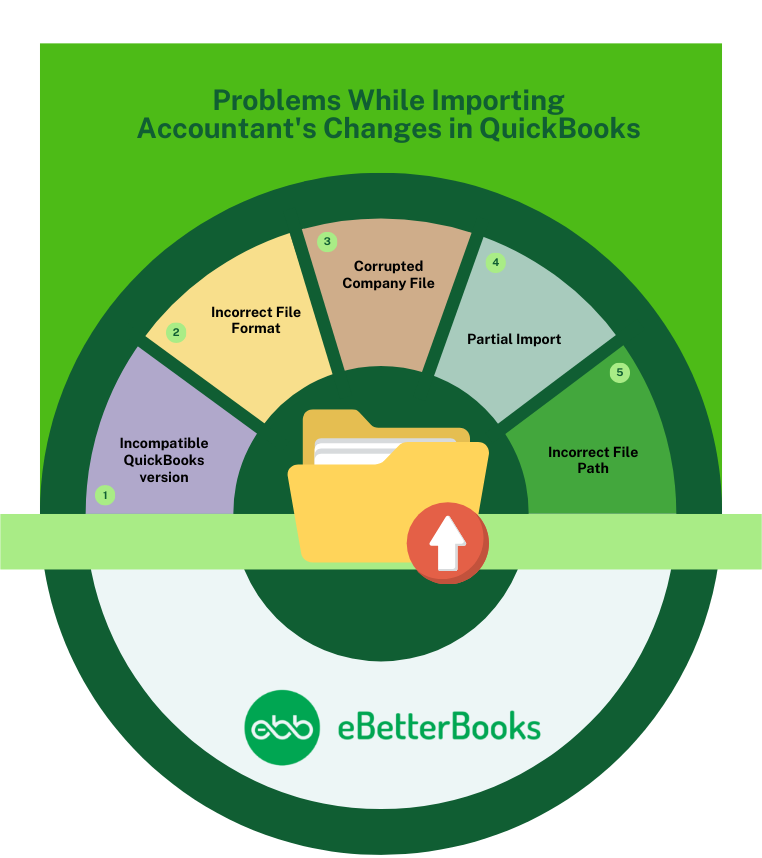
Problems: Incompatibility between QuickBooks version.
Solution: Make sure both the client and accountant are using the same version of QuickBooks software.
Problems: Incorrect File Format
Solution: Get the correct accountant’s changes file with .QBY extension.
Problems: Corrupted Company File
Solution: Get a new file from your accountant and download it completely.
Problems: Partial Import
Solution: Try to re-import the file.
Problems: Incorrect File Path
Solution: Make sure the file is correctly located.
Importing changes in the accountant’s copy comes in need when a business owner is required to provide their accountant with the necessary data to review and make adjustments without interrupting the daily work.
When the account is done with the adjustments that were requested, these changes can be imported back into the main QuickBooks file. Now, importing accountant changes in QuickBooks can be done in two ways: either by importing through the web or by importing through a company file.
Check the included changes for correctness, then click Close.
Consider the following issues which may arise during the process and affect the working:
An accountant’s copy allows a client and accountant to have clear communication and understanding to ensure that changes are properly imported and reflected in the system. Importing accountant’s changes in QuickBooks can be hampered if the internet connection is not stable, the company file is corrupted, or due to partial import.
After considering the problems, a user can import accountant’s changes in QuickBooks in two ways, either through company file or through the web.
Still have questions? Explore our detailed FAQs.


