Excerpt:
QuickBooks Error 6190 816 occurs when the company file cannot be accessed due to multi-user network issues. This prevents users from opening or modifying the file. Common causes include mismatched transaction logs, data corruption, or network disruptions. To resolve this, ensure QuickBooks is updated, verify network setup, and use tools like QuickBooks Database Server Manager or Quick Fix My Program. Regular backups and using single-user mode when making updates can also prevent the error.
 Add As A Preferred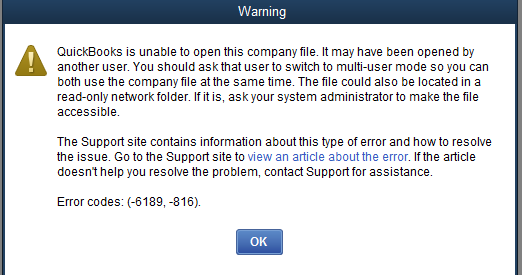
Fix QuickBooks Error -6189, -816 by renaming ND and TLG files, running Quick Fix My Program from Tool Hub, or correcting multi-user hosting settings to restore company file access.
QuickBooks Error -6189, -816 appears when the software cannot access the company file due to a mismatch between the main company file (.QBW) and its transaction log file (.TLG), or due to incorrect multi-user hosting settings.
Error -6189, -816 blocks business operations by preventing file access on workstations while the server may open the file normally. QuickBooks displays this error when multi-user network settings fail – not when the company file itself is damaged.
Common Error -6189, -816 message reads: “An error occurred when QuickBooks tried to access the company file (-6189, -816). There’s an issue with your multi-user mode network settings, not with your data file.”
This article provides a diagnostic framework, risk assessment, and complete solution guide. Network access problems and TLG file mismatches require immediate attention. Delayed repairs prevent all network users from accessing critical financial records.
Error -6189, -816 belongs to the 6000 series handling company file access problems and multi-user network issues. The 6000 series represents file access failures rather than accounting data corruption. QuickBooks uses code -6189 when it cannot access the company file on a network, and code -816 specifically when a file lock or TLG mismatch prevents that access.
QuickBooks organizes errors into series: C= series (internal processing during execution), H series (multi-user hosting configuration), 6000 series (file access and network connectivity). Related 6000 errors include 6150 (structural file damage), 6000-83 (folder permission problems), 6144-82 (network path failure).
QuickBooks C= series share common causes: damaged companion files, incorrect hosting settings, or blocked network access. Error -6189, -816 is specifically a network-access error and does not indicate corruption inside the company file data itself.
QuickBooks errors create additional failures when left unresolved. One access problem generates multiple error codes at different points across a network.
| Cause of Error -6189, -816 | Possible Triggered Errors |
| TLG and QBW file mismatch | File lock errors (workstations cannot open file) |
| Damaged ND file | H202 (multi-user hosting cannot be turned on) |
| Incorrect hosting on workstation | H101, H303 (hosting conflict between computers) |
| Antivirus blocking QuickBooks | Connection timeout errors on all workstations |
Connection timeout errors appear on all workstations. Configuring antivirus exclusions for QuickBooks restores normal network access.
Match your symptom to find the correct solution path. Start by checking whether the file opens on the server but fails on workstations – this confirms a network access problem, not file corruption.
| Possible Causes and QuickFix for Error -6189, -816 | ||
| Error Event | Likely Cause | Recommended Fix (When to Perform) |
| Error on workstations, file opens on server | TLG and ND file mismatch | Before attempting to reopen from any workstation, rename both ND and TLG files on the server, then reopen from server first |
| Error after another user closes QuickBooks | File lock not released | After all users close QuickBooks, restart the server, then reopen company file from server before workstations connect |
| Error on all computers including server | Incorrect hosting on workstation | When error appears on every machine, open QuickBooks without a file on each workstation and disable hosting via File > Utilities |
| Error after Windows update or antivirus update | Antivirus or firewall blocking QuickBooks | Right after update and before reopening file, add QuickBooks folders to antivirus exclusion list and verify firewall rules |
Understanding QuickBooks companion files prevents data loss during repairs.
A mismatch or damage in the TLG file triggers the -816 lock code. Renaming the TLG file does not delete transaction data – QuickBooks recreates a fresh TLG automatically, and all historical data stays safe inside the QBW file.
A damaged ND file causes Error -6189, -816 by sending workstations to a wrong or broken address. Renaming the ND file forces QuickBooks to recreate it with the correct current server path.
Antivirus software or Windows updates sometimes stop this service. Restarting this service from Windows Services restores multi-user connectivity without modifying any company file data.
Solutions are organized by skill level, risk level, and success probability. This tiered approach protects your data while maximizing repair chances. Start with Level 1 solutions and move to higher tiers only if lower-tier solutions fail.
These solutions require no technical expertise. The risk of data loss is minimal. Anyone can perform these steps safely.
| Solution 1.1: Close All Users and Restart in Correct Order | |||
| Skill Level | Risk Level | Success Probability | Approximate Time Required |
| Beginner | Low | Moderate to High | 10-15 minutes |
| Risk Explanation | Restarting computers releases all file locks without modifying any data. No files are changed or deleted. The worst outcome is that the error continues. | Solution Explanation | Error -6189, -816 frequently appears when a previous QuickBooks session did not close cleanly, leaving a file lock active. Restarting every computer in the correct order clears all active locks and re-establishes clean connections. The server must restart and open the company file before any workstation attempts to connect. |
Steps to Implement Solution 1.1
All the users on the network should save their work and close QuickBooks. Confirm that QuickBooks is closed on all computers before proceeding.
| Solution 1.2: Run Quick Fix My Program from Tool Hub | |||
| Skill Level | Risk Level | Success Probability | Approximate Time Required |
| Beginner | Low | Moderate to High | 15-20 minutes |
| Risk Explanation | Quick Fix My Program closes background QuickBooks processes and repairs program files. This does not touch company file data. No financial records are modified. | Solution Explanation | Quick Fix My Program stops all QuickBooks background services and repairs program components that control file access. Damaged program components cause Error -6189, -816 by preventing the QBCFMonitorService from maintaining network connections. Running this tool restores clean program states before opening the company file. |
Steps to Implement Solution 1.2
| Solution 1.3: Run QuickBooks File Doctor | |||
| Skill Level | Risk Level | Success Probability | Approximate Time Required |
| Beginner | Low | High | 30-45 minutes |
| Risk Explanation | File Doctor repairs network files and configuration automatically. The tool cannot damage company file data. Scan may take significant time for large files. | Solution Explanation | QuickBooks File Doctor diagnoses and repairs both company file issues and network access problems. The tool specifically repairs damaged ND files and verifies multi-user hosting configurations. File Doctor addresses the exact companion file problems that cause Error -6189, -816. |
Steps to Implement Solution 1.3
These solutions modify companion files and hosting settings. Basic computer knowledge is helpful. Risk increases because changes affect network file access. Always create backup before attempting Level 2 solutions.
| Solution 2.1: Rename ND and TLG Files | |||
| Skill Level | Risk Level | Success Probability | Approximate Time Required |
| Intermediate | Low to Moderate | High | 15-20 minutes |
| Risk Explanation | Renaming ND and TLG files does not delete any transaction data. QuickBooks recreates both files automatically. Original files stay available with .OLD extension as backup. | Solution Explanation | The TLG file mismatch and ND file damage are the two most common direct causes of Error -6189, -816. Renaming both files forces QuickBooks to generate fresh versions with current correct data. This clears both the file lock created by the TLG mismatch and the broken network path stored in the ND file. |
Steps to Implement Solution 2.1
| Solution 2.2: Disable Hosting on All Workstations | |||
| Skill Level | Risk Level | Success Probability | Approximate Time Required |
| Intermediate | Moderate | High | 15-20 minutes |
| Risk Explanation | Changing hosting settings temporarily disrupts multi-user access. Incorrect changes can lock all users out. Follow each step exactly to avoid access problems. | Solution Explanation | Error -6189, -816 appears when a workstation has hosting enabled. Only the server should host the company file. A workstation with hosting turned on competes with the server for file control. This competition blocks all other network users. Disabling hosting on every workstation gives the server exclusive file control. |
Steps to Implement Solution 2.2
| Solution 2.3: Copy Company File to Local Drive and Test | |||
| Skill Level | Risk Level | Success Probability | Approximate Time Required |
| Intermediate | Low | Moderate | 10-15 minutes |
| Risk Explanation | Copying does not modify the original file. Company data stays safe during this process. This test identifies if network path problems cause the error. | Solution Explanation | Company files stored on cloud-synced folders (Dropbox, OneDrive, Google Drive) or removable drives trigger Error -6189, -816 because these locations do not support the constant read/write access QuickBooks requires. Copying the file to a local drive tests if storage location causes the error. |
Steps to Implement Solution 2.3
These solutions require technical knowledge and affect system-level settings. Contact professional support if uncomfortable with these procedures. Data backup is mandatory before attempting Level 3 solutions.
| Solution 3.1: Configure Antivirus Exclusions for QuickBooks | |||
| Skill Level | Risk Level | Success Probability | Approximate Time Required |
| Advanced | Moderate | Moderate to High | 20-30 minutes |
| Risk Explanation | Adding exclusions reduces antivirus coverage for specified folders. Only add QuickBooks folders to exclusions, not entire drives. Re-check exclusions after antivirus updates. | Solution Explanation | Antivirus software blocks QuickBooks background services treating them as security threats. The QBCFMonitorService and QBDBMgrN.exe processes must run without interruption for multi-user access to work. Adding these processes to antivirus exclusions allows them to operate normally and resolves Error -6189, -816 caused by security software interference. |
Steps to Implement Solution 3.1
| Solution 3.2: Verify QBCFMonitorService is Running | |||
| Skill Level | Risk Level | Success Probability | Approximate Time Required |
| Advanced | Moderate | High | 15-20 minutes |
| Risk Explanation | Modifying Windows services requires administrator access. Changes affect system operations. Follow steps exactly to avoid unintended service disruptions. | Solution Explanation | QBCFMonitorService is the Windows background service that manages multi-user connections between the server and workstations. This service must run continuously on the server for Error -6189, -816 to resolve. Windows updates, antivirus changes, or system errors sometimes stop this service. Restarting it and setting it to start automatically restores multi-user access. |
Steps to Implement Solution 3.2
Some situations require professional assistance. Attempting DIY repairs risks permanent data loss. Stop attempting solutions if:
Preventing Error -6189, -816 requires consistent network and file maintenance.
If QuickBooks Error -6189, -816 continues after following the tiered solutions above, do not keep attempting repeated repairs. Continued troubleshooting without a diagnosis plan increases network configuration damage. At this stage, a structured professional diagnosis is the safest path forward.
Get expert assistance to analyze your server configuration, restore companion files, and verify network settings. Acting early protects both your records and your business continuity. Professional support can resolve complex server and service configuration issues beyond standard troubleshooting steps.
➜The .ND (Network Data) file is a configuration file that allows QuickBooks to access the company file (.QBW) in a multi-user environment. It stores information about the server where the company file resides and which QuickBooks version is hosting the file.
➜The .TLG (Transaction Log) file records all changes (transactions) made to the .QBW file since the last backup.
➜Error 6190 816 often occurs because the .TLG file is mismatched or separated from the .QBW file, or they are being accessed by different versions or a different database manager instance. Intuit stresses that the .QBW file and its corresponding .TLG file must always reside in the exact same folder and have the same name (e.g., MyFile.QBW and MyFile.QBW.TLG. If a user moves only the .QBW file, the mismatch causes the network database service to fail access, resulting in the error.
Yes, and this is a common issue. QuickBooks Desktop is designed to work with company files stored on a local network server (LAN). Storing the active .QBW file on a mapped network drive or cloud synchronization service like Dropbox, Google Drive, or OneDrive can often lead to multi-user access errors, including 6190 816. The sync services can lock the file while syncing or create timing issues that interfere with the QuickBooks Database Server Manager’s ability to maintain a consistent lock on the .QBW and .TLG files, causing the connection failure. Intuit recommends storing the working company file on a dedicated network server and only using cloud drives for backup copies.
If the user was already logged in and the error occurs while they are actively working (e.g., saving a transaction), there is a moderate risk of losing the transaction that was in process at the exact moment the connection failed. However, because the error is typically a connection/access failure and not an immediate crash, previously saved transactions are protected within the company file. The .TLG file (Transaction Log) is specifically designed to keep a record of recent changes and aids in recovery if the database shuts down improperly, minimizing the risk of total data loss.
Yes. While QuickBooks can technically run the Database Server Manager on Windows 10/11 Professional, Intuit recommends using a dedicated Windows Server operating system (like Windows Server 2019/2022) for environments with five or more concurrent users. Windows desktop operating systems have limitations on the number of simultaneous network connections they can handle. Exceeding these limits in a heavy multi-user environment can lead to resource strain and network connection drops, which increases the likelihood of Error 6190 816 occurring due to network disruptions or data access failure.
In most cases, yes, you can. The core of Error 6190 816 is a multi-user network access issue. By switching the host computer (server) to Single-User Mode, the system bypasses the complex network communication and the QuickBooks Database Server Manager’s multi-user lock management process. This allows the file to be opened directly by the local computer, isolating the file from the network problem and often providing access for data repair or backup.
The combination of numbers is a convention used by QuickBooks to pinpoint the specific context of the failure.
➜6190: This is the primary error code indicating a problem with opening the company file, specifically within the multi-user environment.
➜816: This is the secondary internal error code (or sub-code) that narrows down the root cause, usually pointing toward issues like the .TLG file mismatch or an active user lock, which clarifies that the 6190 failure is due to a specific locking or synchronization issue rather than general file corruption.


