



What is QuickBooks Error 6189, 77?
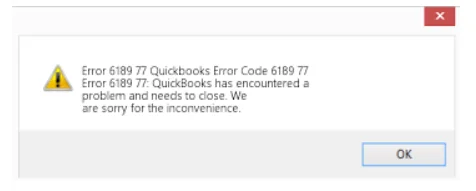
QuickBooks Error 6189, 77 is a runtime error that occurs when QuickBooks is unable to access or open the company file within the required time frame. This issue typically appears while opening an existing company file or creating a new one. When the error is triggered, QuickBooks abruptly stops the operation and displays messages such as:
- “Error 6189, 77 QuickBooks Error Code 6189, 77”
- “Error 6189, 77: QuickBooks has encountered a problem and needs to close. We are sorry for the inconvenience.”
This error belongs to the 6189 series of company file errors, which includes variations such as Error 6189, 82; Error 6189, 1005; and Error 6189, 85. These errors typically indicate company file access issues caused by network disruptions, file corruption, hosting conflicts, or communication failures between QuickBooks and the server.
Possible Reasons For QuickBooks Error 6189, 77
QuickBooks Error 6189, 77 usually occurs when the software is unable to establish proper communication with the company file within the required time. This can be due to file corruption, access conflicts, or system-level issues. Below are the primary causes behind this error:
- Damaged .ND or .TLG files: The Network Data (.ND) or Transaction Log (.TLG) files may be corrupted, preventing QuickBooks from connecting to the company file.
- Corrupted company file (.QBW): A damaged or partially corrupted company file can trigger runtime access errors.
- Single-User Mode Access Conflicts: If more than one workstation tries to open the file while it is set to single-user mode, QuickBooks may block access.
- .QBW and .TLG File Mismatch: Inconsistencies between the company file and its transaction log can create synchronization issues.
- Improper Hosting Configuration: Hosting enabled on multiple workstations instead of only the server can create file access conflicts.
- Virus or malware infection: Malicious software can corrupt essential QuickBooks files or restrict file permissions.
- Network Connectivity Issues: Unstable or interrupted network communication between the server and workstations may delay file access and trigger the error.
- Incorrect folder permissions: If users do not have full read/write access to the company file folder, QuickBooks may fail to open it.
Warning Signs of QuickBooks Error 6189, 77
Several key signs can help you detect QuickBooks Error 6189, 77 early. Being aware of these factors makes it easier to pinpoint the issue and take timely corrective action.
- Inability to open the company file even after restarting QuickBooks or your computer.
- QuickBooks loses connection to the company file, particularly in multi-user mode.
- The application freezes or crashes while opening or working within a company file.
- Tabs and buttons respond slowly or fail to execute commands properly.
- The system performance slows down when QuickBooks tries to access the file.
- An error message appears stating “QuickBooks Error Code 6189, 77.”
- QuickBooks closes unexpectedly during startup or while creating a company file.
- A runtime error may force QuickBooks to close unexpectedly.
Troubleshooting Methods to Fix QuickBooks Desktop Error 6189, 77
QuickBooks Error 6189, 77 occurs when the company file cannot be accessed properly due to file corruption, network conflicts, or multi-user access issues. The following troubleshooting methods address the root causes and help restore seamless access to your company file.
Method 1: End All QuickBooks Processes
Background QuickBooks processes like QBW32.EXE or QBDBMgr.exe can lock the company file, preventing QuickBooks from accessing it. Ending these tasks releases file locks and resets communication between the workstation and server, allowing the company file to open normally.
- Log in as the Administrator on the server computer.
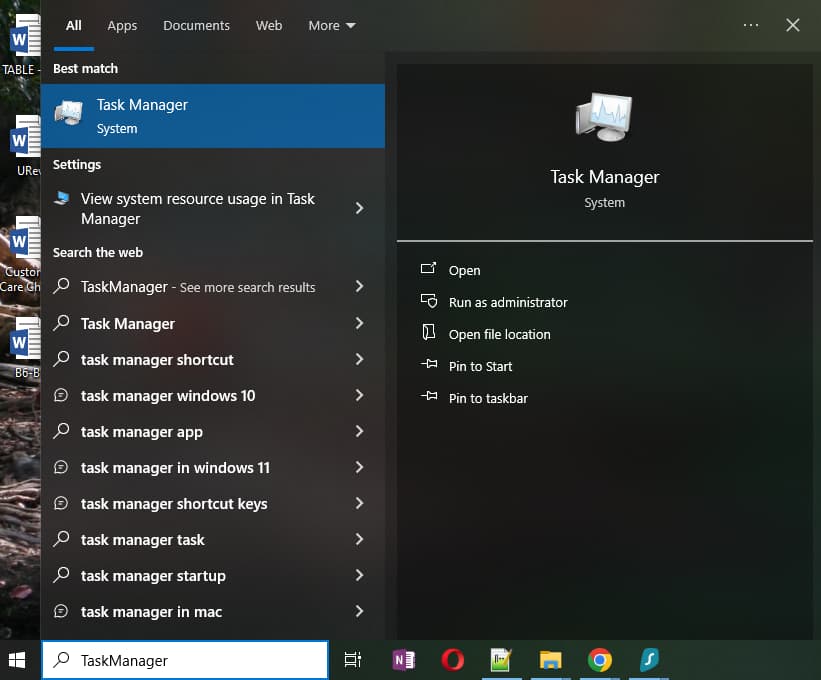
- Hold and press Ctrl+Shift+Esc to open the task manager.
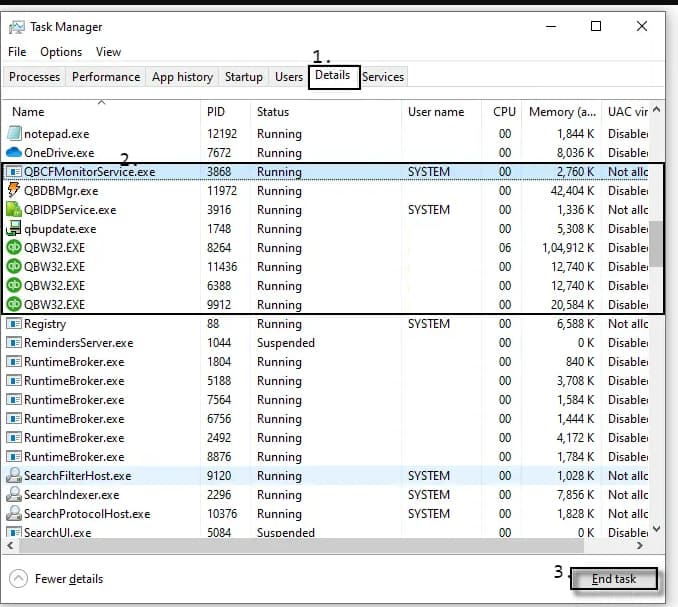
- Show processes for all users. Choose Users.
- Select each QuickBooks process (QBW32.EXE, qbupdate.exe, and QBDBMgr.exe), and choose End Task.
- Open the company file in multi-user mode.
Method 2: Rename the .TLG File
The .ND and .TLG files manage network access and transaction logs, and corruption in these files can prevent QuickBooks from opening the company file. Renaming them forces QuickBooks to create new configuration files automatically, resolving access conflicts.
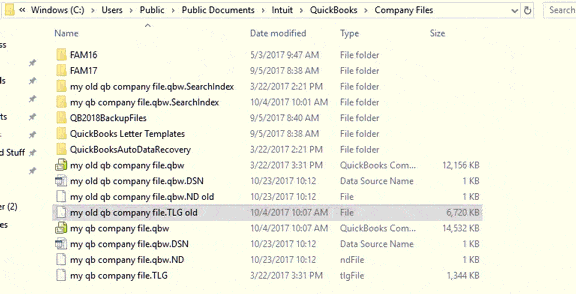
- Navigate to the folder where your QuickBooks company file is stored.
Default Location: C:\Users\Public\Public Documents\Intuit\QuickBooks\Company Files
- Locate the files with the same file name as your company file but with extensions .ND and .TLG.
Example: company_file.qbw.nd, company_file.qbw.tlg
- Hit right-click .nd/.tlg file and choose Rename. Add the word “.old” after the file extension and click enter.
Example: company_file.qbw.nd.OLD, company_file.qbw.tlg.OLD
Method 3: Reinstall Runtime Libraries
QuickBooks relies on Microsoft Visual C++ Redistributables for proper operation, and missing or damaged libraries can cause runtime errors. Reinstalling these packages restores required program dependencies and resolves access issues that trigger Error 6189, 77.
Uninstall All Visual C++ Redistributable Versions
- Open Apps & features or “Programs and Features” in the Control Panel.
- Write down all the installed Microsoft Visual C++ Redistributable versions you see (e.g., 2012, 2013, 2015-2022).
- Uninstall all of these C++ packages, starting with the newest version.
- Restart your computer.
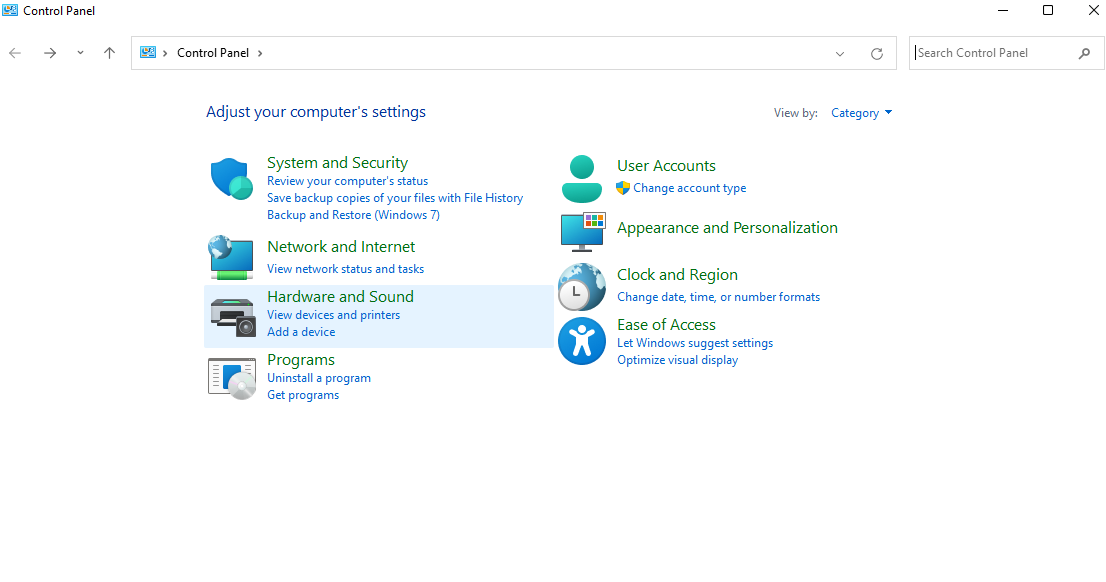
Note: Use the official Microsoft Program Install and Uninstall Troubleshooter to resolve issues that prevent QuickBooks from uninstalling or reinstalling properly.
Reinstall the Latest Visual C++ Redistributable Versions
- Download the latest supported versions of the Visual C++ Redistributable packages from the official Microsoft Learn page.
Important: The latest Microsoft Visual C++ Redistributable is associated with Visual Studio 2026 (v14.50 runtime).
- For 64-bit systems, you need to download and install both the x86 and x64 versions.
- For 32-bit systems, you only need the x86 version.
- Install each downloaded package individually, following the on-screen prompts.
- Restart your computer after installing the packages.
Method 4: Start a Scan For Virus/ Malware
Malware or viruses can corrupt QuickBooks files or restrict access to the company file. Running a system scan removes threats, protects critical files, and prevents Error 6189, 77 caused by external interference.
Note: Microsoft Defender currently offers anti-malware on Windows, Android, and macOS.
- Open the Microsoft Defender dashboard.
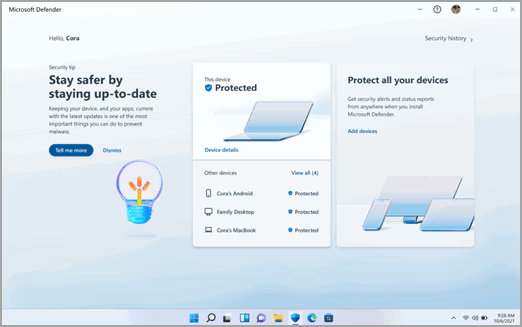
- Navigate to Device details.
- Select Manage under Windows Security.
- Choose Quick scan to start scanning your system.
Note:
- For a more thorough scan, click Scan options instead of Quick scan in step 3 and select the scan type you prefer.
- To perform the most comprehensive check, run Microsoft Defender Offline. For detailed instructions, refer to Help protect my PC with Microsoft Defender Offline.
Method 5: Run QuickBooks Database Server Manager
The server hosting your company file must maintain stable multi-user access. QuickBooks Database Server Manager scans the company file location, repairs firewall permissions, and ensures proper network connectivity, preventing access errors like 6189, 77.
- In the tool hub, choose Network Issues, and select Quickbase Database Server Manager.
- You’ll get a prompt to install QuickBooks on your server if it isn’t already.
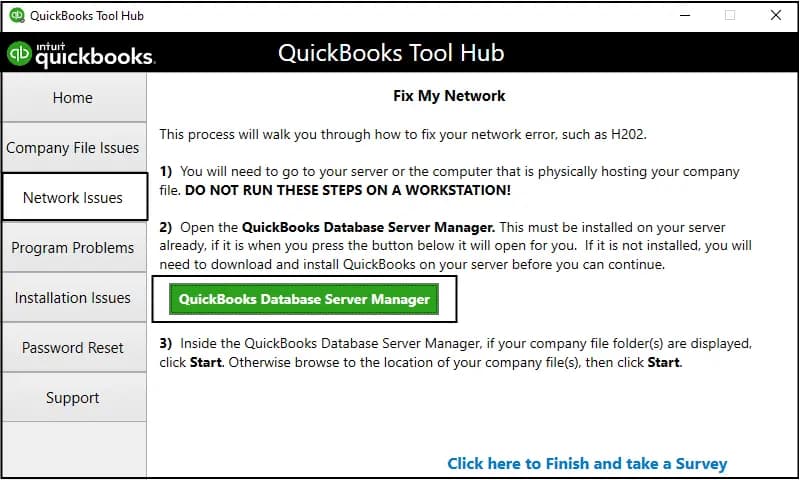
- Click Start Scan if you see your company file(s). If you don’t, Browse to the location of your company file and select Start Scan.
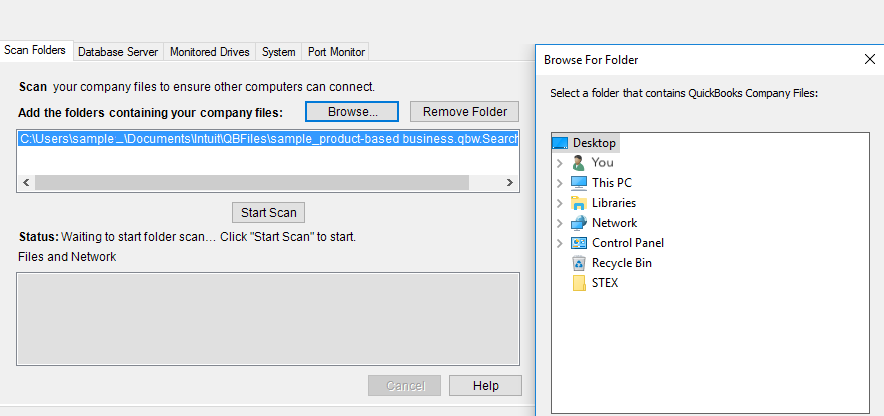
- QuickBooks Database Server Manager will auto repair your firewall permissions.
- Select Close.
- Open QuickBooks Desktop on your server computer and later on your workstations.
Method 6: Move Your Company Files to Local Hard Drive
Network interruptions or permission issues can prevent QuickBooks from accessing files stored on shared drives. Moving the company file to a local drive eliminates these barriers, allowing QuickBooks to open the file directly and avoid Error 6189, 77.
- Choose its current location.
- Hit right-click on the file and click Copy.
- Navigate to the new place where you want to save it, right-click to an open area, and select Paste.
- Open your QuickBooks software.
- Select Open or restore an existing company, and choose Open a company file.
- Click Next to proceed. A new window will appear.
- Under the window, go to the new location of your copied company file.
- Select the file, click Open, and the company file will appear on the login screen.
Method 7: Restart Computers and Servers
A full system restart clears temporary network conflicts and refreshes file access settings. Restarting the server and workstations resolves issues caused by locked or inaccessible files, allowing QuickBooks to open the company file without triggering Error 6189, 77.
Important:
- If you are using QuickBooks Enterprise Hosting instead of a server computer, contact QuickBooks Support via chat for assistance in restarting the service.
- If your company files are hosted by an Intuit Authorized Hosting Provider or another online service, reach out to them directly to help restart the service.
- Restart your server computer (the one hosting your company files).
- Restart each workstation (the other computers connected to the network that don’t host your company files).
- Open QuickBooks Desktop on your server computer.
- Open QuickBooks Desktop on each workstation.
- If QuickBooks opens, you’re good to go.
Method 8: Run Quick Fix My Program From the Tool Hub
Quick Fix My Program automatically closes background processes and repairs minor program corruption. Running it resolves registration conflicts and small file errors, allowing QuickBooks to operate without interruptions from Error 6189, 77.
Step 1: Download and Install the Latest QuickBooks Tool Hub
- Close QuickBooks.
- Download and install the most recent QuickBooks Tool Hub version (1.6. 0.8).
- Save the file somewhere you can easily find it such as your Downloads folder or your Windows desktop.
Note: To find out which tool hub version you have, select the Home tab and the version will be on the bottom.
- Open the downloaded file QuickBooksToolHub.exe to start the installation.
- Follow the on-screen steps to install and agree to the terms and conditions.
- When the installation finishes, click twice on your Windows desktop icon to open the tool hub.

Note: If you are unable to find the icon, do a search in Windows for QuickBooks Tool Hub and select the program.
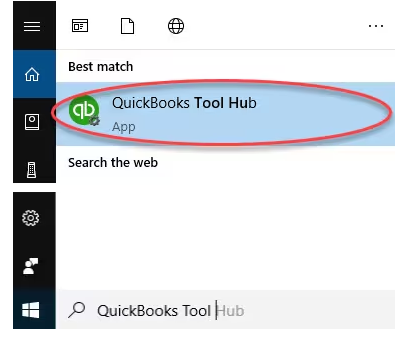
Step 2: Run Quick Fix My Program
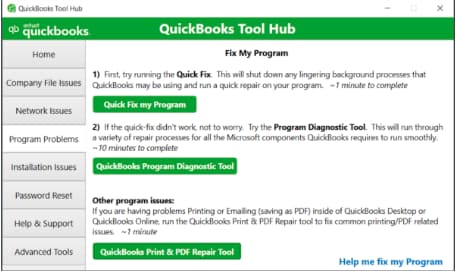
The Quick Fix will shut down any open background processes QuickBooks uses. It’ll run a quick repair on your program.
- From the QuickBooks Tool Hub, choose Program Problems.
- Select Quick Fix My Program.
- Start QuickBooks Desktop and open your data file.
Conclusion!
QuickBooks Error 6189, 77 can interrupt access to your company file, impacting daily accounting tasks and multi-user workflows. This error is typically caused by file corruption, network conflicts, or improper multi-user access.
By following the troubleshooting methods outlined above such as ending background processes, renaming .TLG/.ND files, scanning for malware, running QuickBooks Database Server Manager, and ensuring proper file storage, you can restore smooth access to your company file and prevent future occurrences.
Keeping QuickBooks updated, ensuring stable network connectivity, and maintaining secure backups of your company files further reduce the risk of this error and help keep your accounting operations running smoothly.
FAQs
Why does the troubleshooting guide recommend resetting Internet Explorer settings?
Troubleshooting often includes resetting Internet Explorer (IE) because QuickBooks Desktop uses various IE components and runtime libraries to execute scripts and display certain elements. Runtime errors in IE, such as interference from script debugging or issues with obsolete DLL files, can disrupt QuickBooks’ core operations and trigger errors like 6189 77. Resetting IE clears these conflicts.
How do I know if the Quick Fix My Program tool actually worked?
The Quick Fix My Program utility, found within the QuickBooks Tool Hub, is designed to shut down any conflicting background processes and repair minor program issues. After running it (which takes about two minutes), you should restart QuickBooks Desktop and attempt to open your company file. If the file opens without the 6189 77 error, the tool was successful. If the error persists, you should proceed to the next, more specific solutions.
What is the difference between the .QBW and .TLG files, and why are they critical for this error?
The .QBW file is your actual company data file, containing all your financial records. The .TLG file (Transaction Log File) tracks all changes and transactions made since the last backup. They must reside in the same directory and be synchronized. Error 6189 77 often occurs when QuickBooks can’t establish a proper connection between these two, leading to the recommendation to rename the .TLG file to force QuickBooks to regenerate a new, clean log file.
Why should I move my company file to local storage when I’m using single-user mode?
If you are operating in single-user mode, but your company file is stored on a network drive (NAS) or a sharable folder, other workstations might still inadvertently attempt to access it, causing a file conflict or lock. Moving the file to your computer’s local hard drive temporarily eliminates the network environment as a variable, ensuring no other user is locking the file and allowing you to access it without the 6189 77 error.
Do I really need to check my Graphics Driver for a financial software error?
Yes, although it seems unrelated, the troubleshooting guide recommends reinstalling or updating your graphics driver because outdated or corrupted drivers can cause general system instability and performance issues. These issues can indirectly lead to system crashes or slow application responses, which in turn might trigger a runtime error in QuickBooks, like 6189 77, especially if the system freezes during file access.
How can I safely ensure other users are logged out before attempting a fix?
To ensure other users are not locking the company file, you can use the QuickBooks Messenger tool. Go to the Company menu, select Chat with a Coworker, and then choose Close Company File for Users from the Actions drop-down. This allows you to specifically select and log off other users, preventing access conflicts that cause the 6189 77 error.
After renaming the .TLG file, will I lose any recent transactions?
No, you will not lose any completed or saved transactions. When the troubleshooting guide suggests renaming the .TLG (Transaction Log File) (e.g., to
CompanyNameOLD.tlg), the purpose is to force QuickBooks to automatically generate a brand-new, clean log file the next time you open the company file. The .QBW file contains all the saved data and is never altered in this step. This process only clears out potential inconsistencies in the log file that may be causing the synchronization conflict.Why am I instructed to adjust Internet Options, and which settings are most important for fixing runtime errors?
You are instructed to adjust Internet Options because QuickBooks Desktop relies heavily on the Microsoft Windows operating environment, including components typically managed by Internet Explorer, to run specific scripts and display interactive elements. For runtime errors like 6189 77, the most important settings to change are:
1. Resetting the web browser (to clear obsolete cache/DLL files).
2. Turning off “Disable script debugging.”
3. Removing the checkmark for “Display a Notification about every Script Error.”These actions prevent browser-related scripts from interfering with QuickBooks’ internal processes.
.
Disclaimer: The information outlined above for “Fix “QuickBooks Error Code 6189, 77” – Experts Methods” is applicable to all supported versions, including QuickBooks Desktop Pro, Premier, Accountant, and Enterprise. It is designed to work with operating systems such as Windows 7, 10, and 11, as well as macOS.