Excerpt:
QuickBooks Error 6189 77 typically occurs when there's an issue with accessing or opening a company file, often due to network problems, file corruption, or improper permissions. This error can disrupt business operations, causing data loss or system crashes. Resolving it involves ensuring correct file permissions, checking for corrupted files, and utilizing QuickBooks’ diagnostic tools. Promptly fixing this issue helps restore normal system functioning, prevent data loss, and improve overall efficiency in managing QuickBooks tasks.
 Add As A Preferred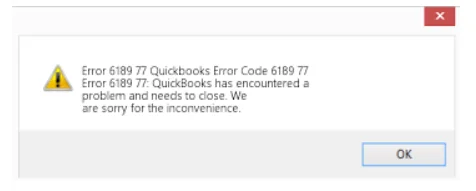
QuickBooks Error 6189, 77 is a runtime error that occurs when QuickBooks is unable to access or open the company file within the required time frame. This issue typically appears while opening an existing company file or creating a new one. When the error is triggered, QuickBooks abruptly stops the operation and displays messages such as:
This error belongs to the 6189 series of company file errors, which includes variations such as Error 6189, 82; Error 6189, 1005; and Error 6189, 85. These errors typically indicate company file access issues caused by network disruptions, file corruption, hosting conflicts, or communication failures between QuickBooks and the server.
QuickBooks Error 6189, 77 usually occurs when the software is unable to establish proper communication with the company file within the required time. This can be due to file corruption, access conflicts, or system-level issues. Below are the primary causes behind this error:
Several key signs can help you detect QuickBooks Error 6189, 77 early. Being aware of these factors makes it easier to pinpoint the issue and take timely corrective action.
QuickBooks Error 6189, 77 occurs when the company file cannot be accessed properly due to file corruption, network conflicts, or multi-user access issues. The following troubleshooting methods address the root causes and help restore seamless access to your company file.
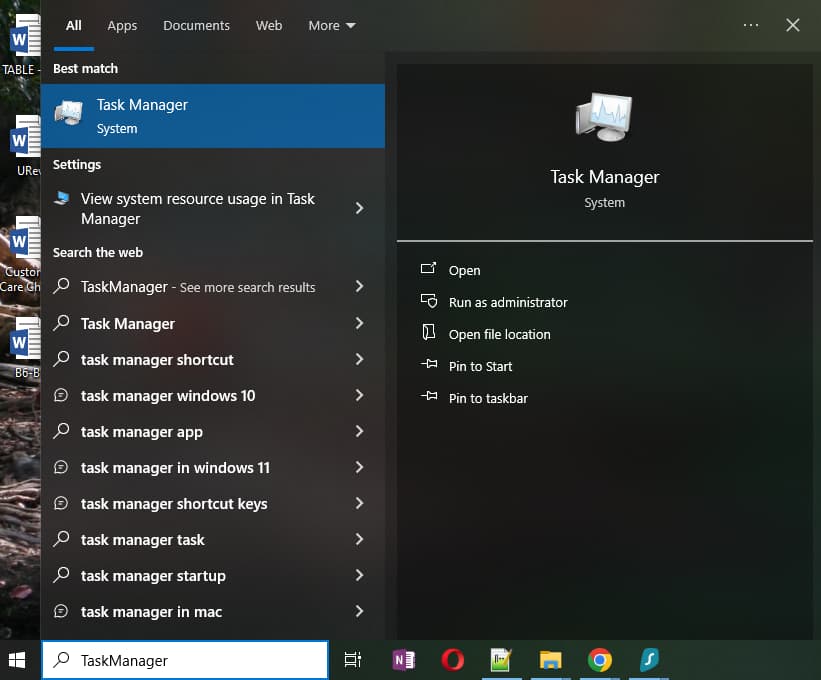
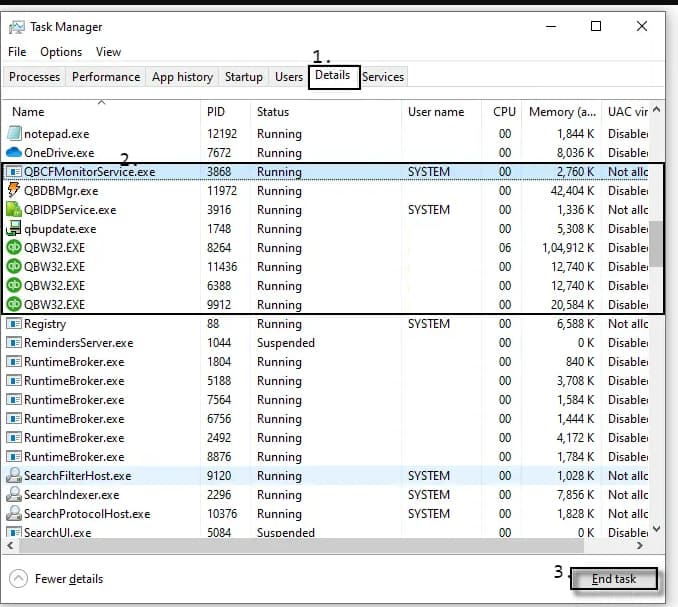
Background QuickBooks processes like QBW32.EXE or QBDBMgr.exe can lock the company file, preventing QuickBooks from accessing it. Ending these tasks releases file locks and resets communication between the workstation and server, allowing the company file to open normally.
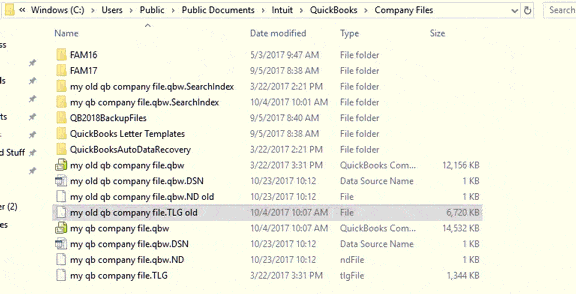
The .ND and .TLG files manage network access and transaction logs, and corruption in these files can prevent QuickBooks from opening the company file. Renaming them forces QuickBooks to create new configuration files automatically, resolving access conflicts.
Default Location: C:\Users\Public\Public Documents\Intuit\QuickBooks\Company Files
Example: company_file.qbw.nd, company_file.qbw.tlg
Example: company_file.qbw.nd.OLD, company_file.qbw.tlg.OLD
QuickBooks relies on Microsoft Visual C++ Redistributables for proper operation, and missing or damaged libraries can cause runtime errors. Reinstalling these packages restores required program dependencies and resolves access issues that trigger Error 6189, 77.
Uninstall All Visual C++ Redistributable Versions
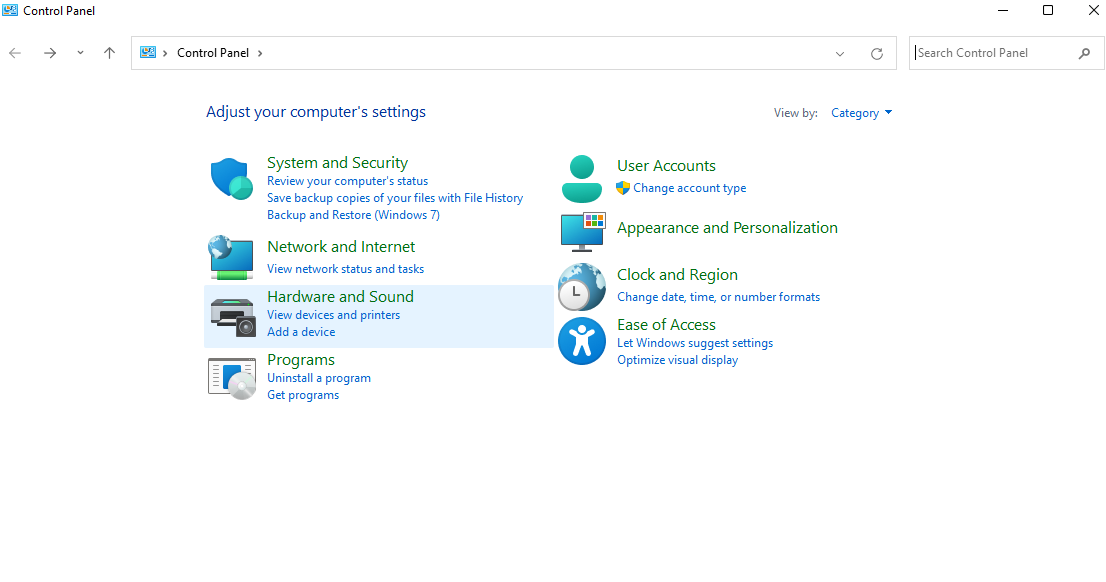
Note: Use the official Microsoft Program Install and Uninstall Troubleshooter to resolve issues that prevent QuickBooks from uninstalling or reinstalling properly.
Reinstall the Latest Visual C++ Redistributable Versions
Important: The latest Microsoft Visual C++ Redistributable is associated with Visual Studio 2026 (v14.50 runtime).
Malware or viruses can corrupt QuickBooks files or restrict access to the company file. Running a system scan removes threats, protects critical files, and prevents Error 6189, 77 caused by external interference.
Note: Microsoft Defender currently offers anti-malware on Windows, Android, and macOS.
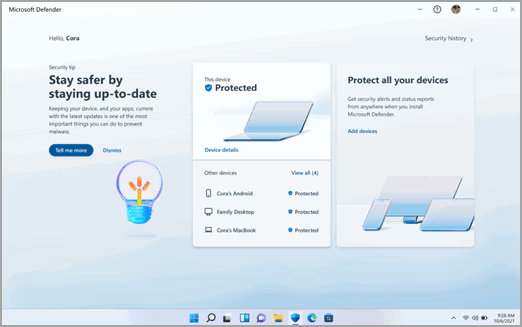
Note:
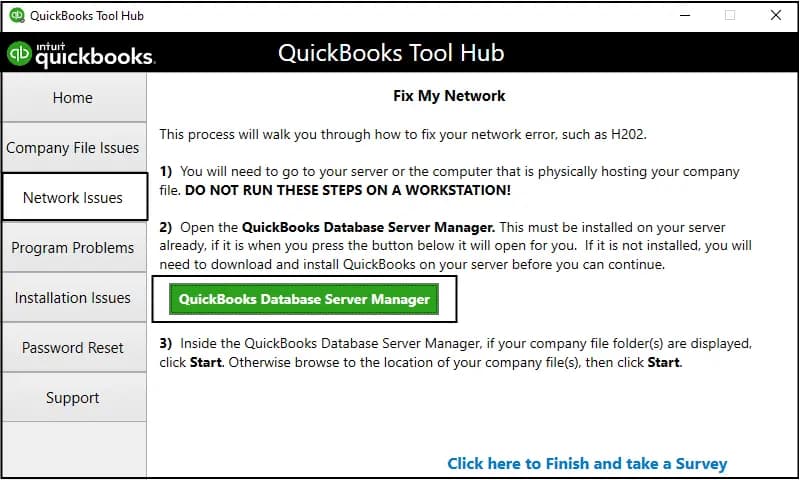
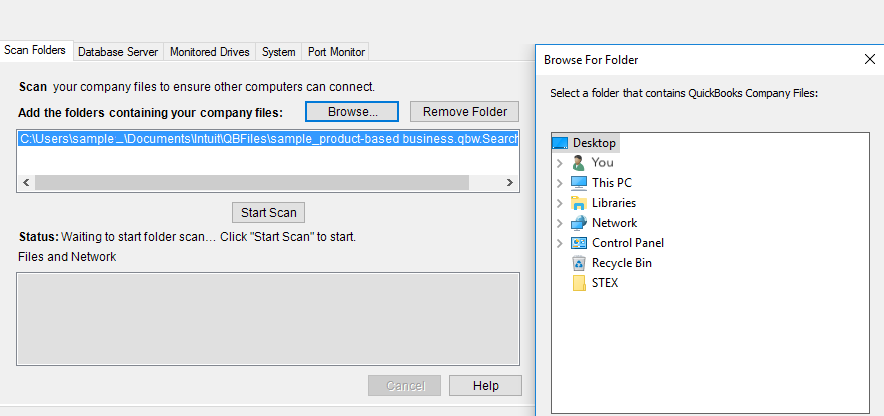
The server hosting your company file must maintain stable multi-user access. QuickBooks Database Server Manager scans the company file location, repairs firewall permissions, and ensures proper network connectivity, preventing access errors like 6189, 77.
Network interruptions or permission issues can prevent QuickBooks from accessing files stored on shared drives. Moving the company file to a local drive eliminates these barriers, allowing QuickBooks to open the file directly and avoid Error 6189, 77.
A full system restart clears temporary network conflicts and refreshes file access settings. Restarting the server and workstations resolves issues caused by locked or inaccessible files, allowing QuickBooks to open the company file without triggering Error 6189, 77.
Quick Fix My Program automatically closes background processes and repairs minor program corruption. Running it resolves registration conflicts and small file errors, allowing QuickBooks to operate without interruptions from Error 6189, 77.
Note: To find out which tool hub version you have, select the Home tab and the version will be on the bottom.

Note: If you are unable to find the icon, do a search in Windows for QuickBooks Tool Hub and select the program.
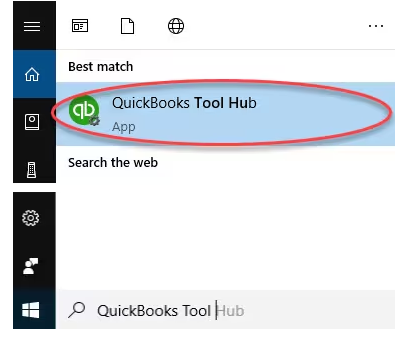
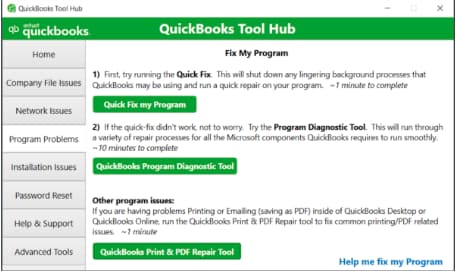
The Quick Fix will shut down any open background processes QuickBooks uses. It’ll run a quick repair on your program.
QuickBooks Error 6189, 77 can interrupt access to your company file, impacting daily accounting tasks and multi-user workflows. This error is typically caused by file corruption, network conflicts, or improper multi-user access.
By following the troubleshooting methods outlined above such as ending background processes, renaming .TLG/.ND files, scanning for malware, running QuickBooks Database Server Manager, and ensuring proper file storage, you can restore smooth access to your company file and prevent future occurrences.
Keeping QuickBooks updated, ensuring stable network connectivity, and maintaining secure backups of your company files further reduce the risk of this error and help keep your accounting operations running smoothly.
Troubleshooting often includes resetting Internet Explorer (IE) because QuickBooks Desktop uses various IE components and runtime libraries to execute scripts and display certain elements. Runtime errors in IE, such as interference from script debugging or issues with obsolete DLL files, can disrupt QuickBooks’ core operations and trigger errors like 6189 77. Resetting IE clears these conflicts.
The Quick Fix My Program utility, found within the QuickBooks Tool Hub, is designed to shut down any conflicting background processes and repair minor program issues. After running it (which takes about two minutes), you should restart QuickBooks Desktop and attempt to open your company file. If the file opens without the 6189 77 error, the tool was successful. If the error persists, you should proceed to the next, more specific solutions.
The .QBW file is your actual company data file, containing all your financial records. The .TLG file (Transaction Log File) tracks all changes and transactions made since the last backup. They must reside in the same directory and be synchronized. Error 6189 77 often occurs when QuickBooks can’t establish a proper connection between these two, leading to the recommendation to rename the .TLG file to force QuickBooks to regenerate a new, clean log file.
If you are operating in single-user mode, but your company file is stored on a network drive (NAS) or a sharable folder, other workstations might still inadvertently attempt to access it, causing a file conflict or lock. Moving the file to your computer’s local hard drive temporarily eliminates the network environment as a variable, ensuring no other user is locking the file and allowing you to access it without the 6189 77 error.
Yes, although it seems unrelated, the troubleshooting guide recommends reinstalling or updating your graphics driver because outdated or corrupted drivers can cause general system instability and performance issues. These issues can indirectly lead to system crashes or slow application responses, which in turn might trigger a runtime error in QuickBooks, like 6189 77, especially if the system freezes during file access.
To ensure other users are not locking the company file, you can use the QuickBooks Messenger tool. Go to the Company menu, select Chat with a Coworker, and then choose Close Company File for Users from the Actions drop-down. This allows you to specifically select and log off other users, preventing access conflicts that cause the 6189 77 error.
No, you will not lose any completed or saved transactions. When the troubleshooting guide suggests renaming the .TLG (Transaction Log File) (e.g., to CompanyNameOLD.tlg), the purpose is to force QuickBooks to automatically generate a brand-new, clean log file the next time you open the company file. The .QBW file contains all the saved data and is never altered in this step. This process only clears out potential inconsistencies in the log file that may be causing the synchronization conflict.
You are instructed to adjust Internet Options because QuickBooks Desktop relies heavily on the Microsoft Windows operating environment, including components typically managed by Internet Explorer, to run specific scripts and display interactive elements. For runtime errors like 6189 77, the most important settings to change are:
1. Resetting the web browser (to clear obsolete cache/DLL files).
2. Turning off “Disable script debugging.”
3. Removing the checkmark for “Display a Notification about every Script Error.”
These actions prevent browser-related scripts from interfering with QuickBooks’ internal processes.
.


