



QuickBooks Error 6177 is a common file-access issue that prevents users from opening or restoring their company file. It occurs when QuickBooks cannot correctly establish the path to the file, often due to improper logout, file relocation, or server permission problems.
This file path access error occurs when QuickBooks Desktop tries to open a company file but cannot establish the correct route to it. In simple terms, QuickBooks knows the file exists but fails to connect to it through the expected path.
This error generally occurs because of the following reasons:
- Company file moved or relocated
- Improper logout from QuickBooks or hosting environment
- File path misconfiguration or corruption
- Insufficient permissions on the hosting server
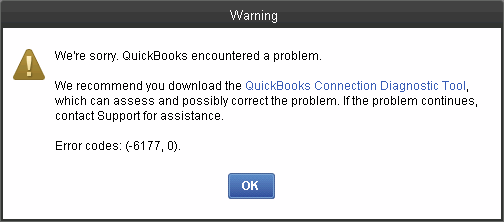
This error appears when the user is opening a company file in QuickBooks Desktop, restoring any backup file or moving the file to a new folder or drive.The issue shows up with the following message:
Preventing this error ensures smooth access to company files, reduces downtime, and minimizes the risk of data corruption.
Troubleshooting QuickBooks Error 6177
The following is a detailed explanation of troubleshooting steps and they are segregated according to the fixes i.e. Beginner, Intermediate, and Advanced levels, with time estimates for each.
Beginner-Level Solutions (5–10 minutes)
These are simple fixes that any QuickBooks user can attempt without technical expertise.
1. Proper Logout and Restart
- Always exit QuickBooks via File > Exit instead of the “X” button.
- Log off from Windows properly using Start > Log off.
- Restart QuickBooks and try opening the company file again.
- Impact: Clears temporary path conflicts and ensures QuickBooks releases the file correctly.
2. Check File Location
- Confirm the company file (.QBW) is still in its original folder.
- If it was moved, place it back in the correct directory.
- Impact: QuickBooks expects the file in a specific path; relocation breaks the link.
Intermediate-Level Solutions (10–20 minutes)
These steps require basic file handling skills and QuickBooks familiarity.
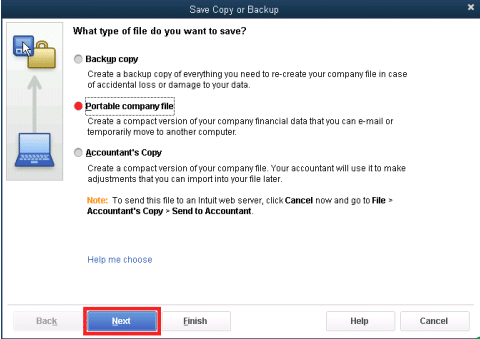
1. Move and Restore Company File via Portable File
- Move the company file temporarily to the C: drive.
- Open QuickBooks, select Open or Restore an Existing Company, and create a Portable Company File (.QBM).
- Close QuickBooks, reopen it, and restore the portable file back to the original location.
- Impact: Resets QuickBooks’ internal mapping to the file path.
2. Update QuickBooks Desktop
- Go to Help > Update QuickBooks Desktop.
- Select Update Now, check Reset Update, and click Get Updates.
- Restart QuickBooks after the update.
- Impact: Ensures you’re running the latest version, which often resolves path and compatibility issues.
Advanced-Level Solutions (20–30 minutes)
These are technician-level fixes, suitable for IT admins or advanced users in multi-user environments.
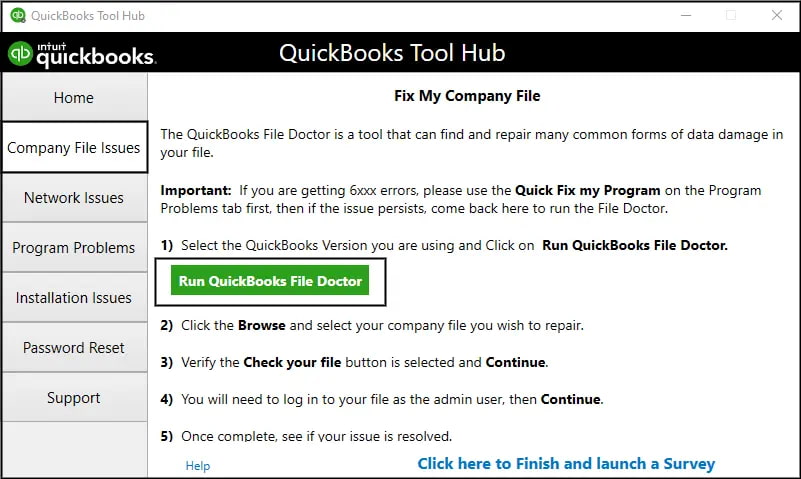
1. Run QuickBooks File Doctor
- Download and install the latest QuickBooks Tool Hub.
- Open Tool Hub, select Company File Issues > Run QuickBooks File Doctor.
- Browse to your company file, select Check File, and enter the admin password.
- Allow File Doctor to scan and repair (takes up to 5 minutes).
Impact: Automatically diagnoses and repairs file path and network issues.
2. Manually Fix the File Path
- Locate and delete the .ND file (e.g., CompanyFile.qbw.nd) in the QuickBooks folder.
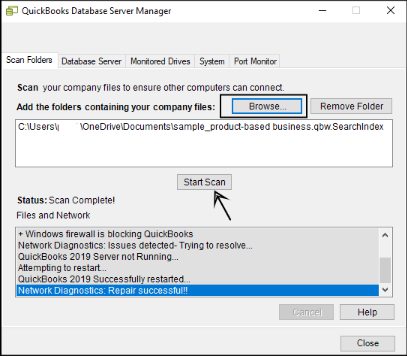
- Open QuickBooks Database Server Manager, browse to the folder, and run Start Scan.
- Ensure folder permissions allow sharing of company files.
- Impact: Recreates the network configuration and restores proper path access.
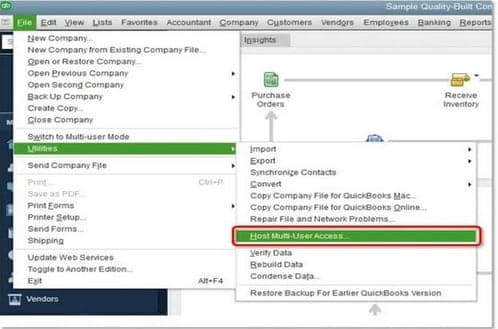
3. Reset Multi-User Hosting
- On the server, open QuickBooks and go to File > Utilities > Stop Hosting Multi-User Access. Confirm with Yes.
- Close the company file, reopen QuickBooks, and select File > Utilities > Host Multi-User Access. Confirm with Yes.
- Close QuickBooks again.
- Impact: Resets hosting settings to default, clearing conflicts in multi-user mode.
Quick causes with preventive measure:
The tabular presentation shows the quick overview of all the possible causes of error 6177 along with their preventive measures:
| Cause | Preventive Measure |
| Improper logout | Always exit via File > Exit and log off properly |
| File relocation | Keep company files in a consistent, stable location |
| Path corruption | Regularly back up files and verify integrity |
| Permission issues | Ensure all users have proper read/write access |
| Hosting misconfiguration | Train users on correct multi-user hosting practices |
Impact of QuickBooks Error 6177 on Business
Error 6177 may seem like a technical glitch, but its consequences can ripple across an organization’s financial workflow. Because QuickBooks is often the central hub for accounting, payroll, and reporting, any disruption in accessing the company file can have serious business implications. The key impacts are as follows:
- Operational Downtime
- Employees are unable to access the company file, halting day-to-day accounting tasks.
- Routine activities like invoicing, expense tracking, and payroll processing are delayed.
- Financial Reporting Delays
- Managers and accountants cannot generate timely reports.
- This can affect decision-making, especially during audits, tax filings, or financial reviews.
- Risk of Data Corruption
- Repeated failed attempts to open or move the file increase the risk of file corruption.
- Corrupted data can lead to inaccuracies in financial records.
- Reduced Productivity
- Staff spend time troubleshooting instead of focusing on core business tasks.
- IT teams may be pulled away from other priorities to resolve the issue.
- Client and Vendor Relations
- Inability to access QuickBooks may delay invoice generation or payment processing.
- This can strain relationships with clients and vendors if payments or billing are late.
- Compliance Risks
- Missing deadlines for tax filings or audits due to inaccessible records can lead to penalties.
- Regulatory compliance may be compromised if financial data is not available on time.
Conclusion:
QuickBooks Error 6177 is not just a minor inconvenience; it directly blocks access to your company file, disrupting accounting workflows and potentially delaying critical financial tasks. At its core, the error stems from QuickBooks’ inability to correctly resolve the file path, often triggered by improper logout, file relocation, or permission misconfigurations.
By following these structured steps, users can resolve the error efficiently, with clear time expectations for each stage. More importantly, adopting preventive practices such as consistent file management, proper logout procedures, and regular backups significantly reduces the likelihood of encountering Error 6177 again.
FAQs:
Why does moving the company file to a local C: drive fix Error 6177?
Moving the file works because it eliminates the “Network” layer from the equation. Error 6177 is fundamentally a communication breakdown between the workstation and the server. By placing the file on the local hard drive (C:), you force QuickBooks to access the file directly via the local disk input/output system rather than sending data packets across your network cables or Wi-Fi.
➜Note: While this is a valid troubleshooting step to rule out file corruption, keeping the file on a local C: drive permanently will break Multi-User access unless that new folder is properly shared and re-mapped for other users.
Can using a Mapped Drive letter (Z:) vs. a UNC Path (\Server…) cause Error 6177?
Yes. While QuickBooks supports mapped drives, they can sometimes disconnect or timeout, leading to Error 6177. Intuit officially recommends using the UNC (Universal Naming Convention) path (e.g.,\\ServerName\QBData\CompanyFile.qbw) because it is a direct address to the server and is less reliant on individual Windows user profile settings.
Do I need to run the QuickBooks Database Server Manager on my workstation?
No. The QuickBooks Database Server Manager (QBDBSM) is a server-side utility. It is designed to run only on the computer that physically hosts the company files. Installing or running it on a workstation (a computer that just accesses the file) is unnecessary and consumes system resources without resolving Error 6177. Its sole job is to scan the server’s hard drive and broadcast the file location to the network.
Does Error 6177 mean my actual accounting data is corrupted?
No, Error 6177 is primarily a connection path issue, not a data corruption issue. It means the QuickBooks application on your workstation cannot “see” the company file on the server due to a blocked path or permission error. However, if you frequently force-close QuickBooks (Task Manager) when this error appears, you risk creating data inconsistencies. Always check your Data Safety by running the Verify Data utility once the connection is restored.
Disclaimer: The information outlined above for “Fix QuickBooks Error 6177 0 – (Cannot Use The Path)” is applicable to all supported versions, including QuickBooks Desktop Pro, Premier, Accountant, and Enterprise. It is designed to work with operating systems such as Windows 7, 10, and 11, as well as macOS.