



Fix QuickBooks Error 6175 by verifying multi-user hosting settings, running QuickBooks File Doctor, restarting the QuickBooks Database Server Manager service, and configuring firewall exceptions to restore server access to your company file.
QuickBooks Error 6175 appears when the software cannot start or stop the QuickBooks Database Server Manager – the background service that allows multiple users to access a single company file at the same time.
Error 6175 blocks all network users from opening the company file in multi-user mode. QuickBooks displays this error when the Database Server Manager stops responding, fails to start, or when a firewall blocks communication between the server and connected computers.
Common Error 6175 messages: “An error occurred when QuickBooks tried to access the company file. Please try again. If the problem persists, contact Intuit and provide them with the following error code: (-6175, 0)” or “QuickBooks is trying to access the company file, but the database server is not responding. Error: -6175, 0.”
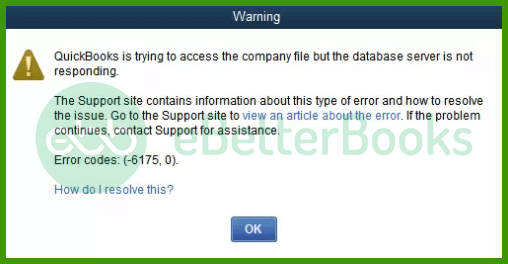
This article provides a diagnostic framework, risk assessment, and complete solution guide. Database service failures and firewall blocks require immediate attention. Delayed repairs leave the entire network unable to access financial records.
Error Classification: Which Series Does Error 6175 Belong To?
Error 6175 belongs to the 6000 series handling company file access problems and multi-user network service failures. The 6000 series represents file access failures rather than accounting data corruption.
QuickBooks uses code 6175 specifically when the Database Server Manager – the program that manages shared file access across the network – cannot start, respond, or complete its tasks on the server computer.
QuickBooks organizes errors into series: C= series (internal processing), H series (multi-user hosting configuration on a specific computer), 6000 series (file access and network service failures).
Related errors include H101, H303, H505 (hosting conflicts on workstations), and 6000-83 (folder permission problems). Error 6175 is distinct because it targets the server-side service failure specifically, not the workstation configuration.
Can QuickBooks Error 6175 Trigger Other Errors?
QuickBooks errors create additional failures when the root cause goes unresolved. One service failure generates multiple error codes across the network.
| Cause of Error 6175 | Possible Triggered Errors |
| Database Server Manager not running | H101, H303, H505 (hosting conflict on workstations) |
| Firewall blocking QuickBooks services | Connection timeout errors on all workstations |
| Workstation set as host | H202 (multi-user hosting cannot be turned on) |
| QBDataServiceUser lacks admin rights | Service startup failure (various codes during launch) |
- Database Server Manager failing to run blocks all workstations from connecting. QuickBooks on each workstation tries to locate the service and receives no response. H101, H303, and H505 errors appear on workstations as they attempt and fail to switch to multi-user mode. All three errors clear once the Database Server Manager service restarts on the server.
- Firewall blocking QuickBooks services prevents the Database Server Manager from communicating with workstations. The service starts on the server but workstations cannot reach it. Connection timeout errors appear on workstations. Configuring firewall rules that allow QuickBooks programs through restores communication and clears the error.
- Workstations set as hosting computers conflict with the server’s hosting role. QuickBooks assigns file control to the first computer claiming it. Other computers cannot access the file. Error H202 appears when additional computers try to claim the same hosting role. Disabling hosting on all workstations gives the server exclusive control.
- QBDataServiceUser without administrator rights cannot start the QuickBooks Database Service. This user account is a special Windows account QuickBooks creates specifically to run the Database Server Manager as a background service.
Without administrator rights, this account cannot launch the service. Service startup failures appear immediately when QuickBooks tries to switch to multi-user mode.
The Root Cause For QuickBooks Error 6175
Match your symptom to find the correct solution path. Start by checking whether the Database Server Manager is installed on the server. Confirm the server is responding before checking workstation settings.
| Possible Causes and QuickFix for Error 6175 | ||
| Error Event | Likely Cause | Recommended Fix (When to Perform) |
| Error 6175 when switching to multi-user | Hosting not enabled on server | Before reconnecting workstations, open QuickBooks on server only and enable Host Multi-User Access from File > Utilities |
| Error 6175 on all computers including server | Database Server Manager service stopped | When error appears on server and before anything else, open Windows Services and restart QuickBooksDBXX service manually |
| Error 6175 after Windows update or firewall update | Firewall blocking QuickBooks programs | Right after update and before opening company file, add QuickBooks executable files to Windows Firewall inbound and outbound rules |
| Error 6175 with service timeout message | Server is busy or QBDataServiceUser lacks admin rights | When service timeout displays, verify QBDataServiceUser account has administrator rights in Windows User Settings |
Data Safety Advisory Section For QuickBooks Error 6175
Understanding QuickBooks server services prevents data loss during repairs.
- QuickBooks Database Server Manager: The QuickBooks Database Server Manager is a separate program installed on the server computer that manages shared access to company files. This program must run continuously for multi-user access to work.
QuickBooks Desktop on workstations contacts this manager to request file access. Stopping or restarting this manager does not affect company file data – it only affects current connections.
- QuickBooksDBXX Service: QuickBooksDBXX is the Windows background service that keeps the Database Server Manager running at all times. XX represents the QuickBooks version number – QuickBooks 2024 installs QuickBooksDB33, and QuickBooks 2023 installs QuickBooksDB32.
This service runs silently in the background. Stopping and restarting this service from Windows Services restores the manager without touching any financial records.
- QBDataServiceUser Account: QBDataServiceUser is a special Windows user account QuickBooks creates automatically during installation. This account runs the QuickBooksDBXX service on behalf of the server. This account needs administrator rights to start the service. Without those rights, the service fails at launch and triggers Error 6175.
- Company File Data is Safe: Error 6175 does not damage the financial data inside the QBW company file. The error targets the server service and hosting configuration, not the file content. All repairs in this guide modify service settings and network configuration only. Company data remains intact throughout every solution.
Steps to Fix QuickBooks Error 6175
Solutions are organized by skill level, risk level, and success probability. This tiered approach protects your data while maximizing repair chances. Start with Level 1 solutions and move to higher tiers only if lower-tier solutions fail.
Level 1 – Beginner Safe Fixes
These solutions require no technical expertise. The risk of data loss is minimal. Anyone can perform these steps safely.
| Solution 1.1: Update QuickBooks on All Computers | |||
| Skill Level | Risk Level | Success Probability | Approximate Time Required |
| Beginner | Low | Moderate | 15-20 minutes |
| Risk Explanation | Updates do not modify company file data. Always maintain a backup before updating. The computer may restart during installation. | Solution Explanation | Outdated QuickBooks versions lack current Database Server Manager components. Intuit releases updates that fix known service startup failures causing Error 6175. All computers on the network must run identical QuickBooks versions. Version mismatches between server and workstations stop the Database Server Manager from responding correctly. |
Steps to Implement Solution 1.1
- Open QuickBooks on the server computer. Press F2 to view Product Information. Note the current version and release number. Close the Product Information window. Navigate to the Help menu and select Update QuickBooks Desktop.
- Click the Update Now tab. Check the box for “Reset Update” to clear any previous partial downloads. Select the Get Updates button. QuickBooks downloads update files in the background. Do not close QuickBooks during download.
- Close QuickBooks after download completes. Click Yes when QuickBooks prompts installation. Installation takes several minutes. The computer may restart. Repeat this exact update process on every workstation. Confirm all computers show the same version number when you press F2.
| Solution 1.2: Verify Hosting Settings on All Computers | |||
| Skill Level | Risk Level | Success Probability | Approximate Time Required |
| Beginner | Low | High | 15-20 minutes |
| Risk Explanation | Changing hosting settings temporarily disrupts access. No file data is modified. Follow steps exactly on every computer to avoid locking all users out. | Solution Explanation | Only the server should run the Database Server Manager and host the company file. A workstation set to host competes with the server for file control. This competition stops the Database Server Manager from responding cleanly. Disabling hosting on all workstations gives the server full control of the service. |
Steps to Implement Solution 1.2
- Open QuickBooks on the first workstation. Do not open any company file. Go to the File menu. Select Utilities from the list.
- Look at the Utilities submenu. If the option reads “Stop Hosting Multi-User Access”, the workstation has hosting turned on incorrectly. Select “Stop Hosting Multi-User Access”. Click Yes when asked to confirm. Hosting on this workstation turns off.
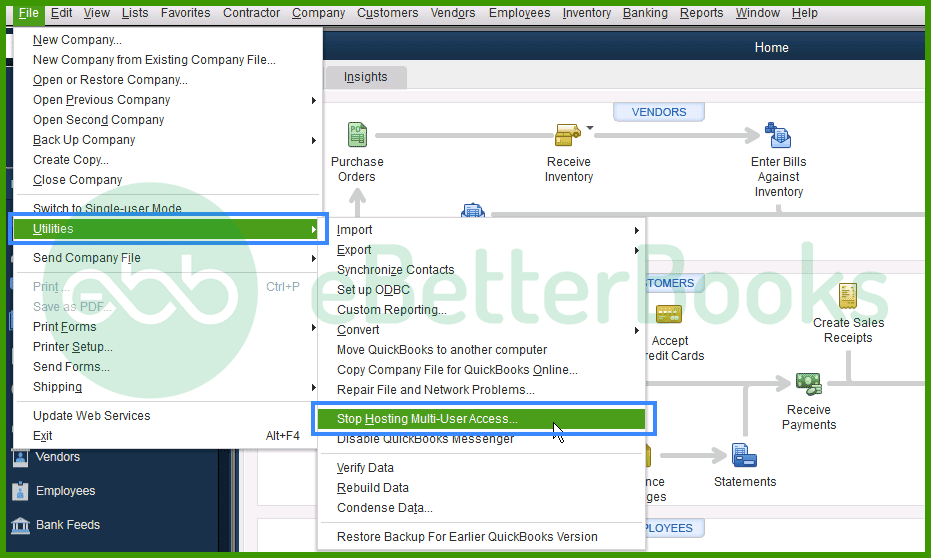
- If the option reads “Host Multi-User Access” instead, the workstation is already correct. Do not change anything. Close the menu.
- Repeat these steps on every workstation. Open QuickBooks without a file, check File > Utilities, and turn off hosting if active.
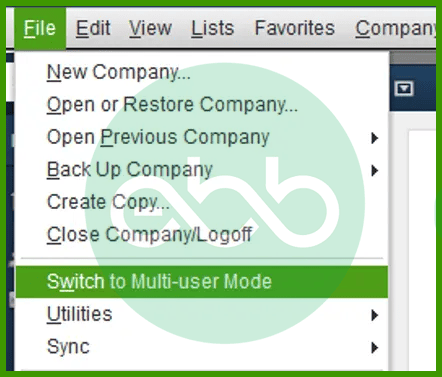
- Navigate to the server computer last. Open QuickBooks without opening a file. Go to File > Utilities. Select “Host Multi-User Access”. Click Yes when asked to confirm and again when asked to close the company file. The server now holds exclusive hosting control. Open the company file and enable multi-user access.
| Solution 1.3: Run QuickBooks File Doctor | |||
| Skill Level | Risk Level | Success Probability | Approximate Time Required |
| Beginner | Low | High | 30-45 minutes |
| Risk Explanation | File Doctor repairs network and file configuration automatically. The tool does not touch financial data. Scan takes longer on large company files. | Solution Explanation | QuickBooks File Doctor scans both company file configuration and network settings. The tool detects service failures, hosting conflicts, and damaged network files causing Error 6175. File Doctor repairs these issues automatically and re-establishes proper Database Server Manager configuration. |
Steps to Implement Solution 1.3
- Close QuickBooks on all computers. Download QuickBooks Tool Hub from the official Intuit website. Search “QuickBooks Tool Hub download” in a browser. Click the official Intuit link. Save QuickBooksToolHub.exe to the Downloads folder.
- Double-click the downloaded file. Click Yes for User Account Control permission. Follow the installation wizard. Check the box to accept the license agreement. Click Install. Tool Hub installs in 2-3 minutes. Double-click the Tool Hub icon after installation finishes.
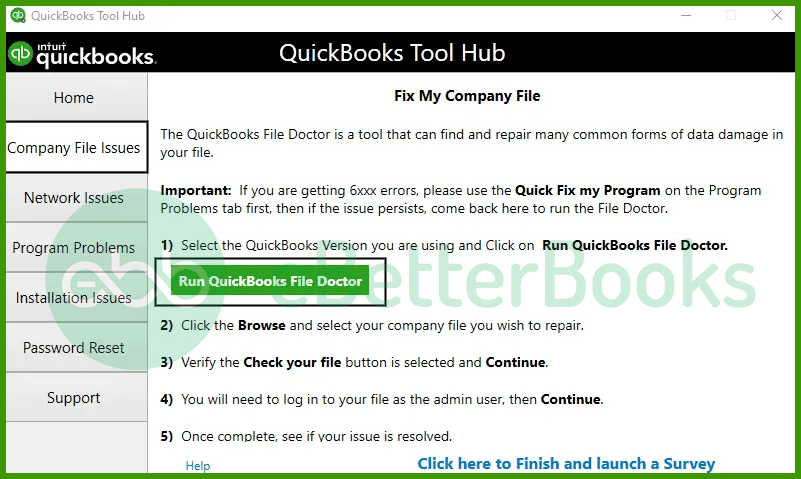
- Click Company File Issues from the main Tool Hub menu. Select Run QuickBooks File Doctor. File Doctor opens in a new window. Click the dropdown arrow to see available company files. Select your company file from the list. If the file does not appear, click Browse, navigate to the company file, select the .QBW file, and click Open.
- Select “Check your file and network” to scan both the company file and network settings. Click Continue. Enter your QuickBooks administrator password. Click Next to start the scan. Scan takes 20-40 minutes.
- Progress bar shows scan status. File Doctor displays results after completion. Green checkmarks indicate successful repairs. Open QuickBooks on the server and test multi-user access.
Level 2 – Intermediate Fixes
These solutions modify service settings and network configuration. Basic computer knowledge is helpful. Risk increases because changes affect server operations. Always create backup before attempting Level 2 solutions.
| Solution 2.1: Restart the QuickBooksDBXX Service | |||
| Skill Level | Risk Level | Success Probability | Approximate Time Required |
| Intermediate | Low to Moderate | High | 10-15 minutes |
| Risk Explanation | Restarting this service disconnects all current QuickBooks network users temporarily. No data is changed. Restart only when no users are actively working in QuickBooks. | Solution Explanation | QuickBooksDBXX is the Windows background service that keeps the Database Server Manager running. This service sometimes stops after Windows updates, power interruptions, or system overloads. Restarting the service from Windows Services restores the Database Server Manager immediately without reinstalling any software. |
Steps to Implement Solution 2.1
- Go to the server computer. Ask all users to close QuickBooks first. Press Windows key + R to open the Run dialog box. Type “services.msc” in the box. Press Enter. The Windows Services window opens showing a list of all background services.
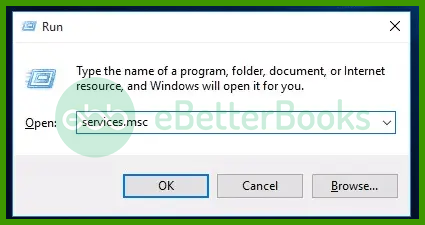
- Scroll through the list alphabetically. Locate the service named QuickBooksDB followed by two numbers. The numbers match the QuickBooks year version – QuickBooks 2024 shows QuickBooksDB33, QuickBooks 2023 shows QuickBooksDB32, QuickBooks 2022 shows QuickBooksDB31.
- Check the Status column next to the service. Status should show “Running”. If Status shows “Stopped”, right-click the service name. Select Start from the menu. Status changes to “Running”. Wait for the update to complete.
- Right-click the service again even if it was already running. Select Restart from the menu. This clears any frozen state the service may have. Wait for the restart to complete. Close Services window. Open QuickBooks on the server, enable multi-user access, and test from workstations.
| Solution 2.2: Run Database Server Manager Scan | |||
| Skill Level | Risk Level | Success Probability | Approximate Time Required |
| Intermediate | Moderate | High | 20-30 minutes |
| Risk Explanation | Database Server Manager scan creates new ND files and updates network configuration. This does not modify company file data. The process requires administrator rights on the server. | Solution Explanation | The QuickBooks Database Server Manager scans folders and publishes company file locations to the network. Scanning recreates the ND file (the network data file that stores the server address and file path). A missing or damaged ND file prevents the server from broadcasting the company file location. Rescanning forces the manager to recreate this file correctly. |
Steps to Implement Solution 2.2
- Go to the server computer. Close QuickBooks on all computers in the network. Press the Windows key. Type “Database” in the search box. Click QuickBooks Database Server Manager from the search results.
- Database Server Manager window opens. Click the Scan Folders tab at the top. The tab shows all currently scanned folders. Click the Browse button to add the company file folder.
- Navigate to the folder containing your company file. The default location is C:\Users\Public\Documents\Intuit\QuickBooks\Company Files. Select this folder. Click OK. The folder path appears in the scanned folders list.
- Click Start Scan. The Database Server Manager scans for company files inside the folder. Scanning creates a new ND file for each company file found. Progress indicator shows scan status. Scan takes 5-10 minutes.
- Completion message appears: “Network Diagnostics: Check successful – no issues found.” Company files found appear in the lower window panel. Click Close. Open QuickBooks on the server, enable multi-user access, test access from all workstations.
| Solution 2.3: Grant QBDataServiceUser Administrator Rights | |||
| Skill Level | Risk Level | Success Probability | Approximate Time Required |
| Intermediate | Moderate | High | 10-15 minutes |
| Risk Explanation | Changing user account rights affects server security settings. Follow these steps exactly. Granting admin rights only to the QBDataServiceUser account is safe. Do not change rights for other accounts. | Solution Explanation | QBDataServiceUser is the Windows account that runs the QuickBooks Database service. Without administrator rights, this account cannot start the service at login. Error 6175 appears immediately because the service never launches. Granting administrator rights allows the account to start the service every time Windows boots. |
Steps to Implement Solution 2.3
- Go to the server computer. Press Windows key and type “Control Panel”. Open Control Panel. Click User Accounts. Click User Accounts again in the next screen. Click Manage another account.
- Look through the list of accounts for one named QBDataServiceUser followed by two numbers matching your QuickBooks version. QuickBooks 2024 creates QBDataServiceUser33. Click that account name.
- Click Change the account type on the left side. Select Administrator from the two options shown. Click Change Account Type to save. The account now shows Administrator next to the name.
- Close Control Panel. Restart the server computer to apply the change. Open QuickBooks after restart. Switch to multi-user mode. Test access from workstations.
Level 3 – Advanced / Professional Intervention
These solutions require technical knowledge and affect firewall and system settings. Contact professional support if uncomfortable with these procedures. Data backup is mandatory before attempting Level 3 solutions.
| Solution 3.1: Configure Windows Firewall Exceptions for QuickBooks | |||
| Skill Level | Risk Level | Success Probability | Approximate Time Required |
| Advanced | Moderate to High | High | 30-45 minutes |
| Risk Explanation | Firewall changes affect overall system security. Incorrect rules may expose the server to security risks. Only add QuickBooks-specific programs. Professional assistance is recommended for users unfamiliar with firewall settings. | Solution Explanation | Windows Firewall blocks QuickBooks programs from communicating across the network. The Database Server Manager relies on several background programs to maintain multi-user connections. Each program must have its own firewall rule. Blocking any one of them triggers Error 6175. Adding inbound and outbound rules for QuickBooks programs clears communication paths. |
Steps to Implement Solution 3.1
- Go to the server computer. Press Windows key + R. Type “firewall.cpl” and press Enter. Windows Firewall control panel opens. Click Advanced settings on the left panel. Windows Defender Firewall with Advanced Security window opens.
- Click Inbound Rules in the left panel. Click New Rule in the right panel. Select Program as rule type. Click Next. Click Browse. Navigate to C:\Program Files\Intuit\QuickBooks. Add each of these files one rule at a time: QBDBMgrN.exe, QBCFMonitorService.exe, QBDBMgr.exe, QBUpdate.exe, QBLaunch.exe, AutoBackupExe.exe.
- For each program file, select Allow the connection when prompted. Click Next. Check all three boxes: Domain, Private, Public. Click Next. Name each rule after the program file, such as “QuickBooks QBDBMgrN”. Click Finish.
- Click Outbound Rules in the left panel after all inbound rules are created. Repeat the same New Rule process for each program file. Create matching outbound rules with identical settings.
- Close Windows Defender Firewall window. Restart the server. Open QuickBooks, switch to multi-user mode, test from all workstations.
| Solution 3.2: Reinstall QuickBooks and Database Server Manager | |||
| Skill Level | Risk Level | Success Probability | Approximate Time Required |
| Advanced | High | High | 60-90 minutes |
| Risk Explanation | Reinstalling removes all QuickBooks program files and reinstalls them fresh. Company files are not affected. License key is required for reactivation. Back up all company files before starting. | Solution Explanation | Corrupted QuickBooks installation files stop the Database Server Manager from launching. Reinstalling replaces all damaged program files including the Database Server Manager components. Fresh installation files resolve Error 6175 caused by installation damage that no other repair can fix. |
Steps to Implement Solution 3.2
- Back up all company files first. Record QuickBooks license number and product key. Press F2 in QuickBooks to view Product Information. Write down license number, product number, and validation code exactly.
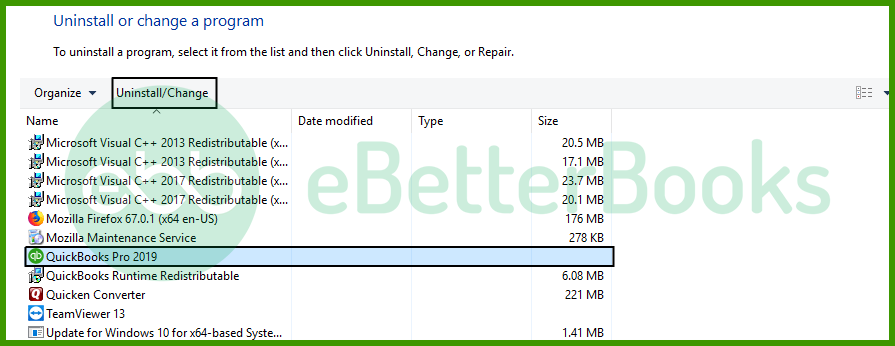
- Close QuickBooks on all computers. On the server, press Windows key and type Control Panel. Open the Control Panel and click Programs and Features. Find QuickBooks Desktop in the list. Right-click QuickBooks Desktop. Select Uninstall/Change.
- Select Repair from the installation wizard. Click Next. QuickBooks replaces damaged files. Repair takes 10-20 minutes. Restart computer after repair completes.
- Open QuickBooks after restart. Enter license key if activation is required. Open company file. Go to File > Utilities > Host Multi-User Access. Test multi-user access from all workstations.
- If repair does not resolve Error 6175, run a full uninstall through Programs and Features, download a fresh installer from the Intuit website, and reinstall using your license key.
Scenarios Requiring Expert Support
Some situations require professional assistance. Attempting further DIY repairs risks permanent data damage. Stop attempting solutions if:
- The QuickBooksDBXX service fails to start after three restart attempts in Windows Services, indicating a Windows system-level conflict requiring administrator diagnosis.
- QuickBooks File Doctor reports network damage after multiple complete scans with no improvement.
- Error 6175 continues on all computers including the server after completing every solution in this guide.
- Reinstalling QuickBooks does not restore the Database Server Manager to a running state.
- Company file becomes inaccessible after following solutions, suggesting the file needs professional data recovery.
Prevention Strategy
Preventing Error 6175 requires consistent server and network maintenance.
- Service Monitoring: Check the QuickBooksDBXX service status weekly on the server. Open Windows Services (services.msc), locate QuickBooksDBXX, confirm status shows Running. Set Startup Type to Automatic so the service restarts automatically after every reboot.
- Hosting Verification: Confirm hosting settings monthly on every computer. Open File > Utilities on each workstation and confirm “Host Multi-User Access” appears – not “Stop Hosting Multi-User Access”. Confirm the server shows “Stop Hosting Multi-User Access” meaning hosting is active.
- QuickBooks Updates: Enable automatic QuickBooks updates via Help > Update QuickBooks Desktop > Options > Automatic update. Apply updates to all network computers immediately. All computers must run the same QuickBooks version at all times.
- Backup Discipline: Create daily backups before processing transactions. Store backups in three locations: local drive, external drive, and cloud storage. Use File > Back Up Company > Create Local Backup. Test backup restoration quarterly.
- Firewall Review: Verify QuickBooks firewall rules remain active after every Windows update. Windows updates sometimes disable custom rules. Check Inbound and Outbound rules monthly in Windows Defender Firewall. Recreate any missing QuickBooks program rules.
- QBDataServiceUser Monitoring: Verify QBDataServiceUser administrator rights quarterly. Open Control Panel > User Accounts > Manage another account. Confirm the account shows Administrator status. Windows updates sometimes reset account types.
- Server Stability: Keep the server computer online and connected to the network during business hours. Do not restart the server while users are accessing company files. Shut down QuickBooks on all workstations before restarting the server. Server restarts during active use are a leading cause of service timeouts that trigger Error 6175.
Conclusion
If QuickBooks Error 6175 continues after following the tiered solutions above, do not keep attempting repeated repairs. Each unsuccessful attempt adds time without results and may change settings in ways that require a professional to reverse. At this stage, a structured professional diagnosis is the safest path forward.
Get expert assistance to analyze your server configuration, restore Database Server Manager functionality, and verify all network settings. Acting early protects both your records and your business continuity. Professional support can resolve complex service and firewall issues beyond the scope of standard troubleshooting steps.
Frequently Asked Questions
How does multi-user mode contribute to QuickBooks Error 6175?
Multi-user mode can contribute to QuickBooks Error 6175 when the server hosting the company file fails to respond or if the QuickBooks Database Server Manager is not functioning properly. In multi-user setups, if the server isn’t correctly set up or accessible, it prevents users from opening the company file, triggering Error 6175. Misconfigured permissions or network issues can also cause conflicts in multi-user mode, leading to this error.
Is it Possible that Error 6175 is Caused by Database Corruption?
Yes, QuickBooks Error 6175 can be caused by database corruption. If the company file is damaged or corrupted, QuickBooks may have trouble accessing it, leading to this error. Running tools like QuickBooks File Doctor or restoring the file from a backup can help resolve database corruption and fix the error.
Why is a specific Windows User Account named QBDataServiceUserXX created, and what role does it play?
The QBDataServiceUserXX (where XX is the two-digit year of your QuickBooks version, e.g., QBDataServiceUser34 for 2024) is a special Windows user account created by Intuit during the installation of the QuickBooks Database Server Manager (QBDSM).
➜Role: This account is designed to run the QBDSM service in the background, ensuring it has the necessary permissions to access, manage, and share the company file across the network, even when no one is logged into the server.
➜Relevance to Error 6175: If this user account does not have Full Control permissions to the folder containing the company file, the QBDSM service can fail to start or communicate, directly causing Error 6175.
What are the specific firewall ports that must be open to allow QuickBooks Multi-User access?
To prevent a firewall (a common cause of Error 6175) from blocking communication with the QuickBooks Database Server Manager, specific TCP ports must be open for both inbound and outbound traffic.
➜Static Port: 8019 is the required static port for all versions of QuickBooks Desktop.
➜Dynamic Ports: QuickBooks versions 2019 and newer use a dynamic range of ports, which change with each version (e.g., ports in the 55378-55382 range for older versions). It’s crucial to set up the firewall rules to allow access for the specific QuickBooks programs (QBW32.exe, QBDBMgrN.exe, etc.) or for the specific dynamic port range for your version.
How can I check if my Windows firewall is allowing QuickBooks to run in multi-user mode?
Firewall rules must allow specific QuickBooks executables such as QBW32.exe, QBDBMgrN.exe, QBUpdate.exe, and related ports for your QuickBooks Desktop year version.
QuickBooks recommends verifying this through Windows Security → Firewall & Network Protection → Allow an App Through Firewall, ensuring all QuickBooks services have full access.
Which computer should I designate as the Host/Server for the company file in a multi-user network?
The server computer should be the only machine set to host the company file, which is typically the most powerful computer in the office or a dedicated server.
➜Best Practice: The computer that physically stores the QuickBooks company file (.QBW) is the one that must have the QuickBooks Database Server Manager (QBDSM) installed and running. This machine is the official “host” and should have the Host Multi-User Access option enabled in QuickBooks Desktop.
➜Workstations: All other computers (workstations) that access the file over the network must have the “Host Multi-User Access” option turned OFF to prevent Error 6175 and other multi-user errors (like H202, H303).
How can I confirm which computer is hosting the company file to prevent multi-user errors like 6175?
Only the computer that stores the company file (the server) should be set to Host Multi-User Access. To check any computer:
➜Open QuickBooks Desktop on the machine.
➜Go to the File menu, then select Utilities.
➜If you see the option “Host Multi-User Access,” that computer is not hosting, which is correct for a workstation.
➜If you see the option “Stop Hosting Multi-User Access,” that computer is hosting. ➜If it’s not the server, you should click this option to disable hosting.
Disclaimer: The information outlined above for “QuickBooks Error 6175 (Company File Error): Diagnostic and Repair Framework” is applicable to all supported versions, including QuickBooks Desktop Pro, Premier, Accountant, and Enterprise. It is designed to work with operating systems such as Windows 7, 10, and 11, as well as macOS.