Excerpt:
QuickBooks Error 6175, 0 occurs when the software cannot access the company file due to issues with the QuickBooks Database Server Manager. This can result in system freezes, file access failures, and application crashes. The article provides troubleshooting steps such as reinstalling QuickBooks, reviewing hosting settings, using the File Doctor Tool, and adjusting system services to resolve the error and prevent future occurrences.
 Add As A Preferred
Fix QuickBooks Error 6175 by verifying multi-user hosting settings, running QuickBooks File Doctor, restarting the QuickBooks Database Server Manager service, and configuring firewall exceptions to restore server access to your company file.
QuickBooks Error 6175 appears when the software cannot start or stop the QuickBooks Database Server Manager – the background service that allows multiple users to access a single company file at the same time.
Error 6175 blocks all network users from opening the company file in multi-user mode. QuickBooks displays this error when the Database Server Manager stops responding, fails to start, or when a firewall blocks communication between the server and connected computers.
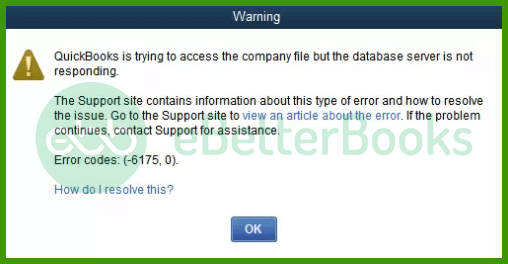
Common Error 6175 messages: “An error occurred when QuickBooks tried to access the company file. Please try again. If the problem persists, contact Intuit and provide them with the following error code: (-6175, 0)” or “QuickBooks is trying to access the company file, but the database server is not responding. Error: -6175, 0.”
This article provides a diagnostic framework, risk assessment, and complete solution guide. Database service failures and firewall blocks require immediate attention. Delayed repairs leave the entire network unable to access financial records.
Error 6175 belongs to the 6000 series handling company file access problems and multi-user network service failures. The 6000 series represents file access failures rather than accounting data corruption.
QuickBooks uses code 6175 specifically when the Database Server Manager – the program that manages shared file access across the network – cannot start, respond, or complete its tasks on the server computer.
QuickBooks organizes errors into series: C= series (internal processing), H series (multi-user hosting configuration on a specific computer), 6000 series (file access and network service failures).
Related errors include H101, H303, H505 (hosting conflicts on workstations), and 6000-83 (folder permission problems). Error 6175 is distinct because it targets the server-side service failure specifically, not the workstation configuration.
Match your symptom to find the correct solution path. Start by checking whether the Database Server Manager is installed on the server. Confirm the server is responding before checking workstation settings.
| Possible Causes and QuickFix for Error 6175 | ||
| Error Event | Likely Cause | Recommended Fix (When to Perform) |
| Error 6175 when switching to multi-user | Hosting not enabled on server | Before reconnecting workstations, open QuickBooks on server only and enable Host Multi-User Access from File > Utilities |
| Error 6175 on all computers including server | Database Server Manager service stopped | When error appears on server and before anything else, open Windows Services and restart QuickBooksDBXX service manually |
| Error 6175 after Windows update or firewall update | Firewall blocking QuickBooks programs | Right after update and before opening company file, add QuickBooks executable files to Windows Firewall inbound and outbound rules |
| Error 6175 with service timeout message | Server is busy or QBDataServiceUser lacks admin rights | When service timeout displays, verify QBDataServiceUser account has administrator rights in Windows User Settings |
Understanding QuickBooks server services prevents data loss during repairs.
QuickBooks Desktop on workstations contacts this manager to request file access. Stopping or restarting this manager does not affect company file data – it only affects current connections.
This service runs silently in the background. Stopping and restarting this service from Windows Services restores the manager without touching any financial records.
Solutions are organized by skill level, risk level, and success probability. This tiered approach protects your data while maximizing repair chances. Start with Level 1 solutions and move to higher tiers only if lower-tier solutions fail.
These solutions require no technical expertise. The risk of data loss is minimal. Anyone can perform these steps safely.
| Solution 1.1: Update QuickBooks on All Computers | |||
| Skill Level | Risk Level | Success Probability | Approximate Time Required |
| Beginner | Low | Moderate | 15-20 minutes |
| Risk Explanation | Updates do not modify company file data. Always maintain a backup before updating. The computer may restart during installation. | Solution Explanation | Outdated QuickBooks versions lack current Database Server Manager components. Intuit releases updates that fix known service startup failures causing Error 6175. All computers on the network must run identical QuickBooks versions. Version mismatches between server and workstations stop the Database Server Manager from responding correctly. |
Steps to Implement Solution 1.1
| Solution 1.2: Verify Hosting Settings on All Computers | |||
| Skill Level | Risk Level | Success Probability | Approximate Time Required |
| Beginner | Low | High | 15-20 minutes |
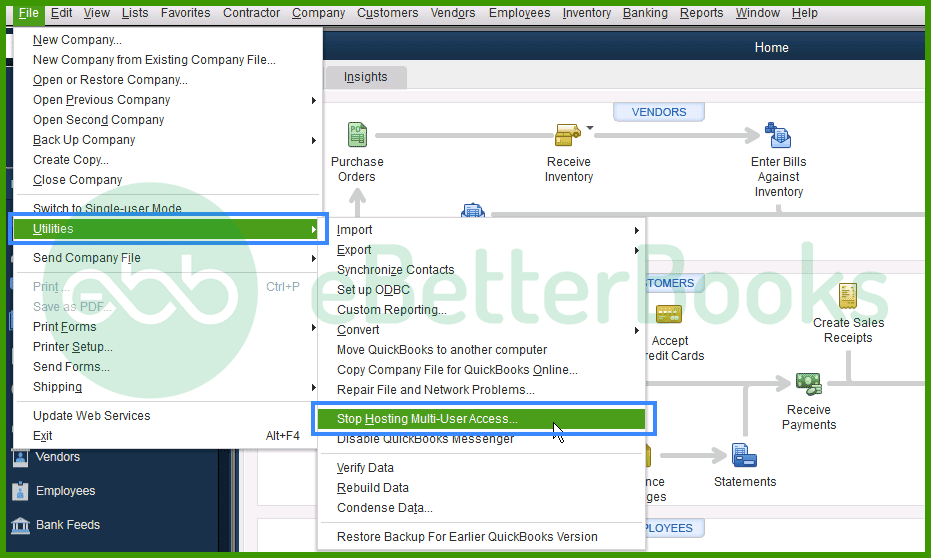
| Risk Explanation | Changing hosting settings temporarily disrupts access. No file data is modified. Follow steps exactly on every computer to avoid locking all users out. | Solution Explanation | Only the server should run the Database Server Manager and host the company file. A workstation set to host competes with the server for file control. This competition stops the Database Server Manager from responding cleanly. Disabling hosting on all workstations gives the server full control of the service. |
Steps to Implement Solution 1.2
| Solution 1.3: Run QuickBooks File Doctor | |||
| Skill Level | Risk Level | Success Probability | Approximate Time Required |
| Beginner | Low | High | 30-45 minutes |
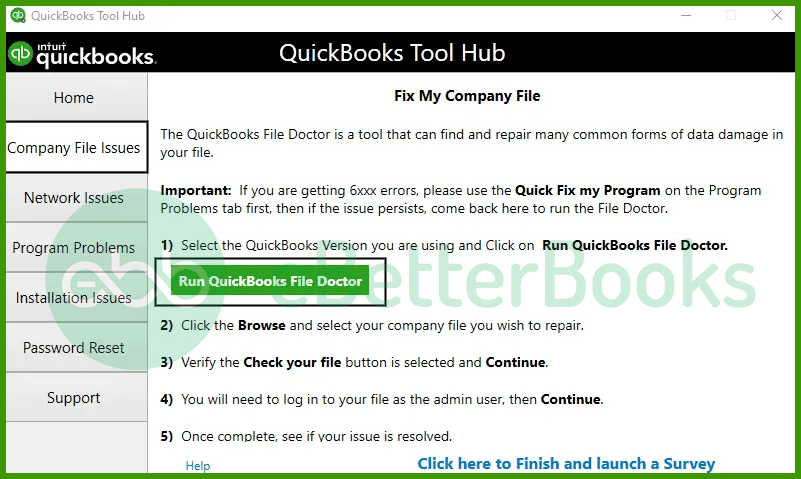
| Risk Explanation | File Doctor repairs network and file configuration automatically. The tool does not touch financial data. Scan takes longer on large company files. | Solution Explanation | QuickBooks File Doctor scans both company file configuration and network settings. The tool detects service failures, hosting conflicts, and damaged network files causing Error 6175. File Doctor repairs these issues automatically and re-establishes proper Database Server Manager configuration. |
Steps to Implement Solution 1.3
These solutions modify service settings and network configuration. Basic computer knowledge is helpful. Risk increases because changes affect server operations. Always create backup before attempting Level 2 solutions.
| Solution 2.1: Restart the QuickBooksDBXX Service | |||
| Skill Level | Risk Level | Success Probability | Approximate Time Required |
| Intermediate | Low to Moderate | High | 10-15 minutes |
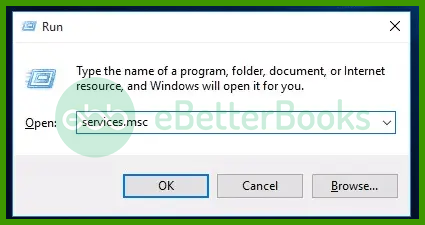
| Risk Explanation | Restarting this service disconnects all current QuickBooks network users temporarily. No data is changed. Restart only when no users are actively working in QuickBooks. | Solution Explanation | QuickBooksDBXX is the Windows background service that keeps the Database Server Manager running. This service sometimes stops after Windows updates, power interruptions, or system overloads. Restarting the service from Windows Services restores the Database Server Manager immediately without reinstalling any software. |
Steps to Implement Solution 2.1
| Solution 2.2: Run Database Server Manager Scan | |||
| Skill Level | Risk Level | Success Probability | Approximate Time Required |
| Intermediate | Moderate | High | 20-30 minutes |
| Risk Explanation | Database Server Manager scan creates new ND files and updates network configuration. This does not modify company file data. The process requires administrator rights on the server. | Solution Explanation | The QuickBooks Database Server Manager scans folders and publishes company file locations to the network. Scanning recreates the ND file (the network data file that stores the server address and file path). A missing or damaged ND file prevents the server from broadcasting the company file location. Rescanning forces the manager to recreate this file correctly. |
Steps to Implement Solution 2.2
| Solution 2.3: Grant QBDataServiceUser Administrator Rights | |||
| Skill Level | Risk Level | Success Probability | Approximate Time Required |
| Intermediate | Moderate | High | 10-15 minutes |
| Risk Explanation | Changing user account rights affects server security settings. Follow these steps exactly. Granting admin rights only to the QBDataServiceUser account is safe. Do not change rights for other accounts. | Solution Explanation | QBDataServiceUser is the Windows account that runs the QuickBooks Database service. Without administrator rights, this account cannot start the service at login. Error 6175 appears immediately because the service never launches. Granting administrator rights allows the account to start the service every time Windows boots. |
Steps to Implement Solution 2.3
These solutions require technical knowledge and affect firewall and system settings. Contact professional support if uncomfortable with these procedures. Data backup is mandatory before attempting Level 3 solutions.
| Solution 3.1: Configure Windows Firewall Exceptions for QuickBooks | |||
| Skill Level | Risk Level | Success Probability | Approximate Time Required |
| Advanced | Moderate to High | High | 30-45 minutes |
| Risk Explanation | Firewall changes affect overall system security. Incorrect rules may expose the server to security risks. Only add QuickBooks-specific programs. Professional assistance is recommended for users unfamiliar with firewall settings. | Solution Explanation | Windows Firewall blocks QuickBooks programs from communicating across the network. The Database Server Manager relies on several background programs to maintain multi-user connections. Each program must have its own firewall rule. Blocking any one of them triggers Error 6175. Adding inbound and outbound rules for QuickBooks programs clears communication paths. |
Steps to Implement Solution 3.1
| Solution 3.2: Reinstall QuickBooks and Database Server Manager | |||
| Skill Level | Risk Level | Success Probability | Approximate Time Required |
| Advanced | High | High | 60-90 minutes |
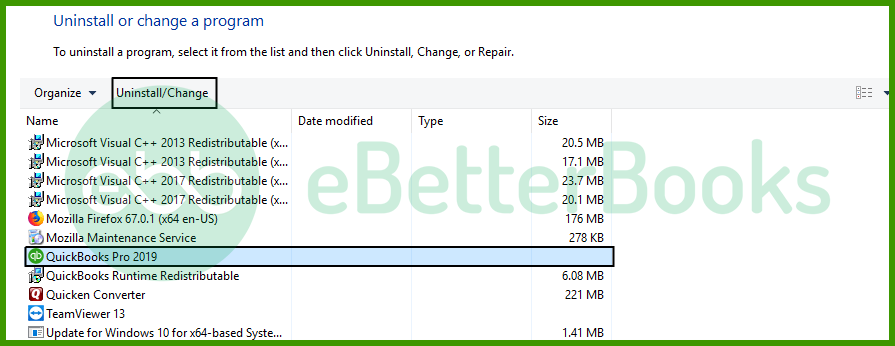
| Risk Explanation | Reinstalling removes all QuickBooks program files and reinstalls them fresh. Company files are not affected. License key is required for reactivation. Back up all company files before starting. | Solution Explanation | Corrupted QuickBooks installation files stop the Database Server Manager from launching. Reinstalling replaces all damaged program files including the Database Server Manager components. Fresh installation files resolve Error 6175 caused by installation damage that no other repair can fix. |
Steps to Implement Solution 3.2
Some situations require professional assistance. Attempting further DIY repairs risks permanent data damage. Stop attempting solutions if:
Preventing Error 6175 requires consistent server and network maintenance.
If QuickBooks Error 6175 continues after following the tiered solutions above, do not keep attempting repeated repairs. Each unsuccessful attempt adds time without results and may change settings in ways that require a professional to reverse. At this stage, a structured professional diagnosis is the safest path forward.
Get expert assistance to analyze your server configuration, restore Database Server Manager functionality, and verify all network settings. Acting early protects both your records and your business continuity. Professional support can resolve complex service and firewall issues beyond the scope of standard troubleshooting steps.
Multi-user mode can contribute to QuickBooks Error 6175 when the server hosting the company file fails to respond or if the QuickBooks Database Server Manager is not functioning properly. In multi-user setups, if the server isn’t correctly set up or accessible, it prevents users from opening the company file, triggering Error 6175. Misconfigured permissions or network issues can also cause conflicts in multi-user mode, leading to this error.
Yes, QuickBooks Error 6175 can be caused by database corruption. If the company file is damaged or corrupted, QuickBooks may have trouble accessing it, leading to this error. Running tools like QuickBooks File Doctor or restoring the file from a backup can help resolve database corruption and fix the error.
QBDataServiceUserXX created, and what role does it play?The QBDataServiceUserXX (where XX is the two-digit year of your QuickBooks version, e.g., QBDataServiceUser34 for 2024) is a special Windows user account created by Intuit during the installation of the QuickBooks Database Server Manager (QBDSM).
➜Role: This account is designed to run the QBDSM service in the background, ensuring it has the necessary permissions to access, manage, and share the company file across the network, even when no one is logged into the server.
➜Relevance to Error 6175: If this user account does not have Full Control permissions to the folder containing the company file, the QBDSM service can fail to start or communicate, directly causing Error 6175.
To prevent a firewall (a common cause of Error 6175) from blocking communication with the QuickBooks Database Server Manager, specific TCP ports must be open for both inbound and outbound traffic.
➜Static Port: 8019 is the required static port for all versions of QuickBooks Desktop.
➜Dynamic Ports: QuickBooks versions 2019 and newer use a dynamic range of ports, which change with each version (e.g., ports in the 55378-55382 range for older versions). It’s crucial to set up the firewall rules to allow access for the specific QuickBooks programs (QBW32.exe, QBDBMgrN.exe, etc.) or for the specific dynamic port range for your version.
Firewall rules must allow specific QuickBooks executables such as QBW32.exe, QBDBMgrN.exe, QBUpdate.exe, and related ports for your QuickBooks Desktop year version.
QuickBooks recommends verifying this through Windows Security → Firewall & Network Protection → Allow an App Through Firewall, ensuring all QuickBooks services have full access.
The server computer should be the only machine set to host the company file, which is typically the most powerful computer in the office or a dedicated server.
➜Best Practice: The computer that physically stores the QuickBooks company file (.QBW) is the one that must have the QuickBooks Database Server Manager (QBDSM) installed and running. This machine is the official “host” and should have the Host Multi-User Access option enabled in QuickBooks Desktop.
➜Workstations: All other computers (workstations) that access the file over the network must have the “Host Multi-User Access” option turned OFF to prevent Error 6175 and other multi-user errors (like H202, H303).
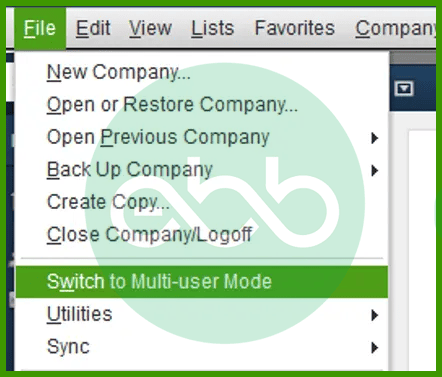
Only the computer that stores the company file (the server) should be set to Host Multi-User Access. To check any computer:
➜Open QuickBooks Desktop on the machine.
➜Go to the File menu, then select Utilities.
➜If you see the option “Host Multi-User Access,” that computer is not hosting, which is correct for a workstation.
➜If you see the option “Stop Hosting Multi-User Access,” that computer is hosting. ➜If it’s not the server, you should click this option to disable hosting.


