



When a user is unable to open their company file due to file restrictions, multi-user conflicts, or network issues, it is generally identified as QuickBooks Error 6073. Unlike minor glitches, this error is closely tied to file access conflicts and hosting misconfigurations, making it a serious obstacle for businesses that rely on QuickBooks Desktop for daily accounting.
This error most often occurs in multi‑user environments where one workstation has locked the file in single‑user mode, or when remotely based users keep sessions active. This error blocks collaboration and halts workflows until resolved.
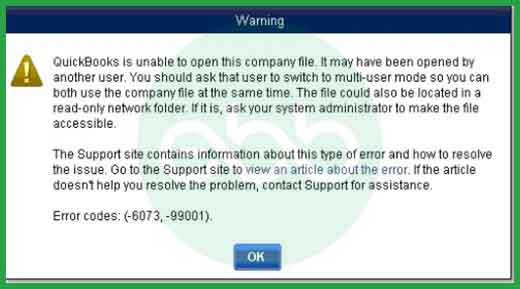
Error 6073 can be triggered by several scenarios:
- Company file opened in Single‑User Mode on another workstation
- File stored in a read‑only network folder
- Hosting conflicts when multiple systems attempt to access the same file
- Remote access tools (e.g., LogMeIn, TeamViewer) keeping sessions active
- File permissions misconfigured, blocking read/write access
- Damaged or hidden .ND (Network Data) or .TLG (Transaction Log) files
- Corrupted company file or improper QuickBooks Database Server Manager settings
This error typically surfaces during:
- Attempting to open a company file in multi‑user mode while another system has it locked in single‑user mode.
- Accessing the file from a remote desktop session while the host computer still sees an active login.
- Opening the file stored on a Linux server with multiple credentials.
- Launching QuickBooks when network permissions are restricted.
- Trying to restore or repair a company file with damaged configuration files.
Quick Reference Table: Error 6073 at a Glance
| Aspect | Details |
| Error Code | -6073, often paired with -99001 |
| Error Message | “QuickBooks is unable to open this company file. It may have been opened by another user.” |
| Primary Cause | File access conflict (single‑user vs multi‑user mode) |
| Other Causes | Read‑only folder, remote access tools, Linux hosting conflicts, damaged .ND/.TLG files |
| When It Appears | During company file opening in multi‑user mode or remote access sessions |
| Impact | Prevents company file access, halts accounting workflows |
| Prevention | Proper file permissions, controlled multi‑user access, updated QuickBooks tools |
Quick Tabular presentation of Quickbook Error 6073
| Level | Error Context | Action | Why | Verification / Notes | Time |
| Beginner | File locked in Single‑User Mode | Close QuickBooks on other workstation | Releases file lock and allows multi‑user access | File opens in multi‑user mode | 10–15 min |
| Remote Access Conflict | End remote session (LogMeIn/TeamViewer) | Removes hidden active session | File opens normally | 10–15 min | |
| Intermediate | Damaged Config Files (.ND/.TLG) | Rename support files (.ND, .TLG → .OLD) | Forces QuickBooks to recreate fresh files | Try reopening company file | 15–20 min |
| Read‑Only Folder Issue | Change folder permissions to Full Control | Grants proper read/write access | File opens successfully | 15–20 min | |
| Hosting Misconfiguration | Reset hosting settings (File > Utilities) | Ensures only one system hosts the file | Verify hosting set correctly | 20–30 min | |
| Advanced | File Corruption | Run QuickBooks File Doctor (via Tool Hub) | Repairs corruption and network issues | Tool completes without errors | 20–30 min |
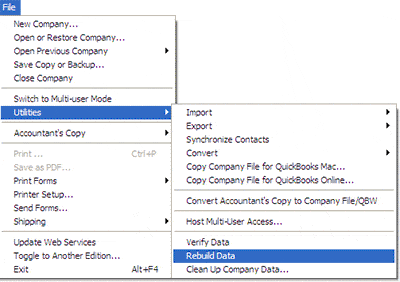
| Structural Damage in Company File | Verify & Rebuild Data (File > Utilities) | Repairs structural damage in company file | Verify Data shows no issues | 30–60 min | |
| Server/OS Permission Conflict | Check Linux/Windows server permissions | Resolves multi‑credential conflicts | File opens without error | 30–60 min | |
| Windows System Conflict | Run SFC/CHKDSK, check Event Viewer logs | Ensures Windows isn’t causing the issue | No system errors reported | 30–60 min |
Stepwise Troubleshooting Guide for QuickBooks Error 6073
Level 1 – Beginner Safe Fixes
These are low‑risk steps that don’t involve system modifications.
Step 1: Close QuickBooks on Other Workstations
- If the company file is open in Single‑User Mode on another computer, close QuickBooks there.
- Reopen the file in Multi‑User Mode from your workstation.
- Why: Releases the file lock and allows multi‑user access.
- Verification: File opens successfully without error.
Step 2: End Remote Access Sessions
- If you use tools like LogMeIn or TeamViewer, end the remote session.
- Restart QuickBooks and try opening the file again.
- Why: Remote sessions can keep hidden active logins that block access.
- Verification: File opens normally after ending the session.
Level 2 – Intermediate Fixes
These steps involve QuickBooks data files or system components. Always back up your company file before proceeding.
Step 3: Rename Support Files (.ND and .TLG)
- Navigate to the folder containing your company file.
- Locate files with the same name as your company file but extensions .ND and .TLG.
- Rename them by adding .OLD at the end (e.g., companyfile.qbw.nd → companyfile.qbw.nd.old).
- QuickBooks will recreate fresh configuration files.
- Why: Damaged support files often trigger Error 6073.
- Verification: File opens successfully after renaming.
Step 4: Change Folder Permissions
- Right‑click the folder containing your company file → Properties → Security tab.
- Ensure all QuickBooks users have Full Control (read/write permissions).
- Why: Read‑only folders block QuickBooks from accessing the file.
- Verification: File opens without error after permissions are updated.
Step 5: Reset Hosting Settings
- On the host computer, open QuickBooks.
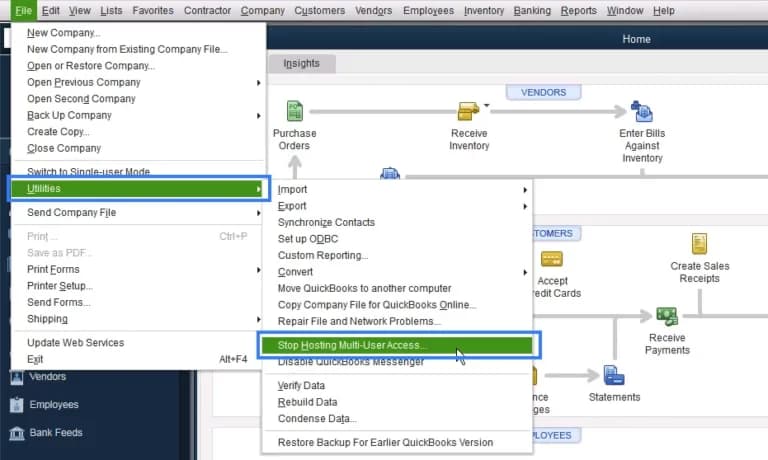
- Go to File > Utilities > Stop Hosting Multi‑User Access.
- Then re‑enable hosting by selecting Host Multi‑User Access.
- Why: Conflicting hosting settings can cause Error 6073.
- Verification: Hosting is active only on one system, and the file opens correctly.
Level 3 – Advanced / Professional Fixes
These are system‑level checks. Attempt only if you’re comfortable with Windows administration, or seek professional help.
Step 6: Run QuickBooks File Doctor (via Tool Hub)
- Download and install QuickBooks Tool Hub.
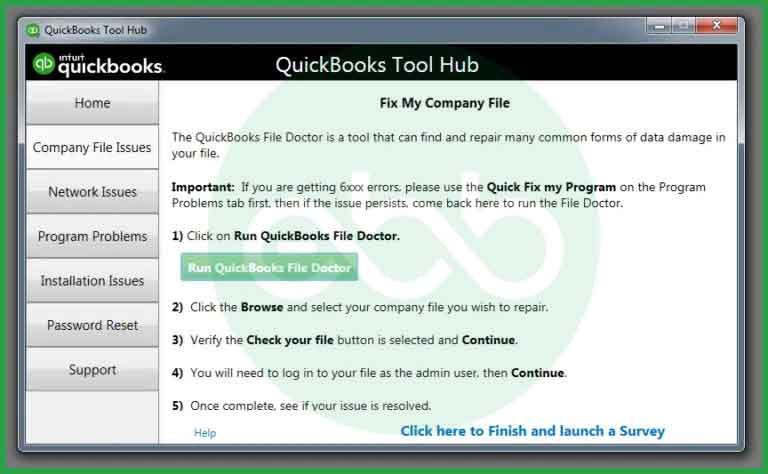
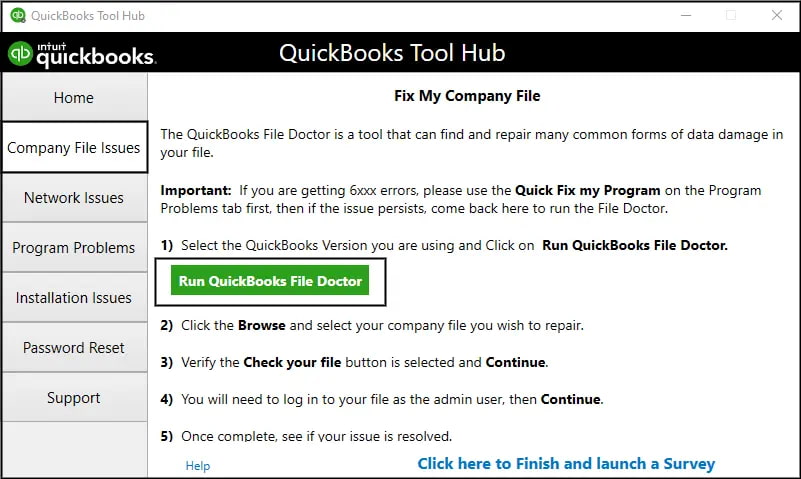
- Open it → Company File Issues → Run QuickBooks File Doctor.
- Select your company file and let the tool repair it.
- Why: Repairs corruption and network issues automatically.
- Verification: Tool completes without errors, file opens successfully.
Step 7: Verify & Rebuild Data
- In QuickBooks, go to File > Utilities > Rebuild Data.
- Follow prompts to repair the company file.
- After rebuilding, run Verify Data.
- Why: Repairs structural damage in the company file.
- Verification: Verify Data shows no issues.
Step 8: Check Linux/Windows Server Permissions
- If the file is hosted on a Linux server, ensure proper credentials are used.
- On Windows servers, verify NTFS permissions allow full access.
- Why: Multi‑credential conflicts or restricted permissions can trigger Error 6073.
- Verification: File opens without error after permissions are corrected.
Step 9: Advanced Windows Checks (if issue persists)
- Open Command Prompt as Administrator.
- Run sfc /scannow to repair system files.
- Run chkdsk /f to check disk health.
- Review Event Viewer logs for related errors.
- Why: Ensures Windows itself isn’t causing the issue.
- Verification: No system errors reported, QuickBooks launches cleanly.
Effects on Business Operations
Quickbook Error 6073 can have following effect on the business:
- Workflow disruption: Users cannot access the company file, halting accounting tasks.
- Collaboration breakdown: Multi‑user mode fails, preventing teams from working simultaneously.
- Data risk: Repeated access conflicts can lead to file corruption.
- Increased IT costs: Requires technician intervention if advanced fixes are needed.
Prevention Best Practices
Following are the best practices that can be included in day to day usage in order to minimise the risk of error:
- Always close QuickBooks properly before switching between single‑user and multi‑user modes.
- Avoid storing company files in read‑only folders or on servers with restrictive permissions.
- Ensure QuickBooks Database Server Manager is correctly installed and updated.
- Regularly back up company files to prevent data loss.
- Limit use of remote access tools while QuickBooks is running.
- Run Verify & Rebuild Data periodically to maintain file integrity.
Conclusion:
Access conflicts, hosting misconfigurations, or damaged support files are the main reason due to which the user faces Quickbook Error 6073. By following a structured troubleshooting framework starting with beginner fixes like closing sessions and ending remote access, progressing through intermediate steps such as renaming support files and adjusting folder permissions, and finally applying advanced solutions like File Doctor, Verify & Rebuild, and server checks users can systematically resolve the error while minimizing risk.
Frequently Asked Questions!
Can QuickBooks Error 6073, 99001 occur in single-user mode?
Yes. Although this error is most common in multi-user mode, it can still appear in single-user mode if the company file is opened remotely or if residual background sessions remain active. Closing all QuickBooks processes and reopening the file locally often resolves this issue.
Does cloud hosting affect the occurrence of QuickBooks Error 6073, 99001?
Cloud-hosted setups can trigger this error when the file synchronization between the host and the virtual machine fails. Using a stable network connection and verified cloud hosting services that meet Intuit’s configuration standards helps prevent this problem.
What type of file corruption can lead to QuickBooks Error 6073, 99001?
Minor data corruption within the .QBW or .ND file can interfere with QuickBooks’ ability to authenticate user access. Running a data verification scan in QuickBooks or using the “Rebuild Data” utility can help correct such inconsistencies.
Can using a Remote Desktop connection (like RDP, TeamViewer, or LogMeIn) cause Error 6073, and how should I log out correctly?
Yes, accessing the company file via certain remote access tools can trigger Error 6073.
➜The Conflict: When a user accesses the QuickBooks file via a remote connection, the hosting server may incorrectly interpret the session as still being active in Single-➜User Mode even after the user closes the QuickBooks window, especially if they do not properly log out of the remote session itself.
➜Correct Logout: To prevent this, users should not only close the company file within QuickBooks (File > Close Company) but also completely log off or disconnect the Remote Desktop session (using the dedicated disconnect or sign-out option) rather than just closing the remote window. This ensures the system registers that the user has released the file lock.
Yes. Some antivirus programs can lock .QBW, .ND, or .TLG files during real-time scanning. Configuring exclusions for the QuickBooks folder and enabling proper firewall ports can prevent file-access interruptions that lead to secondary errors like 6073-99001.
How do the .ND and .TLG files relate to the multi-user environment and QuickBooks Error 6073, 99001?
➜Network Data (.ND) File: This is a configuration file that QuickBooks uses to identify and establish a connection to the company file (.QBW) over a local network. It stores information about the server (host) computer, the Database Server Manager version, and multi-user setup.
➜Transaction Log (.TLG) File: This file tracks all changes to the company file since the last save/sync. It helps maintain data integrity and is essential for recovery.
➜Relevance to Error: If either the .ND or .TLG file becomes damaged or corrupted, QuickBooks may be unable to properly connect to the company file in a multi-user environment, triggering the -6073, -99001 error. A common manual troubleshooting step involves renaming (e.g., to .ND.OLD) these files so QuickBooks is forced to recreate fresh, non-corrupted versions.
Disclaimer: The information outlined above for “Fix QuickBooks Error 6073, 99001 – Unable to Open the Company File” is applicable to all supported versions, including QuickBooks Desktop Pro, Premier, Accountant, and Enterprise. It is designed to work with operating systems such as Windows 7, 10, and 11, as well as macOS.