Excerpt:
Facing issues with QuickBooks Bank Feeds can disrupt accurate financial tracking, leading to incorrect bank balances and decision-making errors. This guide addresses problems like outdated cache, incorrect login credentials, synchronization errors, and unsupported file formats. Solutions include clearing cache files, updating QuickBooks and bank details, and reconnecting accounts. By following these steps, users can ensure seamless integration between QuickBooks and their bank, fostering reliable, up-to-date financial records.
 Add As A Preferred
In most cases, three quick checks resolve a broken QuickBooks bank feed:
Still stuck? Press F2 in QuickBooks Desktop to check your product year — Intuit retires bank feed support roughly three years after release, past which no fix will bring the connection back. (See the exact version-by-version sunset dates further down this page.)
QuickBooks Bank Feeds (QBBF) is an integrated feature in QuickBooks accounting software that automates the synchronization of bank transactions with company financial records. It enables users to download, categorize, and reconcile transactions in real time, improving financial accuracy and operational efficiency.
The QuickBooks Bank Feeds Not Working issue occurs when this synchronization process fails due to software compatibility errors, outdated credentials, server interruptions, or configuration mismatches between QuickBooks and the connected bank. When these errors arise, users experience incomplete transaction imports, delayed reconciliations, and inaccurate financial reporting.
This article explains the causes, error types, and structured solutions for resolving QuickBooks Bank Feeds connectivity failures. It also includes a quick self-diagnosis framework, the full Desktop version sunset timeline, QuickBooks Online-specific fixes, advanced corrective methods, and preventive practices to keep your bank feeds running smoothly.
Before you start troubleshooting, jump to the path that matches what you’re using — Desktop and Online fail for different reasons and need different fixes:
Not every bank feeds problem has the same fix, and using the wrong troubleshooting path wastes time. Before working through the methods below, figure out which of these three categories your issue falls into:
| 1. Temporary Connection Glitch | 2. A Software Bug After an Update | 3. Permanent Version Discontinuation |
|---|---|---|
| Your bank’s servers are down for maintenance, your online banking credentials expired, or a firewall/security change is blocking the connection. This is the most common cause and is fully fixable — go straight to Methods 1–5 below. | You recently changed your bank password, enabled multi-factor authentication, or a recent QuickBooks or Windows update introduced a bug that broke the connection. Intuit typically patches these within days to weeks, but in the meantime the fixes in Methods 6–11 usually restore the feed. | Your QuickBooks Desktop version has passed Intuit’s bank feed sunset date. No update, patch, or troubleshooting step will restore the connection in this case — see the “Is Your QuickBooks Desktop Version Still Supported” section below for the exact cutoff dates and your options. |
Note: If you’re not sure which category applies, start with the free checks in the Quick Answer above, then check your version’s support status before spending time on deeper troubleshooting.
If you’d rather follow a simple yes/no path than read through every method, work through this sequence:
Before diving into causes, confirm which symptom matches what you’re seeing — it helps you jump straight to the relevant fix:
QuickBooks Bank Feeds (QBBF) are automated synchronization tools that connect QuickBooks accounting software with users’ financial institutions. This integration allows automatic import of bank transactions, ensuring that all inflows and outflows are updated in real time within the accounting ledger. By automating data entry and reconciliation, QuickBooks Bank Feeds eliminate manual upload errors and maintain consistent financial accuracy.
The feature works through secure data exchange protocols approved by financial institutions, making it an essential component for accurate bookkeeping, real-time cash flow tracking, and compliance management.
QuickBooks Bank Feeds function through a continuous data link between QuickBooks and the user’s online bank account. Once the connection is authorized, the system automatically retrieves transaction data from the bank and classifies it under the correct categories in the company file.
Each transaction is matched against existing records in QuickBooks. If discrepancies appear, the software highlights unmatched entries for user verification. The process supports seamless reconciliation, reduces accounting discrepancies, and ensures financial transparency.
Data synchronization occurs periodically or manually based on the connection type — either Direct Connect or Web Connect. Both methods achieve the same goal of importing financial data into QuickBooks but differ in their level of automation and bank-side requirements.
In QuickBooks, connection methods define how your bank communicates with the software to share transaction data. QuickBooks supports two main connection methods — Direct Connect and Web Connect — each offering a different level of automation, control, and compatibility.
Direct Connect establishes a two-way communication channel between QuickBooks and the bank’s online server. It allows automatic transaction downloads and supports functions like bill payments and fund transfers directly through QuickBooks.
Note: This method is preferred for businesses that require live financial visibility and instant reconciliation updates.
Web Connect allows manual import of transaction data from the bank’s website in a QuickBooks-compatible file format, typically a .QBO file. It is a one-way process in which the user downloads data from the bank and uploads it into QuickBooks.
Note: This method is ideal for banks that do not support Direct Connect or for users who prefer managing imports manually.
QuickBooks Bank Feeds is an effective feature of internet banking that enables you to connect to your financial institution, download transactions, and use other online services. If it’s not working, it may indicate issues with the connection or bank account setup in QuickBooks, and you may see the error: “Something’s not right. We are unable to complete your request at the moment, try again later.”
This smart QuickBooks tool can automatically recover financial transactions for 90 days. Bank Feeds make it simple for users to categorize bank and credit card transactions, freeing up time for other important company needs.
Bank feeds also help by comparing your data against the bank’s and QuickBooks’ databases — if there is any mismatch, it flags it as a new record for review.
QuickBooks’ Bank Feeds feature streamlines financial management by connecting directly to your bank accounts. However, users may encounter specific errors during this process:
QuickBooks Bank Feeds may stop working due to connectivity, configuration, or compatibility issues between QuickBooks and your financial institution. These problems typically occur when the software, bank credentials, or system components are outdated or misconfigured.
Common causes include outdated QuickBooks versions, incorrect login information, expired authorizations, or temporary server downtime. In some cases, file corruption or unsupported bank file formats can also disrupt synchronization. Browser cache, internet instability, and banking security updates may also block QuickBooks from accessing your account data.
| Error Cause | Solution |
| Due to the Accumulation of Outdated Cache | Clear the cache file in QuickBooks |
| Due to Outdated or Incorrect Sign-in Details | Update the Bank’s Sign-in Details in QuickBooks |
| During synchronization, the added bank server is not responding | Disconnect and Then Reconnect the Bank Account |
| You’re using an outdated version of QuickBooks or an unsupported browser | Update QuickBooks to the Latest Version |
| The bank file is not recognized by QuickBooks | Convert the bank file to a compatible format |
| Synchronization problem between QuickBooks and the bank account | Resolve the Synchronization Issue (Method 6) |
| Users are trying to get details of a transaction older than 90 days | Convert and import a compatible bank file manually |
| QuickBooks has stopped supporting a particular bank | Contact your bank for specialized assistance |
| Pending alerts or notifications on the bank account | Log in to the bank’s website and clear alerts first |
| Bank servers are down or bank information is outdated | Contact your bank |
| An unstable internet connection | Ensure stable internet connectivity for smooth synchronization |
| The company file has a problem linked to a bank account | Run QuickBooks File Doctor (Method 12) |
“Not working” can mean a few different things in practice. Here’s how to handle each specific situation:
| Bank Feed Completely Stopped | New Transactions Aren’t Downloading | Only Some Transactions Are Missing | Transactions Are Delayed |
|---|---|---|---|
| No new transactions have come in for several days or more, and manually clicking Update produces no change. Start with Method 1 (disconnect/reconnect) and Method 2 (clear cache); if the account has passed 90 days without a sync, you’ll also need to import the gap manually via Web Connect (Method 10). | Older transactions are present but nothing recent is coming through. This usually points to expired credentials or a bank-side alert blocking the feed — check Method 3 (update sign-in details) and Method 8 (bank-specific alerts) first. | Partial data usually means a matching or categorization issue rather than a connection failure. Review the Banking tab for transactions sitting in a “pending” or “unmatched” state, and check whether a bank rule (see Preventive Measures below) is misfiling entries. | Feeds are working but updates are consistently slower than expected. This is often normal bank-side batching (many banks sync once every 24 hours), but if the delay stretches beyond a few days, verify the bank server status (Method 8) and confirm QuickBooks is fully updated (Method 4). |
Backing up the QuickBooks company file protects financial data from loss or corruption during troubleshooting. Use QuickBooks’ built-in backup tool to create accurate copies of your records. Schedule automatic backups weekly to maintain current data and ensure recovery capability. Store backup files in secure cloud or external storage to safeguard against hardware failure or unexpected system errors.
Note: This is the #1 reason Bank Feeds fail permanently. Intuit discontinues bank feed support for each QuickBooks Desktop version approximately three years after its release. Once discontinued, NO troubleshooting step will restore the connection — you must upgrade, migrate, or use Web Connect.
Check Your Version Now:
Intuit follows a consistent policy of retiring bank feed support roughly three years after a version’s release. Here is the version-by-version timeline based on Intuit’s published discontinuation policy:
| QuickBooks Desktop Version | Release Year | Bank Feeds End Date (Approx.) |
| QuickBooks Desktop 2021 | 2021 | May 2024 (already discontinued) |
| QuickBooks Desktop 2022 | 2022 | May 2025 (already discontinued) |
| QuickBooks Desktop 2023 | 2023 | May 31, 2026 |
| QuickBooks Desktop 2024 | 2024 | September 30, 2027 (final non-Enterprise Desktop release) |
Source: Intuit’s official QuickBooks Desktop service discontinuation policy. Dates are confirmed for 2021–2023 editions and reflect Intuit’s current published cutoff for the 2024 edition; always verify against Intuit’s official discontinuation policy page for the latest confirmed date before making an upgrade decision.
QuickBooks Desktop 2024 is the final non-Enterprise Desktop release Intuit has announced — once it loses bank feed support, businesses on that product line will need to move to QuickBooks Online or upgrade their setup with specialized Enterprise product assistance to maintain seamless automatic bank syncing.
Use the procedures below, in order, to resolve bank feed errors as quickly as possible.
Disable the bank feed for the affected account and then reconnect it:
Disconnect the bank account:
Reconnect the bank account:
Refreshing the connection helps resolve the issue, but you must also ensure you’re using an updated version of QuickBooks compatible with the bank’s technical requirements — otherwise the company file itself can develop issues.
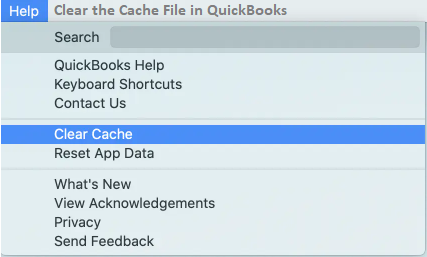
Old cache files can make QuickBooks keep referring to outdated information even after your bank data has changed. Clearing these temporary files forces the software to store fresh, updated data.
As a best practice, users must clear the cache regularly to avoid similar update issues:
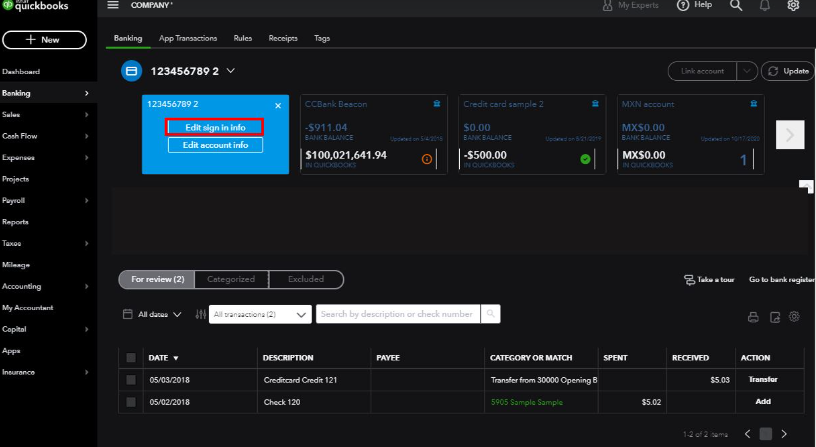
Banks are legally required to provide secure login credentials, using authentication modes ranging from passwords to two-factor authentication. If you enter incorrect or incomplete login information, the bank will block access — which also stops bank feed updates.
To resolve this issue, reset or edit the information:
QuickBooks keeps a local directory of financial institutions (FiDir) with updated connectivity information. If your bank isn’t recognized or the connection keeps failing, refreshing this directory can resolve the issue.
Steps to refresh FiDir:
Alternative manual method (advanced users):
Note: The manual method requires viewing hidden folders. If you’re not comfortable with this, simply use the Bank Feeds Center refresh option instead.
An outdated QuickBooks build can be incompatible with the bank’s website, causing the company file to fail to connect.
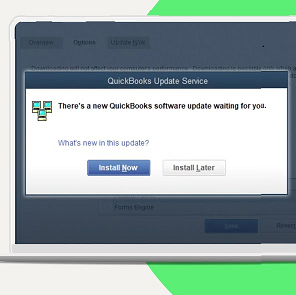
If the problem persists after updating, disconnect and reconnect the bank feed service (Method 1) to refresh the connection.
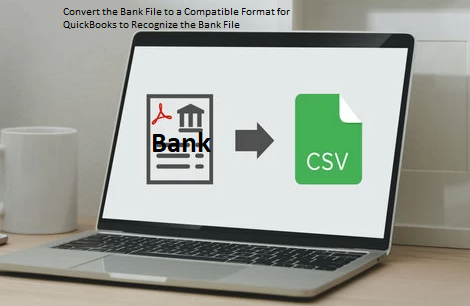
What this fixes: Compatibility issues where QuickBooks can’t read transaction files because of unsupported formats.
What it does:
Synchronization difficulties between QuickBooks and your bank can complicate financial tracking.
What this fixes: Synchronization difficulties caused by dropped connections or outdated QuickBooks versions.
This advanced diagnostic step determines whether the issue lies within your company file or the bank connection itself. If Bank Feeds work in a test file, the problem is isolated to your original company file — likely data damage.
If transactions download successfully in the test file: The issue is with your original company file — run QuickBooks File Doctor (Method 12) to repair data damage.
If the issue persists in the test file: The problem is with the bank connection, bank server, or your QuickBooks installation — continue with Method 7.
If Bank Feeds worked in the test company file (Method 6A) but not in your original file, the company file itself likely has data damage. Verify Data checks for this damage; Rebuild Data repairs what it finds.
Note: If Verify Data finds no damage but the issue persists, the cause is more likely connection- or installation-related — move on to Method 6C or Method 12 (File Doctor).
A firewall or antivirus tool can silently block the secure connection QuickBooks needs to reach your bank.
Note: Only disable firewall or antivirus protection temporarily, for testing purposes, to confirm whether it’s the cause. Re-enable it immediately afterward and add QuickBooks as an allowed exception instead of leaving protection off.
If troubleshooting fails to resolve the issue, the bank may be the source of the problem. This includes bank servers being unavailable, issues retrieving older or pending transactions, or technical/policy limitations on QuickBooks’ side.
What this resolves: Issues outside of QuickBooks, such as server outages, transaction restrictions, or unsupported integrations.
Deactivate:
Reactivate:
QuickBooks Desktop offers two modes for Bank Feeds. If the standard mode fails, Classic Mode often resolves the issue because some banks’ file formats are better compatible with it.
Note: If Classic Mode works, you can continue using it. Some banks may not support this mode, in which case switch back or contact your bank.
Download and install QuickBooks Tool Hub:
Run QuickBooks File Doctor:
Switch to Direct Connect:
Switch to Web Connect:
If all troubleshooting methods fail, detailed log files can help your bank or QuickBooks Support pinpoint the root cause.
Step 1: Enable logging
Step 2: Locate the log files
QuickBooks stores the files at: C:\Users\[YourUsername]\AppData\Local\Intuit\QuickBooks\Log\XX.0\
Step 3: Share logs with support
Package the log files into a ZIP folder and share them with your bank’s technical support or a QuickBooks ProAdvisor for analysis. The logs reveal specific error codes and connectivity failures that may not be visible in the QuickBooks interface.
Note: Disable logging after your issue is resolved (Edit > Preferences > Checking > Company Preferences > uncheck “Turn on Bank Feeds log files”) to prevent excessive log file growth.
If the methods above haven’t resolved things, use this quick summary to decide who to contact next — it doesn’t replace Methods 7 and 9, just makes the decision faster:
Contact your bank when:
Contact QuickBooks Support when:
Duplicates are one of the most common side effects of fixing a broken bank feed, and they deserve their own troubleshooting pass rather than a quick FAQ answer.
While the automatic feed was down, you (or your bookkeeper) likely entered transactions manually to keep the books current. Once the feed reconnects, it re-downloads the same date range from the bank — creating a second copy of transactions that were already entered by hand.
Only run your reconciliation (Banking > Reconcile) after you’ve matched or excluded every duplicate for the affected period. Reconciling before cleanup can lock in duplicate entries and make them harder to remove later.
A few common reactions make bank feed problems worse instead of better:
Most of the methods above target QuickBooks Desktop. If you’re on QuickBooks Online and your bank feed isn’t updating, the cause is more often browser-related than account-related. Try these before contacting support:
A corrupted browser session or an extension conflict can silently block QuickBooks Online from refreshing your feed.
QuickBooks Online sometimes needs to open a small authentication pop-up during bank verification. If your browser’s pop-up blocker is active, the sync can silently fail. Add QuickBooks Online to your browser’s allowed sites list, then try the update again.
Go to the Banking (or Transactions) tab and click Update in the top-right corner. If nothing changes after a manual update, sign out completely, clear the browser cache (Method 2 above applies to QBO too), and sign back in before retrying.
Occasionally the interruption is entirely on the bank’s side. Check your bank’s website directly, or contact their support, to confirm their online banking systems are operational before troubleshooting further on the QuickBooks side.
Regularly reconcile accounts — perform monthly bank account reconciliations to keep QuickBooks records aligned with your bank statements:
Utilize bank rules — automate categorization of recurring transactions:
Monitor bank feed alerts — regularly check for alerts or notifications within QuickBooks and from your bank to stay ahead of potential issues.
Daily updates — keep financial data current for accurate cash flow management:
Some banks support automatic nightly updates — verify with your bank and QuickBooks settings to enable this feature if available.
Update sign-in information whenever you change your online banking username or password:
Reauthorize accounts periodically, since some banks require it for security:
QuickBooks Bank Feeds play a critical role in ensuring the accuracy, consistency, and timeliness of financial data. In practice, the reliability of your bank feed connection maps directly onto a few common risk areas:
Consistent synchronization supports accurate cash flow monitoring, faster bank reconciliations, and improved financial decision-making across accounting periods.
Adjusting specific QuickBooks settings enhances synchronization accuracy, system efficiency, and overall data reliability.
Security protocols are essential for maintaining reliable bank feed connections and protecting financial data. Most financial institutions require multi-factor authentication (MFA) to ensure secure access during synchronization. Properly configured MFA and updated encryption settings in QuickBooks prevent unauthorized access and minimize connection errors. Maintaining current security certificates and regularly updating QuickBooks reduces the risk of data interruptions caused by outdated configurations.
QuickBooks users encounter specific error codes that reveal underlying bank feed problems. Error 102 points to a connection issue with the bank’s server. Error 185 relates to multi-factor authentication and other login-security checks. Errors OL-222 and OL-301 typically indicate transaction download problems or bank server downtime. Recognizing what each code means lets you jump straight to the relevant fix instead of retrying the same generic steps.
| Error Code | Meaning | Main Cause | Recommended Fix |
| 102 | Bank connection issue | Problem on the bank/server side | Check bank server status (Method 8), then retry |
| 185 | Authentication issue | Multi-factor authentication / security check required | Re-authenticate with updated sign-in details (Method 3) |
| 324 | Account not found | Changed account details or closed account | Reconnect the account (Method 1) |
| 9999 | Connection / script issue | Disrupted connection between QuickBooks and bank | Refresh or reconnect the bank feed (Method 1 or 3A) |
| OL-222, OL-301, OL-332 | Desktop connectivity errors | Transaction download problems or bank server downtime | Identify the specific OL code and follow Methods 1–4; contact your bank if it persists |
Efficient management of QuickBooks Bank Feeds ensures consistent synchronization, accurate financial reporting, and uninterrupted data flow between your accounting system and financial institutions. Applying structured maintenance strategies strengthens data integrity, minimizes connection errors, and enhances overall performance across all linked accounts.
Integrating approved third-party applications enhances QuickBooks Bank Feed functionality by automating transaction categorization and improving data accuracy. Compatible tools such as payment processors, budgeting software, and CRM systems streamline workflows and ensure seamless financial data flow. Regularly updating both QuickBooks and connected apps prevents synchronization conflicts.
Maintaining data integrity in QuickBooks Bank Feeds ensures accurate financial reporting and reliable synchronization. Regular monitoring of imported transactions, reconciliation logs, and activity reports helps identify anomalies early and prevents data inconsistencies.
The QuickBooks Bank Feeds Not Working issue commonly arises from outdated software, incorrect credentials, synchronization errors, or bank server interruptions. Applying structured troubleshooting steps such as updating QuickBooks, clearing cache files, verifying login details, and reconnecting accounts helps restore normal operation and ensures accurate financial reporting.
Consistent maintenance practices, including regular software updates, secure credential management, and periodic bank reconciliations, are key to preventing future disruptions in bank feed connectivity. Maintaining compatibility between QuickBooks and your financial institution supports smooth, real-time data exchange and dependable cash flow tracking.
This usually happens due to expired bank credentials, a bank server outage, or a browser session conflict. Try signing in directly on your bank’s website first to confirm access, then refresh the connection from the Bank Transactions page — a private/incognito browser window often resolves stubborn cases.
Most banks allow QuickBooks to automatically retrieve up to 90 days of historical transactions through bank feeds. For anything older, request an export directly from your bank and import it manually using Web Connect.
Yes. You can switch connection methods as long as your bank supports both options. Disconnect the existing bank feed, then set up the new connection type from the Banking menu, following your bank’s specific requirements.
Check your Desktop version’s release year using F2 (Product Information) and compare it against the sunset timeline table earlier in this guide. If your version is past that window, the connection cannot be restored through troubleshooting, and you will need to upgrade, move to QuickBooks Online, or use a manual import workflow.
This happens when transactions were entered manually while the feed was down and then re-downloaded once reconnected. See the “QuickBooks Bank Feeds Downloading Duplicate Transactions” section above for the full match-vs-exclude cleanup process.
No. Clearing your browser’s cache only removes temporary internet files used for the bank’s website session — it has no effect on your QuickBooks company file or the transactions already recorded in it.


