+1-802-778-9005
Home>>QuickBooks Errors & Their Support Most Common Other QuickBooks Problems & Issues with Process of Fixing Them How to Fix QuickBooks Export to Excel not Working Issue? -Grayed Out

Submit Your Details to Continue Reading

Highlights (Key Facts & Solutions)

  • Primary Causes: Export failure is most often due to incompatible Microsoft Office versions (must be a desktop installation, not web), corrupted QuickBooks or Office files, overly strict User Account Control (UAC) settings in Windows, or insufficient user permissions within QuickBooks.
  • Compatibility Check (QB Desktop 2024): QuickBooks Desktop 2024 requires a 64-bit Windows OS and is compatible with:
    • Microsoft Office 2021
    • Microsoft Office 2019
    • Microsoft Office 2016
    • Microsoft 365 (locally installed version)
  • Essential Fixes:
    • Repair Microsoft Office: Use the Windows Control Panel to run a Quick Repair or Online Repair of the Office installation to re-register necessary application components.
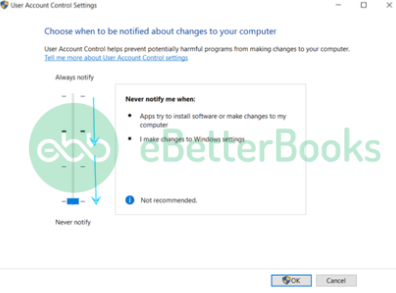
    • Toggle UAC Settings: Temporarily moving the UAC slider to Never Notify and then back (or just restarting after setting to ‘Never Notify’) can reset permissions blocking the export.
    • Update Software: Ensure both QuickBooks Desktop and Excel are fully updated to their latest patches.
    • QuickBooks Tool Hub: Use the Quick Fix my Program feature in the Tool Hub, which addresses common installation and program problems affecting the export function.
  • Security and Data Integrity:
    • User Permission: The user’s role must have the Can export reports to Excel/CSV permission explicitly enabled in QuickBooks security settings.
    • Export Method: Use the Create New Worksheet option for the most reliable, clean export; avoid Update Existing Worksheet unless refreshing a standardized template.
  • Mac Requirement: QuickBooks Mac Plus 2024 requires Apple Numbers v12.0 or later or Microsoft Excel 2016 or later for successful export.

Overview

QuickBooks export to Excel function allows users to transfer financial data from QuickBooks Desktop into Microsoft Excel for reporting, analysis, and record-keeping. Sometimes, this feature doesn’t work, causing issues such as QuickBooks crashing or freezing during export, the software failing to recognize Excel, the Export to Excel option being grayed out or unclickable, or Excel being unable to open QuickBooks data files. These issues often result from damaged or outdated Excel and QuickBooks installations, misconfigured system settings, or compatibility conflicts between Microsoft Office and QuickBooks Desktop.

This article explains why QuickBooks export to Excel may fail and provides step-by-step solutions to fix it. It also covers system requirements, configuration adjustments, and proper export procedures to ensure smooth Excel functionality, accurate reporting, and efficient data management.

Essential Tips for Troubleshooting QuickBooks Export to Excel Issues

QuickBooks export to Excel function depends on stable Microsoft Excel components, correctly configured Windows User Account Control settings, an updated QuickBooks Desktop installation, and a compatible Microsoft Office version.

Error CausesSolutions
Malfunctioning or Damaged MS ExcelYou need to repair MS Office if you want to avoid all such corruption issues.
Misconfigured User Account Controls SettingsYou have to Toggle your Windows User Account Controls Settings on and off.
Outdated QuickBooks Desktop ApplicationIf the software you are working on is outdated, you must update it to the most recent release.
Issues with MS Office Version and QB System RequirementsIf your system is unable to meet the specific system requirements or if your MS Office is not compatible with your latest QB desktop, immediately check for the QuickBooks System Requirements and the compatibility of the MS Office version.
Using Incorrect Method to Export MS ExcelAt this point, you are required to apply the right method to export MS Excel.

Possible Reasons Why QuickBooks is Unable to Export to Excel

QuickBooks export to Excel function fails when software or system components interrupt the link between QuickBooks Desktop and Microsoft Excel. Damaged Excel installations, incorrect User Account Control settings, outdated QuickBooks versions, incompatible Microsoft Office releases, and improper export methods commonly trigger this interruption and block Excel-formatted output.

There are a couple of factors that might be responsible for QuickBooks export to Excel failure; the most common ones are as follows:

  • Malfunctioning or Damaged MS Excel: Unable to Export to Excel error is caused by malfunctioning or corrupted MS Excel software.
  • User Account Controls (UAC) Settings are not properly configured: Windows User Account Controls may also sometimes create issues while exporting files in Excel from QuickBooks.
  • Outdated or Older QuickBooks Desktop Application: If the latest software updates have not been installed in the system for a long time, you may experience the same error.
  • Inability to meet the Minimum QB System Requirements: Your system cannot meet the minimum system requirements needed to run the QuickBooks Desktop application.
  • Wrong Method to Export MS Excel: When you apply the wrong method to export an Excel file, you may probably bump into QB is unable to export to Excel error.

Encountering โ€œQuickBooks is unable to Export to Excelโ€ while trying to export important documents, such as reports, files, forms, etc., in QuickBooks Desktop?
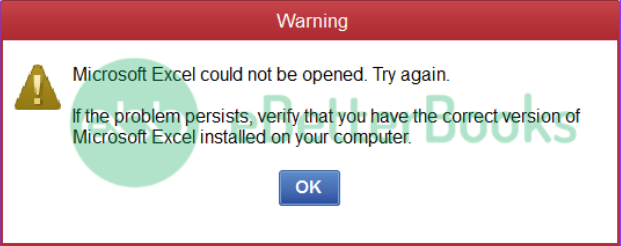
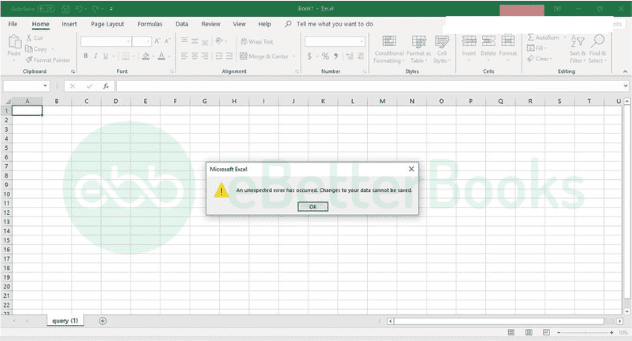
Screenshot of QuickBooks is unable to Export to Excel

If your answer is Yes, then this write-up is for you. Just stay connected till the end to get your doubts cleared. Still confused? Immediately ping us at our toll-free number +1-802-778-9005.

How to Troubleshoot QuickBooks is Unable to Export to Excel Issue?

Resolving the QuickBooks export to Excel issue involves verifying software integrity, correcting system configuration settings, updating QuickBooks Desktop, and confirming Microsoft Office compatibility. Each procedure addresses a specific failure point and restores the connection required for reliable Excel export operations.

Case 1: When MS Excel is Damaged or Corrupted

When MS Office applications like word or excel donโ€™t work correctly, the Export to Excel option is not grayed out in QuickBooks. Hence, you need to repair Microsoft Office as soon as possible.

The steps you need to perform are enumerated below:

  1. In the first place, hit right-click on the Start button available in the lower-left corner.
  2. Now, choose Apps and Features on the pop-up menu.
  3. Select the  Microsoft Office product you wish to repair and click on Modify.

Note: This will help you to repair the entire Office suite, even if itโ€™s just one application you want to fix, like Word or Excel. However, if you have a standalone app installed, look for the application by name.

  1. Depending on whether your copy of Office is a Click-to-run or MSI-based install, you will notice the following options to proceed with the repair. For your installation type, adhere to the below-listed steps.

Click-to-run

Under the window How would you like to repair your Office Programs, choose Online Repair > Repair to ensure everything gets fixed.

MSI-based

Select Repair on Change your Installation and then press Continue.
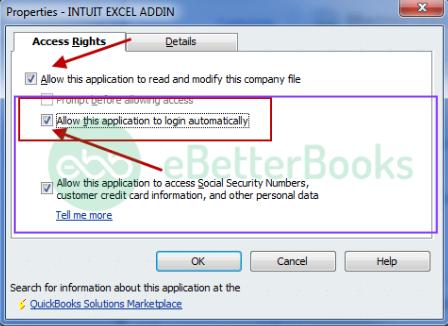
  1. At last, follow all the on-screen instructions to complete the repair.
Open and use MS Excel for spreadsheet creation and data management.

Case 2: When User Account Controls (UAC) Settings are Misconfigured

Misconfigured or any discrepancies in UAC settings can be resolved by toggling your Windows User Account Controls Settings on & off.

Hereโ€™s how:

  1. To begin with, hover over the Windows Start menu.
  2. Enter the User Account Control Settings into the search bar and then open User Account Control (UAC) Settings).
  3. Afterward, choose and move the slider to Never Notify and press OK.
  4. Finally, restart your system and, try to export a report or form from QuickBooks and check if the issue still stands on its ground.
User Account Controls UAC Settings are Misconfigured

Case 3: When QuickBooks is Not Updated to the Latest Release

Upgrading QuickBooks to the most recent version ensures that QuickBooks functions properly. To update the software, implement the below-given steps and eliminate the error of QuickBooks not exporting to Excel.

  1. For this, navigate to the Help menu and choose Update QuickBooks Desktop.
  2. Now, select Update Now and then click on Get Updates.
  3. Once done, close and open QuickBooks again.
  4. If you are prompted to install the update, press Yes.
  5. When the installation is successfully completed, follow all the on-screen prompts.

Be sure that the QuickBooks version you are currently using must be up-to-date. After the update, open QuickBooks and export a report as follows:
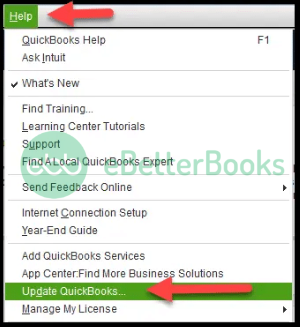
  1. Hover over the Reports menu and then open any report on the list.
  2. Hit the Excel tab, and then All export options, including Excel, should be presented here.
Update QuickBooks to the latest release for improved performance and features.

Case 4: Issues with MS Office Version and QB System Requirements

Every QuickBooks version works with specific versions of MS Office. Hence, it is required to review the system requirements for your QB version: 2021, 2022, 2023, and if your MS Office version is not compatible, then youโ€™ll have to upgrade it.

Hereโ€™s how:

  1. The initial step is to open any MS Office app, such as Word, and create a new document.
  2. Navigate to File > Account or Office Account if you opened Outlook.
  3. Under the Product Information window, select Update Options > Update Now.

Remember: You may need to select Enable Updates first if you donโ€™t see the Update Now option immediately.

  1. After this, shut down the โ€œYouโ€™re up to date!โ€ window once MS Office is done checking for and installing updates.
  2. You can also press the Update Options button to Disable Updates or View Updates installed earlier.

Case 5: When the Wrong Method is Using to Export an Excel

Sometimes, applying the wrong method to export an Excel file from QuickBooks may lead to QuickBooks export to Excel failure.

Hereโ€™s what to do:

Customer/Vendor/Payroll list and transactions

  1. Firstly, open the Customer/Vendor/Payroll center.
  2. Now, click on the Excel drop-down and then select:
  3. Export the Customer/Vendor/Employee list to export customer/vendor/employee data such as name, balances, and contact information.
  4. Export Transactions if you are willing to export transactions by name or type.
  5. After this, choose to create a new worksheet or update an existing one under the Export window.
  6. Press the Export button. QuickBooks will open up MS Excel, and you can edit the information as required.

Items:

  1. Head to the Lists menu and then choose Item List.
  2. Click on Export all Items on the Excel drop-down.
  3. Select whether to create a new worksheet or update an existing worksheet under the Export window.
  4. Hit the Export tab, and then QuickBooks will open MS Excel, where you can edit the information as needed.

Reports:

Hereโ€™s a list of Information that QuickBooks exports to Excel, which includes:

  • Data in the report, as it appears on the screen.
  • The formula for totals, subtotals, and some other calculations.
  • Row labels that describe each rowโ€™s content.
  • Headers and footers from the QuickBooks report.
  1. To start, open the report you would like to export.
  2. Next, choose the Excel drop-down at the top of the report and click Create New Worksheet or Update Existing Worksheet options.
  3. Select what youโ€™d like to do with the report under the Send Report to Excel window.
  4. After that, press the Advanced button to view other available options for the exported report, then press OK.
  5. If you are using a newer version of MS Excel and the exported report does not show header information, navigate to the Printing options section and check the On Printed report and screen option is selected.
  6. And lastly, press the Export button, and later on, QuickBooks will open MS Excel, and you will be able to edit your data as required.

What Might Lead to QuickBooks is Unable to Export to Excel on Mac?

There can be various reasons for โ€œQB is unable to export to excelโ€ but if the system doesnโ€™t match the required specification, you may run into the same problem.

These specifications are as follows:
  • QuickBooks for Mac 2016 R5 or earlier Mac Operating System 10.10.2 is recommended.
  • Intel Core Duo or higher is needed.
  • 2-4 GB RAM.
  • At least 250 MB of disk space is mandatory.
  • QuickBooks Payroll requires an active or stable internet connection and an appropriately functioning Adobe Reader to print forms.
 Resolve issues when QuickBooks is unable to export to Excel on Mac.

How to Troubleshoot QuickBooks Wonโ€™t Export to Excel for MAC?

To tackle QuickBooks is unable to Export to Excel for Mac, adhere to the steps as follows:

  1. Firstly, verify whether your computer is compatible with the Excel version you are currently using.
  2. Now, make sure to check if your system meets the requirements or specifications that are needed to work with QuickBooks.
  3. If your system meets the specifications, then there is a possibility that you might be having issues with the installation of QuickBooks or Excel.
  4. You have to register all the keys again with Microsoft by reinstalling or repairing the MS Office to check if the problem doesnโ€™t exist with Excel. It allows QuickBooks to determine that you have Excel on your computer system.
  5. To confirm the presence of glitches in QuickBooks installation, a clean install is recommended to get over such QB installation-related issues.

Conclusion!

QuickBooks export to Excel function operates effectively when Microsoft Excel, QuickBooks Desktop, and the system environment meet the required compatibility and configuration standards. Export Failures occur when damaged Excel files, outdated QuickBooks versions, misconfigured User Account Control settings, or incompatible Office installations disrupt the export workflow and prevent reliable data transfer. Following the corrective procedures, verifying software integrity, updating QuickBooks, adjusting system settings, and applying the correct export method restores the connection and ensures consistent Excel exports for reporting, analysis, and data management.

Feel free to get in touch with us at +1-802-778-9005, or you can mail to us at: support@ebetterbooks.com if you need professional assistance regarding accounting, bookkeeping & accounting software-related issues.

FAQs!

Why does the “Export to Excel” button appear grayed out or unclickable in QuickBooks Desktop?

The “Export to Excel” option is typically disabled because QuickBooks cannot reliably locate or communicate with a compatible version of Microsoft Excel on your computer. This indicates a key integration failure.

Common, validated causes include:

  • Incompatible or Missing Excel: The necessary Microsoft Excel application is not installed, or the installed version is not compatible with your QuickBooks Desktop release (e.g., trying to use the web-based Office 365 version).
  • Corrupted Installation: The QuickBooks or Microsoft Office installation files are damaged. Repairing or reinstalling Microsoft Office is a common solution to re-register the required program components (DLLs and OCXs).
  • Incorrect System Settings: Windows User Account Control (UAC) settings are configured too strictly, preventing QuickBooks from launching and writing data to Excel with the necessary elevated permissions.
  • Outdated Software: Both QuickBooks Desktop and Microsoft Office must be fully updated to ensure the latest compatibility patches are applied.

Can the QuickBooks Print & PDF Repair Tool also fix Excel export problems?

Yes, running the QuickBooks Print & PDF Repair Tool from the QuickBooks Tool Hub is often a valid solution for Excel export issues, despite its name.

The reason for its effectiveness is that both PDF creation and the Excel export process rely on shared Windows components and folder permissions:

  • Shared Dependencies: QuickBooks utilizes components related to the Microsoft XPS Document Writer and the Print Spooler Service for several cross-application data handling tasks, which can affect the export mechanism.
  • Temporary Folder Permissions: The tool can help reset the permissions for your Windows %TEMP% folder, which is essential because QuickBooks uses this folder to stage temporary files during the export process.

Which versions of Microsoft Excel are confirmed as compatible with the latest QuickBooks Desktop editions?

QuickBooks Desktop requires specific compatibility to ensure stable data exchange. You must use a locally installed (desktop) version of Microsoft Excel.

For QuickBooks Desktop 2024, confirmed compatible versions include:

  • Microsoft Office 2021
  • Microsoft Office 2019
  • Microsoft Office 2016 (including 32-bit and 64-bit versions)
  • Microsoft 365 (locally installed version, includes 64-bit support)

Critical Note: QuickBooks Desktop 2024 requires a 64-bit Windows operating system and will not run on 32-bit Windows. For exporting reports, the corresponding Microsoft Excel version must also be locally installed.

What is the key difference between the “Create New Worksheet” and “Update Existing Worksheet” options during export?

These options define how QuickBooks handles the destination file and are crucial for successful formatting and data integrity:

  • Create New Worksheet: This is the most reliable method. It generates a brand new Excel workbook with clean formatting, including formulas for totals and subtotals, based on the default QuickBooks report template.
  • Update Existing Worksheet: This option overwrites the data in a previously selected Excel file. It is used to refresh a standardized report template but carries a risk: if the existing Excel sheet was heavily modified or the structure was changed, the update may fail or corrupt the file.

Expert Tip: Before exporting, especially a large report, select the Advanced option and uncheck the Space between columns checkbox. This creates a much cleaner, flat data file, which is better suited for data analysis and importing into other systems.

If I am using QuickBooks Desktop for Mac, why might my export fail even if Excel is installed?

Export failures on QuickBooks Desktop for Mac often stem from security and application management within the macOS environment, rather than damaged files.

Key issues specific to macOS:

  • File Type Association: The system may not correctly recognize Microsoft Excel as the designated application for opening the exported file types (typically .sylk or .xlsx).
  • Application Permissions: macOS security (sandboxing) can sometimes block one application (QuickBooks) from initiating a task with another (Excel). Reinstalling or repairing MS Office is necessary to re-register the application keys with the system.
  • Version Mismatch: For QuickBooks Mac Plus 2024, the export function requires Apple Numbers v12.0 or later or Microsoft Excel 2016 or later, including Microsoft 365.

Validated Fix: After the file is saved, you should right-click the file, select Get Info, and ensure the Open With setting is set to Microsoft Excel, then click Change All to set it as the default for that file type.

Does a user need specific administrative permissions within QuickBooks to export reports to Excel?

Yes, a user must be explicitly granted the permission to export data, regardless of their ability to view the report itself. This is a critical internal security control.

To successfully export reports:

  • The user’s role must have the Can export reports to Excel/CSV permission enabled within QuickBooks Desktop’s User and Roles settings.
  • This permission controls the user’s ability to extract sensitive financial data outside of the protected QuickBooks company file.

Expert Tip: Even if the user has this permission, the Windows user profile must also have local administrative rights or temporarily disable User Account Control (UAC) to successfully facilitate the program-to-program communication during the export.

What should I check if my exported report opens in Excel but shows missing or incomplete data?

If the Excel file opens correctly but the financial data is incomplete, the issue is typically not a connectivity or corruption problem, but rather a report filtering or data size limitation problem within QuickBooks.

Key checks for incomplete data:

  • Report Filters: Ensure that the Customize Report options, including the Date Range and any applied Filters (e.g., account, transaction type), are not accidentally excluding the data you intended to export.
  • Report Size Limit: QuickBooks has an internal limit on the size of the data it can process and export in one operation. If the report is too large (e.g., multiple years of detailed transactions), try reducing the date range to export in smaller, manageable chunks (e.g., one quarter at a time).
  • Excel Hidden Formatting: Once in Excel, check for any accidentally hidden rows or columns that might be concealing the data.