Excerpt:
Experiencing issues with exporting QuickBooks data to Excel? This article addresses common causes such as damaged MS Excel, misconfigured User Account Controls, outdated QuickBooks versions, and improper export methods. Solutions include repairing MS Office, adjusting system settings, updating QuickBooks, and following the correct export procedure. With step-by-step guidance, you’ll be able to resolve export issues and restore seamless data transfer between QuickBooks and Excel.
 Add As A Preferred
QuickBooks export to Excel function allows users to transfer financial data from QuickBooks Desktop into Microsoft Excel for reporting, analysis, and record-keeping. Sometimes, this feature doesn’t work, causing issues such as QuickBooks crashing or freezing during export, the software failing to recognize Excel, the Export to Excel option being grayed out or unclickable, or Excel being unable to open QuickBooks data files. These issues often result from damaged or outdated Excel and QuickBooks installations, misconfigured system settings, or compatibility conflicts between Microsoft Office and QuickBooks Desktop.
This article explains why QuickBooks export to Excel may fail and provides step-by-step solutions to fix it. It also covers system requirements, configuration adjustments, and proper export procedures to ensure smooth Excel functionality, accurate reporting, and efficient data management.
QuickBooks export to Excel function depends on stable Microsoft Excel components, correctly configured Windows User Account Control settings, an updated QuickBooks Desktop installation, and a compatible Microsoft Office version.
| Error Causes | Solutions |
| Malfunctioning or Damaged MS Excel | You need to repair MS Office if you want to avoid all such corruption issues. |
| Misconfigured User Account Controls Settings | You have to Toggle your Windows User Account Controls Settings on and off. |
| Outdated QuickBooks Desktop Application | If the software you are working on is outdated, you must update it to the most recent release. |
| Issues with MS Office Version and QB System Requirements | If your system is unable to meet the specific system requirements or if your MS Office is not compatible with your latest QB desktop, immediately check for the QuickBooks System Requirements and the compatibility of the MS Office version. |
| Using Incorrect Method to Export MS Excel | At this point, you are required to apply the right method to export MS Excel. |
QuickBooks export to Excel function fails when software or system components interrupt the link between QuickBooks Desktop and Microsoft Excel. Damaged Excel installations, incorrect User Account Control settings, outdated QuickBooks versions, incompatible Microsoft Office releases, and improper export methods commonly trigger this interruption and block Excel-formatted output.
There are a couple of factors that might be responsible for QuickBooks export to Excel failure; the most common ones are as follows:
Encountering “QuickBooks is unable to Export to Excel” while trying to export important documents, such as reports, files, forms, etc., in QuickBooks Desktop?
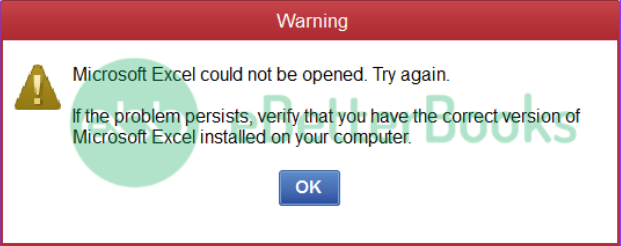
If your answer is Yes, then this write-up is for you. Just stay connected till the end to get your doubts cleared. Still confused? Immediately ping us at our toll-free number +1-802-778-9005.
Resolving the QuickBooks export to Excel issue involves verifying software integrity, correcting system configuration settings, updating QuickBooks Desktop, and confirming Microsoft Office compatibility. Each procedure addresses a specific failure point and restores the connection required for reliable Excel export operations.
When MS Office applications like word or excel don’t work correctly, the Export to Excel option is not grayed out in QuickBooks. Hence, you need to repair Microsoft Office as soon as possible.
The steps you need to perform are enumerated below:
Note: This will help you to repair the entire Office suite, even if it’s just one application you want to fix, like Word or Excel. However, if you have a standalone app installed, look for the application by name.
Click-to-run
Under the window How would you like to repair your Office Programs, choose Online Repair > Repair to ensure everything gets fixed.
MSI-based
Select Repair on Change your Installation and then press Continue.
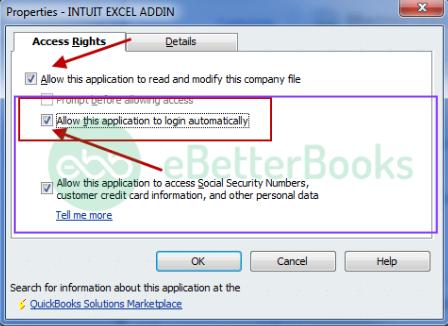
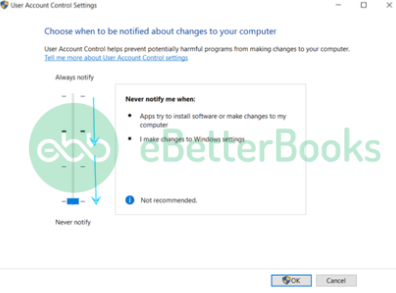
Misconfigured or any discrepancies in UAC settings can be resolved by toggling your Windows User Account Controls Settings on & off.
Here’s how:
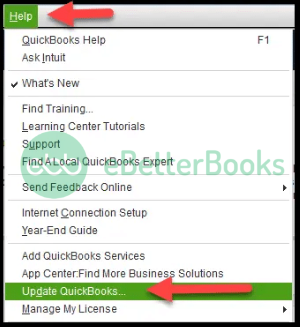
Upgrading QuickBooks to the most recent version ensures that QuickBooks functions properly. To update the software, implement the below-given steps and eliminate the error of QuickBooks not exporting to Excel.
Be sure that the QuickBooks version you are currently using must be up-to-date. After the update, open QuickBooks and export a report as follows:
Every QuickBooks version works with specific versions of MS Office. Hence, it is required to review the system requirements for your QB version: 2021, 2022, 2023, and if your MS Office version is not compatible, then you’ll have to upgrade it.
Here’s how:
Remember: You may need to select Enable Updates first if you don’t see the Update Now option immediately.
Sometimes, applying the wrong method to export an Excel file from QuickBooks may lead to QuickBooks export to Excel failure.
Here’s what to do:
Customer/Vendor/Payroll list and transactions
Items:
Reports:
Here’s a list of Information that QuickBooks exports to Excel, which includes:
There can be various reasons for “QB is unable to export to excel” but if the system doesn’t match the required specification, you may run into the same problem.
These specifications are as follows:
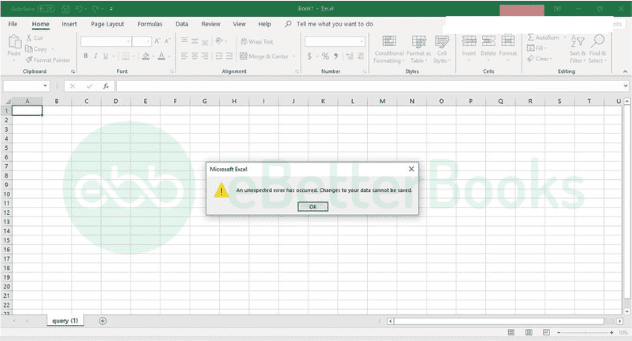
To tackle QuickBooks is unable to Export to Excel for Mac, adhere to the steps as follows:
QuickBooks export to Excel function operates effectively when Microsoft Excel, QuickBooks Desktop, and the system environment meet the required compatibility and configuration standards. Export Failures occur when damaged Excel files, outdated QuickBooks versions, misconfigured User Account Control settings, or incompatible Office installations disrupt the export workflow and prevent reliable data transfer. Following the corrective procedures, verifying software integrity, updating QuickBooks, adjusting system settings, and applying the correct export method restores the connection and ensures consistent Excel exports for reporting, analysis, and data management.
Feel free to get in touch with us at +1-802-778-9005, or you can mail to us at: support@ebetterbooks.com if you need professional assistance regarding accounting, bookkeeping & accounting software-related issues.
Still have questions? Explore our detailed FAQs.


