Excerpt:
QuickBooks Payroll Update Error PS032 prevents users from downloading or updating payroll due to issues like corrupted payroll files, invalid billing info, or unregistered QuickBooks. This guide offers solutions like updating billing data, downloading tax tables, adjusting User Account Control (UAC), and renaming affected folders to resolve the error and ensure smooth payroll processing. These straightforward steps cater to both novice and experienced users.
 Add As A Preferred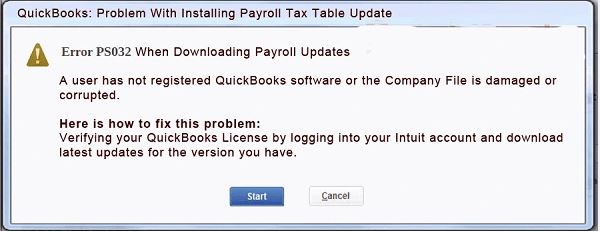
When addressed systematically, Error PS032 can almost always be resolved without affecting the company file or any payroll data.
| Category | Details |
| Error Code | PS032 |
| Error Type | Payroll Update / Subscription Verification Error |
| Affects | QuickBooks Desktop Payroll (Pro, Premier, Accountant, Enterprise) |
| Data Loss Risk | None |
| Average Resolution Time | 10–30 minutes (basic fixes); 30–45 minutes for advanced repairs |
| Difficulty | Beginner to Advanced |
| Most Common Cause | Payroll subscription verification failure |
| Recommended First Fix | Verify the payroll subscription, then update QuickBooks Desktop |
| Windows Versions | Windows 10 & Windows 11 |
| Enterprise Supported | Yes |
“Error PS032: QuickBooks has encountered a problem while downloading the payroll update.”
QuickBooks Error PS032 is a payroll update verification error that occurs when QuickBooks Desktop is unable to validate your active payroll subscription while downloading or installing the latest payroll tax table update. Instead of completing the update, QuickBooks interrupts the process and displays the PS032 error, preventing access to the latest payroll calculations and tax rates.
Unlike general update errors that stem from connectivity or damaged program files, PS032 is closely tied to the communication between QuickBooks Desktop, the Intuit Payroll Service, and your payroll subscription credentials. During every payroll update, QuickBooks runs several background verification checks to confirm the payroll service is active, licensed, and eligible for the latest tax table. If any check fails, the update stops automatically to protect payroll data integrity.
Although the error does not damage the company file or payroll records, it can delay employee paycheck processing, payroll tax calculations, direct deposit preparation, and tax filing — so businesses that depend on timely payroll updates may see real operational disruption until it is resolved.
PS032 is generally not caused by payroll data corruption. It is usually related to one or more of the following:
Because several independent components participate in payroll verification, two users seeing the same PS032 message may have completely different underlying causes. A structured troubleshooting approach is far more effective than repeatedly reinstalling QuickBooks or re-downloading payroll updates.
Many users assume PS032 is just another update notification. In reality, it can directly affect payroll operations, employee payments, tax compliance, and business continuity. If a business relies on QuickBooks Desktop Payroll to run payroll on time, PS032 blocks the tax table update needed before paychecks can be processed — which is a compliance and employee-satisfaction issue, not just a technical one.
If payroll updates cannot install, QuickBooks continues using outdated tax tables. This can produce incorrect tax calculations, delayed payroll processing, compliance exposure, or rejected electronic tax filings. Depending on the payroll schedule, even a short delay can create administrative work and increase the risk of payroll-related penalties.
| Business Area | Possible Impact |
| Employee Payroll | Delayed paycheck processing |
| Payroll Tax Tables | Outdated federal and state tax rates |
| Tax Filing | Incorrect tax calculations or rejected filings |
| Direct Deposit | Payroll submission delays |
| Compliance | Increased risk of penalties for inaccurate payroll reporting |
| Accounting Team | Additional troubleshooting time and reduced productivity |
| Business Operations | Payroll processing interruptions during critical periods |
Understanding how QuickBooks validates payroll updates explains why Error PS032 occurs. Every time a payroll update is downloaded, QuickBooks runs through several automated verification stages before the tax table installs:
If any single stage fails, QuickBooks immediately stops the update and displays Error PS032 to prevent an incomplete or inconsistent payroll update.
The error code stays the same, but the wording can vary depending on which verification stage failed, and slightly between QuickBooks Desktop Pro, Premier, Accountant, and Enterprise editions:
Any QuickBooks Desktop Payroll user can encounter PS032, but certain environments see it more frequently:
Expert Insight From our experience supporting QuickBooks Desktop payroll environments, most PS032 cases are not caused by damaged payroll data. They typically stem from subscription validation failures, outdated program releases, or corrupted payroll configuration files. Starting with subscription verification and a QuickBooks update usually resolves the issue faster than a full reinstall.
Before working through the fixes below, validate these items — doing so prevents wasted effort and reduces the chance of the error recurring:
PS032 rarely appears without warning. Recognizing the early signs below can help prevent payroll interruptions and reduce troubleshooting time.
| Symptom | Severity | Business Impact |
| Payroll update failure | Critical | Payroll cannot be updated |
| Subscription verification failure | High | Payroll service unavailable |
| Outdated tax tables | Critical | Incorrect payroll calculations |
| QuickBooks freezing | Medium | Reduced productivity |
| Payroll download failure | High | Compliance delays |
| Application slowdown | Medium | User experience affected |
| Repeated update prompts | Low | Annoying but manageable |
| Direct deposit delay | Critical | Employee payments delayed |
Unlike many QuickBooks errors that affect only one feature, PS032 directly impacts payroll operations. Because payroll is time-sensitive, even a short interruption can affect employees, accounting teams, and compliance requirements.
One of the most common mistakes is assuming every PS032 error shares the same cause. Several independent system components work together during payroll verification, and a failure in any one of them can trigger the error. Use the matrix below to identify the most likely root cause based on observable symptoms.
| Root Cause | Probability | Difficulty to Fix | Recommended Action |
| Outdated QuickBooks Desktop | Very High | Easy | Install the latest QuickBooks updates |
| Damaged CPS folder | Very High | Easy | Rename the CPS folder and retry |
| Corrupted paysub.ini file | High | Moderate | Rebuild payroll configuration |
| Payroll subscription validation failure | Very High | Easy | Verify the payroll account |
| Incorrect billing information | Medium | Easy | Update payment details |
| Windows administrator permission issues | High | Easy | Run QuickBooks as Administrator |
| Antivirus or firewall blocking connections | Medium | Moderate | Create QuickBooks exceptions |
| Damaged Windows components / registry | Medium | Advanced | Repair Windows system files |
| Multiple QuickBooks installations | Medium | Moderate | Remove conflicting installations |
| Network connectivity issues | Low | Moderate | Verify internet access and firewall settings |
Payroll services are designed to work with supported Desktop releases. If the installed version is outdated, verification may fail because the application cannot communicate properly with current payroll services.
Typical indicators:
The CPS folder stores payroll configuration information required during subscription validation. If these files become damaged, QuickBooks may be unable to verify payroll eligibility.
Common causes:
QuickBooks verifies the payroll subscription before downloading each tax table update. If subscription information cannot be confirmed, PS032 may appear even though the subscription itself is active.
Possible reasons:
QuickBooks requires administrative privileges to update protected payroll components. If Windows blocks that access, the update process may terminate before completion.
Some antivirus and firewall applications mistakenly classify payroll update files as suspicious, preventing QuickBooks from connecting to payroll servers or modifying local payroll components.
| QuickBooks Version | Payroll Support | PS032 Risk | Recommendation |
| QuickBooks Desktop 2022 | Limited (depending on support status) | High | Upgrade if payroll support has ended |
| QuickBooks Desktop 2023 | Supported | Medium | Install latest release |
| QuickBooks Desktop 2024 | Supported | Low | Keep updated |
| QuickBooks Desktop 2025 | Supported | Low | Recommended |
| QuickBooks Desktop Enterprise 24.0 | Supported | Low | Recommended |
| QuickBooks Desktop Enterprise 25.0 | Supported | Very Low | Fully supported |
| QuickBooks Desktop Enterprise 26.0 | Supported | Very Low | Best compatibility |
Use this table to identify the most appropriate starting point before attempting advanced troubleshooting.
| If You Notice… | Most Likely Cause | Start With |
| Payroll update fails immediately | Outdated QuickBooks | Update QuickBooks Desktop |
| Subscription appears inactive | Payroll validation issue | Verify subscription and billing |
| Tax table does not update | Corrupted CPS folder | Rename the CPS folder |
| QuickBooks freezes during update | Program corruption | Run QuickBooks Tool Hub |
| Update works on another PC but not yours | Windows permissions | Run as Administrator |
| Error started after a Windows update | System compatibility issue | Restart, repair QuickBooks, verify permissions |
A simple way to route your troubleshooting effort:
QuickBooks Error PS032 can occur for different reasons, so there is no single universal fix. Work through the methods below in order, starting with the least invasive options and moving toward advanced recovery only if necessary. Most users resolve the error at Method 1 or 2; the later methods are for cases that persist. This sequence minimizes downtime while protecting your payroll configuration and company data.
Difficulty: Easy
Estimated Time: 3–5 minutes
Success Rate: High
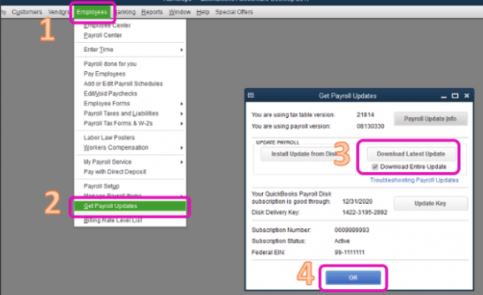
Every payroll update begins with a subscription validation request. If QuickBooks cannot confirm the payroll subscription is active, licensed, and correctly linked to the Intuit account, it immediately stops the update and displays Error PS032. Validating the subscription first ensures QuickBooks is communicating with Intuit using the correct credentials before it attempts to download the latest tax table.
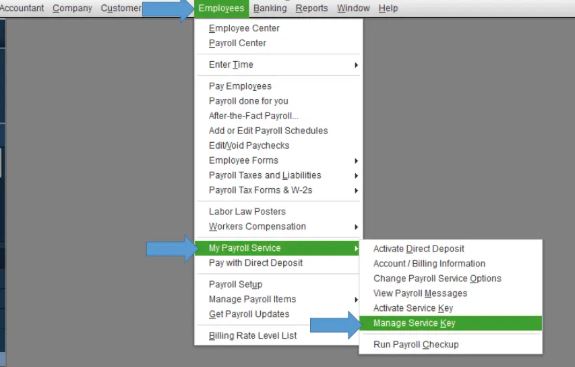
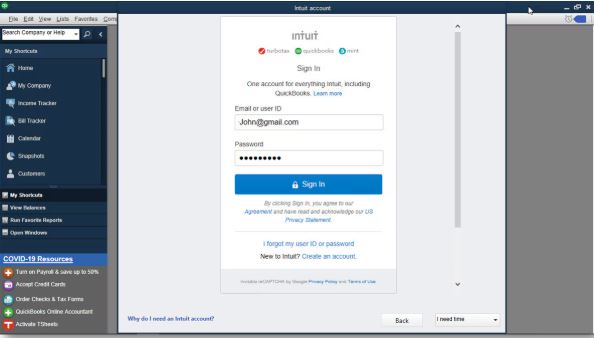
The payroll update begins downloading without displaying PS032, and the tax table version updates successfully.
| Expert Tip If the subscription renewal was processed recently, allow a few minutes for Intuit’s servers to synchronize before retrying the payroll update. |
Difficulty: Easy
Estimated Time: 10 minutes
Success Rate: Very High
Payroll services rely on the latest QuickBooks Desktop releases. An outdated application may fail to communicate correctly with current payroll verification services, causing Error PS032. Updating QuickBooks installs compatibility fixes, payroll improvements, and security updates that frequently resolve payroll verification problems.
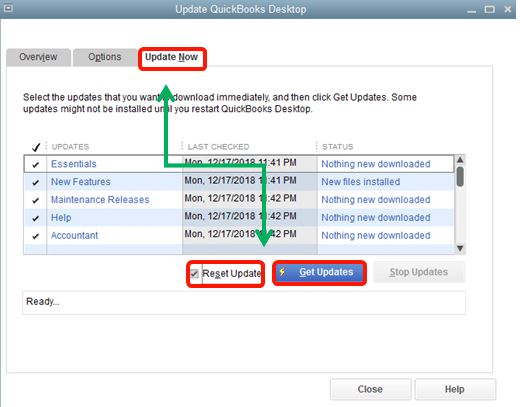
Go to Help → About QuickBooks and confirm the latest maintenance release has been installed.
| Expert Recommendation Always install QuickBooks updates before downloading payroll tax tables. Running payroll updates on outdated releases is one of the most common causes of PS032. |
Difficulty: Moderate Estimated Time: 5 minutes Success Rate: Very High
The CPS (Common Payroll Service) folder stores the payroll configuration files QuickBooks uses to validate the subscription and install payroll updates. If these files become corrupted due to interrupted updates, unexpected shutdowns, or system conflicts, QuickBooks may repeatedly display Error PS032. Renaming the folder forces QuickBooks to generate a fresh set of configuration files without affecting company data.
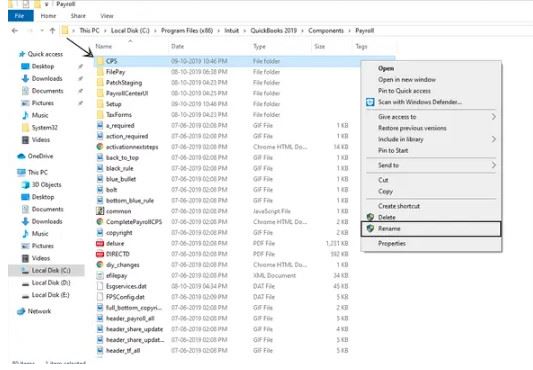
Renaming preserves the original folder as a backup. If needed, it can easily be restored without risking permanent loss of configuration files.
| Expert Note Do not manually edit files inside the CPS folder. Let QuickBooks recreate it automatically to avoid introducing additional configuration issues. |
Difficulty: Easy
Estimated Time: 2–3 minutes
Success Rate: Moderate
Payroll subscription verification relies on secure communication with Intuit’s servers. Incorrect system date, time, or time zone settings can cause authentication requests to fail, leading to Error PS032.
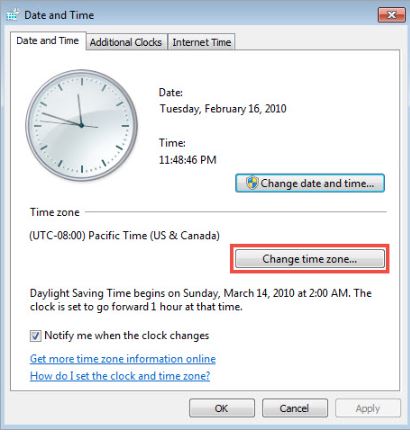
| Expert Tip Organizations using Active Directory should ensure workstations synchronize with the domain controller’s time service. |
Difficulty: Easy
Estimated Time: 2 minutes
Success Rate: Moderate to High
Windows protects certain system folders and registry locations from modification by standard user accounts. Payroll updates require QuickBooks to write new files and update protected components; if Windows blocks these actions, the update process may fail. Launching QuickBooks with administrator privileges grants the permissions required to complete payroll verification and install tax table updates.
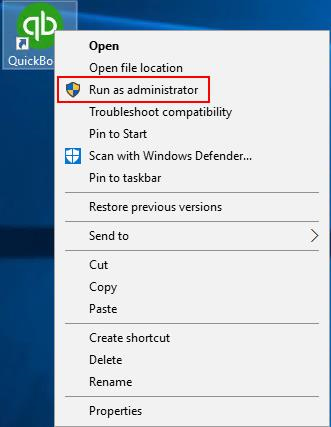
| Expert Tip If running as administrator resolves the issue consistently, review Windows user permissions or the QuickBooks shortcut properties to decide whether administrative privileges should be applied permanently. |
Difficulty: Moderate
Estimated Time: 15–25 minutes
Success Rate: High
If QuickBooks program files become damaged due to an interrupted installation, a failed update, a Windows crash, or a third-party software conflict, payroll components may not function correctly. Repairing the installation replaces missing or corrupted program files without affecting the company file or payroll data.
Difficulty: Easy
Estimated Time: 10–15 minutes
Success Rate: Very High
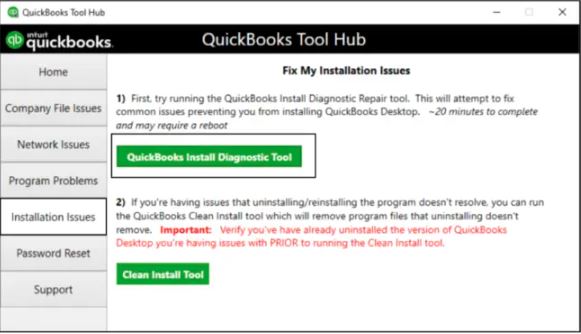
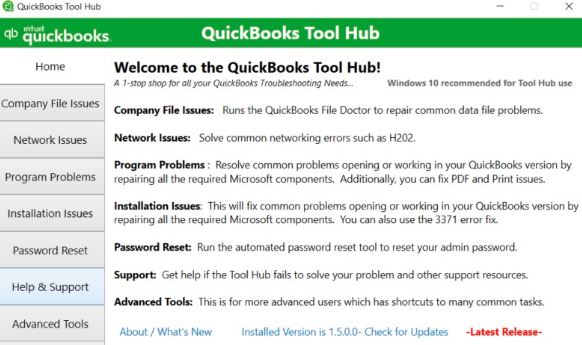
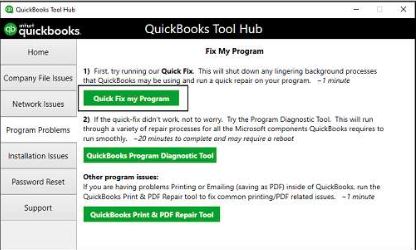
QuickBooks Tool Hub combines several diagnostic utilities into one application. Instead of troubleshooting individual components manually, Tool Hub automatically detects and repairs common issues related to payroll updates, company files, and program performance — resolving PS032 for many users without advanced Windows troubleshooting.
| Utility | Purpose |
| Quick Fix My Program | Closes background QuickBooks processes and repairs common program issues |
| Program Diagnostic Tool | Repairs Microsoft components required by QuickBooks |
| Install Diagnostic Tool | Fixes installation-related problems affecting payroll updates |
| QuickBooks File Doctor | Checks company file and network connectivity issues |
| Expert Recommendation Run Tool Hub before considering a clean reinstall. It resolves many underlying issues while preserving the existing installation and settings. |
Difficulty: Moderate
Estimated Time: 5 minutes
Success Rate: Moderate
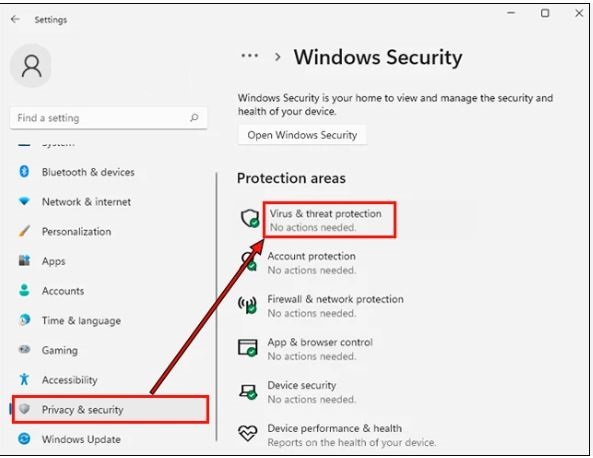
Security software may mistakenly block QuickBooks from connecting to Intuit’s payroll servers or modifying payroll-related files during the update. Temporarily disabling these protections helps determine whether they are causing the issue.
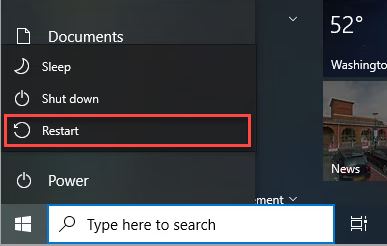
| Warning Only disable security software temporarily and only on trusted systems. Re-enable protection as soon as testing is complete. |
Instead of leaving security software disabled, add the QuickBooks executable files and Intuit domains to the antivirus and firewall exception lists.
Difficulty: Moderate
Estimated Time: 10 minutes
Success Rate: Moderate
QuickBooks must establish a secure connection with Intuit’s servers to verify the payroll subscription and download tax table updates. Network interruptions, proxy servers, VPNs, or restrictive firewall rules can interfere with this communication.
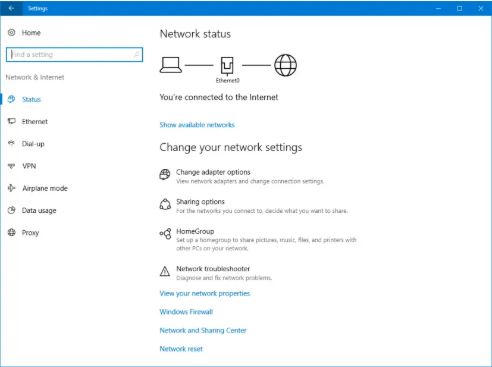

| Expert Tip If possible, test the payroll update on a different internet connection, such as a mobile hotspot. If the update succeeds, the issue is likely related to the primary network configuration. |
Difficulty: Advanced
Estimated Time: 20–30 minutes
Success Rate: Moderate
Corrupted Windows system files or registry entries can interfere with QuickBooks services, installer components, and payroll updates. The built-in System File Checker (SFC) and Deployment Image Servicing and Management (DISM) tools can repair these components.
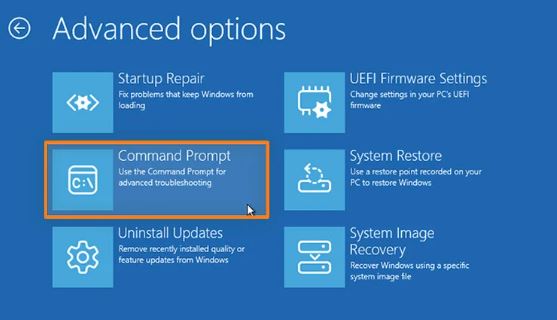
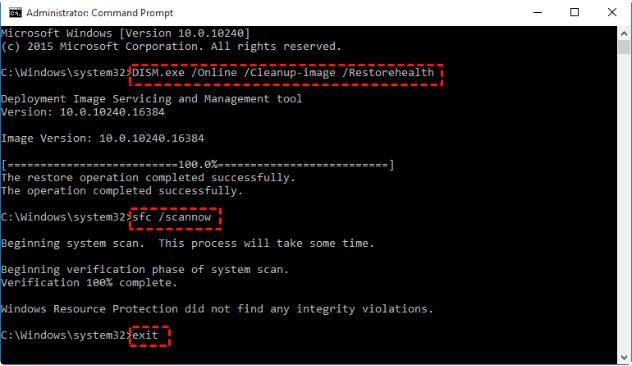
| Important These commands repair Windows operating system files only. They do not modify QuickBooks company files or payroll data. |
Continuing to apply fixes after multiple unsuccessful attempts increases downtime. Consider escalating if:
A team that resolves PS032 and related payroll errors on a daily basis can typically fix it within a single support session, without any risk to existing payroll data or the company file.
Consider getting help from a certified QuickBooks ProAdvisor or payroll support specialist if:
A structured diagnosis using the information gathered throughout this guide helps identify the underlying cause more efficiently and, in most cases, resolves PS032 within a single support session.
Before contacting a QuickBooks specialist, gather the following information — it significantly reduces diagnostic time:
| Information | Why It’s Helpful |
| QuickBooks version and release | Confirms compatibility |
| Payroll subscription status | Verifies licensing |
| Windows version | Identifies OS-specific issues |
| Exact error message | Assists in diagnosis |
| Tax table version | Confirms update status |
| Recent Windows or QuickBooks updates | Identifies recent changes |
| Antivirus/firewall software in use | Checks for security conflicts |
| Whether one workstation or multiple are affected | Determines network impact |
The scenarios below illustrate how PS032 can present itself in different business environments and how structured troubleshooting resolves it. These are educational examples based on common troubleshooting patterns, not specific customer records.
Business Profile: Manufacturing · 125 employees · Weekly payroll · QuickBooks Enterprise
The payroll administrator attempted to download the latest payroll tax table before payday. The update stopped at roughly 35%, and QuickBooks displayed Error PS032 on repeated attempts.
Investigation confirmed internet connectivity was stable, the payroll subscription remained active, and there had been no recent Windows failures — but QuickBooks Desktop had not been updated for several months.
Resolution:
Outcome: the payroll update completed successfully and employee paychecks were processed on schedule without requiring a reinstall.
Business Profile: Public accounting · multi-client payroll · multiple QuickBooks Desktop installations
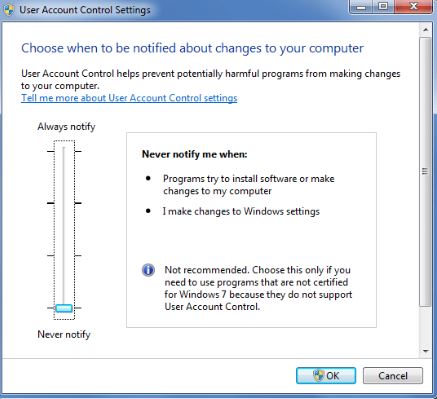
Only one workstation repeatedly displayed PS032 while every other workstation completed payroll updates normally. Technicians found inconsistent Windows permissions — QuickBooks was not being launched with administrator privileges, and User Account Control restrictions were preventing payroll components from updating.
Resolution:
Result: payroll updates resumed immediately without further configuration changes.
Business Profile: Retail · 42 employees · biweekly payroll
Error PS032 appeared immediately after a major Windows update. Although the payroll subscription remained active, Windows system components required by QuickBooks had become inconsistent after the OS update.
Resolution:
Outcome: payroll verification completed successfully and no further update failures occurred.
Many payroll update errors look similar but have different causes. Knowing the difference helps you choose the correct troubleshooting path instead of applying unnecessary fixes.
| Error Code | Primary Cause | Affected Area | First Recommended Action |
| PS032 | Payroll subscription verification | Payroll updates | Verify subscription and update QuickBooks |
| PS033 | Payroll file validation | Payroll components | Repair payroll files |
| PS036 | Payroll service communication | Subscription services | Verify payroll account |
| PS038 | Stuck paychecks awaiting transmission | Payroll data | Identify and resend pending paychecks |
| PS058 | Payroll file download issue | Payroll updates | Refresh payroll components |
| PS077 | Billing or licensing validation | Payroll subscription | Verify billing information |
| PS107 | Payroll service interruption | Payroll updates | Update QuickBooks and validate subscription |
| If You See… | Most Likely Error |
| Subscription verification fails | PS032 |
| Billing issue | PS077 |
| Payroll file damaged | PS033 |
| Payroll update interrupted | PS107 |
| Pending paychecks remain unsent | PS038 |
| Payroll download issue | PS058 |
Correctly identifying the error code reduces unnecessary troubleshooting and keeps the focus on the actual underlying cause.
PS032 is usually straightforward to resolve, but preventing it is far more efficient than troubleshooting it during a live payroll run. The following practices meaningfully reduce the likelihood of future payroll update failures.
| Maintenance Task | Frequency |
| Install QuickBooks updates | Monthly |
| Download latest payroll tax table | Every payroll cycle |
| Verify payroll subscription | Monthly |
| Review billing information | Quarterly |
| Create company file backup | Weekly |
| Restart QuickBooks after updates | Every update |
| Check Windows updates | Monthly |
| Review antivirus exclusions | Quarterly |
Organizations that process payroll regularly should adopt a structured maintenance routine rather than waiting for problems to occur:
QuickBooks Error PS032 can interrupt payroll updates, but it is generally resolved by identifying the underlying cause rather than applying random fixes. A structured process — starting with payroll subscription verification, updating QuickBooks, refreshing payroll configuration files, and using built-in repair tools — resolves the large majority of cases while preserving company and payroll data.
By combining preventive maintenance, regular software updates, and systematic diagnostics, organizations can reduce the likelihood of future payroll update interruptions and maintain more reliable payroll operations.
It indicates QuickBooks Desktop cannot verify the payroll subscription while downloading or installing the latest payroll tax table update. The issue is usually related to subscription validation, outdated software, damaged payroll configuration files, or Windows permission restrictions.
Not always. Subscription verification is one of the most common causes, but PS032 can also occur because of outdated QuickBooks releases, corrupted payroll configuration files (such as the CPS folder), Windows permission issues, or security software blocking the update.
No. Error PS032 does not delete or corrupt the company file, employee records, payroll history, or paycheck data. It primarily prevents payroll updates from downloading or installing until the underlying issue is resolved.
You may be able to process payroll using the existing tax table, but doing so could result in outdated tax calculations if a newer table is required. Always verify payroll compliance requirements before processing payroll without the latest update.
Supported QuickBooks Desktop editions that use payroll services, including Pro, Premier, Accountant, and Enterprise. Compatibility depends on the payroll service and the supported release version.
Many cases resolve within 10–30 minutes by updating QuickBooks, verifying the payroll subscription, refreshing the CPS folder, or running QuickBooks Tool Hub. More complex situations involving Windows or installation issues may take 30–45 minutes.
Yes. Some antivirus or firewall applications can block QuickBooks from communicating with payroll services or updating local payroll files. Temporarily disabling security software for testing — or configuring proper exceptions — can help identify whether it is contributing to the issue.
No. Reinstalling should generally be considered only after simpler troubleshooting methods are exhausted. Updating QuickBooks, repairing the installation, or rebuilding payroll configuration files resolves the issue in most cases without a full reinstall.
Recurring PS032 errors may indicate an unresolved underlying problem, such as payroll subscription synchronization issues, Windows permission conflicts, damaged payroll configuration files, or network/security software interference. A repair install, or in persistent cases a clean reinstall, may be needed.
Yes. Multiple Desktop versions on the same system can create configuration conflicts, particularly if payroll components or shared program files overlap. Ensuring each installation is properly maintained reduces this risk.
A stable internet connection is necessary for payroll verification and tax table downloads, but PS032 is not always caused by internet issues alone; subscription validation, permissions, and local configuration problems are also common factors.
In many environments, yes. Running with administrative privileges allows QuickBooks to update protected payroll components and communicate with the system resources required during the update process.
Gather the QuickBooks edition and release, Windows version, payroll subscription status, current tax table version, the exact PS032 message, recent QuickBooks or Windows updates, antivirus/firewall software in use, and whether the issue affects one workstation or multiple.
No. These payroll errors may look similar but typically relate to different underlying causes. Correctly identifying the specific error code is important because each may require a different troubleshooting approach.
Yes. Major Windows updates can occasionally change system components or permissions that QuickBooks relies on. If PS032 begins immediately after a Windows update, reviewing system compatibility and repairing QuickBooks may help.
PS032 is specific to QuickBooks Desktop Payroll. QuickBooks Online Payroll uses a different update mechanism and does not display this particular error code.


