Excerpt:
The "QuickBooks has stopped working" or "Not Responding" error is a common software malfunction often caused by factors such as a corrupt QBWUSER.INI file, damaged program files, conflicts with antivirus software, or issues within the Windows operating system user profile. The most direct, official troubleshooting method is using the QuickBooks Tool Hub to run the Quick Fix My Program utility, which automatically repairs core file damage. For deeper diagnosis, users should attempt to open the program while holding the Ctrl key or test with a sample company file to isolate the problem to either the application's installation or the specific company data file, thereby streamlining the repair process and ensuring data integrity.
 Add As A Preferred
Highlights (Key Facts & Solutions)
QuickBooks users often have to deal with this prompt: QuickBooks has stopped working. As the name suggests, this error relates to the time when QuickBooks stops working altogether. With this blog, we will learn why users face this issue. Also, we will understand how to deal with this problem through various methods.
QuickBooks is a widely used accounting application for those who don’t have any background related to accounting. Hence, many SMEs have this software. However, it has lots of bugs, also known as QuickBooks Error.
Whenever the user faces this issue, their QB program stops working suddenly or Or maybe you didn’t get an error, but the program is frozen. Hence, it can hamper your efficiency and put you at risk of losing your data.
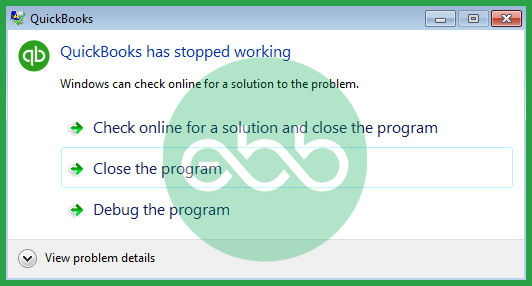
Here is what happens when they see the QuickBooks has stopped working error:
There are several reasons why this issue might occur.
For instance:
We can avoid such errors in the future by always keeping the application updated. Hence, keep the regional QuickBooks setting as per US time and use appropriate regional settings.
Before trying to resolve QuickBooks Has Stopped Working or Not Responding Error, follow these steps:
QB Tool hub is a program released by Intuit to fix many errors that the application faces. Here is how you can utilize the tool and fix QuickBooks has stopped working, won’t open or QuickBooks is not responding.
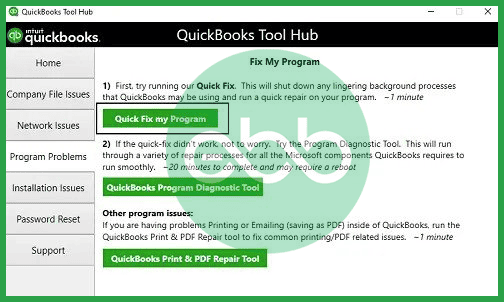
Hopefully, this will resolve the persistent issue.
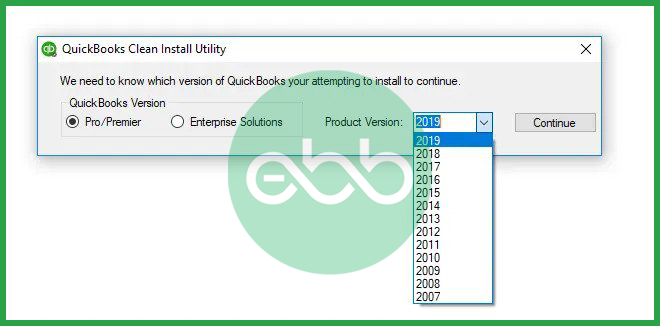
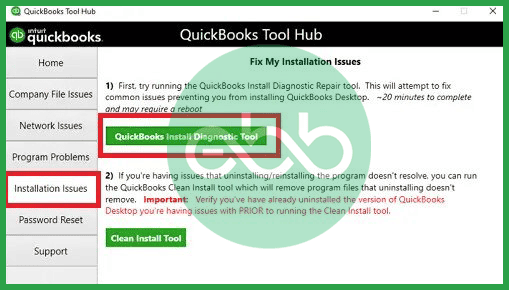
At last, reboot the system and check if QuickBooks has stopped working or not responding, not opening error is fixed or not.
When the user performs this step, it will remove the list of previously opened company files. Hence, you have to open the company file manually.
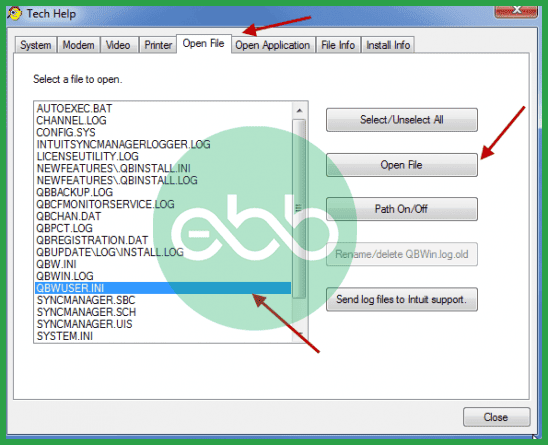
Usually, this resolves the QuickBooks Stopped Working Error. Subsequently, the accounting software auto-generates a new QBWUSER.INI file.
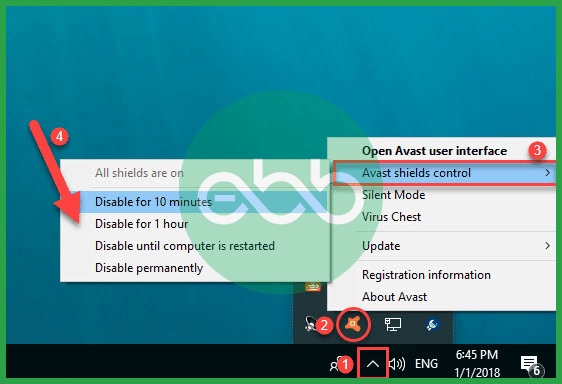
Below are the steps to disable the antivirus temporarily to solve this error:
If the windows installation is damaged, the user can try making a new admin user.
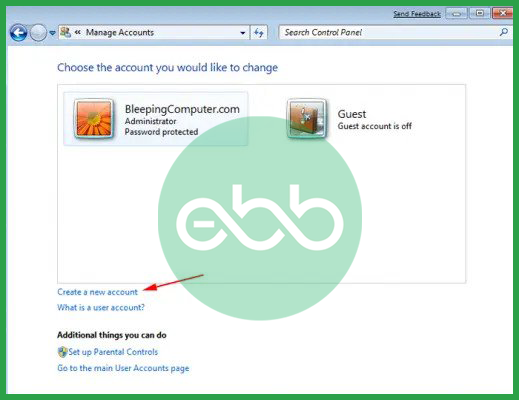
Hopefully, if QuickBooks won’t open, it will resolve the problem.
Using the refresher tool will solve the issue of QuickBooks not responding, and this can be done by the following steps:
At last, open the QuickBooks to check if the issue is resolved or not.
You can also try QuickBooks System Repair Tool, restore an existing company, and make a new qbtest folder if the above mentioned methods don’t work.
The QuickBooks System Repair Tool is one of many tools contained in the QuickBooks Tool Hub and addresses problems resulting from corrupt program files or damaged parts.
Steps to Use:
If the location of a company file is problematic or the file itself has become corrupt, then creating a new folder may solve the problem.
Follow the below steps:
The presence of temporary files and other objects that disorganize the operating system can cause QuickBooks to slow down. The Disk Cleanup Tool is responsible for cleaning the computer system of unnecessary files in a bid to create room in the computer for other operations.
Steps to Use:
Conclusion
We hope this article can assist you to fix the error. If the above-shown solution does not fix your problems effectively, it’s best to get technical assistance from a professional. Get in contact with eBetterBooks tech Support at +1-802-778-9005 for technical help and they will help you to troubleshoot your issues efficiently.
The quickest and most reliable solution recommended by Intuit is to use the QuickBooks Tool Hub and run the Quick Fix My Program utility.
Holding the Ctrl key while double-clicking the QuickBooks desktop icon bypasses the usual automatic file loading process.
This simple diagnostic step helps isolate the root cause quickly, saving the user unnecessary troubleshooting time on the program installation itself.
The QBWUSER.INI file is a configuration file used by QuickBooks Desktop to store essential initialization and user-specific settings.
QBWUSER.INI.old), the user forces QuickBooks to treat the file as missing. Upon the next launch, the program automatically generates a new, clean, undamaged QBWUSER.INI file, thereby eliminating the corruption-related crash.The most effective way to determine the source of the crash is to attempt to open a sample company file provided by Intuit.
If the sample file fails, prioritize using the QuickBooks Install Diagnostic Tool from the Tool Hub.
Preventative maintenance focusing on system cleanliness and file integrity can significantly reduce the frequency of crashes.
If the Tool Hub’s diagnostics do not work, the next advanced step is to check if the issue is tied to a damaged Windows user profile by creating a new local administrator account.
If QuickBooks works perfectly under the new user, the original Windows profile is the source of the problem.
Antivirus and firewall software can sometimes misidentify QuickBooks processes or its necessary network connections as a threat, causing the program to stop working or freeze when trying to access data.
QBW32.EXE and the Database Server Manager) as exceptions within the firewall and antivirus settings.

