


What Is QuickBooks Payroll Error Ps060, And What Does It Look Like?
QuickBooks Error Ps060 is related to payroll subscriptions, often resulting from expired subscriptions or internet connectivity problems. While there could be multiple causes for the PS060 error, it typically arises due to these two specific reasons. This error is encountered by users while updating or using QB payroll.
The users will see the following error message on their screen when facing QuickBooks Payroll Error Ps060:
“Current Enhanced Payroll Service is Unavailable”
OR
“payroll service is currently unavailable.”
OR
“QuickBooks has encountered a problem and needs to close. We are sorry for the inconvenience.”
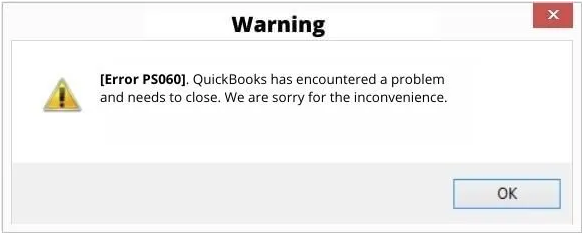
The QuickBooks Payroll Error Ps060 issue interferes with the functioning of payroll and even of complete QuickBooks software. Leading to the point where the users can’t access QuickBooks until the Payroll issues are resolved.
What are the Root Causes Behind QuickBooks Payroll Error Ps060?
There are various reasons why QuickBooks Payroll Error PS060 might occur.
The following are some of the primary root causes of this error in QuickBooks payroll:
- The QuickBooks Desktop version is over 3 years or older than that.
- Failure to auto-renew the payroll subscription due to incorrect payment (credit card/debit card) information.
- There is an issue with Intuit’s server, or the server is down for maintenance.
- One or more third-party software interprets the functioning of QuickBooks.
- Incorrect service info.
- Damaged QuickBooks Desktop.
- Existence of a duplicate copy of QBDT on your computer.
Important Points to Keep in Mind
Before moving forward with the troubleshooting steps, it’s important to consider the following points:
- Be very sure that your internet connection is stable before commencing the solution process.
- Always use QuickBooks in single-user mode when attempting to update it.
- If your payroll subscription is inactive, make sure to resolve this issue promptly.
- Confirm that the system’s date and time are set correctly.
- Set Internet Explorer as your default browser for optimal performance.
How to Identify the QuickBooks Payroll Error Ps060?
When facing QuickBooks Payroll Error PS060, a user will come across the following instances:
- Failure of auto-renew payroll subscription function.
- Unable to update QB payroll.
- You will be unable to perform payroll activities like payroll tax calculation and paycheck creation.
- Unresponsive server.
Customized Solution for QB Payroll Ps060 Error
Ensuring Compatibility with Third-Party Tools
Errors like QB PS060 often occur when third-party software such as antivirus and firewall block certain QuickBooks features from running smoothly.
Third-party programs or software interfere with QuickBooks by blocking necessary permissions, thereby affecting its performance. In such cases, users need to troubleshoot the antivirus and firewall settings and make QuickBooks compatible with other third-party software.
Add the QuickBooks software as an exception in the firewall ports and managing related settings can help avoid such issues.
Temporarily turn off Windows Defender and restart your system after doing the above. Check and verify if the error has been resolved or not.
What are the Solutions for QuickBooks Payroll Error Ps060?
Solutions Part 1
Before starting to fix the QuickBooks Payroll Error PS060, consider implementing the following precautionary steps:
- Ensure that you have a stable internet connection.
- Use QuickBooks in Single-User mode while updating QuickBooks Desktop or Payroll.
- Check if you have a valid Payroll subscription that is currently active.
- Verify that your computer displays and is operating on the correct date and time.
- Set Internet Explorer as your default browser.
Modify Billing and Subscription Settings To Renew QuickBooks Payroll Subscription
For QuickBooks Desktop
- Step: Click “Save“ and then close to update payment information.
- Step: Verify if billing details are correct by previewing them. Finally, save changes and log out.
- Step: Launch QuickBooks Desktop.
- Step: Start by opening the “My Account“ section.
- Step: Click on the payroll service from the Product & Services window.
- Step: In the Billing Information tab, click Edit next to your Payment Method.
- Step: Review the information
- Step: Input necessary corrections if needed to correct the payment details.
- Step: Click Save and Close to complete the process.
Solution Part 2
The following are various solutions you can utilize to deal with the QuickBooks Payroll Error PS060:
1. Wait for the Intuit server to respond
In case the error is due to an issue with Intuit’s server, your only option is to patiently wait until the server is up and running again.
You can also contact the server authorities and get an estimate as to when the server will be back and running.
2. Addressing Internet Connection Problems and Restoring Default Internet Settings Solution
Launch Internet Explorer and attempt to visit a secure website to verify that your browser is functioning correctly. If not, reset/restore browser settings and configure internet settings.
- Step: Launch Internet Explorer and visit www.google.com. If the website loads successfully, you can move on directly to Step 3.
- Step: If there’s an error while trying to access the website, you should inspect your internet connection settings for any incorrect configurations and correct them.
- Step: Make sure your computer’s date and time are set accurately.
- Step: In Launch Internet Explorer, navigate to Tools.
- Step: Choose Internet Options.
- Step: Select the Reset/Restore Defaults option in the Advanced menu.
- Step: Click on Apply and then OK to complete the process.
3. Close All The Programs Running in the Background via Windows Task Manager
The QuickBooks payroll Error PS060 can also appear due to another program running on your computer that’s interfering with QuickBooks. You’ll need to terminate these programs.
To accomplish this through the Windows Task Manager, complete the following steps:
- Step: Press Ctrl + Shift + Esc on your keyboard to launch the Task Manager.
- Step: Click on the Processes tab.
- Step: Now, individually stop the running tasks one by one to identify which one is causing interference with QuickBooks operations.
- Step: Select the tasks you wish to terminate and then click the ‘End Process’ button to end the program.
4. Removing Junk Files from Internet Explorer
To clear all IE temp and chase files, complete the following steps:
- Step: Launch Internet Explorer.
- Step: Choose Internet Options from the Tools tab.
- Step: Navigate to the General tab.
- Step: Under the, select the Delete option in the Browsing History section.
- Step: Ensure that the Temp Website Files and Temporary Internet Files options checkboxes are selected.
- Step: Click Delete and then OK to clear junk files permanently.
5. Temporarily Disable Antivirus
If you’re using an antivirus program on your computer, you can temporarily disable it.
To accomplish this, follow the following instructions:
- Step: Launch the Start menu.
- Step: Navigate to Windows Security.
- Step: Choose Virus & Threat Protection in the Manage settings tab.
- Step: Turn the Real-time protection slider to Off.
- Step: Restart your operating system to complete the process.
In case you are using a third-party antivirus software. Launch the antivirus application and navigate to the settings tab in that particular software. Locate and turn on the option to temporarily disable the antivirus.
6. Verify Your Service Information and Registration
Check if your software is registered in the Product Information window. This way, you’ll know that you have the most recent security and software updates.
Note: If you’re using an antivirus program on your computer, consider to disable it temporarily.
To verify that your service information is accurate and your software is registered, complete the following steps:
- Step: Launch QuickBooks Desktop.
- Step: Press the F2 key to launch the Product Information window.
- Step: Check if it says Activated in the License number section.
- Step: If not activated, register the software.
- Step: Update QBDT to the most recent version and download the latest payroll tax table again after registration.
- Step: Restart your operating system to complete the process.
Now, launch QuickBooks and check if the error has been solved or not.
7. Clearing DNS via Command Prompt
- Step: Press the Windows + R keys to open the Run window.
- Step: Next, type ‘cmd’ in the text box.
- Step: Press Enter, and a black command prompt window will appear.
- Step: Type “ipconfig/flushdns ” in this window and press the Enter key.
- Step: Restart your operating system.
Launch QuickBooks to check. If the same payroll update error still persists, consider other methods.
8. Utilize the QuickBooks Tool Hub
To repair QuickBooks Desktop using Tool Hub, the user first needs to download the QuickBooks Tool Hub.
Then complete the following steps to ensure that the QuickBooks Payroll Error Ps060 is rectified:
- Step: Navigate to the downloads and run the QuickBookstoolhub.exe file.
- Step: Agree to the terms and conditions presented by the software installer.
- Step: Once QuickBookstoolhub is installed, run it via the Start menu or via the desktop icon.
- Step: Then navigate to the Program Installation Issues tab.
- Step: Click on the Quick Fix My Program tool.
- Step: Let the tool run and repair general issues with the QuickBooks installation.
- Step: Now run the QuickBooks Install Diagnostic Tool from the same window. Allow the repair tool to repair installation issues.
Once done, run QuickBooks payroll to see if the issue is resolved or not.
FAQs!
How do I quickly verify my active QuickBooks Payroll subscription status and renewal date?
You can check your subscription status directly through the Customer Account Maintenance Portal (CAMPs) on the Intuit website. Sign in with the email used to register your QuickBooks Desktop product. Navigate to the Products & Services list to view your payroll subscription details, status (Active/Inactive), and your next renewal date. You can also sometimes view this under Employees➜ My Payroll Service ➜ Account/Billing Information within QuickBooks Desktop itself (requires admin sign-in).
What happens to my historical payroll data (pay stubs, tax forms) if my subscription expires and causes Error PS060?
If your QuickBooks Payroll subscription expires, you lose access to core functions like processing new paychecks, calculating taxes, and direct deposits. However, your historical data (past paychecks, employee records, payroll reports, and tax forms like W-2s and 941s) remains accessible in a read-only format within your QuickBooks company file. You cannot make changes or process new payroll until the subscription is reactivated.
What is the difference between updating QuickBooks Desktop and updating the Payroll Tax Table?
➜Updating QuickBooks Desktop (via Help ➜ Update QuickBooks Desktop) updates the software program itself with new features, bug fixes, and security patches.
➜Updating the Payroll Tax Table (via Employees ➜ Get Payroll Updates) downloads the latest federal and state tax rates, formulas, and withholding information. Both are required for PS060-related tasks (like updating) to work correctly, but they are separate processes. Your subscription must be active to download the latest tax table.
If I get Error PS060, can I still use QuickBooks for regular accounting or is payroll totally blocked until fixed?
Yes, typically, PS060 affects payroll‑specific functionality (subscription verification, payroll updates, tax table downloads). Other accounting, bookkeeping, invoicing, or non‑payroll features of QuickBooks Desktop should continue to work, as PS060 doesn’t inherently corrupt your data or block core accounting modules. Many users report that only payroll operations fail when the subscription or service link is invalid.
Will correcting my payment method or renewing the payroll subscription immediately fix PS060 — or is there a delay?
Updating billing/payment information or renewing your payroll subscription can often resolve PS060 fairly quickly. According to community guidance from QuickBooks support, once you update the payment method under Product & Services → Billing Information, and then attempt to download payroll updates again, the service reconnects and the error disappears.
However, if Intuit’s servers were down or undergoing maintenance, the fix could be delayed until services are restored — so it’s prudent to retry after some time if the error persists.
Disclaimer: The information outlined above for “Fix QuickBooks Payroll Error Ps060 – Unavailable Payroll Service” is applicable to all supported versions, including QuickBooks Desktop Pro, Premier, Accountant, and Enterprise. It is designed to work with operating systems such as Windows 7, 10, and 11, as well as macOS.