Excerpt:
QuickBooks Error 15102 often occurs when updating QuickBooks Desktop or Payroll, caused by issues like multi-user mode or incorrect file locations. To resolve this, users can switch to single-user mode, verify the mapped file location, remap drives, or run QuickBooks as an administrator. These solutions will help ensure smooth updates and fix the error, allowing users to continue their accounting tasks without disruption.
 Add As A Preferred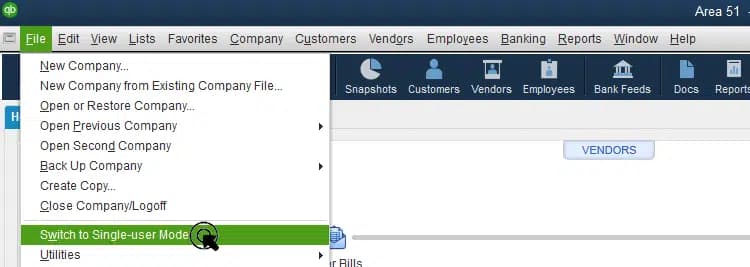
Businesses use software in order to manage their finances and payroll efficiently. Quickbook is a common software that has been highly used by businesses and like any other application, it is prone to errors that can disrupt operations. One of the most common payroll-related issues is QuickBooks Payroll Update Error 15102, which belongs to the 15xxx series of update errors.
This error typically occurs when QuickBooks fails to download or install the latest payroll updates, preventing users from accessing updated tax tables and compliance features. The error message displayed is:
“Error 15102: Failed to reset update.”
Error 15102 is usually triggered by incorrect shared download settings, running QuickBooks in multi-user mode instead of single-user mode, insufficient administrative privileges, or invalid mapped drive paths. It may also appear if you are using an outdated version of QuickBooks Desktop.
Most often, users encounter this error while updating payroll, downloading tax tables, or installing QuickBooks updates. Since payroll updates are essential for accurate employee compensation and tax compliance, resolving this error quickly is critical to avoid workflow interruptions and compliance risks.
QuickBooks displays “Error 15102: Failed to reset update” when it cannot reach the location it uses to download program or payroll updates. Intuit lists 15102 among the 15XXX errors that appear while downloading the latest tax table update. intuit
The Shared Download setting directs QuickBooks to fetch updates from a designated path. Intuit names a Shared Download drive that was not mapped correctly as a cause of 15XXX errors.
Update attempts made while QuickBooks runs in multi-user mode trigger Error 15102, according to third-party troubleshooting guides. The risk rises when QuickBooks runs inside a terminal services environment.
Intuit identifies a firewall setting that may block payroll updates in QuickBooks Desktop as a cause of 15XXX errors. A blocked connection leaves QuickBooks unable to finish the download.
Intuit lists a missing file or component for payroll updates as a cause of 15XXX errors. Without those files, QuickBooks cannot complete the update reset.
Intuit’s first recommendation for 15XXX errors is to download updates as an administrator. That step points to permission limits as a contributing cause.
You may be experiencing this error if:
| Solution | Steps to Perform | Purpose |
| 1. QuickBooks Not in Single-User Mode | – Switch QuickBooks to Single-User Mode.- Retry the payroll update. | Payroll updates require Single-User Mode to avoid conflicts. |
| 2. Invalid Shared Download Location | – Open QuickBooks and press Ctrl + 1 to check the file location.- Ensure the mapped drive matches the path in QuickBooks.- If incorrect, remap the drive and select the correct location. | Ensures QuickBooks can access the correct update path. |
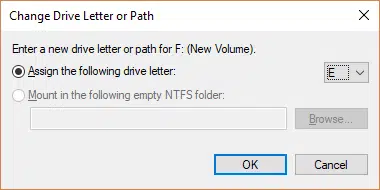
| 3. Incorrect Drive Mapping | – Go to Computer/My Computer.- Check if the drive letter matches the QuickBooks path.- If not, remap the drive and retry payroll update. | Fixes mismatched drive letters that block updates. |
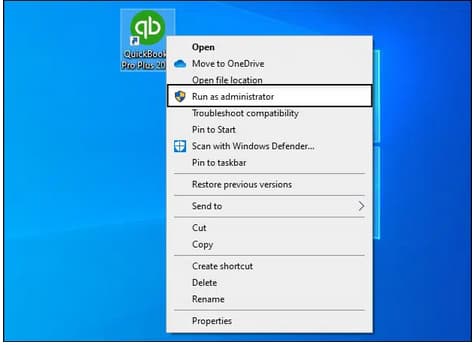
| 4. Insufficient Admin Rights | – Close QuickBooks.- Right-click the QuickBooks icon → Run as Administrator.- Retry the payroll update. | Grants required permissions for payroll updates. |
| 5. Outdated QuickBooks Desktop | – Update QuickBooks Desktop to the latest release.- Retry payroll update after updating. | Keeps QuickBooks compatible with payroll services. |
| 6. Reset Payroll Update | – Go to Help > Update QuickBooks Desktop.- Select Update Now and check Reset Update.- Download updates again. | Clears corrupted update files and forces a fresh download. |
If the six steps above don’t resolve the error, these are the fixes Intuit’s own current support documentation recommends for the 15XXX error family, which includes 15102.
Download and open the QuickBooks Tool Hub, select Program Problems, then run Quick Fix My Program. This shuts down any lingering QuickBooks background processes and runs a quick repair before you retry the update.
Go to C:\Program Files\Intuit\QuickBooks, right-click QBW32.exe, select Properties, then Digital Signature. Confirm Intuit is selected in the signature list, select Details, then View Certificate, then Install Certificate. Follow the prompts to Finish, restart your computer, and redownload the update. This matters because QuickBooks validates every update file against Intuit’s digital signature before installing it — if Windows can’t confirm that signature, the update is rejected with a 15xxx error even when the download itself succeeded.
If the above steps still don’t resolve it, run the QuickBooks Install Diagnostic Tool (available in the Tool Hub) to repair underlying installation issues, or perform a clean reinstall of QuickBooks Desktop.
Error 15102 belongs to a larger family of QuickBooks update errors known as the 15XXX series, which also includes 15103, 15106, 15215, 15222, 15240, and 15241, among others. These codes share overlapping causes — permissions, digital signatures, and blocked download paths — so if you’re seeing a different 15XXX code, or want the full picture of this error family, the guide below covers code-specific fixes.
If still the error persist then try these additional steps:
To avoid encountering QuickBooks Error 15102 in the future:
The QuickBooks Payroll Update Error 15102 may interfere with the payroll processing, however, it is most often solved by the adjustment of the file location preferences, the single-user mode, and updating of the QuickBooks. Avoiding this mistake is possible with proper configuration and prevention mechanisms, which will allow the businesses to conduct payroll activities without difficulties.
Running as an Administrator is necessary, but the error usually persists because the underlying file path or mode conflict hasn’t been resolved.
➜The most common next step is a network path conflict. The 15102 error is less about permissions and more about the network path saved in the QuickBooks settings being inaccurate.
➜Immediately verify the Download Location drive letter in the Update QuickBooks, then Options tab against the location shown in the Product Information screen (Ctrl+1). Toggling the Shared Download setting from ‘Yes’ to ‘No’ (and back) forces a necessary path reset.
Yes, configuration conflicts involving the Shared Download path are the number one cause of this error in networked environments. This setting controls where QuickBooks looks for the update file. Its setting depends on your setup:
➜Set to YES if the company file is on a server and multiple workstations share the update file.
➜Set to NO if the company file is local or accessed only by one user.
If your setup involves a network, ensure it’s set to YES, and that the designated download p
The update process requires exclusive, unrestricted access to the program files to replace the tax tables. The payroll tax table update involves overwriting system-critical files, primarily the payroll component files. If other users are logged in (Multi-User Mode), QuickBooks cannot gain the necessary file lock, leading to the access denied component of Error 15102. Always coordinate with other users and switch to File, then Switch to Single-User Mode before attempting any software or payroll tax table update.
If the error persists after verifying the file path and running as administrator, security software is the next most likely culprit. Security software can block the secure connection needed to download the update from the Intuit server, or it can block QuickBooks from writing the new file. Temporarily disable your Antivirus/Firewall for about 10-15 minutes, attempt the payroll update, and immediately re-enable security. If the update succeeds, you must add firewall exceptions for the primary QuickBooks executable files QBW32.exe and others).
This message specifically points to a failure in the download path validation or the digital signature authentication. The “reset” refers to QuickBooks’ attempt to validate the download location and confirm the source file is genuine before beginning the download. Failure often means:
➜The path where the downloaded file should be saved is inaccessible (path mismatch).
➜The digital security certificate required to authenticate the file from Intuit’s server is being blocked or is missing.
Focus on verifying the digital signature of the QBW32.exe file to ensure QuickBooks is allowed to communicate securely with the update servers.
Absolutely not, you won’t lose your data! Remapping is a safe and often necessary step for this specific error.
➜What Remapping Does: Remapping simply changes the “nickname” the computer uses to access the file on the server. The data stays in the same physical location. Error 15102 often occurs because the old drive letter (Q:) has a corrupted or stale connection in the Windows registry.
➜The Key Step: After you remap the drive to a new letter (like Z:), you must remember to open your QuickBooks company file using that new Z: path. This forces QuickBooks to use the clean, new network connection, typically eliminating the path conflict error immediately.
No, if QuickBooks Payroll Update Error 15102 occurs, you might not be able to process payroll with the latest tax updates, potentially leading to inaccurate tax calculations.
If none of the troubleshooting steps resolve the error, you may need to contact QuickBooks support for further assistance or consult a professional who can investigate deeper system issues.


