 Add As A Preferred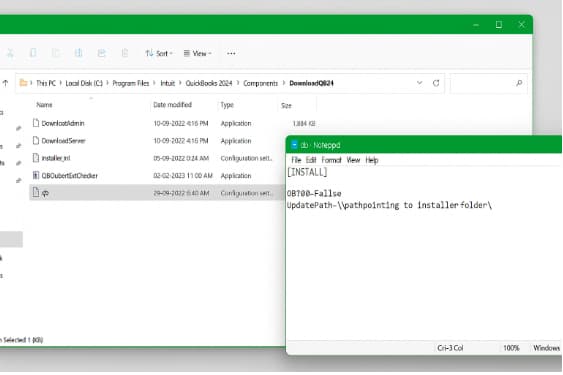
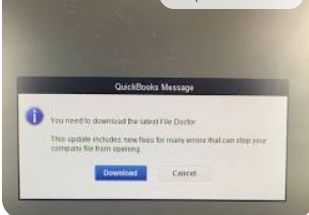
To fix QuickBooks Payroll 15XXX series errors, reconfigure Windows administrator permissions, restart and enable QuickBooks Desktop Update Service, and verify digital signatures and Internet options. The 15XXX series errors are access and execution-permission related faults that stop payroll maintenance updates, block patch installations, and interrupt digital certificate validation.
QuickBooks 15XXX series errors are triggered by disabled QuickBooks update services, missing or invalid Intuit digital signatures, insufficient admin privileges, third-party security restrictions, or misconfigured Internet Explorer settings. These permission-centric faults prevent payroll update downloads, stop installation of maintenance releases, and break secure validation during update execution.
This is a family of related codes rather than one message — it covers 15101, 15102, 15103, 15106, 15215, 15227, 15241, 15243, 15270, and others. Across the family, users typically see one of these patterns:
Across the whole 15XXX series, Intuit’s own guidance repeatedly points to the same handful of root causes: the Intuit File Copy Service being disabled, antivirus/firewall software blocking the update, the user not running QuickBooks as Windows administrator, or an incorrect Windows system date/time. These errors most commonly appear right after a fresh install, a Windows update, or a change to security software, and share the same first-line fix: QuickBooks Tool Hub’s Quick Fix my Program, followed by a manual update retry.
Synthesized from the individually-confirmed 15xxx entries in this document rather than one single Intuit “series overview” page.
QuickBooks Desktop Update and Install access errors, generally known as the 15XXX series, include issues stemming from: Invalid or corrupt update mechanisms; Network or security restrictions blocking download servers; Windows component damage (like Microsoft .NET Framework or MSXML); Corrupted file paths and download locations; Digital signature validation failures; and Windows UAC/permission blocks.
Payroll and general program update errors disrupt QuickBooks’ ability to receive necessary program patches, tax table updates, and critical security fixes. When system access or update files are damaged or improperly restricted, QuickBooks cannot complete the verification and download processes, leading to an outdated program and potential compliance issues.
The Update 15XXX series errors occur when QuickBooks Desktop is prevented from successfully downloading and installing updates due to system access restrictions, security interference, corrupted update files, or essential Windows components being damaged or outdated.
The integrity of the internal QuickBooks update mechanism is crucial. If the download manager or the temporary update files become corrupted due to abrupt system shutdowns or unexpected file transfers, QuickBooks fails to initiate or complete the download. This leads to the program recognizing the update package as invalid or inaccessible.
Security software, including firewalls and antivirus programs, often mistake QuickBooks update servers for a threat. When these essential communication pathways are blocked, QuickBooks cannot establish a secure connection to Intuit’s servers to download tax table or program updates, resulting in an immediate failure and a 15XXX error code.
QuickBooks relies heavily on core Windows components for installation and running updates. Specifically, damage or corruption to the Microsoft .NET Framework or the MSXML (Microsoft XML Core Services) files prevents the program from executing the update routines or processing the digital signature validation required for new files.
The update process requires specific temporary folders on the local drive to store download files. If the designated file path is corrupted, misconfigured, or if QuickBooks lacks the necessary Windows permissions to write to that location, the update cannot be saved, resulting in a failed installation and the related 15XXX error.
Every official QuickBooks update and tax table file includes a digital signature from Intuit to verify its authenticity and ensure file integrity. If the update process fails to validate this signature—often due to Windows security settings, incorrect date/time, or corrupted MSXML components—QuickBooks halts the installation, deeming the file untrustworthy or compromised.
Windows User Account Control (UAC) and other system permission settings are designed to protect core system files. However, they can sometimes over-restrict QuickBooks’ access to necessary program directories or the Windows registry required for updating. Limited administrative permissions or an overly aggressive UAC setting can trigger update failures by preventing QuickBooks from modifying or writing the new update files to the installation folder.
QuickBooks Desktop Payroll Error 15102 appears when QuickBooks cannot access the shared download location or the mapped drive is not set to active mode.
The error is commonly seen during payroll or product updates when the download path is invalid or QuickBooks is not running in single-user admin mode. QuickBooks displays: “The update cannot be downloaded because the shared download location is unavailable.”
Error 15102 stops payroll and product updates entirely until the mapped drive and download location are fixed and admin rights are applied.
QuickBooks Desktop Payroll Error 15222 occurs when antivirus, firewall, or incorrect internet browser settings block secure payroll or maintenance updates.
QuickBooks Desktop Payroll Error 15222 is usually triggered when the default browser is misconfigured, internet certificates are outdated, or antivirus flags QuickBooks connections as risky. QuickBooks shows: “Payroll update did not complete successfully.”
Payroll Error 15222 blocks payroll tax table downloads, prevents security patch installation, and stops payroll functions until the network and certificate restrictions are corrected.
QuickBooks Desktop Payroll Error 15241 appears when the QuickBooks FCS (File Copy Service) is disabled in Windows Services. This service is responsible for processing payroll and maintenance updates.
QuickBooks error 15241 occurs during payroll update installation or tax table downloads. QuickBooks may show: “The payroll update could not be completed successfully.”
Error 15241 prevents payroll updates, interrupts installation tasks, and disables payroll features until the QuickBooks FCS service is enabled.
QuickBooks Desktop Payroll Error 15311 is a payroll update failure caused by invalid or missing digital signatures, broken internet connections, or blocked access to Intuit servers. The issue occurs during payroll or maintenance updates when security components prevent QuickBooks from validating update files.
QuickBooks displays: “QuickBooks update cannot be completed.” Error 15311 stops payroll downloads, blocks subscription verification, and freezes payroll activities until secure certificate validation and server access are restored.
QuickBooks Desktop Payroll Error 15331 occurs when incorrect Internet Explorer SSL settings, restricted Windows permissions, or blocked certificate paths prevent payroll updates.
The QuickBooks 15331 error appears while updating payroll or installing a new tax table. QuickBooks displays: “The payroll update failed. Try again later.”
QuickBooks error 15331 blocks tax table updates, stops payroll validation, and prevents employee pay processing until the browser security and permission settings are corrected.
Resolving Payroll Access and Permission Related Errors involves addressing issues related to access, security, and permissions that interfere with downloading updates for QuickBooks Desktop or the Payroll service. All these solutions will help resolve QuickBooks Desktop Payroll 15XXX series errors, such as 15102, 15222, 15241, 15311, and 15331.
The solution to resolve 15XXX series errors are:
These errors specifically relate to an incorrect or blocked download location for the update files. This solution involves checking the path where QuickBooks stores update files and ensuring the program is pointed to the correct location.
Step 1: Check the Update Path in the QuickBooks Info file
Step 2: Examine the Download Map Section
Step 3: Edit the DLGVER (if necessary)
If the DLGVER number does not match the version of QuickBooks you are using, or if you suspect it is incorrect:
Antivirus and firewall programs run at the Windows operating system level, not inside QuickBooks. These security tools sometimes block QuickBooks update files or Intuit server communication, thinking they are suspicious. This requires adding QuickBooks as an exception in your security software.
Step 1: Temporarily Disable Antivirus or Firewall Protection
⚠️ This is temporary, only to test if the security software is blocking QuickBooks.
Step 2: Attempt the QuickBooks/Payroll Update with Security Temporarily Disabled
Step 3: Add QuickBooks as an Exception (Permanent Fix)
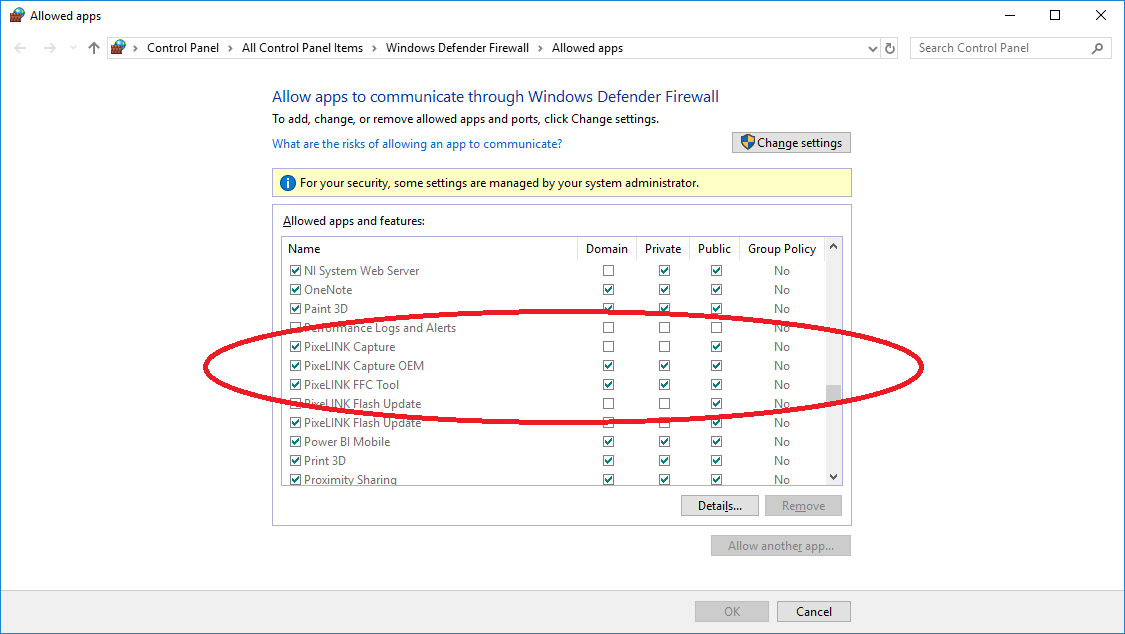
If the temporary disabling worked, you must permanently add exceptions to your antivirus and firewall settings to prevent future issues. The specific steps vary by software, but generally you need to add the following programs/ports to the exception/exclusion list:
This prevents future blocking without needing to turn security off again. Open your antivirus/firewall Settings → Exclusions / Exceptions / Allowed Apps and add the following QuickBooks program files:
If using Windows Firewall, add the above under:
Control Panel → System and Security → Windows Defender Firewall → Allow an app through Firewall or using Advanced Settings → Inbound/Outbound Rules.
Step 4: Re-Enable Antivirus or Firewall Protection
Re-open your antivirus program from Start Menu or Tray. Click Enable / Resume Protection / Turn On. Ensure your system returns to protected status. Never leave antivirus/firewall disabled after finishing updates.
Insufficient Windows user permissions can prevent the update process from accessing the necessary system files to save or install the new updates, leading to the 15XXX errors. Running the program with elevated privileges can bypass these restrictions.
Step 1: Close QuickBooks Desktop
Ensure that QuickBooks Desktop is completely closed.
Step 2: Locate the QuickBooks Icon
Find the QuickBooks Desktop icon on your desktop or in the Windows Start menu.
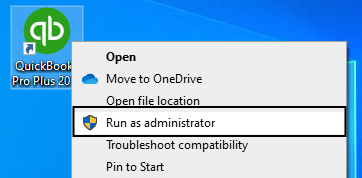
Step 3: Run as Administrator
Right-click on the QuickBooks Desktop icon. Select “Run as administrator” from the context menu. If prompted by User Account Control (UAC), click Yes to allow the application to run with administrative privileges.
Step 4: Attempt the Update
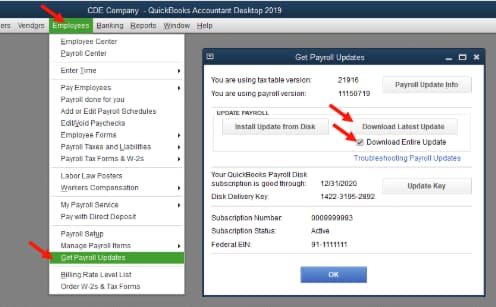
To install the Payroll update, go to the Employees menu and click Get Payroll Updates. In the Payroll Update window, select Download Entire Update and then click Get Updates. Wait until the update completes and verify the success message on screen.
You now have a clear understanding of why QuickBooks Payroll 15XXX errors happen and how to fix them by correcting update settings, allowing proper permissions, repairing damaged components, and making sure QuickBooks can connect and verify payroll data. Once these issues are fixed, payroll updates complete normally and QuickBooks runs without interruption.
If your specific 15XXX code is not mentioned or the issue continues after trying these steps, you can explore more solutions in our knowledge base or get help from a QuickBooks support expert for step-by-step guidance.
With the correct fixes, all 15XXX update errors can be successfully resolved, allowing you to continue payroll tasks smoothly and without delays. You are already on the right path by troubleshooting it — and a fully working, error-free payroll system is within reach.


