Excerpt:
QuickBooks Error 15215 typically occurs during payroll updates due to issues with verifying the digital signature, conflicts with other programs, or incorrect Internet Explorer settings. To resolve it, restart your system, run QuickBooks as an administrator, adjust TLS settings in Internet Explorer, or reboot in selective startup mode. These steps will help eliminate the error and restore smooth payroll updates.
 Add As A Preferred
QuickBooks Error 15215 is an update error that occurs when QuickBooks Desktop fails to download or install maintenance release or the latest payroll tax table update. The issue typically occurs when QuickBooks is unable to validate the digital signature of the downloaded update file.
Digital signature verification is a built-in security feature implemented by Intuit to confirm that the update file is authentic, secure, and has not been altered or corrupted during transmission. When the system is unable to validate this signature often due to network conflicts, firewall interference, incorrect Internet Explorer settings, or insufficient administrative permissions QuickBooks blocks the update process to protect your computer from potential security threats.
Error Message Variants (as they appear to users)
When QuickBooks Error 15215 occurs (during QuickBooks Desktop update or Payroll tax table download), users typically see one of these exact messages:
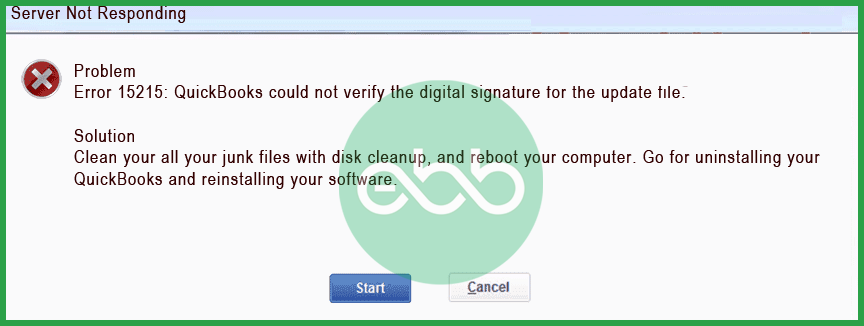
These messages specifically indicate that QuickBooks failed the digital signature verification check on the downloaded update/payroll file — a security protection built by Intuit.
Recognizing the warning signs early can help prevent payroll processing delays. You may encounter one or more of the following symptoms:
Before proceeding with advanced troubleshooting methods, it’s important to complete a few basic system checks. These preliminary validations help identify common configuration issues, such as incorrect date and time settings, insufficient permissions, or network interruptions that may be preventing QuickBooks from verifying the digital signature.
The solutions below will help you fix QuickBooks Error 15215 and restore the update process. Carefully go through each method to determine the underlying cause and resolve the digital signature verification issue.
Error 15215 can occur when QuickBooks lacks sufficient rights to access Windows security files or update services. If running as an administrator does not bypass server restriction issues, you can perform a Manual QuickBooks Update to download and apply the patch directly. Launching the program with administrative privileges ensures uninterrupted communication with update servers and allows the digital signature verification to complete successfully.
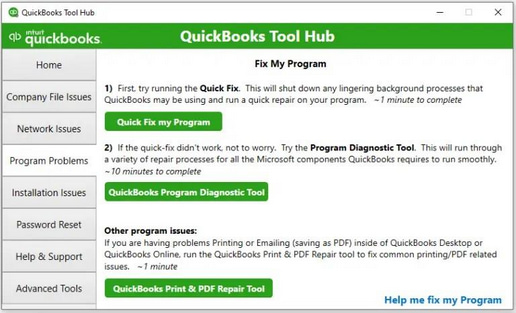
Quick Fix My Program closes background QuickBooks processes and repairs minor program file issues that may interfere with update installation. This tool automatically resets and repairs them if corrupted or stuck background processes are blocking the update or digital signature validation, helping restore normal update functionality.
The QuickBooks Tool Hub helps to fix common errors. You’ll need to close QuickBooks to use the tool hub. For the best experience, we recommend you use Tool Hub on Windows 10, 64-bit.
Note: To find out which tool hub version you have, select the Home tab and the version will be on the bottom.

Note: If you are unable to find the icon, do a search in Windows for QuickBooks Tool Hub and select the program.
The Quick Fix will shut down any open background processes QuickBooks uses. It’ll run a quick repair on your program.
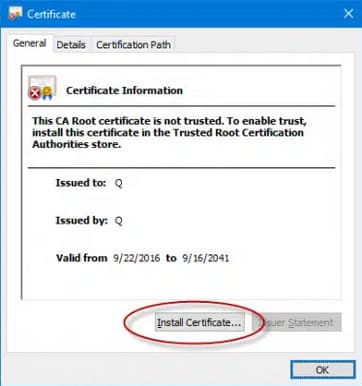
When the certificate is missing, outdated, or not properly registered in Windows, QuickBooks cannot validate the update file. Manually installing the certificate restores trust verification and allows the update to proceed without triggering Error 15215.
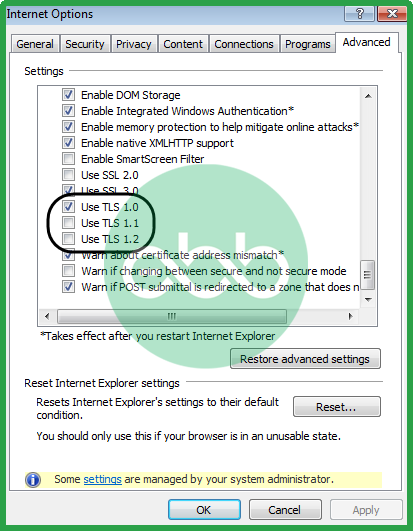
QuickBooks relies on Internet Explorer’s SSL and TLS security protocols to establish secure connections with Intuit’s update servers. Secure connections may fail if TLS settings are disabled or SSL configurations are outdated, preventing digital signature verification. Enabling the required TLS protocols restores secure communication for updates.
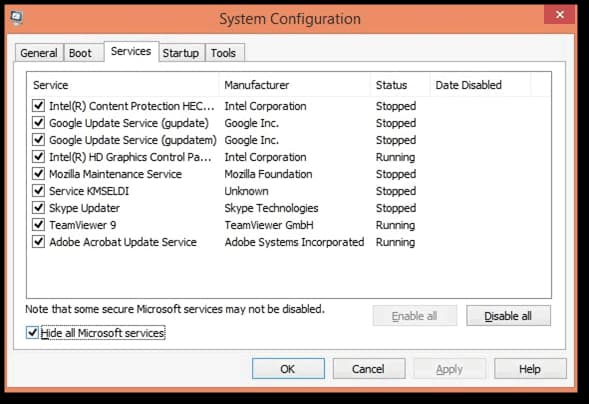
Background services, antivirus tools, or third-party applications can block update files or disrupt MSXML components. Running Windows in Selective Startup minimizes interference, allowing QuickBooks to update without conflicts.
The QuickBooks File Copy Service (FCS) is responsible for processing updates and managing file transfers within QuickBooks. If the FCS service is disabled or not running properly, updates may fail. Enabling or restarting this service ensures QuickBooks can properly copy, verify, and install update files.
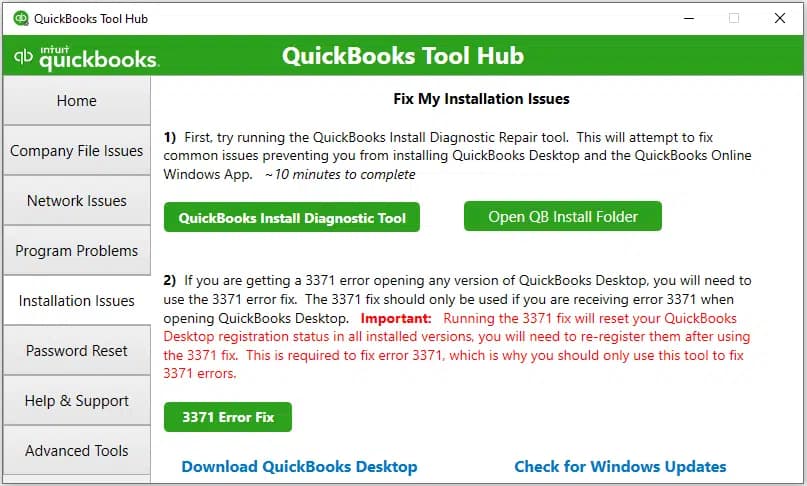
Corrupted installation files, .NET Framework errors, or MSXML issues can prevent digital signature validation. This tool repairs those components, restoring the program’s ability to download and install updates.
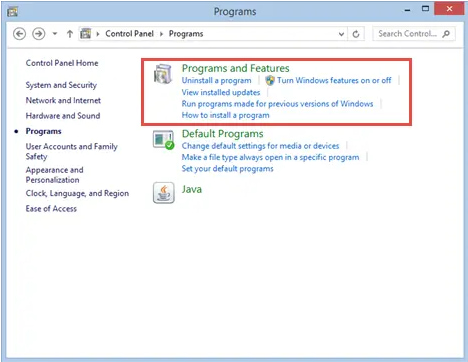
Reinstalling QuickBooks replaces damaged program files with fresh installation files, resolving deep-rooted corruption issues. It helps to reset the application environment, allowing updates and digital signature validation to function correctly.
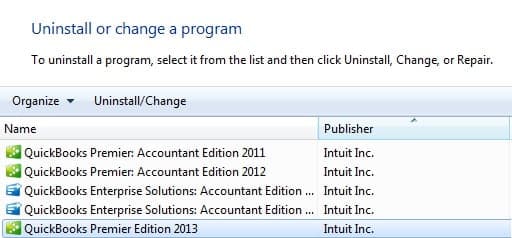
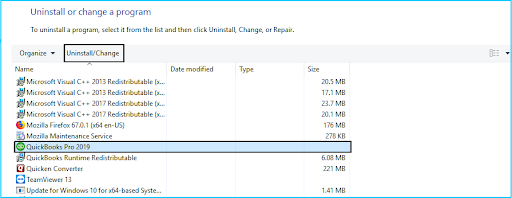
Note: If you don’t get this option on your display, sign out and sign back into Windows as an administrator.
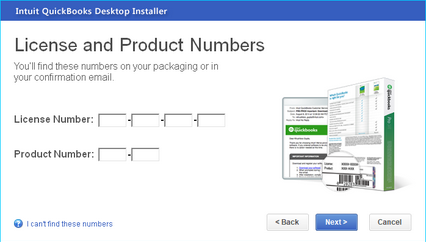
Note: Type the credentials just as they were mentioned in the system earlier.
QuickBooks Error 15215 is primarily triggered when the software fails to verify the digital signature of an update file, preventing program or payroll updates from installing successfully. The issue is often linked to security restrictions, incorrect system settings, network interruptions, or damaged program components.
By following the solutions outlined above such as running QuickBooks as an administrator, using Quick Fix My Program, manually installing the digital signature certificate, configuring SSL/TLS settings, enabling QuickBooks File Copy Service (FCS), using the Install Diagnostic Tool, and reinstalling QuickBooks Desktop, you can identify the root cause and restore the update process smoothly.
Proper security settings, a stable internet connection, and updated system components help prevent this error from recurring and keep QuickBooks Desktop running smoothly.
QuickBooks checks the digital signature to confirm that the file came directly from Intuit and has not been tampered with or corrupted by a third-party application, malware, or during the download process. This is a critical security measure to protect your accounting data from malicious code that might be hidden in a fake update.
Yes. Any third-party application that actively monitors internet traffic or system access—such as a Firewall, Antivirus/Security Suite, or VPN—can interfere with QuickBooks’ secure connection to Intuit’s servers. This interference can cause not only Error 15215 but also other common update errors in the 15xxx series (e.g., 15240, 15270), all related to download or validation failures.
You should verify your payroll service status directly within QuickBooks Desktop. Navigate to Employees > My Payroll Service > Account/Billing Information (or Manage Service Key) and log in with your Intuit credentials to confirm that your subscription is Active and that your Service Key and EIN are correctly linked. If you encounter issues where your QuickBooks Desktop payroll subscription appears inactive or expired, it will prevent updates, though it typically triggers a different error code than 15215.
The QuickBooks File Copy Service (FCS) is a Windows service that QuickBooks uses for various functions, including the handling of certain update files. If this service is disabled or not running properly, it can prevent QuickBooks from successfully downloading, moving, or installing the necessary files, which can contribute to the causes of Error 15215.
No, encountering QuickBooks Error 15215 does not affect your data. It only prevents updates from being applied.
Internet Explorer serves as the backbone browser for QuickBooks to access certain update and payroll functions, so its configuration directly impacts data transmission and security protocols. Incorrect settings such as disabled TLS versions or improper security levels can block QuickBooks from verifying digital signatures or connecting to update servers, resulting in error 15215. Studies show that misconfigured Internet Explorer settings contribute to nearly 30% of QuickBooks update errors, underscoring the necessity of maintaining accurate browser configurations for seamless payroll processing.
TLS (Transport Layer Security) protocols ensure encrypted and secure data exchanges between QuickBooks and its update servers, preventing interception or tampering during payroll updates. Having TLS 1.0 enabled while TLS 1.1 and 1.2 are disabled, as recommended in QuickBooks troubleshooting, helps maintain compatibility with legacy systems but also ensures adequate security for update verification. Statistics reveal that improper TLS configuration accounts for nearly 25% of update failures like Error 15215, highlighting the critical role these protocols play in safeguarding financial software communications.
Your firewall or security software (like antivirus programs) acts as a strict gatekeeper, monitoring all incoming and outgoing network traffic. It may mistakenly flag QuickBooks’ secure connection to Intuit’s update servers as a potential threat. If the software is not specifically configured to allow the QuickBooks executables (like qbwebpatch.exe), it will interrupt the connection or block the data packets needed to download and verify the digital signature, which is the direct cause of Error 15215.
Selective Startup Mode (or Diagnostic Startup) is a Windows troubleshooting feature that temporarily disables most non-essential services and startup programs, including third-party software like syncing tools, unnecessary background processes, and specific drivers. By running QuickBooks in this minimalist environment, you can isolate the root cause of the error. If the update succeeds in this mode, it confirms that a conflict with another installed program is the underlying issue, allowing you to zero in on the culprit.
When running a payroll update, QuickBooks needs to access and modify crucial files and Windows registry keys, particularly within the installation directories and system folders. If you are logged in as a standard user with restricted Windows permissions, the software cannot execute these required actions. This failure to write or modify files prevents the successful completion of the update installation, often resulting in errors like 15215.


