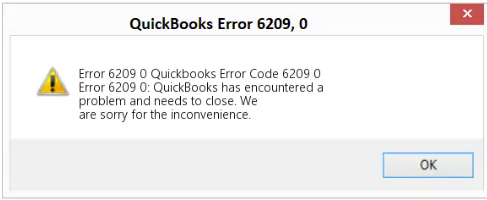
Fix QuickBooks Company File Error 6209 by repairing .NET Framework, using QuickBooks File Doctor, or renaming ND and TLG files to restore access to your company file.
QuickBooks Error 6209 appears when users cannot access their company files. This error blocks business operations by preventing file opening during installation, Windows updates, or file restoration. QuickBooks displays this error when attempting to open company files after system changes.
The most common Error 6209 messages read: “QuickBooks has encountered a problem when opening the company file. Error Code: (-6209, 0)” or “An error occurred when QuickBooks tried to access the company file. Please try again.”

This article provides a diagnostic framework, risk assessment, and complete solution guide. Data corruption and system configuration issues require immediate attention. Delayed repairs prevent access to critical financial records.
Error Classification: Which Series Does 6209 Belong To?
Error 6209 belongs to the 6000 series handling company file access problems and installation issues. The 6000 series represents file access failures rather than data corruption. QuickBooks uses this code when system components required for file access become damaged.
QuickBooks organizes errors into series: C= series (internal processing), H series (multi-user hosting), 6000 series (file access). Related 6000 errors include 6150 (structural damage), 6000-83 (permission problems), 6144-82 (network configuration). These share common causes: damaged installation files, corrupted system components, or incorrect configuration.
Can QuickBooks Error 6209 Trigger Other Errors?
QuickBooks errors create cascading failures across system operations. One underlying problem generates multiple error codes at different access points.
| Cause of QB Error 6209 | Possible Triggered Errors |
| Damaged .NET Framework | Installation failures (various error codes) |
| Corrupted installation files | Unrecoverable error (program crashes) |
| Damaged ND and TLG files | Error 6150 (file structural damage) |
| Windows system file corruption | Runtime errors during file operations |
- Damaged .NET Framework causes Error 6209 by preventing QuickBooks from accessing required system libraries. This corruption affects other program operations. Users encounter installation failures when attempting updates. Both errors stem from identical framework corruption.
- Corrupted installation files trigger Error 6209 during file access. The damaged files prevent QuickBooks from loading necessary components. Unrecoverable errors appear during startup. The application crashes without warning requiring complete reinstallation.
- Damaged ND and TLG files create distinct patterns.
- Windows system file Corruption triggers Error 6209 when QuickBooks cannot read network settings. Error 6150 appears indicating structural problems. The company file becomes inaccessible requiring file repair.
The Root Cause For QuickBooks Error 6209
Match your symptom to find the correct solution path. Start by identifying when the error appears. Check if the error occurs after specific system changes to determine the appropriate fix.
| Possible Causes and QuickFix for Error 6209 | ||
|---|---|---|
| Error Event | Likely Cause | Recommended Fix (When to Perform) |
| Error 6209 after Windows update | Damaged .NET Framework | Immediately after noticing the error following a Windows update and before reopening QuickBooks, repair or reinstall the .NET Framework. |
| Error 6209 after QuickBooks installation | Corrupted installation files | Right after installation failure or error appearance and before using QuickBooks further, run the QuickBooks repair from the Control Panel. |
| Error 6209 when opening file | Damaged ND and TLG files | Before attempting to reopen the company file, rename the ND and TLG files and then try opening QuickBooks again. |
| Error 6209 with QBCFMonitorService message | Service conflicts | When the QBCFMonitorService message appears and before relaunching QuickBooks, disable the QBCFMonitorService temporarily and restart the system. |
Data Safety Advisory Section For QuickBooks Error 6209
Understanding QuickBooks system requirements prevents data loss during repairs. Follow this data safety advices For QuickBooks Error 6209:
- ND and TLG Files: ND files manage network connections enabling multi-user access. TLG files record transaction history for crash recovery. Corruption in these files prevents file opening operations. QuickBooks recreates these files automatically when renamed.
- .NET Framework: Microsoft .NET Framework provides system libraries QuickBooks requires. QuickBooks calls .NET functions for data processing and file operations. Version conflicts or corruption trigger Error 6209. Proper .NET configuration enables QuickBooks to access company files.
- System Files: Windows system files support program operations. Corruption in system files prevents QuickBooks from functioning. Repair operations modify these files to restore integrity. Always backup data before system file repairs.
Steps to Fix QuickBooks Company File Error 6209
Solutions are organized by skill level, risk level, and success probability. This tiered approach protects your data while maximizing repair chances. Start with Level 1 solutions and move to higher tiers only if lower-tier solutions fail.
Level 1 – Beginner Safe Fixes
These solutions require no technical expertise. The risk of data loss is minimal. Anyone can perform these steps safely.
| Solution 1.1: Update QuickBooks to Latest Release | |||
| Skill Level | Risk Level | Success Probability | Approximate Time Required |
| Beginner | Low | Moderate to High | 15-20 minutes |
| Risk Explanation | Updates rarely cause problems. Always maintain backups before updating. | Solution Explanation | Updating QuickBooks installs bug fixes and compatibility improvements. The latest version includes corrected file access routines. Updates resolve known issues causing Error 6209. |
Steps to Implement Solution 1.1
- Open QuickBooks and press F2 to view Product Information. Note your current version and release number. Close the Product Information window. Navigate to the Help menu and select Update QuickBooks Desktop.
- Click the Update Now tab. Check the box for “Reset Update” to clear partial downloads. Select the Get Updates button to download patches. QuickBooks downloads files in the background. Do not close QuickBooks during download.
- Close QuickBooks after download completes. QuickBooks prompts for installation when you close. Click Yes to install. Installation takes several minutes. The computer may restart during installation. Open QuickBooks after restart and test file access.
| Solution 1.2: Run QuickBooks File Doctor | |||
| Skill Level | Risk Level | Success Probability | Approximate Time Required |
| Beginner | Low | High | 30-45 minutes |
| Risk Explanation | File Doctor repairs files automatically. The tool rarely causes problems. Scan may take significant time for large files. | Solution Explanation | QuickBooks File Doctor detects and repairs company file corruption and system issues. The tool fixes common problems causing Error 6209. File Doctor is part of QuickBooks Tool Hub. |
Steps to Implement Solution 1.2
- Close QuickBooks completely. Download QuickBooks Tool Hub from Intuit website. Search “QuickBooks Tool Hub download” in the browser. Save QuickBooksToolHub.exe to the Downloads folder.
- Double-click to install. Click Yes for permission. Follow the installation wizard. Click the Install button. Installation takes 2-3 minutes.
- Open Tool Hub after installation. Click Company File Issues. Select Run QuickBooks File Doctor. File Doctor opens in a new window.
- Choose the company file from the dropdown. If the file does not appear, click Browse. Navigate to file location. Select .QBW file and click Open. Select the “Check your file” option. Click Continue.
- Enter QuickBooks administrator username and password. Click Next to begin the scan. File Doctor examines files for corruption and system issues. Scan takes 20-40 minutes depending on file size. Progress bar shows status.
- File Doctor displays results after completion. Green checkmarks indicate successful repairs. Click View Report for detailed findings. Close File Doctor and open QuickBooks. Test file access.
| Solution 1.3: Open Sample Company File to Test Installation | |||
| Skill Level | Risk Level | Success Probability | Approximate Time Required |
| Beginner | Low | Moderate | 5-10 minutes |
| Risk Explanation | Opening sample files cannot damage data. This test identifies whether problems affect the program or company file. | Solution Explanation | Sample company files come with QuickBooks installation. Opening a sample file tests whether QuickBooks program functions correctly. Success indicates company file specific problems. Failure indicates program installation issues. |
Steps to Implement Solution 1.3
- Close all QuickBooks windows. Press and hold the Ctrl key on the keyboard. Click QuickBooks Desktop icon while holding Ctrl. Continue holding Ctrl until No Company Open window appears.
- Release Ctrl key when window opens. Click the “Open a Sample File” option in the window. QuickBooks displays a list of available sample files. Select any sample company from the list. Click Open.
- QuickBooks attempts to open the sample file. If the sample file opens without error, your QuickBooks installation works correctly. The problem affects your specific company file. Proceed to solutions for file-specific issues. If the sample file triggers Error 6209, QuickBooks installation is damaged. Proceed to installation repair solutions.
Level 2 – Intermediate Fixes
These solutions modify system configurations or file settings. Basic computer knowledge is helpful but not required. Risk increases because operations affect system components. Always create backup before attempting Level 2 solutions.
| Solution 2.1: Rename ND and TLG Files | |||
| Skill Level | Risk Level | Success Probability | Approximate Time Required |
| Intermediate | Low to Moderate | High | 15-20 minutes |
| Risk Explanation | Renaming does not delete transaction data. QuickBooks creates new files automatically. Original files remain as backup. Follow naming instructions exactly. | Solution Explanation | Corruption in ND and TLG files triggers Error 6209 by preventing file access. Renaming forces QuickBooks to generate fresh configuration files. New files contain clean data without corruption. |
Steps to Implement Solution 2.1
- Close QuickBooks completely. Press Windows key + E to open File Explorer. Navigate to the company file folder. The default location is C:\Users\Public\Documents\Intuit\QuickBooks\Company Files.
- Find files with .ND and .TLG extensions matching the company file name. If the company file is ABC-Corp-2024.qbw, look for ABC-Corp-2024.qbw.nd and ABC-Corp-2024.qbw.tlg. These files may be hidden. Click the View tab in File Explorer. Check the box for Hidden items to show all files.
- Right-click .ND file and select Rename. Add .OLD to end: ABC-Corp-2024.qbw.nd.OLD. Press Enter. Repeat for .TLG file: ABC-Corp-2024.qbw.tlg.OLD. Press Enter to save.
- Open QuickBooks. Navigate to File > Open or Restore Company. Browse to the company file and click Open. QuickBooks automatically creates new .ND and .TLG files. Test file access.
| Solution 2.2: Disable QBCFMonitorService | |||
| Skill Level | Risk Level | Success Probability | Approximate Time Required |
| Intermediate | Moderate | Moderate | 10-15 minutes |
| Risk Explanation | Disabling this service affects multi-user capabilities temporarily. Service can be re-enabled later. Changes require administrator rights. | Solution Explanation | QBCFMonitorService runs in the background enabling multi-user access. Service conflicts sometimes trigger Error 6209 on workstations. Disabling prevents service interference with file access operations. |
Steps to Implement Solution 2.2
- Press Windows key + R to open the Run dialog. Type “services.msc” in the box. Press Enter. Windows Services console opens showing all system services.
- Scroll through the services list alphabetically. Locate “QBCFMonitorService” in the list. Right-click QBCFMonitorService. Select Properties from the menu.
- Click the General tab in the Properties window. Locate Startup type dropdown menu. Select “Disabled” from dropdown options. This prevents service from starting automatically.
- Click Apply to save settings. Click OK to close the Properties window. Close Services console. Restart computer to apply changes. Open QuickBooks and test file access.
| Solution 2.3: Run System File Checker | |||
| Skill Level | Risk Level | Success Probability | Approximate Time Required |
| Intermediate | Low | Moderate | 30-60 minutes |
| Risk Explanation | System File Checker is a safe Windows utility. Scan cannot damage files. Processes may take significant time on large drives. | Solution Explanation | Windows System File Checker scans for corrupted system files. The utility repairs damaged files automatically. Corrupted system files cause Error 6209 by preventing QuickBooks operations. SFC restores system integrity. |
Steps to Implement Solution 2.3
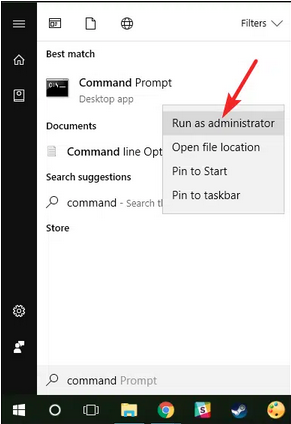
- Press Windows key on keyboard. Type “Command Prompt” in the search box. Right-click Command Prompt in results. Select “Run as administrator” from the menu.
- User Account Control asks for permission. Click Yes to continue. Command Prompt window opens with administrator rights. Black window displays with cursor.
- Type “sfc /scannow” at the prompt. Press Enter to begin the scan. System File Checker starts scanning system files. The process takes 30-60 minutes depending on system size. Progress percentage displays during scan.
- Wait for the scan to complete. Do not close the Command Prompt window. SFC displays results after completion. Message indicates whether corrupted files were found and repaired. Restart computer after scan completes. Open QuickBooks and test file access.

Level 3 – Advanced / Professional Intervention
These solutions require technical knowledge and carry higher risk. System-level changes can affect program operations. Contact professional support if uncomfortable with these procedures. Data backup is mandatory before attempting Level 3 solutions.
| Solution 3.1: Repair Microsoft .NET Framework | |||
| Skill Level | Risk Level | Success Probability | Approximate Time Required |
| Advanced | Moderate to High | High | 30-60 minutes |
| Risk Explanation | .NET Framework affects multiple programs. Incorrect repairs may cause applications to stop working. Professional assistance recommended for unfamiliar users. | Solution Explanation | Microsoft .NET Framework provides system libraries QuickBooks requires. Corruption triggers Error 6209 by preventing file access. Repairing or reinstalling .NET restores required components. This resolves compatibility issues affecting QuickBooks. |
Steps to Implement Solution 3.1
- Press Windows key and type Control Panel. Click the Control Panel in search results. Select “Programs and Features” from Control Panel options. Installed programs list appears.
- Scroll through programs to find Microsoft .NET Framework entries. Multiple .NET versions appear separately. QuickBooks requires .NET Framework 3.5 and 4.5 or later. Note which versions are installed.
- Click “Turn Windows features on or off” in the left panel. Windows Features dialog opens. Locate “.NET Framework 3.5” in the list. Check the box to enable it if unchecked. Locate “.NET Framework 4.x” and enable it if needed.
- Click OK to apply changes. Windows downloads and installs required components. The process takes 5-10 minutes. The computer may restart during installation.
- If .NET is already enabled, uninstall and reinstall. Return to Programs and Features. Right-click .NET Framework entry. Select Uninstall. Follow uninstallation prompts. Restart computer after uninstallation.
- Download the latest .NET Framework installer from Microsoft website. Search “Download .NET Framework” in the browser. Visit the official Microsoft download page. Download installer file. Double-click to run the installer. Follow the installation wizard. Restart computer after installation. Open QuickBooks and test file access.
| Solution 3.2: Repair QuickBooks Installation | |||
| Skill Level | Risk Level | Success Probability | Approximate Time Required |
| Advanced | High | High | 30-45 minutes |
| Risk Explanation | Repair modifies QuickBooks installation files without changing company data. The process requires a product license key. Failed repair may prevent QuickBooks from starting. | Solution Explanation | Corrupted QuickBooks program files cause persistent Error 6209. Repair replaces damaged components without affecting company files. Fresh installation removes all corruption traces. |
Steps to Implement Solution 3.2
- Back up all company files before starting. Record QuickBooks license number and product key. Open QuickBooks and press F2 to view Product Information. Write down license number, product number, and validation code.
- Close QuickBooks completely. Press Windows key and type Control Panel. Open the Control Panel and click Programs and Features. Scroll through programs to find QuickBooks Desktop.
- Right-click QuickBooks Desktop. Select Uninstall/Change from the menu. QuickBooks installation wizard appears. Select the Repair option from the wizard menu. Click Next to begin repair.
- QuickBooks scans all program files. Damaged files are replaced with correct versions. Repair takes 10-20 minutes depending on installation size. Progress bar shows status.
- Restart computer after repair completes. Open QuickBooks after restart. The program may display an activation screen. Enter license number and product key when prompted. Click Next to reactivate. Open company file and test access.
| Solution 3.3: Run QuickBooks Install Diagnostic Tool | |||
| Skill Level | Risk Level | Success Probability | Approximate Time Required |
| Advanced | Moderate | High | 30-45 minutes |
| Risk Explanation | Install Diagnostic Tool repairs Windows components and QuickBooks installation. The process is automatic but lengthy. Tools rarely cause problems. | Solution Explanation | QuickBooks Install Diagnostic Tool repairs damaged Microsoft components and QuickBooks installation files. The tool fixes Windows registry issues and .NET Framework problems. This comprehensive repair resolves complex Error 6209 causes. |
Steps to Implement Solution 3.3
- Open QuickBooks Tool Hub if already installed. If not installed, download from Intuit website. Click Installation Issues from the Tool Hub main menu. Select QuickBooks Install Diagnostic Tool from options.
- The tool begins running automatically. Do not close the Tool Hub during the process. Install Diagnostic Tool scans for component problems. The tool repairs damaged Windows registry entries. Process fixes .NET Framework corruption. Scan and repair takes 10-20 minutes.
- Progress indicator shows repair status. The tool displays a completion message when finished. Restart computer after tool completes. Open QuickBooks and test file access.
| Solution 3.4: Perform Clean Install of QuickBooks | |||
| Skill Level | Risk Level | Success Probability | Approximate Time Required |
| Advanced | High | High | 60-90 minutes |
| Risk Explanation | Clean install removes all QuickBooks traces. The process requires complete uninstallation and reinstallation. Company files remain safe but backup is mandatory. Requires product license key. | Solution Explanation | Clean install completely removes QuickBooks and all associated files. This eliminates deep corruption that repair cannot fix. Fresh installation provides a clean slate for QuickBooks operations. Clean install resolves persistent Error 6209 issues. |
Steps to Implement Solution 3.4
- Back up all company files to external locations. Record QuickBooks license and product key. Download QuickBooks Clean Install Tool from Intuit website. Search “QuickBooks Clean Install Tool download”.
- Save installer file to Downloads folder. Close QuickBooks and all related programs. Double-click the Clean Install Tool file. Click Yes when User Account Control asks permission.
- Follow tool instructions to uninstall QuickBooks. The tool removes all QuickBooks files and registry entries. The process takes 15-20 minutes. The computer may restart during uninstallation.
- Download fresh QuickBooks installer from Intuit website. Log in to an Intuit account. Navigate to the Downloads section. Download version matching your license. Save installer file to Downloads.
- Double-click QuickBooks installer. Follow the installation wizard. Enter license number and product key when prompted. Complete installation process. Restart computer after installation. Open QuickBooks and restore the company file from backup. Test file access.
Scenarios Requiring Expert Support
Some situations require professional assistance. Attempting DIY repairs risks permanent data loss. Stop attempting the solution if:
- you see “unrecoverable” or “fatal” error messages.
- QuickBooks Install Diagnostic Tool fails to complete or reports critical errors.
- multiple solutions fail and error persists.
- .NET Framework repairs cause other applications to stop working.
- clean install does not resolve errors after following all steps.
Prevention Strategy
Preventing Error 6209 requires consistent maintenance practices. Follow the listed points given below:
- System Updates: Install Windows updates regularly during non-business hours. Updates include .NET Framework improvements. Check for updates monthly. Schedule updates for evenings or weekends.
- QuickBooks Updates: Enable automatic QuickBooks updates via Help > Update QuickBooks Desktop > Options > “Automatic update”. Install updates promptly when available.
- Backup Discipline: Create daily backups before processing transactions. Store in three locations: local drive, external drive, cloud storage. Use File > Back Up Company > Create Local Backup > automatic backup. Test restoration quarterly.
- .NET Framework Maintenance: Verify .NET Framework versions remain enabled. Check Control Panel > Programs and Features > Turn Windows features on or off. Ensure .NET Framework 3.5 and 4.5 are checked. Windows updates sometimes disable components. Verify monthly.
- System File Integrity: Run System File Checker monthly. Open Command Prompt as administrator. Type “sfc /scannow”. Schedule during off-hours. Address corrupted files immediately.
- Malware Protection: Maintain active antivirus with updated definitions. Run full system scans weekly. Remove detected threats immediately.
- Disk Space Management: Maintain at least 10GB free space on C: drive. Run Disk Cleanup monthly. Remove temporary files and system junk.
Conclusion
If QuickBooks Error 6209 continues after following the tiered solutions above, do not keep experimenting with repeated repairs. Escalating corruption can increase the risk of permanent data damage and system instability. At this stage, a structured professional diagnosis is the safest path forward.
Get expert assistance to analyze your system configuration, secure your financial data, and restore file access quickly. Acting early protects both your records and your business continuity. Professional support can diagnose complex system issues beyond standard troubleshooting procedures.
Frequently Asked Questions!
Can QuickBooks Error 6209 affect data stored in my company file?
The error itself does not directly damage your company’s data. However, if the underlying file corruption or disk issue persists, it may prevent you from accessing or saving data properly. Creating regular backups minimizes potential data loss.
Can third-party antivirus or system optimization tools interfere with QuickBooks and trigger file access errors?
Yes. Based on Intuit system requirements, real-time antivirus scanning and aggressive firewall/optimization tools can block QuickBooks executable files, restrict access to .ND/.TLG files, or interrupt install processes.
This type of interference can contribute to failures when opening or verifying company files, which may appear in the form of errors like 6209 or similar access-related codes.
After fixing Error 6209, what is the single most effective way to prevent the error from coming back?
The most effective preventive measure, as confirmed by the root causes of Error 6209, is to keep your Windows Operating System and the Microsoft .NET Framework fully updated with the latest patches. Since the error is often triggered by corrupted or incomplete system components, maintaining a healthy, up-to-date Windows environment significantly reduces the chance of component conflicts that lead to this specific QuickBooks installation error.
Does QuickBooks Error 6209 directly cause permanent damage to my company data (.QBW file)?
No, Error 6209 itself does not directly damage your core company file data (.QBW). The error is typically a system-level issue, often linked to broken installation components, corrupted system files (like the .NET Framework), or damaged configuration files (like .ND and .TLG) that prevent QuickBooks from connecting to or loading the data file. Since the error is a connection/launch issue, the data file remains intact, but inaccessible.
After renaming the .ND and .TLG files, will I lose any of my financial data or historical transactions?
No, you will not lose any financial data. The .ND (Network Data) and .TLG (Transaction Log) files are configuration files that help QuickBooks locate and access your company file, especially in a network or multi-user environment. They are not the core data file. When you rename them, QuickBooks automatically creates new, clean versions of these files the next time you open the company file. This is a common and safe troubleshooting step recommended by Intuit.
If I use Windows System Restore to fix Error 6209, will it affect my recent QuickBooks transactions or Windows updates?
Yes, System Restore could potentially affect recent Windows updates or other software installed after the chosen restore point. System Restore works by rolling back system files, drivers, and registry settings to a previous point in time. It does not usually affect personal files (like your QuickBooks Company File or documents). However, any Windows or software updates installed after the restore point will be removed, and you will need to re-run them.
Indirectly, yes. While Error 6209 isn’t a hosting-specific error, Intuit notes that QuickBooks relies on several background services (like QuickBooksDBXX and QBCFMonitorService) for multi-user operations.
If hosting settings are incorrectly enabled/disabled on workstations or the server, it may cause QuickBooks to misread the company file path—leading to access issues that can surface alongside errors like 6209.
Disclaimer: The information outlined above for “How to Fix QuickBooks Error 6209 Cannot Open Company File?” is applicable to all supported versions, including QuickBooks Desktop Pro, Premier, Accountant, and Enterprise. It is designed to work with operating systems such as Windows 7, 10, and 11, as well as macOS.