Excerpt:
Accurate recording of 401k employer matching contributions in QuickBooks Desktop and Online is essential for compliance, tax advantages, and financial reporting. The process requires establishing a dedicated company contribution payroll item linked to the correct Liability and Expense general ledger accounts to properly reflect on both the Balance Sheet and Profit and Loss Statement. To maintain compliance, users must manually enforce annual IRS contribution limits and verify that the payroll item's Tax Tracking Type is correctly set to ensure accurate Form W-2 reporting. For auditing and year-end review, key steps include reconciling the Payroll Liability Balances report against plan provider deposits and utilizing the Payroll Item Detail Report for transaction verification.
 Add As A Preferred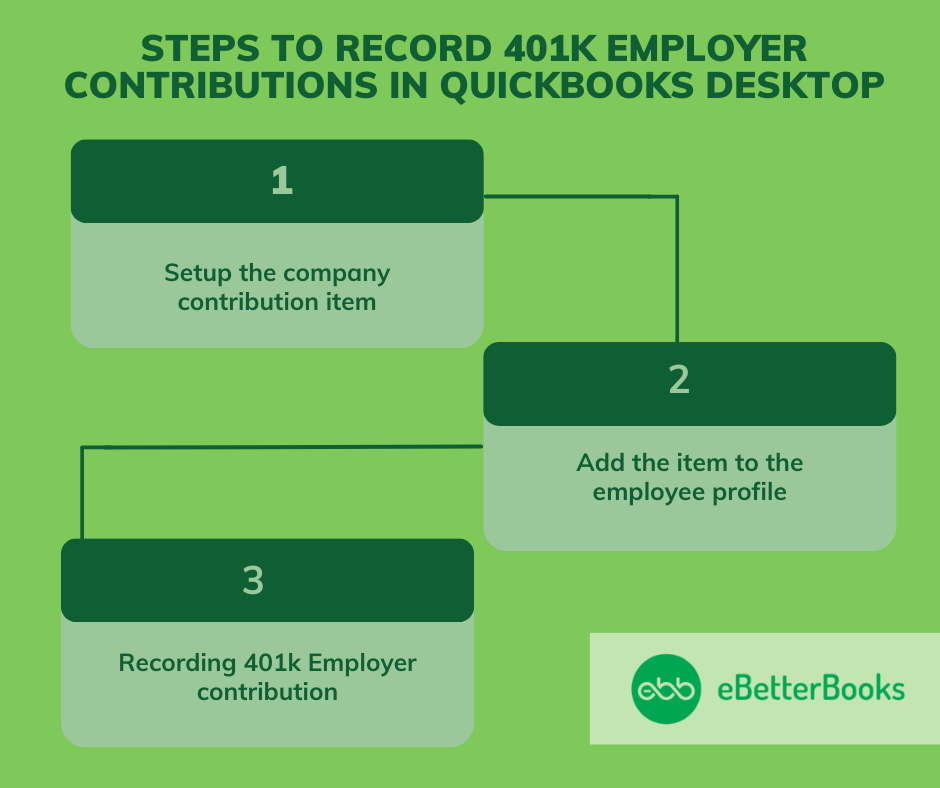
Highlights (Key Facts & Solutions)
Overview
Recording 401k employer contributions in QuickBooks is beneficial for businesses as they get tax advantages and support in maintaining clear records for accounting and payroll reporting.
The 401k Employer contribution is an additional contribution made by employers to an employee’s retirement account. It is based on the employee’s contributions. These contributions are also known as matching contributions.
Different types of 401k employer contribution
Employers pay the 401 (k) employer contribution, which is placed directly into the employee’s 401(k) account. The amount varies according to the conditions of the individual 401(k) plan and the firm’s policies.
401k employer contributions boost employee retirement savings without extra costs, enhance compensation value, and reward participation. For employers, they attract and retain talent, improve workforce satisfaction, and offer potential tax benefits.
Record 401k employer contributions in QuickBooks Desktop, first set up the company contribution item, add it to the employee’s profile, then enter the contribution amount per period, and save the transaction.
To set up a company contribution item in QuickBooks, navigate to the Payroll Item List, select New, choose Custom Setup, and create the company contribution. Assign liability and expense accounts, and track the contribution item. Finish setup by configuring tax tracking and calculation settings.
Following the step-by-step information below:
Add a contribution item to an employee profile in QuickBooks, go to the Employee Center, select the employee, and under Payroll Info, click on Additions, Deductions, and Company Contributions. Then, add the 401k Employer Contribution item.
Following the step-by-step information below:
How to record a 401k employer contribution, enter the contribution amount and limit per period, then click Save and close to finalize the transaction.
Following the step-by-step information below:
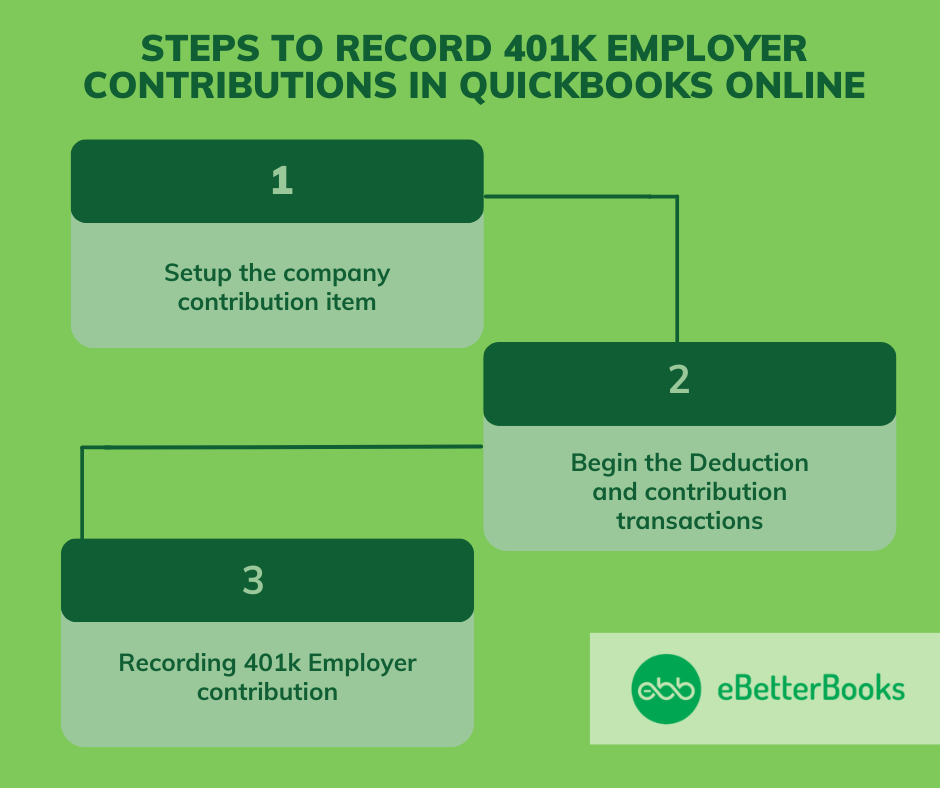
Record 401k employer contributions in QuickBooks Online, set up the contribution item via Payroll settings, add the contribution details to the employee’s profile, and then review and save the payroll transaction.
Set up a company contribution item, click the Gear icon, select Payroll, then choose Employees. From the list, select the employee you want to set up the contribution for.
Following the step-by-step information below:
The begin deduction and contribution transactions, click on Deductions & Contributions, add a new item, select the type, enter the contribution amount or percentage, and set an annual max if needed. Save and close the transaction.
Following the step-by-step information below:
To record a 401k employer contribution, navigate to Payroll, select the employee, enter pay details, add the 401k contribution, review the payroll summary, and save the transaction.
Following the step-by-step information below:
Understanding the basics isn’t enough when it comes to managing 401k employer contributions in QuickBooks. To ensure full compliance, accurate reporting, and smooth payroll operations, you must go beyond the standard steps. The following subtopics highlight 5 key operational areas—ranging from error prevention to financial reconciliation—that users often overlook. Each section is packed with direct, high-value guidance designed to eliminate guesswork, reduce risk, and increase efficiency. Whether you’re using QuickBooks Desktop or Online, these insights will help you avoid critical mistakes, stay audit-ready, and maintain control over your retirement contribution workflows.
Many users make 3 critical mistakes: selecting the wrong payroll item type, linking incorrect liability accounts, and forgetting to assign contribution limits. These errors lead to misreported taxes, compliance risks, and inaccurate financial records. 4 out of 5 errors happen due to manual setup without cross-verification. Always double-check contribution types, ensure matching liability accounts, and apply annual IRS limits to avoid audits. Misclassifying employer matches as employee deduction confuses reporting and misstates expenses. QuickBooks requires exact configuration—1 wrong setting can affect 3 core areas: payroll accuracy, liability tracking, and retirement reporting.
To edit or delete 401k entries in QuickBooks, follow 3 focused steps: locate the payroll transaction, open the employee paycheck, and modify the contribution section. Many users skip checking historical pay runs, leading to inconsistencies in year-end reports. Always verify the pay period, contribution type, and tax impact before saving changes. Deleting without adjusting liability accounts causes 2 common issues: mismatched payroll reports and unreconciled ledgers. For accuracy, re-run payroll summaries after edits. Whether in Desktop or Online, make sure 3 key areas are synced: employee profile, paycheck records, and payroll item configuration.
Setting up 401k contributions without understanding limits can trigger 3 major issues: IRS penalties, over-contributions, and audit red flags. In 2025, the elective deferral limit is $23,000, with an additional $7,500 catch-up for those 50+. QuickBooks users must manually enforce these limits in both Desktop and Online versions. Failing to apply annual caps in employee profiles can lead to incorrect W-2 reporting and payroll tax miscalculations. Ensure 3 things during setup: accurate employee age classification, plan type selection, and yearly limit updates. Compliance starts with configuration—1 small oversight here may result in 3 cascading payroll errors.
QuickBooks offers 3 essential reports for 401k audits: Payroll Summary, Employee Earnings Summary, and Payroll Item Detail. Generating these reports helps track contribution accuracy, verify compliance, and support annual filings. Users often skip filtering by date range, payroll item, and employee name—leading to data gaps during audits. Always customize your report with these 3 filters for clarity. Use the Payroll Item Detail to isolate 401k entries by type and match them with ledger totals. Accurate reports reduce audit risks, save 4–6 hours of manual checks, and ensure your payroll records are ready for third-party plan reviews.
Reconciling 401k liability accounts involves 3 critical actions: matching payroll liabilities with payment records, verifying ledger entries, and checking for unmatched transactions. Every pay run should reflect accurate employer contributions, recorded against the correct liability account. If the balance remains after payment, 2 common causes are duplicate entries or incorrect account links. Use the Payroll Liability Balances report to spot inconsistencies, then cross-check with bank transactions. Ensure alignment between 3 key areas: payroll liabilities, chart of accounts, and actual disbursements. Monthly reconciliation avoids year-end surprises, ensures clean books, and supports accurate Form 5500 filing for plan administrators.
Once the basics are handled, it’s time to unlock the full potential of your 401k setup in QuickBooks. This section dives into 5 high-value strategies that go beyond data entry—focusing on automation, system integrations, financial accuracy, and year-end efficiency. Each topic is designed to reduce errors, save time, and improve your long-term payroll workflows. These insights give you control over 3 crucial dimensions: compliance, reporting accuracy, and financial clarity. Whether you’re a small business or scaling enterprise, applying these best practices will help you maximize the value of your 401k management process inside QuickBooks.
Automating 401k contributions delivers 3 major benefits: eliminates manual errors, ensures timely deposits, and maintains compliance with IRS deadlines. With automation in QuickBooks, contributions are calculated, tracked, and recorded during every payroll run—without extra effort. Manual entry leads to 2 frequent issues: missed contributions and misapplied limits. Automation also improves efficiency by syncing deductions and employer matches instantly with liability accounts. This reduces reconciliation time by up to 60%. For businesses processing weekly payrolls, automation guarantees consistent accuracy across 3 key areas: employee paychecks, financial records, and year-end retirement reports.
QuickBooks Desktop offers 3 strong features for 401k: customizable payroll items, detailed liability tracking, and advanced reporting. In contrast, QuickBooks Online provides easier access, simplified setup, and seamless updates—but with limited item-level control. Desktop suits firms needing granular control over accounts, while Online is ideal for speed and accessibility. The key differences affect 3 areas: payroll customization, integration flexibility, and reporting depth. Users switching platforms often overlook 401k item behavior, causing data gaps. Understanding these 3 functional gaps prevents setup errors, saves migration time, and ensures retirement contributions remain accurate across systems.
401k employer contributions directly affect 3 key financial statements: the Profit & Loss (P&L), Balance Sheet, and Cash Flow Statement. Contributions appear as payroll expenses in the P&L, increase liabilities on the Balance Sheet, and reduce available cash in operating activities. Misclassifying these entries distorts net income and misrepresents company obligations. Accurate tracking in QuickBooks ensures financial transparency, supports investor confidence, and simplifies tax reporting. Always align contribution records with charts of accounts and payroll summaries. This triple alignment strengthens reporting accuracy, minimizes audit risks, and keeps your financial statements clean and compliant.
Integrating third-party 401k providers with QuickBooks boosts efficiency through 3 main benefits: automatic data syncing, reduced manual entry, and real-time tracking. Providers like Guideline, ADP, or Human Interest offer direct integration options, ensuring contribution data flows into QuickBooks without delays. Manual uploads often result in 2 common issues—data mismatches and reporting gaps. With integration, you maintain alignment across payroll, retirement accounts, and liability ledgers. It also simplifies reconciliation by syncing 3 critical data points: employee deductions, employer matches, and deposit confirmations. This integration not only saves time but also enhances accuracy during audits and year-end processes.
Year-end reviews of 401k contributions require 3 best practices: verify contribution limits, reconcile liability accounts, and confirm W-2 accuracy. Start by running Payroll Summary and Payroll Item Detail reports to cross-check annual totals. Compare them against IRS limits—$23,000 standard and $7,500 catch-up (2025). Unreconciled accounts often signal missed payments or duplicate entries. Ensure that employee and employer totals match both ledger balances and provider statements. Review 3 areas carefully: payroll item setup, year-to-date totals, and tax form mapping. These checks prevent compliance issues, reduce amendment risks, and ensure your retirement data is audit-ready and error-free.
Recording 401 (k) employer contributions in QuickBooks is crucial to ensuring regulatory compliance and keeping correct financial records. Proper account setup and active contribution tracking allow businesses to control their payroll expenses and financial information effectively. Accurately registering these contributions guarantees that employees’ retirement benefits are handled, which improves employee trust and facilitates smooth payroll processing.
To ensure the 401k employer contribution is classified correctly for tax reporting in QuickBooks Desktop, you must select the appropriate Tax Tracking Type during the initial payroll item setup.
Key setup requirements:
A thorough year-end review of 401k contributions is essential for preparing accurate Form W-2 and Form 5500 filings.
The three critical areas to verify are:
To correct a contribution error after payroll submission in QuickBooks Online, you must edit the original paycheck, which requires immediate attention to prevent liability mismatches.
Steps to correct the entry:
Warning: Always cross-check the adjusted liability account balance after modifying a historical paycheck, as this can create discrepancies if not handled carefully.
When setting up the company contribution item in QuickBooks Desktop, you are required to assign two distinct general ledger accounts to track the transaction accurately.
The two required accounts are:
This double entry ensures the contribution hits the Profit & Loss Statement (as an expense) and the Balance Sheet (as a liability) correctly before payment.
For any formal audit or third-party plan review, generating specific reports from QuickBooks provides the necessary documentation to verify contribution accuracy and compliance.
The three essential reports are:
Always filter these reports by the exact plan year or audit period to ensure accurate data extraction.
Integrating a third-party 401k provider with QuickBooks offers significant benefits by automating data flow and reducing manual workload and error risk.
The key benefits of integration are:
The 401k employer contribution affects both financial statements differently, reflecting its dual nature as an expense of doing business and a short-term obligation.
The impact is as follows:
Accurate tracking is essential because misclassifying the employer match as an employee deduction distorts both the company’s true expense on the P&L and its tax liability.
To enter 401k contributions in QuickBooks, payroll administrators must configure both employee payroll deductions and employer matching contributions to ensure accurate ledger balancing and tax compliance.
To successfully add 401k contribution to QuickBooks Desktop, payroll administrators must configure the item within the Payroll Item List and then map it directly to the individual employee profile. This process guarantees that both employer matching funds and employee elective deferrals calculate accurately during every payroll run.


