


Highlights (Key Facts & Solutions)
- Sales Order vs. Estimate: Creating an invoice from a Sales Order in QuickBooks Desktop relieves inventory, while converting an Estimate is primarily used for progress billing and does not affect inventory.
- Tax Rate is Location-Based: QuickBooks Online calculates sales tax dynamically based on the customer’s shipping address and does not allow setting a fixed rate per customer; manual adjustment on the invoice is required.
- Discount Toggle is Crucial: The two-arrow circle toggle next to the discount field in QuickBooks Online determines whether the discount is applied before or after sales tax calculation, impacting tax liability.
- Mobile App for Creation/Sending: Invoices can be created and immediately sent using the QuickBooks Online mobile application , enabling on-the-go billing.
- Track Viewed Statuses: The status tracking features, especially “Overdue (Days) viewed,” are essential for managing accounts receivable, allowing for targeted follow-up on specific customers who have acknowledged the past-due invoice.
- Progress Invoicing Setup: Converting a single Estimate into multiple Invoices (Progress Invoicing) must be enabled in the QuickBooks settings, linking partial payments accurately to the original estimate.
- Payment Terms are Key: Including clear Payment Terms (due date, accepted methods, late fees) is the most critical element, ensuring legal clarity and driving faster payment collection.
QuickBooks Desktop and Online provides customizable templates for invoicing. You can track payments, send reminders on due dates, automate recurring invoices, etc.
But if you do create your invoices from scratch using a spreadsheet or word processing software, you may encounter administrative errors. Moreover, if you’re creating invoices manually, you’ll run into challenges tracking them and getting paid.
Using accounting software to create invoices can save you time and ensure consistency across all of your invoices. While it may make sense to manually build your own invoices for one, two, or even five customers, imagine how your efforts will scale across multiple customers. This is where you need to pay a monthly fee to use accounting software.
QuickBooks is an accounting software available in both online and desktop mode, where you can create invoices, accept payments, maintain records of accounts receivable, and do regular bookkeeping and report generation. QuickBooks Online allows small businesses to create invoices that are branded with their company logo and are made to simplify the billing process.
You can also connect QuickBooks to your payment provider for the customers to pay their invoices through a debit/credit card. QuickBooks will automatically update your accounting records after the payment is received.
What is QuickBooks Invoicing?
QuickBooks offers an Invoicing feature which simplify the process of creating and managing invoices for small businesses. If you’re using QuickBooks small-business software, it’s essential to understand how to generate invoices within the program. Whether you’re using QuickBooks Online or the Desktop version, both allow you to swiftly and effortlessly create invoices for your valued customers.
Need of Invoicing Process for a Small Business Owner
An invoice is a detailed record of a transaction between a buyer and a seller. The Invoice outlines the specifics of the deal and product when goods or services are purchased. It includes the terms and available payment methods. There are various types of invoices, such as paper receipts, bills of sale, debit notes, and sales orders, invoices, and online electronic records. They serve as formal documents that thoroughly record transactions between buyers and sellers.
In addition, invoices serve as essential tax records, providing evidence of your income. You can create invoices with platforms like QuickBooks Invoicing, as it streamlines your process, reduces errors, and optimizes your budget. By the end of this article, you’ll learn the numerous advantages of QuickBooks Invoicing.
The Purpose of an Invoice
An invoice is one of the most crucial documents that your business creates. Well-built invoices are tools for record-keeping and communicating with customers. If you use an invoicing system that integrates with your accounting software, they also serve as a seamless paper trail.
The efficient personalised invoicing can:
- Build better relationships with your customers
- Reinforce your brand
- Boost your cash flow
- Cut the time you spend on bookkeeping
That’s why invoicing software makes the invoicing process easier. Let’s suppose you send 10 invoices per month, and the process takes you an hour apiece. This is time that could be spent fulfilling services or generating new business. Using software, you can trim your invoicing time down from 10 hours to one hour. You can standardize your templates, quickly query information about payments, and answer customer questions as they come up.
An invoice is an important transactional tool with extremely functional applications. It is important for small business owners to create them in a way that reduces the chances of error.
Using QuickBooks Invoicing
QuickBooks Online allows you to generate professional invoices efficiently. You can create customized invoices, add your business logo, and include essential details such as product descriptions, quantities, and prices. This ensures accuracy and professionalism in your communication with clients.
QuickBooks Invoicing provides a clear record of outstanding payments and allows cash flow monitoring to businesses for better financial management. They include important information, such as the sale date, the product or service provided, and the amount charged. These records are valuable for financial reporting, sales tax rate due purposes, and auditing.
Features of QuickBooks Invoice
Below are the features of QuickBooks Invoice:
- Customizable invoice templates: Add your company name, logo, or other information.
- Send invoices directly by mail.
- Track invoices.
- Send invoice reminders on or before the due date.
- Receipt Management
- Automate recurring invoices.
- Classify invoices according to payment status.
- Availability of multiple payment options.
- Get an invoice screen, i.e., a dashboard from where you can track all your invoices.
- Add existing customer data, including tax code, from a drop-down list of saved customer information.
- Create invoices on both Quickbooks online and Quickbooks desktop.
Key Components of an Invoice
An Invoice should be consisted of all the important information that a customer may need them to make a payment.
Below mentioned are the important components that must be included in creating an invoice Invoice:
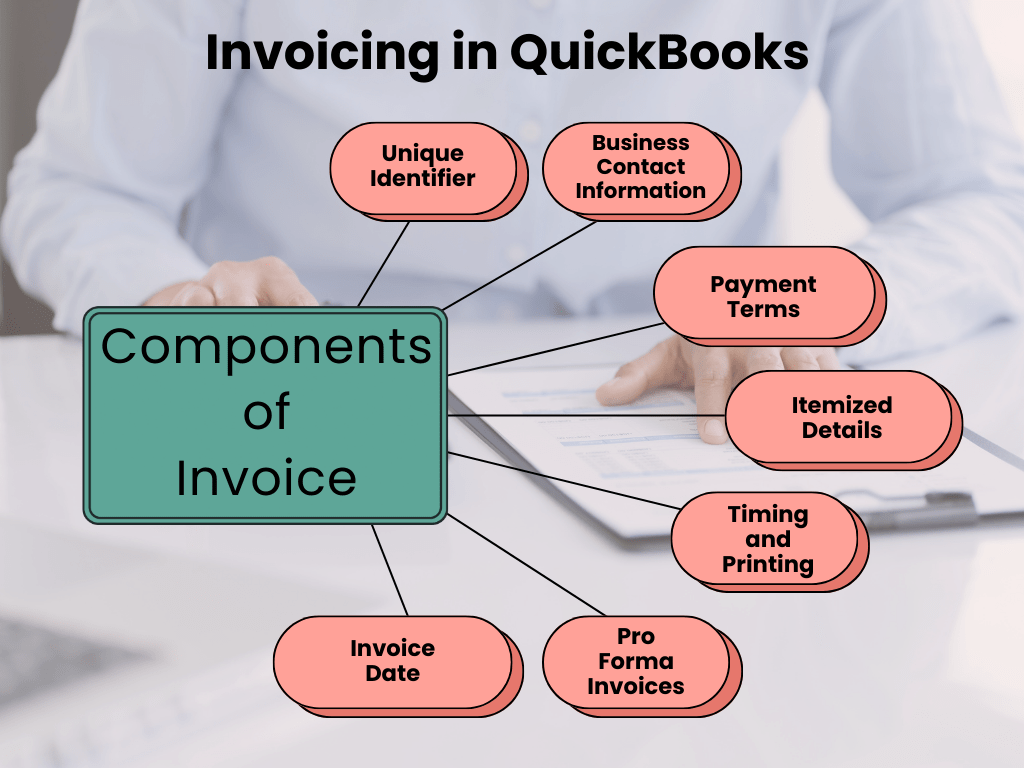
- Unique Identifier: Each Invoice has a distinct invoice number, which is important for internal and external reference.
- Business Contact Information: The Invoice typically includes the seller’s or service provider’s contact details. This information is important in case of billing errors.
- Payment Terms: The Invoice comes with payment terms, including any discounts, early payment details, or any charges for late payments.
- Itemized Details: It presents the unit cost of each item, the total units purchased, and additional charges like freight, handling, shipping, and applicable taxes. The total owed is also specified.
- Timing and Printing: Invoices can be sent as month-end statements for all outstanding transactions. Historically, paper invoices were common, but now computer-generated invoices prevail. These can be printed on demand or emailed to the parties involved. Electronic records facilitate easy search and sorting by number, date, goods, or client.
- Pro Forma Invoices: These preliminary bills of sale are sent to buyers before goods are shipped. Pro forma invoices are especially relevant for international transactions and customs purposes.
- Invoice Date: This timestamp indicates when the goods were billed and the transaction officially recorded, including essential payment information.
Benefits of QuickBooks Invoicing
QuickBooks Invoicing offers several benefits that enhance your business efficiency and financial management:
- Effortless Invoice Creation: QuickBooks invoice has a user-friendly interface that allows you to tailor your invoices, ensuring they look professional and unique. You can upload your logo, adjust font colors and styles, and even include a personalized message.
- Efficient Invoice Tracking: You can effortlessly monitor all your invoices and customer payments. When you generate an invoice, your financial records reflect both the income from the sale and the outstanding amount owed by the customer. QuickBooks Online also provides tools to streamline payment collection, including built-in payment links and automated reminder emails.
- Convenient Design Options: As your business evolves, you may need to adjust invoice formats. QuickBooks allows you to create new layouts quickly and cost-effectively. Make changes once, and they apply to all future invoices.
- Accounting Integration: Say goodbye to manual data entry. Generate and send invoices directly from the mobile app or cloud software. Your sales information updates in real-time, and you can convert estimates to invoices seamlessly.
- Instant Delivery: Prepare and deliver invoices within minutes. Instant delivery means faster payments: no more postal delays or lost mail. Your invoices reach clients promptly, improving cash flow.
- Easy Tracking: Wondering if a client has seen your invoice? QuickBooks tracks it from the moment it’s sent. You’ll know when it’s opened and even set up payment reminders. No more guesswork!
- Faster Payments: Add a payment hyperlink to your online system. Customers click to pay their bills. Busy professionals appreciate this convenience, and you avoid waiting for checks to process.
What Should be Included in an Invoice?
The elements of an invoice are important so you and your customers are aligned on the total cost of your services and the payment terms and details.
Below are some basic details of an invoice you need to include:
- Your Business Information: Your business name, address, phone number, email address,and website.
- Customer Details: Your client’s name, address, and email including the shipping address and billing address if both are different.
- Invoice Number: The reference number assigned to each invoice you send. This will help you to keep track of recurring invoices.
- Invoice Date: The date the invoice was issued.
- Products and Services Description: Name of the product or description of the service provided and the price or quantity of each.
- Total Cost: The total cost of all the items or services you provided, plus any applicable tax like Sales tax.
- Payment Terms: The date the payment is due, and any penalties for overdue payments.
Some Basic Invoicing Tips
Here are some tips to help you create clear and effective invoices:
- Make sure the product descriptions are easy to follow and understand.
- Create a purchase order.
- Specify your payment terms and due dates.
- Provide contact information for customer questions.
- Automate invoices with QuickBooks Payments.
- Save time with recurring invoices.
- Accept payments online.
How to Create an Invoice in QuickBooks Desktop
Create an Invoice from Scratch
Here’s a concise guide on creating an invoice from scratch:
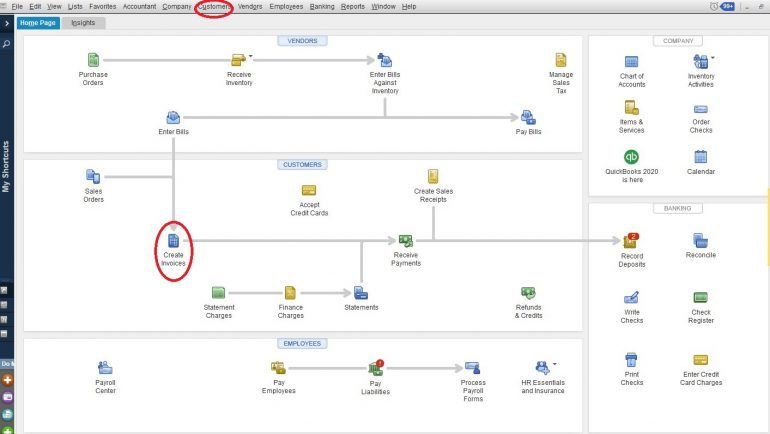
- From the Home screen or the Customers menu, select Create Invoices.
- Select an existing customer or customer job from the “Customer: Job” dropdown menu.
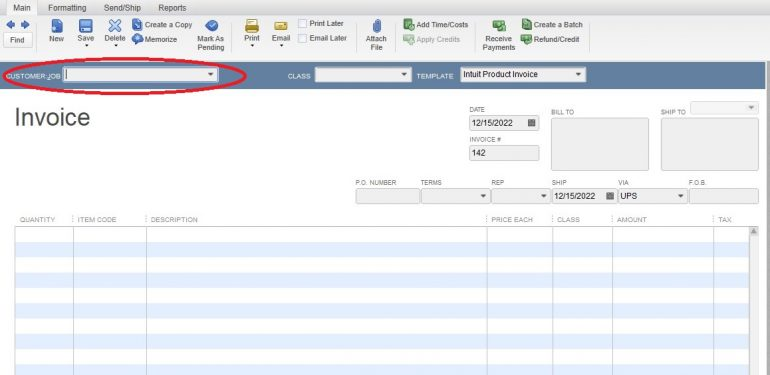
- Alternatively, click “Add New” if the customer is not yet in your system.
- Enter relevant information such as the date sent, due date, invoice number, recipient details, and any terms.
- In the detail section, select all the invoice items.
- Click “Save & Close” to finalize your invoice.
Note: When creating an invoice, keep in mind that the description and amount fields are automatically filled based on your settings. However, you have the flexibility to edit or remove them as necessary for each new invoice.
Create an Invoice for the Sales Order
You can generate an invoice from a sales order using two distinct methods in QuickBooks Desktop:
From the Sales Orders Window:
- Open the “Sales Orders” section.
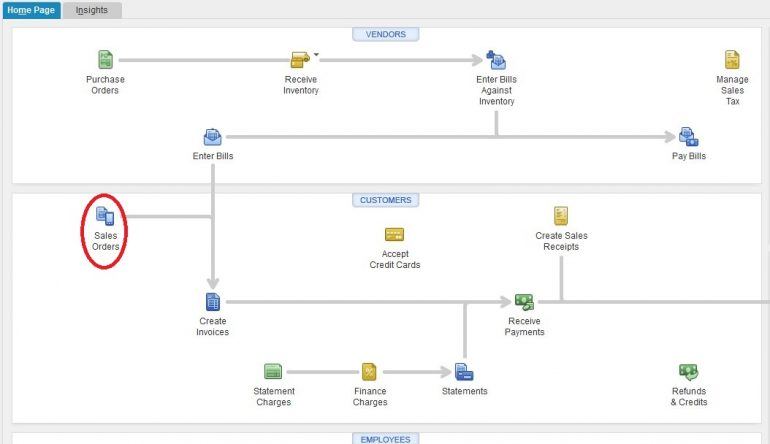
- Click on “Create Invoice.”
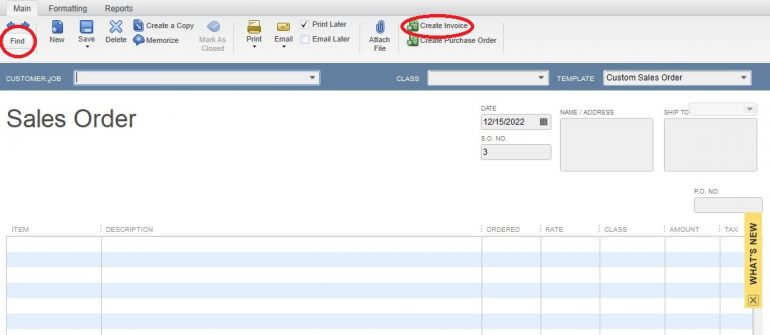
- You have two options:
- To include all items from the sales order in the invoice, select “Create invoice for all of the sales order(s).”
- If you only want specific items on the invoice, choose “Create invoice for selected items.”
- Make any necessary adjustments to the invoice.
- Finally, click “Save & Close.”
From the Invoice Window:
- Navigate to the QuickBooks Home screen or the Customer menu.
- Select Create Invoices.
- From the Customer: Job dropdown list, choose a customer or customer job.
- Pick one or more sales orders that contain the items you want to include in the invoice.
- Make any required modifications to the invoice.
- Click Save & Close.
Create an Invoice from Estimate
From the Estimate Window:
- Open the desired estimate.
- Click on “Create Invoice” at the top of the form.
- If progress invoicing is enabled, you’ll likely receive a prompt to fill in the items and quantities for the invoice.
- Adjust any necessary details in the invoice.
- Finally, click “Save & Close.”
From the Invoice Window:
- Go to the QuickBooks “Home” screen or the “Customer” menu.
- Select “Create Invoices.”
- From the “Customer: Job” dropdown list, choose a customer or customer job.
- The available “Estimates” window will appear.
- Select the estimate you wish to include in the invoice (note that QuickBooks allows you to choose only one estimate at a time).
- Make any required modifications to the invoice.
- Click “Save & Close.”
How to Create an Invoice in QuickBooks Online
The procedure for generating invoices in QuickBooks Online closely mirrors the process in the desktop version:
- Invoice Creation Options: You have two ways to create invoices: from scratch or based on an estimate. Unfortunately, QuickBooks Online does not offer a sales order feature. If you’ve prepared an estimate and your customer approves it, you can easily convert it into an invoice.
- Entering Invoice Details: When creating an invoice, you can either enter information on the spot or utilize pre-set rates for products, services, and sales tax.
- Note: QuickBooks Online doesn’t support specific sales levy (tax) rates for individual customers. However, you can make adjustments directly on the invoice itself.
- Efficient Emailing: QuickBooks Online allows you to email invoices directly to your customers. If you’re using QuickBooks Payments, your invoices will even include a payment link, streamlining the collection process.
Create an Invoice without an Estimate
In QuickBooks Online, you can access a blank invoice screen using either of the following methods:
From the Dashboard:
- Click on the “+” icon at the top right corner of your screen.
- Select “Invoice” from the Customers options on the left side of the dropdown box that appears.
From the Sales Menu:
- Click on “Sales” and then “Invoices” on the left toolbar.
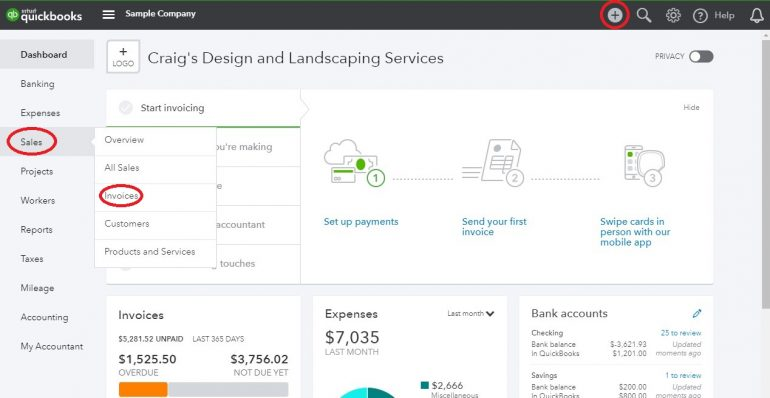
- After choosing one of the above options:
- If you select the first option, you’ll be taken directly to a blank invoice screen.
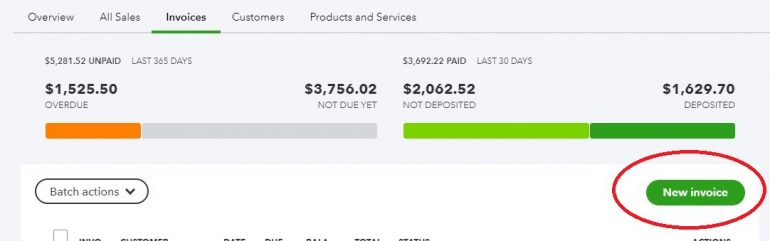
- If you choose the second option, you’ll see a list of all your invoices.
To create a new invoice, click on the “New Invoice” button on this screen. Now, let’s create your invoice step by step:
Choose a Customer:
- Select a customer from the drop down menu.
- Alternatively, create a new customer on the fly by choosing “Add New” from the dropdown menu.
Customer Email:
- If there’s an email address on file for the customer, it will populate the customer email field.
- You can also manually add an email address. Multiple email addresses can be added, separated by commas. You can also cc or bcc others on this invoice.
Send Later:
- Check the “send later” checkbox if you want to batch this invoice for email delivery later.
Payment Options:
- If you have QuickBooks Payments enabled, payment options will appear here—toggle options on and off for each invoice.
Billing Address:
- The billing address will populate based on existing information in QuickBooks Online for the customer. You can also manually enter it.
Payment Terms:
- Select the payment terms for this invoice using the dropdown menu.
Invoice Date:
- The invoice date defaults to the current date, but you can adjust it if needed.
Due Date:
- The due date is based on the invoice terms. You can also manually adjust it.
Choose Your Template:
- The template you select for your invoice determines the custom fields that appear. To switch templates, click on the “Customize” link at the bottom of the screen.
Product/Service Field (Similar to QuickBooks Desktop):
- Populate this field with items you’ve already created or create new products/services on the spot.
- The description will auto-fill based on the product/service, but you can customize it further.
Quantity (Qty) Field:
- Enter the number of items or hours associated with the product/service.
Rate Field:
- The rate is based on your previous entries in QuickBooks Online, but you can manually adjust it if needed.
Amount Field:
- Automatically calculated by multiplying the rate by the quantity.
- You can also adjust it manually; changing the total amount will adjust the rate accordingly.
Tax Checkbox:
- Check the box in the “Tax” column to indicate taxable items.
- If unchecked, no sales tax will be calculated for that line.
Adding More Lines:
- If your invoice runs out of space, click the “add lines” button to include additional items.
- You can also clear lines (with caution) and add subtotals to organize different sections.
Custom Messages:
- Like in QuickBooks Desktop, manually add messages to the invoice or statement.
Discounts and Tax Calculation:
- Pay attention here! The circle with two arrows toggles whether discounts apply before or after-tax calculation.
- Adjust the calculation based on your understanding of sales tax laws for your customer.
Sales Tax Rate Selection:
- Choose the appropriate sales tax rate for your invoice.
- Alternatively, select “add new” to create a new sales tax rate instantly.
- Manually calculate the sales tax due and input it in the box next to the sales tax dropdown.
Discount Application:
- If you’re applying a discount to the invoice, Choose either a discounted percentage or a flat dollar amount.
Attachments:
- Add attachments to the invoice:
- Drag and drop files into the designated area.
- Alternatively, click the icon and browse for attachments.
- To send the attachment with the invoice, select the checkbox next to the file name after uploading.
Abandoning the Invoice:
- If you wish to discard the invoice without saving:
- Click the “cancel” button at the bottom left of your screen.
2) Unlike the desktop version, this option is thoughtfully placed away from the save options.
Preview and Recurring Invoices:
- Click the link at the bottom center of your screen.
- Set up a recurring invoice:
- Click “make recurring.”
- Remember to save your invoice before proceeding.
Frequent Saving:
- The save button is located at the bottom right of your screen.
- This prevents data loss due to internet connection issues or automatic logouts.
Create Invoice from Estimate
Here’s a step-by-step guide on how to create an invoice from an estimate using the QuickBooks Online billing feature:
Start from the Estimate:
- If you’re utilizing progress billing, begin your invoicing process from the project estimate.
- Hover over the “Sales” link in the left toolbar and click on “Customers.”

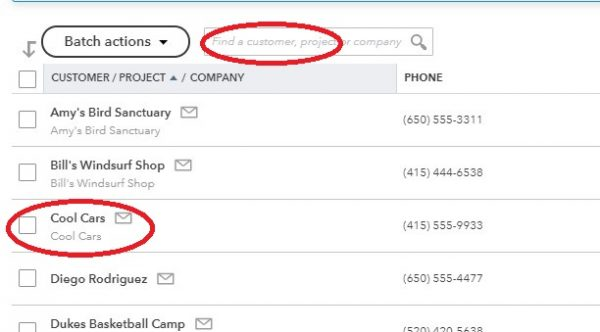
Select the Customer:
- On the next screen:
- Either click on the customer’s name from the list.
- Or use the “Find” box to search for the customer.
Locate the Estimate:
- Find the specific estimate you want to use for creating the invoice.
- Click on the “Create invoice” link in the Action column.

Invoice Screen with Estimate Details:
- The invoice screen will open, pre-populated with the estimate details.
- Choose whether to create an invoice for a percentage or a specific quantity of the overall estimate If you’re using progress invoicing.
How to Send Invoice in QuickBooks Online
- When you’re satisfied with your invoice and plan to send it later, click the Save button located on the lower right side of the screen.
- If you’d like to preview or print the invoice before saving or sending it, click the Print or Preview button on the bottom menu bar of the invoice screen.
- Then, select the appropriate option from the dropdown menu.
- Clicking Print or Preview will display how your invoice looks.
- If you’re ready to send it immediately, proceed to the next step.
- To send the invoice right away, click Save & Send.
- QuickBooks will automatically create an email based on the default settings you’ve configured.
- If desired, you can customize the default email message specifically for this invoice.
- Finally, click the green Send and Close button when you’re prepared to dispatch the email.
- You’ll receive a notification confirming that the invoice has been successfully emailed to your customer.
QuickBooks Online Recurring Invoice
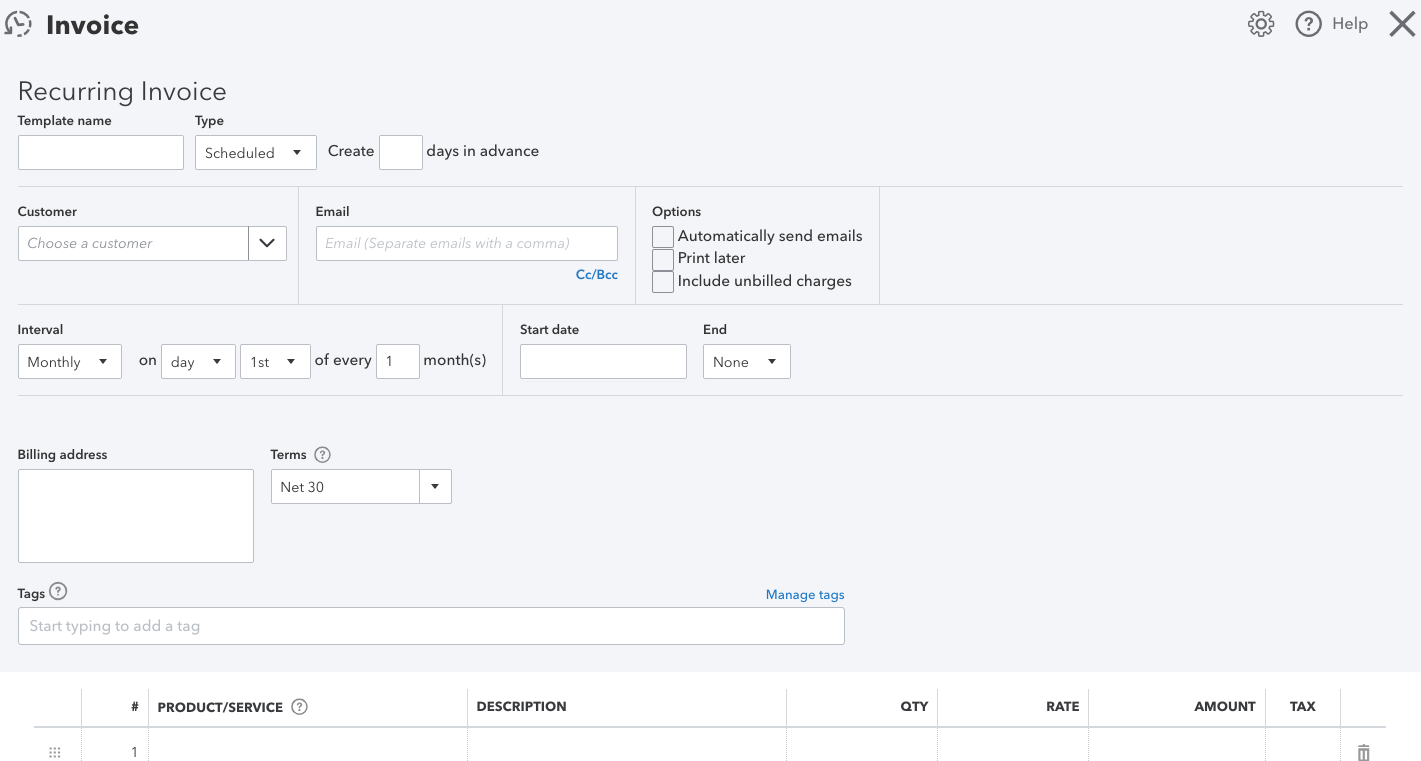
Setup QuickBooks Online Recurring Invoice
Consider the below-mentioned steps to set up a recurring invoice in QuickBooks Online:
- Log into QuickBooks Online
- Navigate to the Sales tab.
- Click on the + New button and select Invoice.
- Fill in the relevant customer details.
- Go to the Items section and include the items that should appear in the recurring Invoice.
- Click on the Schedule button at the bottom of the page.
- Click on the drop-down menu to choose Recurring.
- Specify the frequency (weekly, monthly, etc.) for generating the Invoice.
- Select the start date and end date for the recurring invoice.
- Click Save & Close to finish the setup.
- You can also create a recurring invoice by following these steps:
- Go to the Customers tab.
- Select a specific customer name.
- Click on the Create Invoice button and repeat the steps from 4 to 9.
Create a Recurring Invoice in QuickBooks Online
- Click on Gear icon and then select Recurring Transactions > New.
- For Transaction Type, choose Invoice and then press OK.
- Select Scheduled for type.
- Hit Automatically send emails.
- Complete the rest of the form and then press Save template.
- Repeat the same steps for each customer you’d like to create a recurring invoice for.
Automatically cc yourself
As a safeguard, set QuickBooks Online to automatically email you a copy of all sent invoices:
- Choose Gear and then select Account & Settings.
- Click on Sales > Messages > Email me a copy.
Confirm the invoices were created
Here’s how you confirm the invoices were created.
Check your inbox
If you automatically cc’ed yourself, you should have received a copy of every invoice that was sent.
Verify your list of recurring transactions
- Hit Reports from the left navigation bar.
- Select the “Find Report by Name” drop down menu.
- Choose and search for “Recurring Template List” Report.
Review the customer page and invoice
- Click on Customers from the left navigation bar.
- Select the customer with the recurring invoice. You’ll see Open (Sent) under the Status column.
- Hit the invoice. You’ll see a Last Delivery timestamp.
Get Paid Automatically
When your customers want to pay you quickly and easily, they can set up Autopay on recurring invoices. The fees for Autopay are the same as for any payments made through QuickBooks Payments. To enable Autopay, you’ll need a QuickBooks Payments account.
To set up autopay on a recurring invoices, follow the steps below:
- Create an invoice, then choose Make recurring, or you can create a recurring template.
- Navigate to Interval and select how often the invoice should recur. Note: Autopay isn’t available for recurring invoices with a Daily interval or for amounts over $5,000.
- Type the start and end date of the recurring invoice.
- Fill in the rest of the invoice then click on Save template.
If you already have a recurring invoice setup, you don’t need to create a new one.
Important: You can edit recurring templates with Autopay setup. If you change any of these fields, Autopay will be canceled:
- Total amount
- Frequency
- Terms
- Payment options
- Email address
- Customer name
If Autopay gets canceled, your customer will receive a cancellation email for future Autopay transactions.
Edit QuickBooks Recurring Invoices
To edit your recurring template and the way your recurring transactions are entered, you’ll need to move to the Recurring Transaction List.
- Navigate to Settings and then choose Recurring transactions.
- From the Action column, click Edit for the transaction you want to edit.
- Change the template name, type, and the customer or payee name as needed.
- If you’re editing a Scheduled or Reminder type template, you can adjust how far in advance QuickBooks creates the template or sends you a reminder. You can also set the frequency under the Interval section.
- Add or remove any product or service details in the Item details section.
- Once you’re done, select Save template.
How to Create QuickBooks Custom Invoice
Follow the steps to customize invoices with the help of QuickBooks Invoices:
- First, open QuickBooks.
- Then, click on Customers in the main menu bar.
- Select Create Invoices from the drop-down menu.
- Click on Print Preview to see how your invoice template will appear when it is printed or sent through email.
- You can use this preview to decide how you want to customize the template.
- Click Close to exit the preview screen.
- Now click on the Customize drop-down menu and select Manage Templates.
- Click on each thumbnail to check the Template Gallery.
- Preview how each template will look as an invoice.
- Click OK to open your chosen template.
- Add or move your company logo.
- Adjust the position and appearance of your company’s name and contact information.
- Modify the invoice title.
- Add, edit, or remove fields on the Invoice.
- You can include special sections like legal disclaimers, a remittance tear-off sheet, or customer notes.
- Click on Print Preview to see how your customized Invoice looks with the changes you have made.
- Click OK to save the customized template.
How to Create Estimate in QuickBooks Online?
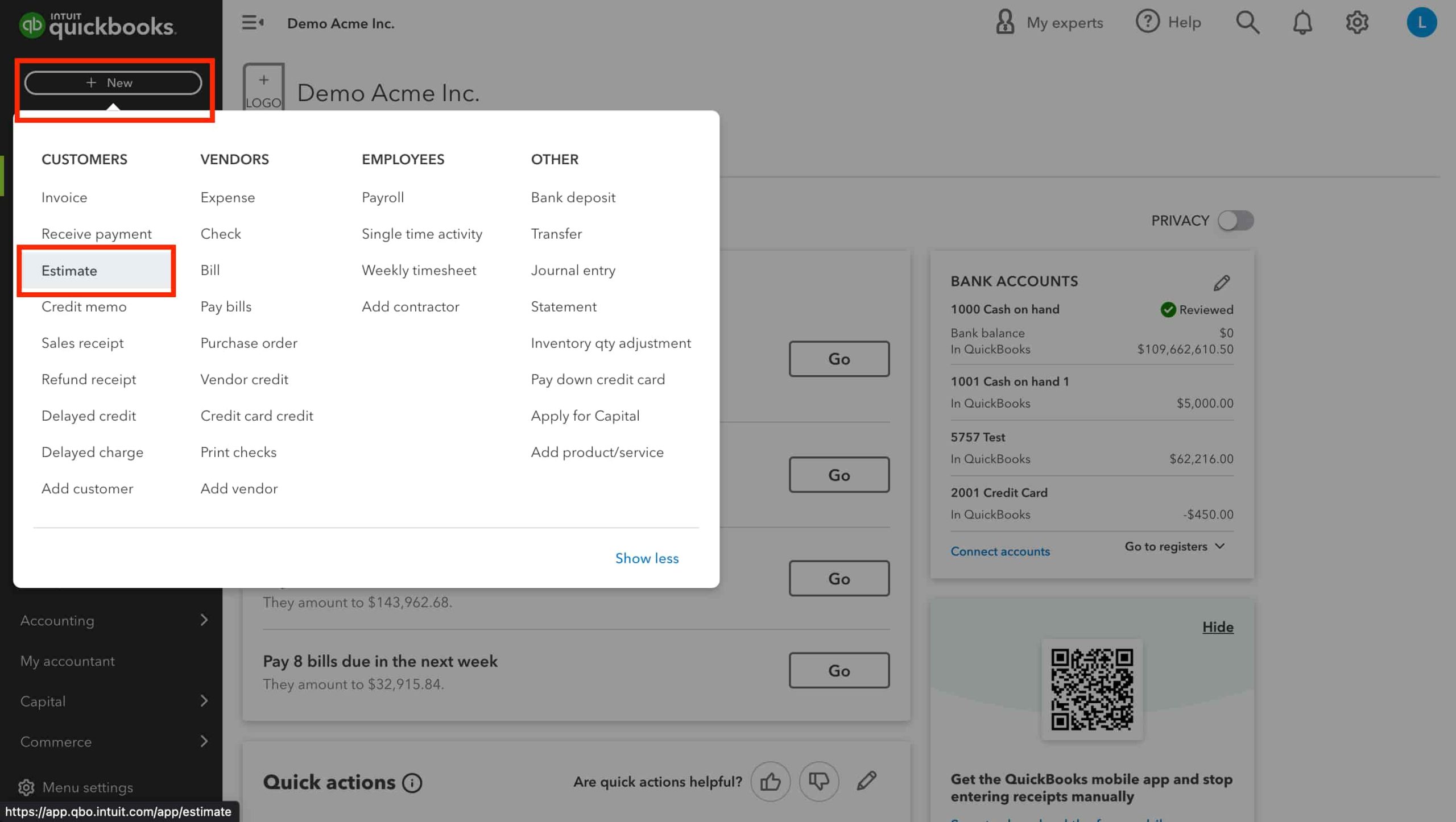
Follow these steps to go through the entire estimate process:
- Find the Estimate window.
- On the left menu bar, find the Customers Menu.
- Scroll down and select the customer for whom you want to prepare the estimate.
- Click on New Customer at the top right of the Invoice screen to create their profile.
- Click on the drop-down menu next to the customer’s name.
- Select Create Estimate.
- Fill in the necessary details such as date, product or service description, quantity, rate, and any other relevant information.
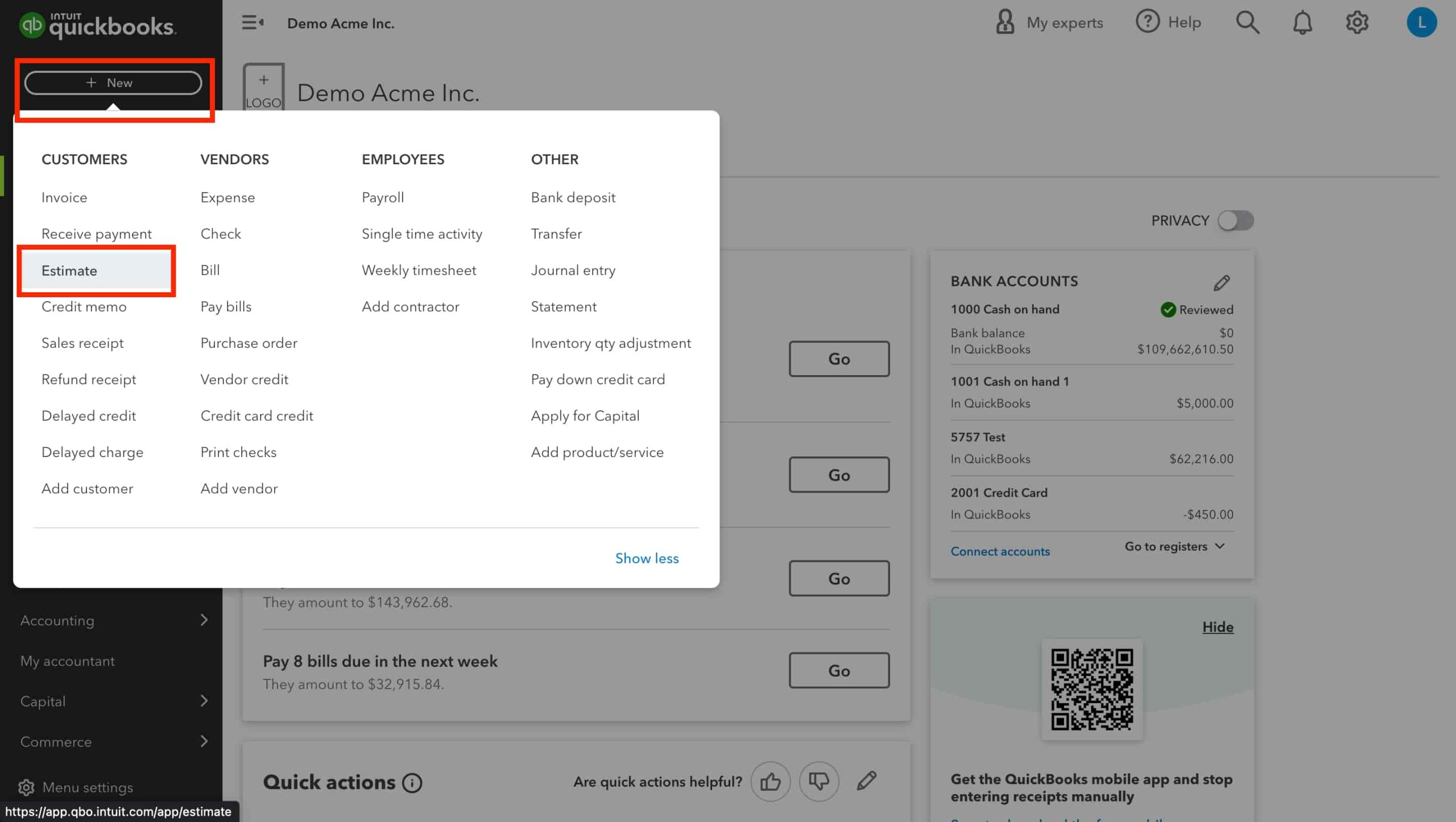
- Click on Save.
- Alternatively, choose Save and send to email the estimate directly.
How to Process Payments in QuickBooks Online with Payments?

If a customer prefers to pay in person, you have two options: either ask them to follow the payment link in the email and complete the transaction online or handle the payment on their behalf and match the invoice immediately on it to their existing Invoice.
- Click on + New.
- Choose Receive Payment.
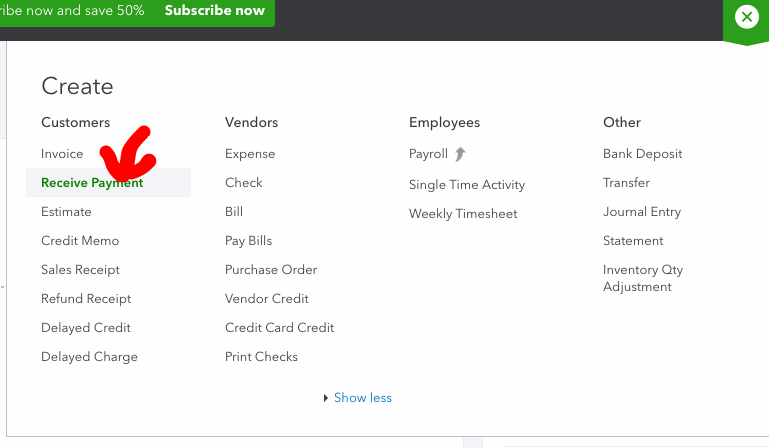
- Enter the customer’s name and the payment date.
- In the Outstanding Transactions section, select the relevant open Invoice to apply for the payment. Adjust the PAYMENT field if it’s a partial payment.
- From the Payment method dropdown, choose Credit Card.
- Enter the credit card details manually or select Swipe Card if available.
- Optionally, save the customer’s credit card for future use.
- Finally, click Save or Use this info.
- Confirm with Got it, then choose Save and Close or Save and New.
How Can I Get Paid on Invoices Faster?
Below are some instructions on how can customers can pay faster:
- Accept all forms of payment: credit cards, debit cards, ACH bank transfers, digital wallets, PayPal, and checks.
- Create clear invoices with specified due dates.
- Send invoices as soon as you complete the work.
- Consider establishing overdue payment penalties.
- Automate reminders–QuickBooks Invoicing software does this for you.
- Incentivize early or on-time payments with rewards or perks.
Review Unpaid Invoices in QuickBooks
You can track invoices which are unpaid in the accounts receivable account. You will find this account listed on the balance sheet and other financial reports. If you want to review your review invoices, go to Sales and select Invoices. Check the Status column to track where your invoices stand in the sales process.
Here are the common invoice statuses that you might encounter:
- Due in (Days): The Invoice still needs to be emailed.
- Due in (Days) sent: The Invoice is sent to the customer.
- Due (Days) Viewed: The customer has opened the invoice.
- Deposited: The customer has paid the invoice.
- Overdue (Days): The invoice is past due and unpaid.
- Overdue (Days) viewed: The customer viewed the invoice but didn’t clear the past-due invoice.
- Delivery Issues: The invoice was not delivered. Please check the email address and send it again.
- Voided: The invoice was canceled in QuickBooks.
How To Convert Estimate to an Invoice in QuickBooks Online
By converting estimates to invoices, you link them together, ensuring accurate bookkeeping. QuickBooks automatically populate the invoice with information from the estimate, saving you time and effort. Whether you’re using the new or old estimates and invoices layout, QuickBooks streamlines the process for efficient invoicing.
To convert an estimate to an invoice in QuickBooks Online, follow these steps:
Navigate to Sales
- Go to the Sales section in QuickBooks Online.
Locate the Estimate
- Find the estimate you want to convert.
Update Status (if needed)
- If the status column displays Rejected, update the status to either Pending or Accepted.
Convert to Invoice
- In the Action column, select Convert to Invoice.
- Make any necessary updates to the invoice.
- Then select Save.
Final Words
QuickBooks Online is an accounting software which provides an invoicing solution for businesses of all sizes. QuickBooks Online has all the solutions from generating a simple invoice to customizing it to match with your brand. With customizable invoices, seamless payment acceptance, and real-time tracking, QuickBooks simplifies the invoicing process, allowing you to get paid faster.
FAQs!
What is an Invoice?
An invoice, or a bill, is a commercial document sent from a seller to a buyer as a request for payment, indicating what was sold and how much is owed. Invoices, like bills, are issued from a vendor to a customer for something they’ve already received, something in development, or something that’s ready to be created.
However invoices, unlike a restaurant bill, aren’t necessarily due immediately upon receiving them. You may choose to set invoice payment terms of up to 3 months, to give your customers flexibility to manage their cash.
Can I Customize My QuickBooks Invoices?
Yes, you can go ahead and add your personal touch if you need. QuickBooks allows you to customize invoices, estimates and sales receipts with a look that suits your brand.
Is there any Difference Between a Bill and An Invoice in QuickBooks?
An invoice is the payment request that you send to a customer when they buy something. It shows what was bought, the price, and when the customer needs to pay. On the other hand, a bill is a payment request you receive from a supplier or vendor for things you bought or services you used. It shows what was bought, the price, and when you need to pay.
How Can I Automate My QuickBooks Invoices?
QuickBooks uses automation to help you send smarter invoices and get paid faster from chasing overdue invoices to running complex calculations. With QuickBooks Online invoicing software, you can send invoices automatically and schedule recurring invoices, send automated reminder emails and track invoice payments in real-time.
What Type of Invoice Template Should I Use?
You may choose the type of invoice based on your business model and how you’d like to get paid. For small businesses that send invoices after goods or services have been exchanged, a simple commercial invoice, like our free invoice template, will suit your needs. If your business requires payment upfront, you can use a proforma invoice, indicating a fee agreement or estimated costs. With QuickBooks invoicing software, you have an option to choose from many different invoice templates based on your business needs.
How Much Does QuickBooks Charge to Send Invoices?
With QuickBooks, there’s no charge to send an invoice. The rate for taking payments through an invoice is determined by the payment methods your customer uses, and you can decide which ones to include on your invoices. In QuickBooks Money, the rates are determined by the payment method your customer picks to use.
Can I Send Recurring Invoices?
Yes, With QuickBooks Online, you can send recurring invoices on a schedule to minimize missed payments and reduce administrative hassle. It even allows your customers to set up autopay for their regular payments.
Which Invoice Format Should I Use?
Invoices are most commonly sent in a PDF format. However, you may choose to create and customize invoices in Microsoft Word, Microsoft Excel, Google Docs, Google Sheets, or PDF also. MS word is suitable for short and simple invoices while spreadsheets may be better suited for invoices with many line items and details. Whichever format you select to create and edit an invoice, it is recommended that you need to convert the document into a PDF before sending it to your customer.
When is the Best Time to Send an Invoice?
The best time to send an invoice is immediately once you complete a service or project, or deliver a product. The sooner you send an invoice, the sooner the customer can pay. You may choose to send invoices in the morning when most people are checking their emails and establishing their to-do lists. Also, you can send invoices at the end of the work day so that your customers can see them when they’ll check their email next morning.
How Will Someone Pay My Invoice?
Depending on how your business accepts payments, customers can pay right in the online invoice, using credit cards, debit cards or ACH bank transfers–even from their mobile device. No setup or transaction fees required.
Disclaimer: The information outlined above for “Create and Send Invoices in QuickBooks Desktop and Online” is applicable to all supported versions, including QuickBooks Desktop Pro, Premier, Accountant, and Enterprise. It is designed to work with operating systems such as Windows 7, 10, and 11, as well as macOS.