Excerpt:
QuickBooks Invoicing simplifies the billing process for small business owners by automating invoice creation, payment tracking, and reminders. It helps save time, reduce errors, and maintain financial accuracy. With customizable templates, recurring invoices, and integrated payment options, QuickBooks enhances cash flow and customer relations, allowing for faster payments and streamlined bookkeeping. It is the ideal solution for businesses seeking efficient and professional invoicing.
 Add As A Preferred
Highlights (Key Facts & Solutions)
QuickBooks Desktop and Online provides customizable templates for invoicing. You can track payments, send reminders on due dates, automate recurring invoices, etc.
But if you do create your invoices from scratch using a spreadsheet or word processing software, you may encounter administrative errors. Moreover, if you’re creating invoices manually, you’ll run into challenges tracking them and getting paid.
Using accounting software to create invoices can save you time and ensure consistency across all of your invoices. While it may make sense to manually build your own invoices for one, two, or even five customers, imagine how your efforts will scale across multiple customers. This is where you need to pay a monthly fee to use accounting software.
QuickBooks is an accounting software available in both online and desktop mode, where you can create invoices, accept payments, maintain records of accounts receivable, and do regular bookkeeping and report generation. QuickBooks Online allows small businesses to create invoices that are branded with their company logo and are made to simplify the billing process.
You can also connect QuickBooks to your payment provider for the customers to pay their invoices through a debit/credit card. QuickBooks will automatically update your accounting records after the payment is received.
QuickBooks offers an Invoicing feature which simplify the process of creating and managing invoices for small businesses. If you’re using QuickBooks small-business software, it’s essential to understand how to generate invoices within the program. Whether you’re using QuickBooks Online or the Desktop version, both allow you to swiftly and effortlessly create invoices for your valued customers.
An invoice is a detailed record of a transaction between a buyer and a seller. The Invoice outlines the specifics of the deal and product when goods or services are purchased. It includes the terms and available payment methods. There are various types of invoices, such as paper receipts, bills of sale, debit notes, and sales orders, invoices, and online electronic records. They serve as formal documents that thoroughly record transactions between buyers and sellers.
In addition, invoices serve as essential tax records, providing evidence of your income. You can create invoices with platforms like QuickBooks Invoicing, as it streamlines your process, reduces errors, and optimizes your budget. By the end of this article, you’ll learn the numerous advantages of QuickBooks Invoicing.
An invoice is one of the most crucial documents that your business creates. Well-built invoices are tools for record-keeping and communicating with customers. If you use an invoicing system that integrates with your accounting software, they also serve as a seamless paper trail.
The efficient personalised invoicing can:
That’s why invoicing software makes the invoicing process easier. Let’s suppose you send 10 invoices per month, and the process takes you an hour apiece. This is time that could be spent fulfilling services or generating new business. Using software, you can trim your invoicing time down from 10 hours to one hour. You can standardize your templates, quickly query information about payments, and answer customer questions as they come up.
An invoice is an important transactional tool with extremely functional applications. It is important for small business owners to create them in a way that reduces the chances of error.
QuickBooks Online allows you to generate professional invoices efficiently. You can create customized invoices, add your business logo, and include essential details such as product descriptions, quantities, and prices. This ensures accuracy and professionalism in your communication with clients.
QuickBooks Invoicing provides a clear record of outstanding payments and allows cash flow monitoring to businesses for better financial management. They include important information, such as the sale date, the product or service provided, and the amount charged. These records are valuable for financial reporting, sales tax rate due purposes, and auditing.
Below are the features of QuickBooks Invoice:
An Invoice should be consisted of all the important information that a customer may need them to make a payment.
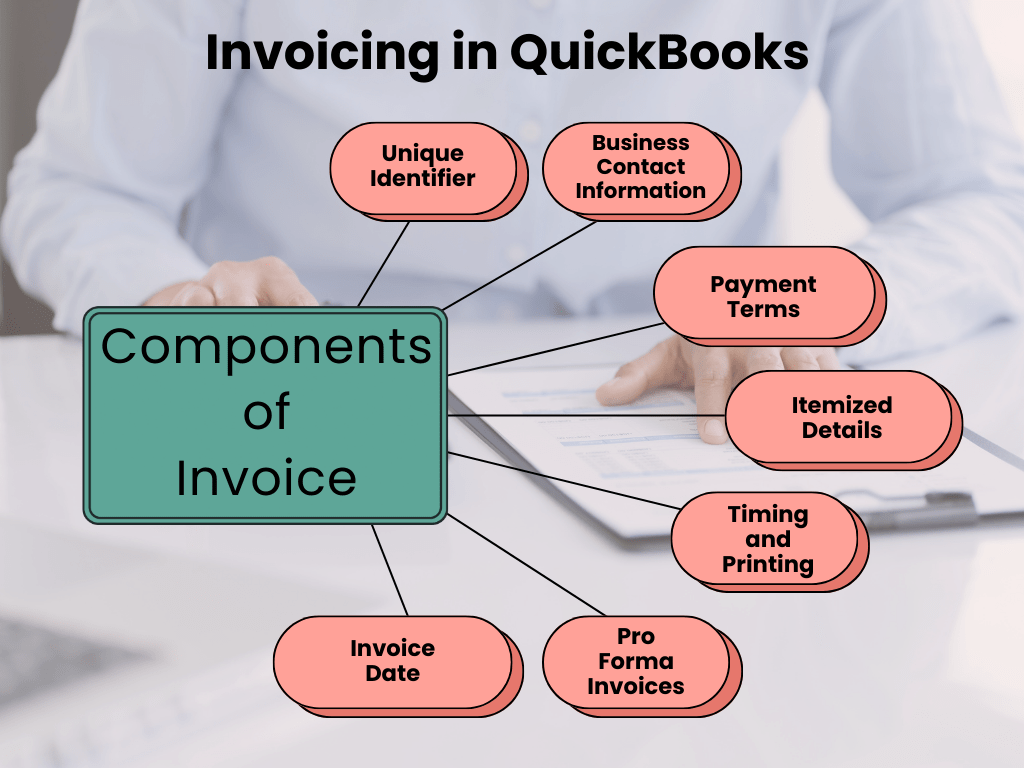
Below mentioned are the important components that must be included in creating an invoice Invoice:
QuickBooks Invoicing offers several benefits that enhance your business efficiency and financial management:
The elements of an invoice are important so you and your customers are aligned on the total cost of your services and the payment terms and details.
Below are some basic details of an invoice you need to include:
Here are some tips to help you create clear and effective invoices:
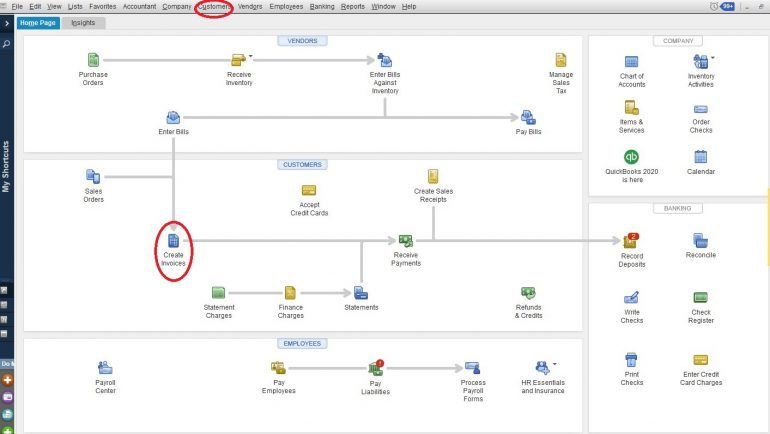
Here’s a concise guide on creating an invoice from scratch:
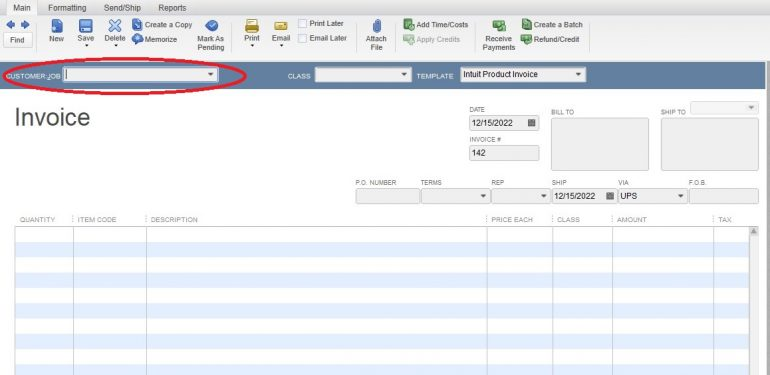
Note: When creating an invoice, keep in mind that the description and amount fields are automatically filled based on your settings. However, you have the flexibility to edit or remove them as necessary for each new invoice.
You can generate an invoice from a sales order using two distinct methods in QuickBooks Desktop:
From the Sales Orders Window:
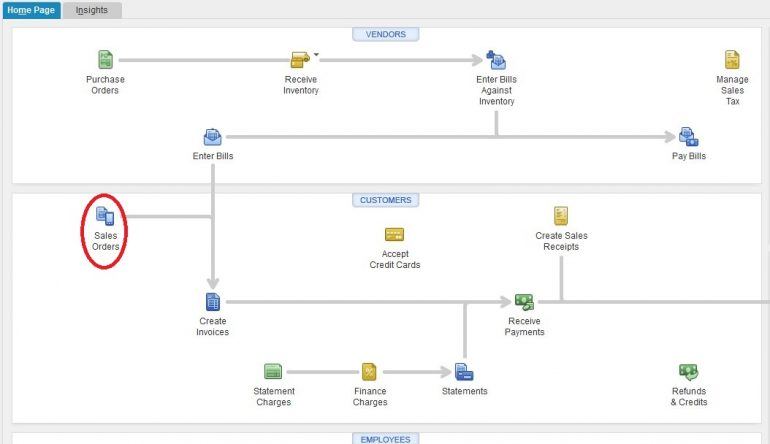
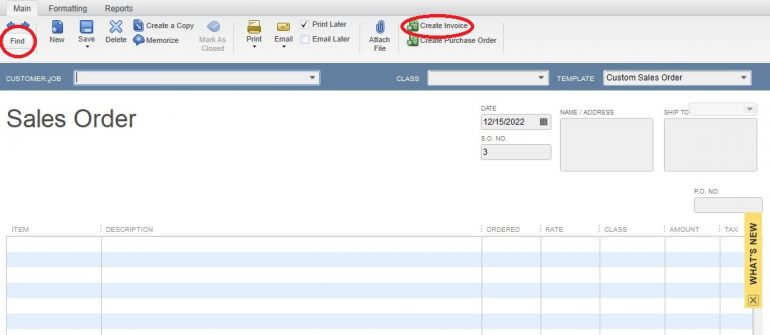
From the Invoice Window:
From the Estimate Window:
From the Invoice Window:
The procedure for generating invoices in QuickBooks Online closely mirrors the process in the desktop version:
In QuickBooks Online, you can access a blank invoice screen using either of the following methods:
From the Dashboard:
From the Sales Menu:
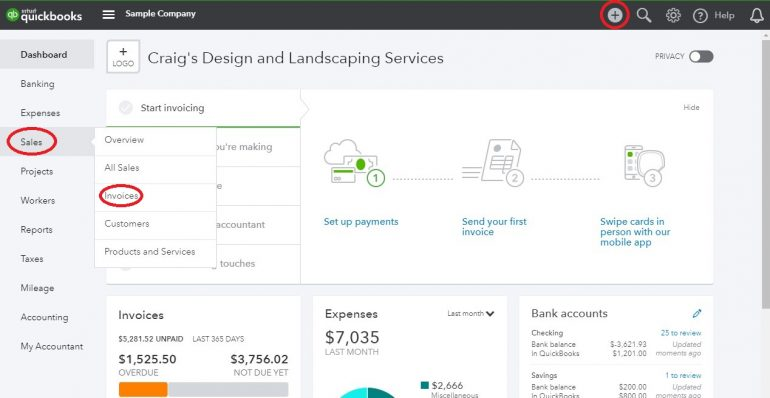
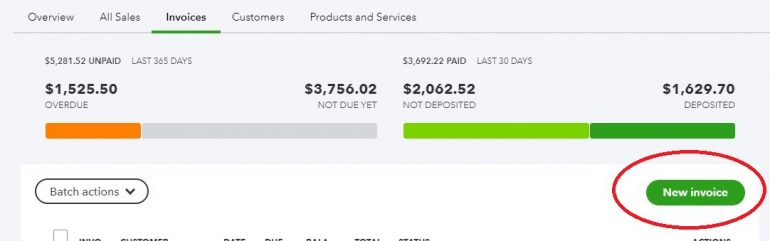
To create a new invoice, click on the “New Invoice” button on this screen. Now, let’s create your invoice step by step:
Choose a Customer:
Customer Email:
Send Later:
Payment Options:
Billing Address:
Payment Terms:
Invoice Date:
Due Date:
Choose Your Template:
Product/Service Field (Similar to QuickBooks Desktop):
Quantity (Qty) Field:
Rate Field:
Amount Field:
Tax Checkbox:
Adding More Lines:
Custom Messages:
Discounts and Tax Calculation:
Sales Tax Rate Selection:
Discount Application:
Attachments:
Abandoning the Invoice:
2) Unlike the desktop version, this option is thoughtfully placed away from the save options.
Preview and Recurring Invoices:
Frequent Saving:
Here’s a step-by-step guide on how to create an invoice from an estimate using the QuickBooks Online billing feature:
Start from the Estimate:
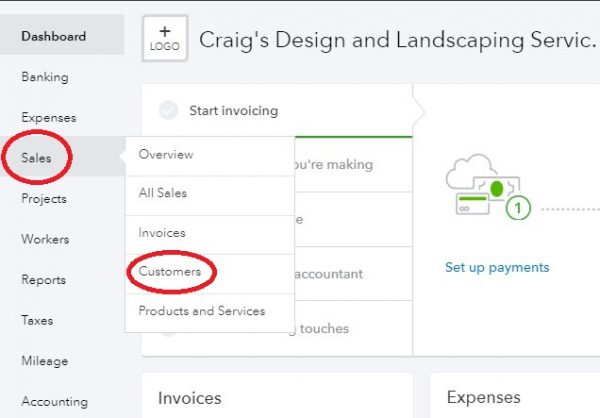
Select the Customer:
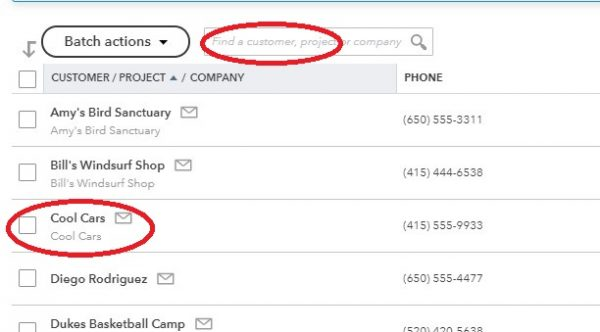
Locate the Estimate:

Invoice Screen with Estimate Details:
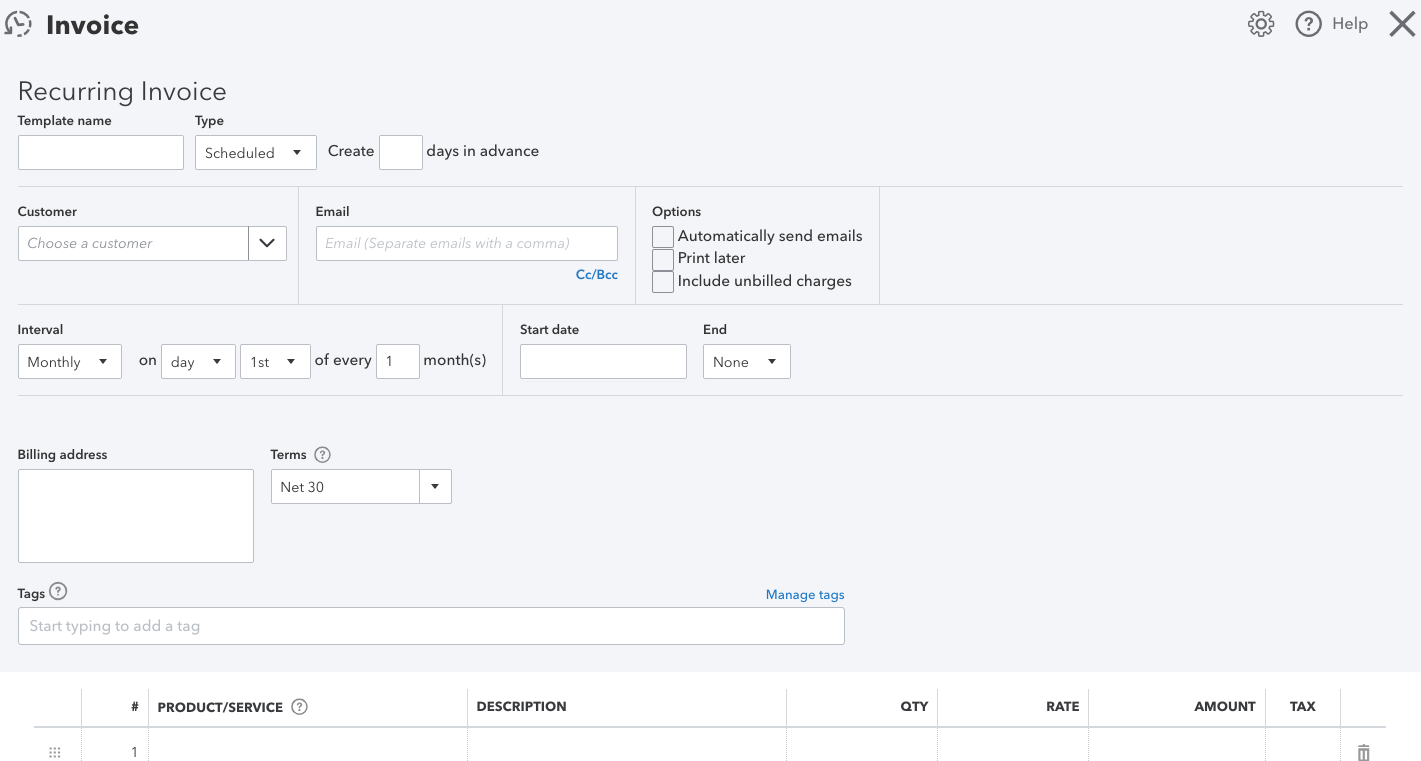
Consider the below-mentioned steps to set up a recurring invoice in QuickBooks Online:
Automatically cc yourself
As a safeguard, set QuickBooks Online to automatically email you a copy of all sent invoices:
Confirm the invoices were created
Here’s how you confirm the invoices were created.
Check your inbox
If you automatically cc’ed yourself, you should have received a copy of every invoice that was sent.
Verify your list of recurring transactions
Review the customer page and invoice
When your customers want to pay you quickly and easily, they can set up Autopay on recurring invoices. The fees for Autopay are the same as for any payments made through QuickBooks Payments. To enable Autopay, you’ll need a QuickBooks Payments account.
To set up autopay on a recurring invoices, follow the steps below:
If you already have a recurring invoice setup, you don’t need to create a new one.
Important: You can edit recurring templates with Autopay setup. If you change any of these fields, Autopay will be canceled:
If Autopay gets canceled, your customer will receive a cancellation email for future Autopay transactions.
To edit your recurring template and the way your recurring transactions are entered, you’ll need to move to the Recurring Transaction List.
Follow the steps to customize invoices with the help of QuickBooks Invoices:
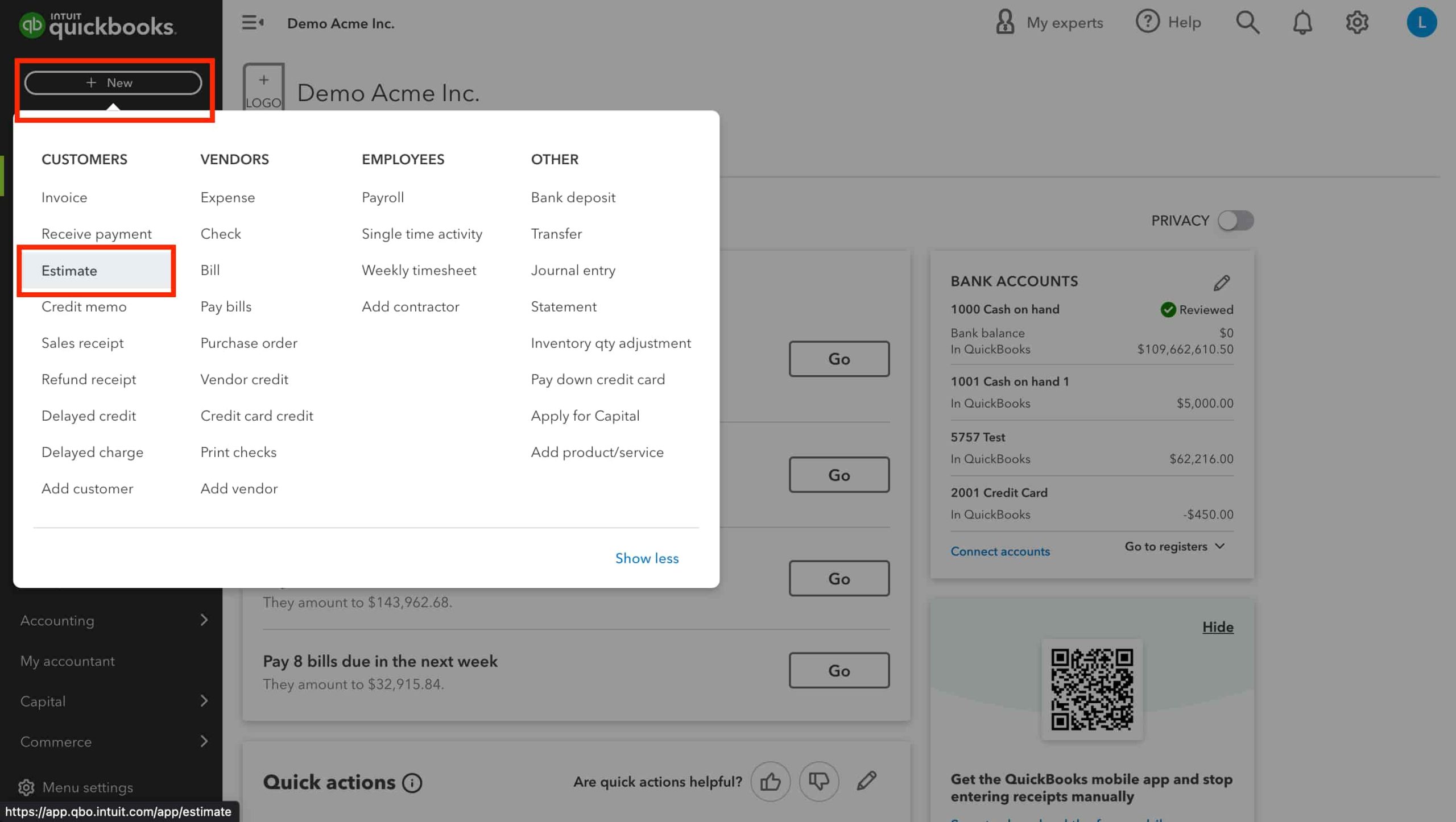
Follow these steps to go through the entire estimate process:
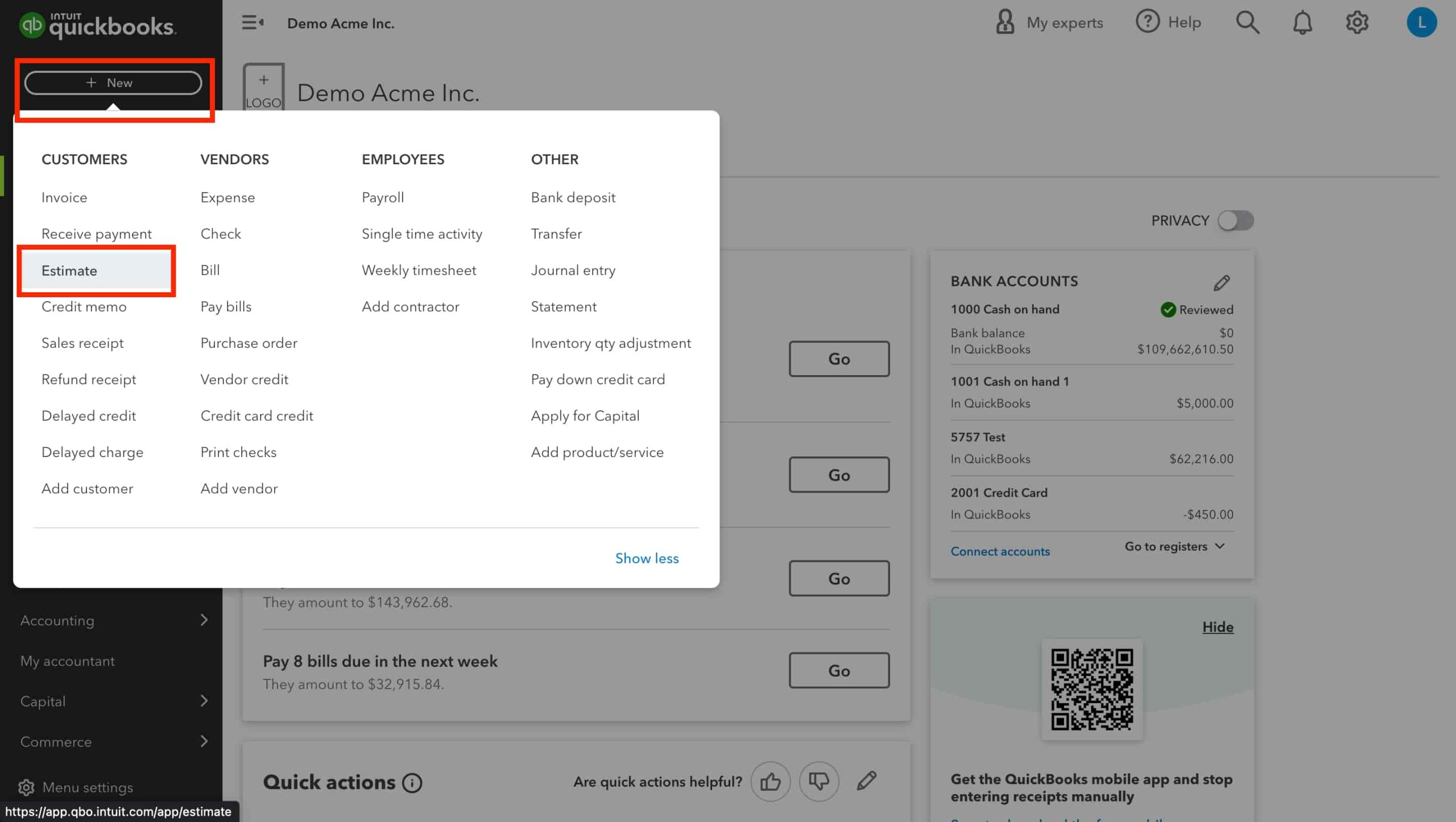

If a customer prefers to pay in person, you have two options: either ask them to follow the payment link in the email and complete the transaction online or handle the payment on their behalf and match the invoice immediately on it to their existing Invoice.
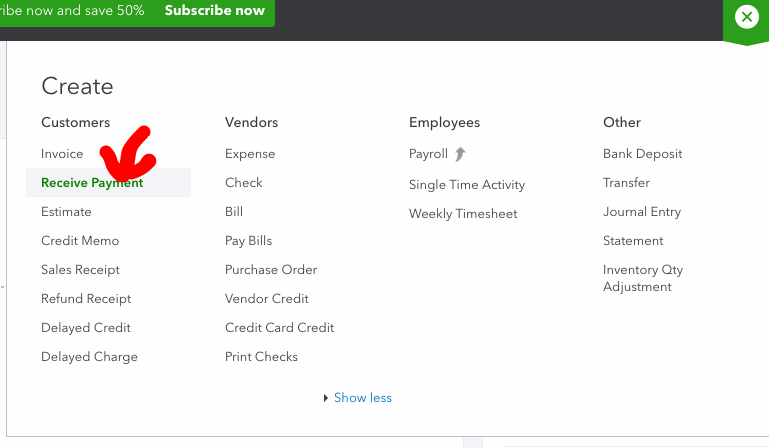
Below are some instructions on how can customers can pay faster:
You can track invoices which are unpaid in the accounts receivable account. You will find this account listed on the balance sheet and other financial reports. If you want to review your review invoices, go to Sales and select Invoices. Check the Status column to track where your invoices stand in the sales process.
Here are the common invoice statuses that you might encounter:
By converting estimates to invoices, you link them together, ensuring accurate bookkeeping. QuickBooks automatically populate the invoice with information from the estimate, saving you time and effort. Whether you’re using the new or old estimates and invoices layout, QuickBooks streamlines the process for efficient invoicing.
To convert an estimate to an invoice in QuickBooks Online, follow these steps:
Navigate to Sales
Locate the Estimate
Update Status (if needed)
Convert to Invoice
QuickBooks Online is an accounting software which provides an invoicing solution for businesses of all sizes. QuickBooks Online has all the solutions from generating a simple invoice to customizing it to match with your brand. With customizable invoices, seamless payment acceptance, and real-time tracking, QuickBooks simplifies the invoicing process, allowing you to get paid faster.
An invoice, or a bill, is a commercial document sent from a seller to a buyer as a request for payment, indicating what was sold and how much is owed. Invoices, like bills, are issued from a vendor to a customer for something they’ve already received, something in development, or something that’s ready to be created.
However invoices, unlike a restaurant bill, aren’t necessarily due immediately upon receiving them. You may choose to set invoice payment terms of up to 3 months, to give your customers flexibility to manage their cash.
Yes, you can go ahead and add your personal touch if you need. QuickBooks allows you to customize invoices, estimates and sales receipts with a look that suits your brand.
An invoice is the payment request that you send to a customer when they buy something. It shows what was bought, the price, and when the customer needs to pay. On the other hand, a bill is a payment request you receive from a supplier or vendor for things you bought or services you used. It shows what was bought, the price, and when you need to pay.
QuickBooks uses automation to help you send smarter invoices and get paid faster from chasing overdue invoices to running complex calculations. With QuickBooks Online invoicing software, you can send invoices automatically and schedule recurring invoices, send automated reminder emails and track invoice payments in real-time.
You may choose the type of invoice based on your business model and how you’d like to get paid. For small businesses that send invoices after goods or services have been exchanged, a simple commercial invoice, like our free invoice template, will suit your needs. If your business requires payment upfront, you can use a proforma invoice, indicating a fee agreement or estimated costs. With QuickBooks invoicing software, you have an option to choose from many different invoice templates based on your business needs.
With QuickBooks, there’s no charge to send an invoice. The rate for taking payments through an invoice is determined by the payment methods your customer uses, and you can decide which ones to include on your invoices. In QuickBooks Money, the rates are determined by the payment method your customer picks to use.
Yes, With QuickBooks Online, you can send recurring invoices on a schedule to minimize missed payments and reduce administrative hassle. It even allows your customers to set up autopay for their regular payments.
Invoices are most commonly sent in a PDF format. However, you may choose to create and customize invoices in Microsoft Word, Microsoft Excel, Google Docs, Google Sheets, or PDF also. MS word is suitable for short and simple invoices while spreadsheets may be better suited for invoices with many line items and details. Whichever format you select to create and edit an invoice, it is recommended that you need to convert the document into a PDF before sending it to your customer.
The best time to send an invoice is immediately once you complete a service or project, or deliver a product. The sooner you send an invoice, the sooner the customer can pay. You may choose to send invoices in the morning when most people are checking their emails and establishing their to-do lists. Also, you can send invoices at the end of the work day so that your customers can see them when they’ll check their email next morning.
Depending on how your business accepts payments, customers can pay right in the online invoice, using credit cards, debit cards or ACH bank transfers–even from their mobile device. No setup or transaction fees required.


