 Add As A Preferred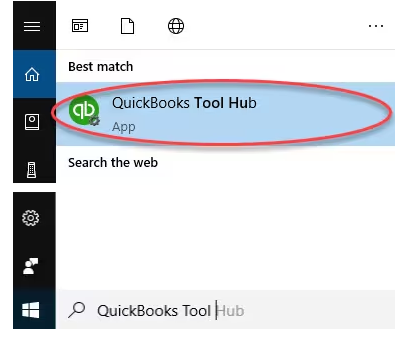
QuickBooks license errors are authorization faults that occur when the QuickBooks licensing system cannot validate the registration files, verification components, or hardware-identity parameters required for activation. These errors can occur during installation, compatibility checks, or system cloning, disrupting QuickBooks operations. They are usually caused by damaged registration files, blocked digital-signature verification, or changed system identifiers that prevent proper license activation.
QuickBooks license errors include installation faults like QB Error 3371, caused by a corrupted QBregistration.dat file; compatibility faults like QB Error 3008, caused by blocked digital-signature verification; and cloning-related license faults, caused by mismatched system identifiers.
This guide categorizes QuickBooks license errors into Installation & Setup, System Compatibility, and Migration or Cloning Errors, providing an understanding of their causes and implications. Whether you’re dealing with a missing QBregistration.dat file, firewall interference, or licensing issues after cloning, this resource is designed to help you diagnose and resolve these problems efficiently.
QuickBooks license errors occur when the QuickBooks licensing system cannot access the registration files, verification components, or hardware-identity parameters required for authorization.
QuickBooks license-related errors create noticeable issues during startup and activation when the licensing system fails to validate required data. These signs indicate that registration files, verification components, or system identifiers are not aligning with the required authorization parameters.
QuickBooks license errors require fixes that restore access to the registration files, verification components, and system identifiers needed for authorization. These fixes resolve the specific issue that disrupts the licensing process, such as damaged files, blocked security layers, or changed hardware parameters.
Here’s a categorized list of QuickBooks License Issues & Errors along with descriptions for each category:
Errors that arise during the initial installation or setup of QuickBooks due to misconfigured license files or missing components.
QBregistration.dat or system components like MSXML.Errors caused by system or software settings conflicting with QuickBooks licensing protocols.
Errors encountered when QuickBooks or its license information is moved to a different system.
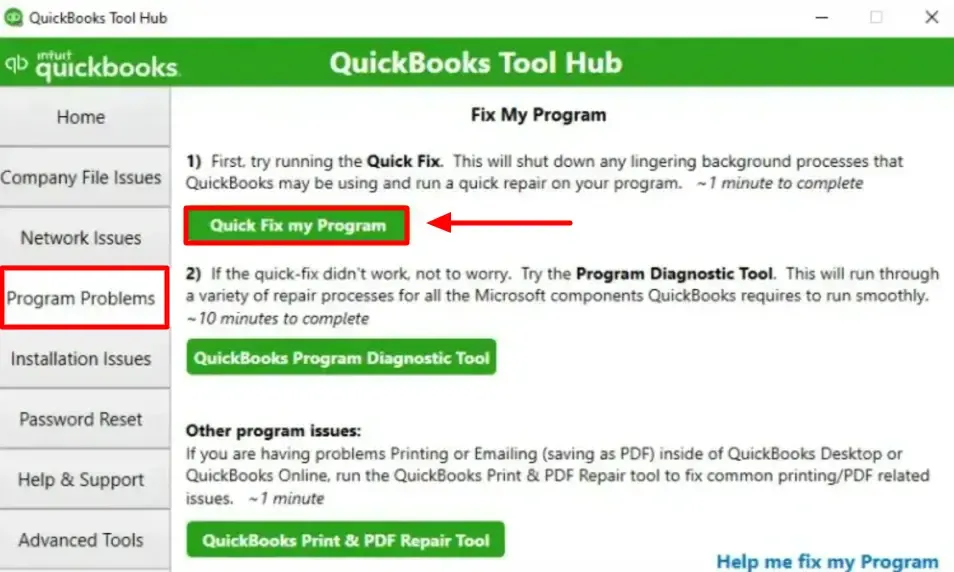
Download and install the QuickBooks Tool Hub and run the Quick Fix My Program to resolve common issues if you encounter errors while using, installing, or updating QuickBooks.
The QuickBooks Tool Hub helps to fix common errors. You’ll need to close QuickBooks to use the tool hub. For the best experience, we recommend you use Tool Hub on Windows 10, 64-bit.
Note: To find out which tool hub version you have, select the Home tab and the version will be on the bottom.

Note: If you are unable to find the icon, do a search in Windows for QuickBooks Tool Hub and select the program.
The Quick Fix will shut down any open background processes QuickBooks uses. It’ll run a quick repair on your program.
QuickBooks license errors interfere with software authorization by affecting registration files, verification components, or hardware-identity parameters. These errors appear during installation, system compatibility checks, or cloning events and are indicated by repeated activation prompts, error messages, or failed program launches.
Using tools like QuickBooks Tool Hub and Quick Fix My Program restores proper license validation and ensures stable software performance. By following preventive measures such as keeping files intact, managing security settings, and handling system migrations correctly, you can strengthen the licensing system and help prevent future errors.
QuickBooks license errors are caused by corrupted registration files, blocked digital-signature verification, MSXML failures, hardware identifier changes, incomplete registry entries, or interference from firewalls and antivirus tools.
QuickBooks license errors can be fixed by restoring access to registration files, repairing MSXML components, adjusting security settings, and revalidating the license using QuickBooks Tool Hub and the Quick Fix My Program.
Yes, cloning QuickBooks or migrating it to a new system can change hardware identifiers, causing the licensing system to detect a mismatch and generate a license error.
QuickBooks Error 3371 is a licensing error caused by a damaged QBregistration.dat file or missing system components, preventing QuickBooks from loading the license data.
QuickBooks license errors can be identified by repeated activation prompts, error messages such as Error 3371 or 3008, failed program launches, or inaccessible subscription-linked features.


