Excerpt:
If you’re unable to sign in to your Intuit ID after reinstalling QuickBooks Desktop Premium Plus 2024 on a new PC, the problem likely stems from trust or authentication conflicts tied to the system, not your credentials. This article addresses how to resolve device recognition failures using targeted fixes—like clearing identity cache, resetting credentials, and updating TLS settings—ensuring QuickBooks correctly verifies your login and restores access.
 Add As A Preferred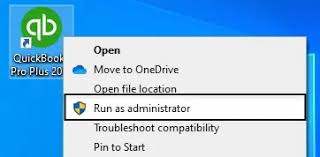
Hi everyone,
This is Tori. I recently switched to a new Windows PC and reinstalled QuickBooks Desktop Premium Plus 2024 after moving everything over from my old computer. While the installation went through without any obvious errors, I’ve run into a frustrating Intuit ID Login Problem After Reinstall — I’m no longer able to sign in with my Intuit account.
Here’s exactly what happened:
I deactivated QuickBooks from my old computer, then downloaded the installation file on the new PC using my original license and product details.
After restoring my company file (which I backed up from the old system), QuickBooks launched normally.
But when prompted to sign in with my Intuit ID, the system either freezes during verification or returns an error saying “We can’t confirm your credentials” — even though the login works fine on Intuit’s website.
I’ve already cleared browser settings, tried using a different Windows user profile, and even reset my password, but the issue persists.
The strange part is that it doesn’t seem like a data file problem — the company file loads up to the sign-in screen. It almost feels like QuickBooks doesn’t fully recognize the new machine or is stuck in some kind of license conflict with the old setup.
I’m locked out right now and can’t run payroll or access vendor reports, which is becoming a real issue.
Do I need to reset my Intuit account trust settings, or is there something in the backend that still thinks I’m trying to access from the old computer? Any advice or step-by-step solution would mean a lot. Thanks in advance!
Hi Tori, you might experience an Intuit ID Login Problem After Reinstall, see messages like “We can’t confirm your credentials,” or notice QuickBooks freezing at the sign-in screen, especially after reinstalling QuickBooks Desktop on a new PC. I can completely understand how frustrating it must be.
You’ve already taken all the right steps:
But now, you’re stuck at the Intuit ID login screen, getting the frustrating error:
“We can’t confirm your credentials.”
Even though your Intuit login works perfectly on the website, QuickBooks Desktop either freezes or fails to recognise the new device during verification. That’s usually a sign of a trust or authentication conflict tied to the system environment, rather than your company’s data or credentials.
Beyond the basics you’ve already tried, there are several other solutions that can resolve this issue, such as:
In some cases, you may need to temporarily disable your firewall or antivirus software, or contact Intuit Support to reset device trust on the backend manually.
If you’re using QuickBooks Online, you won’t face device conflicts. All versions of QuickBooks Online, including Simple Start, Essentials, Plus, and Advanced, are cloud-based and can be accessed from any device using your Intuit credentials.
However, QuickBooks Desktop versions, such as Pro, Premier, Enterprise, and Premium Plus, rely on local machine trust, which can cause login issues when reinstalling or migrating to a new PC.
Let’s explore why this happens and how to fix it step by step.
QuickBooks relies on several system components to verify your credentials.
Even if your Intuit credentials work perfectly on the web, QuickBooks Desktop may fail to recognise the new device as trusted, or it may reference outdated credentials or tokens from your previous setup. This results in the error:
“We can’t confirm your credentials”
Or causes the login window to freeze during the verification process.
This issue is common after system migrations, reinstalls, or hardware changes, especially if the old machine was not fully deauthorised or the identity cache wasn’t properly cleared.
Since you’ve already reset your password and cleared browser settings, here are additional proven solutions specifically for QuickBooks Desktop Premium Plus users who face this trust verification issue:
QuickBooks stores local license and login data in an entitlement file. Corruption, machine mismatches, or system changes can frequently lead to activation issues—if you are experiencing broader licensing problems, following standard steps for resolving licensing issues and entitlement errors can help restore normal operation before resetting your local setup.
Old or corrupted tokens stored under your Windows profile can block sign-in.
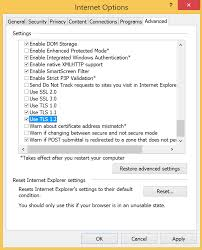
QuickBooks still relies on embedded Internet Explorer components for login.
Lack of administrative privileges can block access to essential login services.
If leftover files from the old installation are causing issues, a clean reinstall may be helpful.
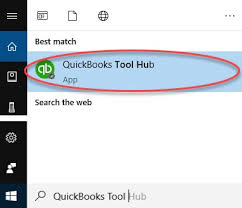
Yes, if you’re moving between editions, such as from Pro to Premium Plus or Enterprise, your Intuit account and license must match the edition being installed. Mismatched licenses can lead to login Problem or prevent you from activating the product.
No. While uninstalling removes the software, the license may still be tied to the old machine. That’s why it’s essential to manually deactivate the license or contact Intuit to reset your license-to-device association if needed.
Yes, using an outdated version of QuickBooks Desktop that hasn’t received the latest updates or security patches may result in login failures due to expired certificates or compatibility with Intuit’s current login systems.
Yes. Repeated failed sign-in attempts can trigger security measures, especially if two-factor authentication (2FA) is enabled on your Intuit account. Wait a few minutes before retrying or reset your password if prompted.


