Excerpt:
If you're encountering the "QuickBooks cannot complete the current action due to a missing PDF component" error, it usually indicates issues with Adobe Reader, Microsoft XPS Document Writer, or missing QuickBooks components. This error prevents you from printing or saving invoices and reports as PDFs. The problem can be easily resolved by updating Adobe Acrobat Reader, enabling Microsoft XPS Document Writer, or using the QuickBooks PDF and Print Repair Tool for automatic fixes.
 Add As A Preferred
Overview
QuickBooks Missing PDF Component Error is a QuickBooks Desktop malfunction that prevents the software from generating, printing, or saving PDF files. Users search for this error to identify the system failure that prevents QuickBooks Desktop from generating PDF files and to restore the ability to print or save forms, reports, invoices, checks, and other documents. The error emerges when the QuickBooks PDF driver, Microsoft XPS Document Writer, Adobe Reader components, or Windows permissions fail to load correctly. These components regulate PDF creation in QuickBooks Desktop, and the malfunction disrupts printing, saving, and emailing processes.
This article outlines what the QuickBooks Missing PDF Component Error is, what conditions trigger it, and which steps restore PDF output in QuickBooks Desktop. It describes how damaged PDF drivers, disabled Microsoft XPS Document Writer services, outdated Adobe Reader modules, incorrect Temp folder permissions, corrupted QuickBooks program files, and Windows update interactions lead to the error, and it summarizes the troubleshooting procedures that update QuickBooks, repair components, reset permissions, and restore drivers.
QuickBooks PDF Component Missing Error appears when QuickBooks Desktop cannot load the system components required to create or process PDF files. The malfunction develops when Adobe Reader components are outdated or damaged, when the Microsoft XPS Document Writer is disabled, or when file and print components that support PDF generation are missing or unresponsive.
QuickBooks uses internal printing and PDF conversion features to generate documents. During these operations, the system may display messages indicating that PDF creation process cannot continue because required components are not responding. These messages appear when QuickBooks interrupts the PDF workflow due to missing or damaged PDF components.
Additional variations of the error appear when users attempt to email an invoice or perform PDF-related actions. These messages include:
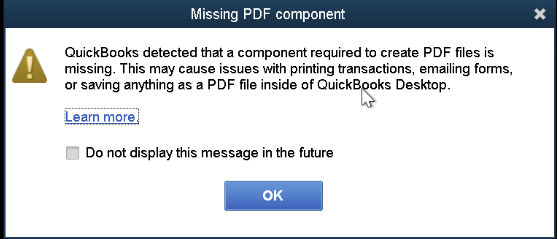
“QuickBooks detected that a component required to create PDF is missing.”
Or
“QuickBooks can’t complete the current action due to a missing PDF component. You can try again by exiting and restarting QuickBooks. If problems continue, download and run the Print and PDF Repair Tool.”
Or
“QuickBooks cannot complete the current action due to a missing PDF component.”
These messages indicate that QuickBooks cannot convert the document into a PDF file because essential PDF components are damaged or missing, which interrupts printing, saving, and emailing functions until the issue is resolved.
This section outlines the indicators that appear when the QuickBooks Missing PDF Component Error disrupts PDF creation in QuickBooks Desktop and helps identify when the required components for PDF output are not functioning.
The “Detected PDF Component Missing” error in QuickBooks occurs when system or software components required for PDF creation fail to load. It is commonly caused by outdated QuickBooks or Adobe Reader versions, damaged or missing PDF Converter drivers, a disabled or corrupted Microsoft XPS Document Writer, insufficient Temp folder permissions, or a corrupted QuickBooks installation. Conflicting applications, Windows updates, or damaged templates can also trigger this error during PDF generation. Several factors contribute to this issue, including:
Below are some problems and quick fixes to them:
| Problem | Solution |
| PDF-related errors in QuickBooks can occur if Adobe Acrobat Reader is not updated or needs to be repaired. | Users need to have an updated version of Adobe Acrobat Reader in their computer. If they do not have one, they can download it from the official Adobe website. |
| Missing or turned off Microsoft XPS Document Writer may cause printing issues, as it is important for creating PDF files in QuickBooks. | Users should check if the Microsoft XPS Document Writer is enabled in their Windows settings. |
| If any file or print component is missing or damaged, it may lead to error QuickBooks Missing Component | Users can download the QuickBooks PDF and Print Repair Tool, which helps diagnose and fix PDF-related issues within the program. |
| Outdated QuickBooks versions may have compatibility issues. | Users should update their QuickBooks Desktop to the latest version available. |
When dealing with the QuickBooks Missing Component PDF error, it’s essential to approach the troubleshooting process methodically.
Here are some supportive steps to consider before moving toward the solutions:
Update QuickBooks Desktop – You are advised to update your QuickBooks Desktop to the latest release.
You’ll ensure a secure backup of your important data by following these steps.
The QuickBooks Missing PDF Component Error usually appears when QuickBooks Desktop cannot access the components required to generate or save PDF files, and it can be resolved by following structured diagnostic and repair steps. The outlined methods help restore the PDF subsystem and reestablish normal printing and saving functions.
When encountering the QuickBooks PDF Component Missing Issue, follow these steps to troubleshoot and solve the issue:
Updating Adobe Acrobat Reader will ensure that you are working on the latest version to avoid the version compatibility error.
Below are the steps to update the application:
1. Click the Start button on the Desktop.
2. Type “Adobe” in the search box.
3. Open Adobe Acrobat Reader.
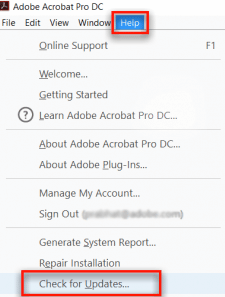
4. Go to the Help menu at the top.
5. Click on Check for Updates.
6. If an update is available, follow the prompts to install it.
7. Manually download from Adobe’s site.
8. Follow the manual instructions given in the Adobe installation guide.
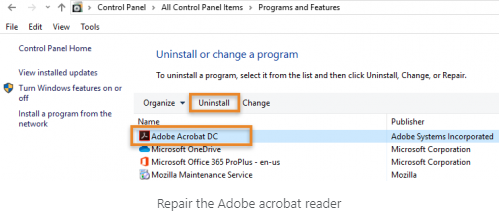
Sometimes, Adobe Reader doesn’t work properly. It can be repaired using the below steps:
One of the common QuickBooks errors that users can solve by updating the software is the missing PDF component error:
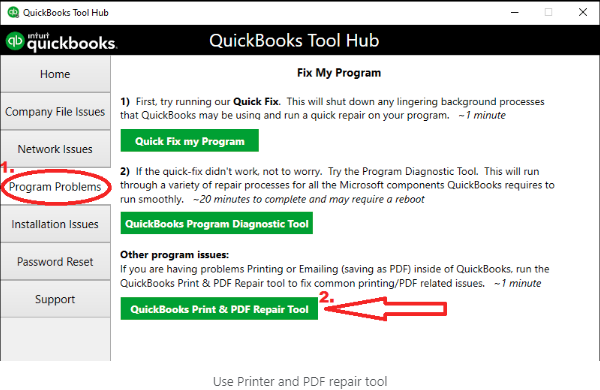
The QuickBooks Print & PDF Repair Tool is a helpful utility designed to troubleshoot issues related to printing, emailing, or saving PDF files from QuickBooks Desktop. When you encounter problems with these functions, the tool can assist in resolving common problems.
PDF problems can originate from damaged templates. Creating a new one may help by following the below-mentioned steps:
Another reason people may need help is that they have incorrect folders permissions that hinder QuickBooks from creating PDFs.
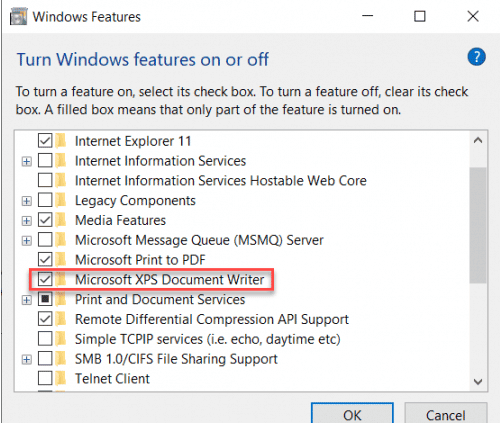
QuickBooks uses the Microsoft XPS Document Writer to save forms, reports, and other documents as PDF files. When you save these documents as PDFs within QuickBooks, it generates an XPS file using this printer. Enabling Microsoft XPS Document Writer ensures that QuickBooks can create PDFs without errors.
The Print Spooler service controls all print jobs in Windows operating systems. Booting it up may solve problems, but it creates the missing PDF component error.
The “QuickBooks cannot complete the current action due to a missing PDF component” error in Windows 11 occurs when the system modules required for PDF creation fail to load or respond. This section explains how to restore the missing PDF components, fix permission issues, and reconnect QuickBooks Desktop with the Windows 11 PDF system.
Ensure that your default PDF viewer is up-to-date. Often, outdated software can cause problems when printing forms and reports in QuickBooks Desktop.
The QBPrint.qbp file stores printer setup information in QuickBooks. Renaming this file can often fix printing errors.
C:\ProgramData\Intuit\QuickBooks 20XX.QBPrint.qbp.old.Try printing any transaction to confirm the issue is resolved.
By following these steps, you should be able to resolve the missing PDF component error in QuickBooks on Windows 11 version.
To avoid missing PDF component errors in QuickBooks, follow these best practices:
By following these steps, you can prevent PDF-related errors and ensure smooth operation within QuickBooks.
QuickBooks displays a missing PDF component error when it cannot generate or save PDF files. This issue often occurs due to:
To resolve this issue, update Adobe Reader, repair the QuickBooks PDF Converter, enable the Microsoft XPS Document Writer, and use the QuickBooks Print & PDF Repair Tool. If the issue persists, check for Windows updates or reinstall QuickBooks
If QuickBooks is experiencing issues with missing PDF components, reinstalling the software can help resolve the problem. Follow these steps to reinstall QuickBooks properly and restore PDF functionality:
To prevent leftover files from interfering with the reinstallation, rename the existing QuickBooks folders:
If the problem persists, consider running the QuickBooks Print & PDF Repair Tool from the QuickBooks Tool Hub.
If you’re experiencing QuickBooks missing PDF component errors after a Windows update, it’s often due to compatibility issues, outdated drivers, or missing components required for PDF creation and printing. Follow these steps to troubleshoot and resolve the issue efficiently:
If the issue persists, uninstall and reinstall QuickBooks Desktop to ensure all necessary components are installed correctly.
The QuickBooks Missing PDF Component Error occurs when the system modules required for PDF creation fail to load, which disrupts printing, saving, and emailing functions in QuickBooks Desktop. The error is associated with damaged PDF drivers, disabled Microsoft XPS Document Writer services, outdated Adobe Reader modules, incorrect Windows permissions, and corrupted QuickBooks program files. The solutions outlined in this article restore these components by updating QuickBooks, repairing system files, correcting permissions, and reconfiguring Windows features that support PDF output.
These steps reestablish stable PDF functionality and allow QuickBooks Desktop to generate and process documents without interruption. Users who continue to experience the error may need advanced system diagnostics or a complete QuickBooks reinstallation to restore all PDF-related components.
Still have questions? Explore our detailed FAQs.


