Excerpt:
QuickBooks Error 1920 occurs when the QuickBooks Database Server Manager fails to start, disrupting access to company files on a network. To resolve this, ensure stable server connections, disable antivirus/firewall conflicts, and reinstall the Database Server Manager. Proper installation and system checks are key steps in fixing the issue and restoring multi-user access to QuickBooks files.
 Add As A Preferred
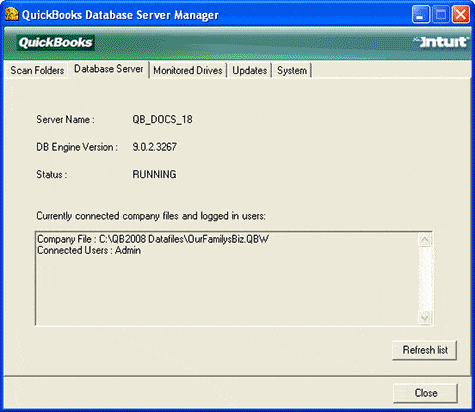
QuickBooks Error 1920 is a service-related malfunction that arises when the QuickBooks Database Server Manager (QBCFMonitorService) fails to start properly during installation or while accessing company files. This error interrupts communication between the QuickBooks Desktop application and the network-stored company files, limiting multi-user access and preventing database synchronization.
The following sections explain the core reasons behind this error, outline the visible system indicators, and provide verified troubleshooting methods to restore normal operations. The article also includes preventive configurations and installation best practices that ensure stable database management performance and help avoid recurrence of the issue in future QuickBooks sessions.
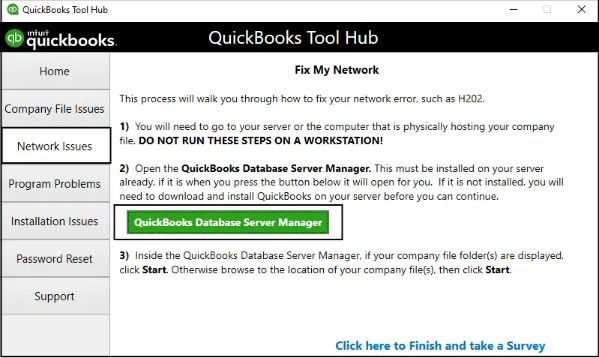
QuickBooks error 1920 is a QuickBooks Database Server Manager, which occurs when the QBCFMonitorService failed to initiate the service. QuickBooks Database Server Manager is a tool that permits multiple users to access the same company file stored on a network server. It creates a network data file (.nd) for any company file stored on the host computer.
This error message is usually displayed when the QuickBooks Database Server Manager is not able to access a hard drive on the desktop to create a connection with company files. The service fails to start properly when the QBDBMS attempts to access a drive on the desktop and is unsuccessful.
The error message appears on the screen stating that-
“Error 1920: Service QuickBooks Database Manager (QBCFMonitorService) failed to start”.
QuickBooks Error 1920 originates when the QuickBooks Database Server Manager (QBCFMonitorService) fails to start due to system or configuration conflicts. The primary causes include:
QuickBooks Error 1920 directly affects the stability and performance of the QuickBooks Desktop application as well as the connected network environment. The following indicators help to recognize its impact on the system:
To resolve the problem with basic steps:
If you still need help, follow the steps below.
To address Error 1920, close all background programs on your system and ensure a stable internet connection. Create a backup before uninstalling QuickBooks and verify proper installation. For detailed solutions, follow the steps below:
Before heading to the actual solutions, make sure to follow these prerequisite actions, which might save your efforts by not investing your time in time-consuming methods:
Even though following the steps mentioned above does not stopping this error from occurring, now you have to perform the following steps mentioned in the series to stop the persistence of the QB error code 1920:
Check the connection with the server to resolve the error 1920. Follow the below steps:
To resolve QuickBooks Error 1920, temporarily turning off your antivirus and checking your firewall settings. Here are the steps to temporarily turn off your antivirus:
Here are the steps to check your firewall settings:
If you’re sharing a file over the network using the database server manager but don’t have QuickBooks installed on the server, you can follow the steps below:
If you have other Intuit apps installed on your computer system, you only need to rename or uninstall the QuickBooks versions folder located in the Intuit folder at C:\ProgramData\Intuit.
| Windows 10/8/7 | Windows Vista |
| C:\Program Data\Intuit | C:\Program Data\Intuit |
| C:\Program Data\Common Files\Intuit | C:\Program Data\Common Files\Intuit |
| C:\Users\[Username]\AppData\Local\Intuit | C:\Users\AppData\Local\Intuit |
| C:\Program Files\Intuit | C:\Program Files\Common Files\Intuit |
| C:\Program Files\Common Files\Intuit | C:\Program Files\Common Files\Intuit |
Note: Both options will download Database Server Manager.
Follow these steps if you are trying to install or update a new version of QuickBooks:
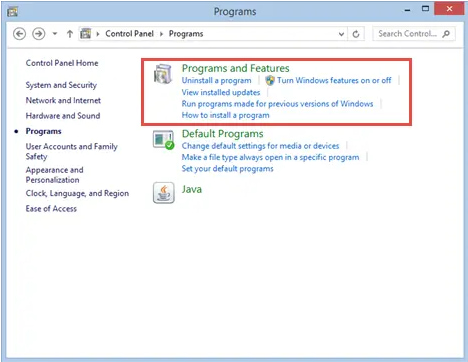
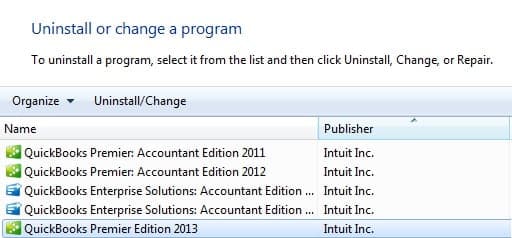
You need to search for every folder location listed for the version of Windows which is using Windows Explorer, and then rename them accordingly:
| Windows 10/8/7 | Windows Vista |
| C:\Program Data\Intuit | C:\Program Data\Intuit |
| C:\Program Data\Common Files\Intuit | C:\Program Data\Common Files\Intuit |
| C:\Users\[Username]\AppData\Local\Intuit | C:\Users\AppData\Local\Intuit |
| C:\Program Files\Intuit | C:\Program Files\Common Files\Intuit |
| C:\Program Files\Common Files\Intuit | C:\Program Files\Common Files\Intuit |
After completing the above a and b steps, now it’s time to reinstall QuickBooks software:
Proper installation, regular updates, and system maintenance help prevent QuickBooks Error 1920 and ensure stable database service performance.
QuickBooks Error 1920 occurs when the QuickBooks Database Server Manager fails to start, which disrupts access to company files and multi-user functionality. The error occurs due to factors such as incomplete installation, registry corruption, or missing service files, and structured troubleshooting procedures help restore normal operations.
Regular software updates, proper installation, and frequent malware scans prevent the issue from recurring. Continuous monitoring of the Database Server Manager service ensures stable system performance and uninterrupted access to QuickBooks data across the network.
QuickBooks Error 1920 indicates that the QuickBooks Database Server Manager (QBCFMonitorService) failed to start, preventing QuickBooks from accessing or sharing company files stored on a network.
The error typically occurs during QuickBooks installation, update, or when attempting to open a company file hosted on a server.
Yes, using an outdated or incompatible version of QuickBooks can lead to service startup failures, resulting in Error 1920.
Yes, the error directly impacts multi-user mode by restricting the Database Server Manager service, which is required for multiple users to access the same company file simultaneously.
Regularly update QuickBooks Desktop, perform clean installations, maintain valid Windows registry entries, and ensure that the Database Server Manager service has administrative permissions.
Reinstallation may be required if the Database Server Manager or related files are corrupted. However, checking service permissions and repairing the installation often resolves the issue without full reinstallation.
Yes, overly restrictive antivirus or firewall settings can block the QuickBooks Database Server Manager from starting. Temporarily disabling them or allowing QuickBooks through the firewall often resolves the problem.


