


QuickBooks is an accounting software that is familiar and trusted by businesses across the world in the management of finances and payroll. It, however, just like any other software, is not free of technical glitches. QuickBooks Error Code 12157 is one of the most frequent update related problems of the users and falls in the 12000 category of errors related to connectivity.
The error mainly takes place when QuickBooks Desktop does not update or install updates because of issues with the internet connection, firewall limitations, system conflict, etc. The error message normally occurs during the process of updating the QuickBooks or payroll and the users are unable to get the most recent features and tax tables.
Error 12157 normally occurs due to an unstable internet connection, incorrect firewall settings, two or more versions of QuickBooks are installed in the same system, or an incorrect date and time setting on Windows. It may also be caused involuntarily when the security software blocks access to the internet by QuickBooks.
The Typical Error Message
The message displayed is usually along the lines of:
“Error 12157: QuickBooks cannot complete the update due to a network timeout or connectivity issue.”
This error occurs most often when the user wants to update QuickBooks Desktop or payroll services. Because updates are important to make the system comply and work efficiently, it is highly important to resolve the Error 12157 within the nearest time to prevent the disruption of the working process and delays in the payroll processing.
What is QuickBooks Error Code 12157?
Error 12157 occurs when QuickBooks Desktop fails to connect to the internet while downloading updates. It is often triggered by:
- Poor or unstable internet connection
- Firewall or security software blocking QuickBooks
- Conflicts with multiple QuickBooks versions installed
- Incorrect system date and time settings
- Registry or ActiveX issues in Windows
Signs You’re Facing Error 12157
- Error code message appears on screen
- QuickBooks or Windows crashes during updates
- Frequent pop-ups from firewall or security apps
- Slow system or QuickBooks performance
- Update process halts midway
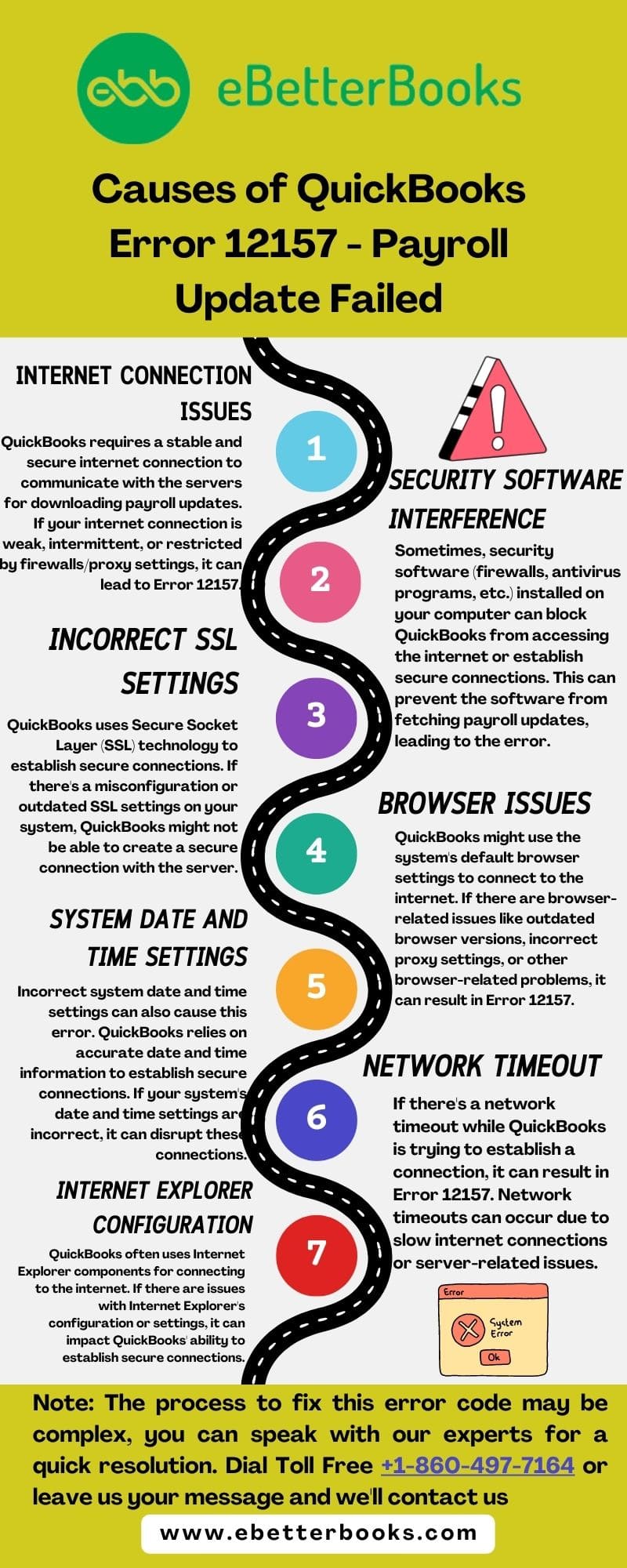
What Causes QuickBooks Error 12157 (Payroll Update Failed)?
QuickBooks Error 12157 is usually associated with payroll update failures in QuickBooks. This error occurs when QuickBooks cannot establish a secure internet connection for sending payroll data and updates.
Quick Overview of Troubleshooting Table for QuickBooks Error Code 12157
| Level | Action | Time Limit (Approx.) | Verification / Notes |
| Beginner | Set the correct date and time via taskbar clock. | 2–3 minutes | Retry QuickBooks update immediately after correction. |
| Restart QuickBooks, computer, and reconnect the internet. | 5 minutes | Confirm stable internet before retrying update. | |
| Verify internet connection by opening a secure site (e.g., banking). | 3–5 minutes | If the site fails, escalate to ISP support. | |
| Run QuickBooks as Administrator. | 1–2 minutes | Ensure update runs with elevated permissions. | |
| Intermediate | Check for multiple QuickBooks versions from the same year. | 10–15 minutes | Update each version separately from QuickBooks Downloads page. |
| Verify Internet Connection Settings in QuickBooks. | 5–7 minutes | Use Help → Internet Connection Setup → Restore Advanced Settings. | |
| Configure firewall/security settings for QuickBooks executables. | 15–20 minutes | Allow QBW32.exe, QBDBMgrN.exe, QBCFMonitorService.exe; enable ports 80 & 443. | |
| Restore Advanced Settings in Internet Explorer. | 5 minutes | Tools → Internet Options → Advanced → Restore Advanced Settings. | |
| Advanced | Perform System Restore to earlier stable point. | 20–30 minutes | Requires admin rights; confirm restore point before execution. |
| Clean install QuickBooks (uninstall, rename folders, reinstall). | 30–45 minutes | Use the Clean Install Tool if available; reinstall the latest setup file. | |
| Disable download manager applications (e.g., IDM). | 2–3 minutes | Ensure no bandwidth conflicts during update. | |
| Verify network and file access permissions for QuickBooks folders. | 10–15 minutes | Confirm QuickBooks has full access to company files and update directories. |
Stepwise Troubleshooting for QuickBooks Error Code 12157
Beginner-Level Fixes
These are simple steps most users can perform without technical expertise.
- Step 1: Set Correct Date and Time
Right-click the clock on your taskbar and select Adjust Date and Time. Enter the correct date and time, press OK, and then retry updating QuickBooks.
- Step 2: Restart QuickBooks and Internet Connection
Close QuickBooks, restart your computer, and reconnect to the internet. A fresh connection often resolves temporary update issues.
- Step 3: Verify Internet Connection
Open a secure website such as your banking portal. If it fails to load, contact your Internet Service Provider. If it loads, proceed with QuickBooks updates.
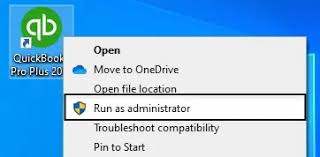
- Step 4: Run QuickBooks as Administrator
Right-click the QuickBooks Desktop icon and select Run as Administrator. This ensures QuickBooks has the necessary permissions to update.
Intermediate-Level Fixes
These steps involve system configurations and require more technical confidence.
- Step 5: Check for Multiple QuickBooks Versions
If you have multiple versions of QuickBooks from the same year installed (for example, QuickBooks Pro 2019 and QuickBooks Premier 2019), update each version separately from the QuickBooks Downloads and Updates page.
- Step 6: Verify Internet Connection Settings in QuickBooks
Go to Help > Internet Connection Setup.
Select Use my computer’s Internet connection settings.
Click Advanced Connection Settings, then Restore Advanced Settings. Apply changes and retry the update.
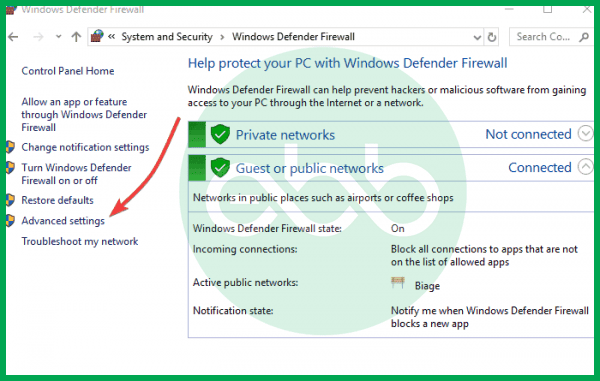
- Step 7: Configure Firewall and Security Settings
Ensure QuickBooks executables such as QBW32.exe, QBDBMgrN.exe, and QBCFMonitorService.exe have access through the firewall.
Enable ports 80 and 443 to allow QuickBooks updates.
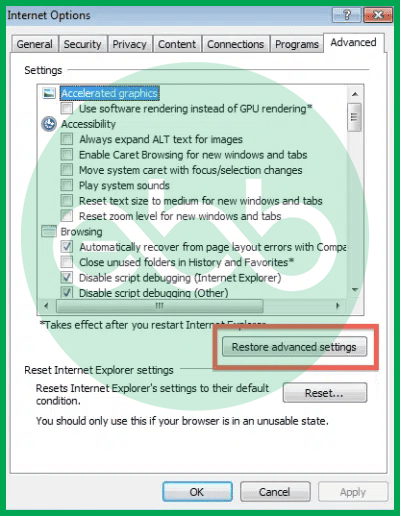
- Step 8: Restore Advanced Settings in Internet Explorer
Open Internet Explorer, go to Tools > Internet Options.
Click the Advanced tab and select Restore Advanced Settings. Press OK and retry QuickBooks updates.
Advanced-Level Fixes
These are deeper troubleshooting steps for experienced users or technicians.
- Step 9: Perform System Restore
Log in as Administrator.
Go to Start > All Programs > Accessories > System Tools > System Restore.
Select Restore my computer to an earlier time, choose a restore point, confirm, and restart your system.
- Step 10: Clean Install QuickBooks
Uninstall QuickBooks from the Control Panel.
Rename installation folders or use the Clean Install Tool.
Reinstall QuickBooks using the latest setup file.
- Step 11: Disable Download Manager Applications
Ensure applications like Internet Download Manager are not consuming bandwidth during QuickBooks updates. Close them before retrying the update.
- Step 12: Verify Network and File Access Permissions
Ensure QuickBooks has full access to network drives and company files. Adjust folder permissions if QuickBooks is blocked from accessing update files.
Prevention Tips
- Keep QuickBooks updated to the latest release
- Ensure stable internet connection during updates
- Configure firewall/security settings properly
- Avoid running download manager apps while updating
- Regularly check system date and time settings
Conclusion:
QuickBooks Error Code 12157 is primarily a connectivity and firewall-related issue. By following these six troubleshooting steps starting from correcting system settings to configuring firewall permissions you can resolve the error and prevent future interruptions.
If the error persists even after applying these fixes, it may indicate deeper system conflicts or company file issues. In such cases, contacting QuickBooks support or a certified technician is the best option to avoid data loss and ensure smooth payroll and accounting operations.
Hopefully, the information given above will be useful to you. But if you are still facing any kind of issues with your software and need professional assistance regarding accounting, bookkeeping & accounting software-related issues, then feel free to get technical support with us at +1-802-778-9005, or you can email us at support@ebetterbooks.com
FAQs!
What are the necessary communication ports that my firewall must keep open for QuickBooks to perform updates?
QuickBooks requires certain TCP ports to be open for program functionality and updates. For updates and secure server communication like payroll, the standard secure web ports Port 443 (HTTPS/SSL) and Port 80 (HTTP) must be active and accessible. Additionally, specific QuickBooks database ports (ranging from 8019 to a dynamic range for multi-user mode) are needed, though 443 and 80 are critical for the connectivity issues tied to Error 12157.
Does QuickBooks Error 12157 affect payroll tax table updates or paycheck calculations?
Yes. Because Error 12157 occurs when QuickBooks cannot establish a secure connection with Intuit’s update servers, it may prevent payroll tax table downloads, subscription validation checks, or mandatory compliance updates. Intuit requires an active and uninterrupted HTTPS connection (TLS 1.2) for payroll services to function. Until the connection issue is resolved, your payroll tax calculations may remain outdated.
Can outdated Windows, Internet Explorer, or TLS settings trigger recurring 12XXX update errors like 12157?
Yes. According to Intuit, QuickBooks Desktop relies on Windows Internet settings and TLS 1.2 security protocols for secure server communication. If your system uses outdated TLS versions (TLS 1.0/1.1), unsupported Internet Explorer components, or older Windows builds, QuickBooks may repeatedly fail update verification and trigger errors in the 12XXX series, including 12157.
If I use QuickBooks in a multi-user or network environment, does Error 12157 affect all workstations?
QuickBooks Error 12157 is typically a client-side error related to the individual workstation’s internet configuration, firewall, or date/time settings. If the main company file server is functioning correctly, it’s possible that only the workstation attempting the payroll update or synchronization will encounter the error. However, a highly restrictive network firewall could cause the issue across all clients if it blocks the required ports system-wide.
Can multiple versions of QuickBooks cause Error 12157?
Yes, having more than one QuickBooks version installed can create conflicts during updates and trigger Error 12157. Removing duplicate or outdated versions often resolves the issue.
Does antivirus or firewall software cause Error 12157?
Yes, antivirus or firewall software can sometimes block QuickBooks from connecting to the internet, resulting in Error 12157. If this happens, you’ll need to configure your security software to allow QuickBooks through the firewall or manually add QuickBooks to the allowed list of applications within your security software.
Disclaimer: The information outlined above for “Fix QuickBooks Error 12157 – (Payroll Update Failed)” is applicable to all supported versions, including QuickBooks Desktop Pro, Premier, Accountant, and Enterprise. It is designed to work with operating systems such as Windows 7, 10, and 11, as well as macOS.