Excerpt:
Diagnosing an internet connection failure requires a systematic approach that moves from external checks to internal system configurations. The primary diagnostic step is confirming whether the outage is local or external, achievable by checking other devices or using external website status tools. If local, the problem is usually rooted in a corrupted DNS cache or a failure in the router/modem connection to the ISP, necessitating a 60-second power cycle and a DNS flush command (ipconfig /flushdns on Windows). Furthermore, users must ensure optimal Wi-Fi signal strength by improving router placement and eliminate complex variables like a Virtual Private Network (VPN) or incorrect Ethernet connections before escalating the issue.
 Add As A Preferred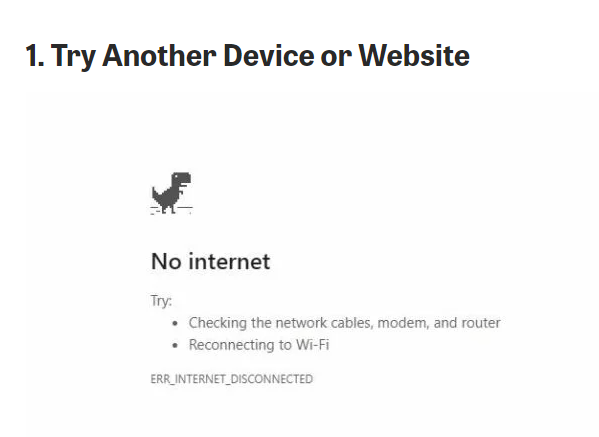
Highlights (Key Facts & Solutions)
ipconfig /flushdns on Windows).ncpa.cpl to quickly access the network connections list.Overview
Even a short wi-fi or internet glitch can impact your company’s profits. To avoid these risks, it’s crucial to know the necessary troubleshooting skills. When faced with internet connectivity issues, follow these practical network troubleshooting tips to restore your connection swiftly:
Determining the optimal moment to verify your connection is as crucial as understanding the procedure itself. Inspect the connection when an error message appears on your screen or when you encounter difficulties with network-connected applications that either crash or become unresponsive.
The approach for assessing your network connection status varies based on the specific device in use. Here are some guidelines for different devices:
Windows, macOS, and other operating systems come equipped with built-in connection management utilities. However, the steps to access this specific area of the software may vary depending on the device you’re using.
For example, you can find the Network and Sharing Center in Windows, which shows the status of both wired and wireless networks. To gain access of the list of network connections in Windows, you need to press Windows key + R to open the Run dialog box, and then enter the command ncpa.cpl (or netsetup.cpl for Windows XP).
Over different operating systems like macOS, the status bar which is located either at the bottom or top of the screen, features icons that visually represent the connection status.
Moreover, there are third-party applications which are available and offer similar features through alternative user interfaces.
The administrator console of a network router catches important details about both the router’s connection to the outside world and the links for any devices on the Local Area Network (LAN) that are connected to it. To access this information, log in to the router.
If you can access the router by using a mobile app, go to the main screen of the app. Here, you can check whether the entire network is down or if particular devices are disconnected. The app may also display a notification when the network experiences an outage or reconnects to the internet after a power failure or other issues.
Additionally, most routers feature LED lights that indicate the connection status for both the WAN (Wide Area Network) link and any wired connections. Some routers have a single light that turns red when there’s a connection problem. If your router is conveniently located where you can easily see these lights, take the time to learn how to interpret the colors and flashes. This way, you can save time and avoid unnecessary logins to check the connection status.
Despite the wi-fi symbol indicating a connection, there are several reasons why you might still find yourself without internet access. The most frequent cause is an issue with your router or modem or perhaps a loose cable. However, it’s important to recognize that internet disruptions can also occur due to more intricate technical factors.
Below are the most common reasons why the internet has stopped working:
Follow these practical network troubleshooting steps to restore your connection when faced with internet connectivity issues swiftly:
Let’s start with the basics: Is the problem happening on just one device or all of them? If your computer is acting up, check if your computer or someone else’s laptop can connect to the internet. If it’s only one device causing trouble, focus on that.
If a specific website won’t load, test another site. If other websites work fine, the issue is probably with the site you’re trying to visit. You might need to wait for them to fix it. To verify if a website is down for everyone or just you, type its address into downforeveryoneorjustme.com or downdetector.com.
If there’s no known outage, it could be your browser’s cache causing trouble. Try opening the site in an incognito window or a different browser.
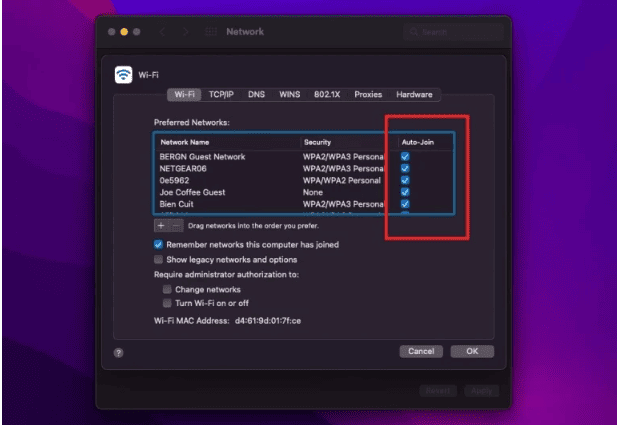
Windows: Look for the wi-fi signal icon in the bottom-right corner of your screen. Click the icon and ensure that you are connected to the correct SSID. If not, you might be unintentionally connected to the wrong network.
If you encounter connectivity issues, consider running the Network Troubleshooter to diagnose and resolve the problem. Follow these steps:
For Windows 10:
For Windows 11:
macOS: Check the wi-fi signal icon in the top-right corner of your screen. Click the icon and confirm that you are connected to the appropriate SSID. If not, you may be connected to the wrong network by default.
Note: An SSID (Service Set Identifier) is the primary name associated with a wireless local area network (WLAN), which includes home networks and public hotspots. It serves as the identification label for your wi-fi network.
Clear the DNS Server
The DNS cache serves as a digital record that your browser relies on to swiftly retrieve web pages you’ve previously visited. However, this cache can lead to technical problems if glitches occur or if online malware inserts unwelcome URLs into it.
Here are the steps to clear your DNS cache on different devices:
Windows:
Mac:
Depending on your Mac operating system (OS), enter one of the following commands in the Terminal app:
You’ll be asked to enter your administrator password. Once entered, your cache will be flushed, and any glitches should be resolved.
Check the Router
When it comes to router placement, there are several important factors to consider: distance, elevation, and obstructions.
Central Location and Elevation:
Wi-fi Signal Strength:
Router Height Matters:
Restarting the Router:
When to Consider a New Router:
Fix Ethernet Connection
A wired Ethernet connection provides a speedy internet connection. Connect one end of the Ethernet cable to your home router and the other end to the Ethernet port on your Windows PC. If your PC lacks an Ethernet port, you can explore using a USB to Ethernet adapter.
In case you encounter connectivity issues despite using an Ethernet connection, consider the following steps to troubleshoot and regain internet access.
Things to Consider Before Troubleshooting
Troubleshooting Steps:
Disable VPN
Using a VPN offers several advantages, but it also introduces an additional layer to your internet setup. Consequently, what appears to be a home network issue might actually stem from your VPN. Occasionally, a VPN may time out if you remain connected for extended periods while your system is idle, or you might be using an overloaded server that struggles to handle your connection.
If you’re currently using a VPN—whether through an app or a manual Windows connection—disable it temporarily and attempt to go online again. If the issue persists, keep the VPN turned off during troubleshooting to simplify the process and reduce variables.
Takeaway
Disruption in Internet Connection can be caused due to hardware malfunction or internet connectivity misconfiguration. In most cases, users face difficulty with network connection when wi-fi is connected but shows no connection error.
To solve your issue quickly, kindly follow the troubleshooting methods that are mentioned above in this article.
When your device shows a connection to the local Wi Fi network but cannot reach the internet, the most likely cause is a faulty Domain Name System (DNS) server setting or an outage beyond your local router.
google.com) into numerical IP addresses. If your DNS cache is corrupted or the assigned DNS server is down, your device cannot find the IP address even though it is connected to the Wi Fi signal.Before investing time in network troubleshooting, you should confirm the website’s status using external diagnostic tools, which saves unnecessary checking of local hardware.
Restarting (or power cycling) your router and modem is necessary to clear their temporary memory (cache) and force them to re establish their connection and configuration with your ISP.
You must use the ipconfig /flushdns command in the Command Prompt to clear the DNS cache on a Windows PC.
cmd).ipconfig /flushdnsThe physical placement of your router directly affects its signal strength and coverage (Signal Strength), as Wi Fi signals are radio waves easily weakened by obstacles.
Before checking software settings like the Network and Sharing Center, you must perform three immediate physical checks to rule out a hardware failure.
You should temporarily disable your Virtual Private Network (VPN) because it introduces an extra layer of complexity and an external server dependency, which can mask the true local cause of the outage.


