Excerpt:
If you're dealing with incorrect paycheck calculations, tax filing errors, or compliance risks in QuickBooks Desktop Enterprise Payroll, this guide walks you through how to fix employee W-4 and payroll info errors. It addresses causes like outdated W-4 forms and data mismatches, and provides step-by-step solutions—from updating tax tables and correcting payroll items to creating journal entries and deduction items—to ensure accurate, compliant, and uninterrupted payroll processing.
 Add As A Preferred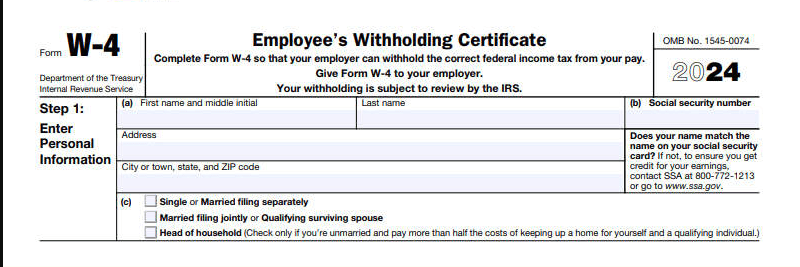
The QuickBooks Enterprise payroll W4 error occurs when employee tax withholding information is either incomplete, outdated, or incorrectly entered in QuickBooks Online Payroll. Since QuickBooks relies on accurate W‑4 data to calculate federal and state taxes, any misalignment between the employee’s W‑4 form and the payroll setup can trigger this error.
Form W‑4, officially called the Employee’s Withholding Certificate, is an IRS document that employees complete to indicate their filing status, dependents, and any additional withholding preferences. Employers use this information to calculate the correct amount of federal income tax to withhold from each paycheck. In QuickBooks Online Payroll, the W‑4 setup directly controls how taxes are applied during payroll processing.
This error typically arises when an employee’s tax situation changes such as marriage, dependents, or secondary income but their W‑4 information is not updated in QuickBooks. It can also occur if payroll tax tables are outdated or if the system encounters corrupted payroll data during processing.
The error usually appears while running payroll or updating employee tax settings. Administrators may notice incorrect withholding amounts, rejected payroll updates, or system prompts indicating that employee tax information cannot be processed correctly.
While the exact wording may vary, payroll administrators often see messages such as:
“Employee tax information is invalid or incomplete. Please update W‑4 details before processing payroll.”
This message signals that QuickBooks cannot proceed until the employee’s W‑4 setup is corrected.
Accurate W‑4 management is critical for compliance and payroll accuracy. Failing to update employee tax information can lead to under‑withholding (employees owing taxes later), over‑withholding (reduced take‑home pay), and even IRS penalties for incorrect filings. Preventing this error ensures smooth payroll runs and protects both the employer and employee from tax complications.
This requires higher withholding to avoid underpayment.
Result: Higher federal withholding, adjusted tax brackets, and compliance with IRS percentage methods.
Note: Some states require separate forms. Always collect signed documentation before updating.
If payroll was already processed incorrectly:
Following are the common mistakes that need to get avoided in order to get the actual payroll:
Employees can update W‑4 themselves via QuickBooks Workforce:
This reduces admin workload and ensures accurate self‑reported data.
Accurate W‑4 management in QuickBooks is not just a compliance requirement it’s the backbone of correct payroll processing. This error typically signals a mismatch between employee tax data and payroll setup, and resolving it requires careful updates to federal and state withholding information.
By following the step‑by‑step process outlined above, editing employee tax profiles, enabling multiple income adjustments, verifying state allowances, and previewing payroll before submission administrators can eliminate W‑4 errors and ensure smooth payroll runs.
This happens when the employee’s W-4 fields don’t match the IRS 2020-and-later form logic. The most common triggers are:
1. Incorrect “Filing Status” selection
2. Missing “Step 2” or “Step 3” information
3. Old W-4 format still applied to a new hire
4. Hidden characters or corrupted employee profile fields
Even if corrected visually, QuickBooks sometimes keeps reading the corrupted field. In such cases, recreating the employee record or clearing form cache usually fixes it.
Go to the Payroll Item List, edit the incorrect item by renaming it (e.g., add “Do Not Use”), and create a new payroll item with correct tax settings. Always double-check the tax tracking type and employee setup.
You can create an unscheduled paycheck, make a year-to-date adjustment, or write a manual check to correct it. Always record the correction properly in QuickBooks for accurate payroll history and tax filing.
Users typically see this error due to:
1. Outdated payroll tax table
2. Missing federal filing status
3. Incorrect Social Security or Medicare settings
4. W-4 entries that contradict each other (e.g., Step 2 checked but no household details)
Payroll must have complete, IRS-compatible data before paychecks can be generated.
Yes. Many employers report:
>Errors returning even after corrections
>QuickBooks not saving updated tax info
>Repeated validation warnings
>Paychecks miscalculating due to hidden corrupted fields
In such cases:
>Exporting employee info
>Removing the employee
>Re-entering a clean profile
Common reasons:
>Exempt box selected but Step 1 and Step 2 incomplete
>Exempt is not allowed for certain wage types or state configurations
>Payroll tax table missing latest IRS updates
>Employee filed exemption incorrectly for the tax year
Users often misunderstand that “exempt” does not mean “no W-4 info required”—the IRS still requires Step 1 completion.


