


Fix the QuickBooks payroll service server error by checking Intuit’s server status at status.intuit.com first, switching to single-user mode before every payroll send, correcting the Windows date and time, enabling TLS 1.2 in Internet Explorer, verifying the payroll service key, and installing the digital signature certificate on QBW32.exe so QuickBooks can authenticate with Intuit’s servers and complete every payroll transmission.
The QuickBooks payroll service server error appears when QuickBooks Desktop cannot reach Intuit’s payroll servers to send payroll data, process direct deposits, or submit payroll tax information.
The Intuit QuickBooks Community confirms two specific error messages: Payroll Service Server Error – Please try again later – If this problem continues, please contact Intuit Technical Support; and QuickBooks Desktop has encountered a problem sending your usage data. Both messages mean the same thing – the connection to Intuit’s servers did not complete.
The Intuit QuickBooks Community documents a critical cause: the same server error appearing on every computer in the office at the exact same time is caused by an Intuit-side server outage.
Multiple verified threads confirm this – users reported the error on several computers simultaneously, contacted Intuit, and were told an outage was active. Intuit resolved it on their servers within 1-2 hours. No local fix was needed on any computer.
The confirmed local causes include:
- wrong Windows date or time,
- payroll sent while multi-user mode is active,
- an invalid digital signature on QBW32.exe,
- TLS 1.2 not enabled in Internet Explorer,
- antivirus or firewall blocking the connection,
- Intuit domains not in the Trusted Sites list,
- a stale DNS resolver cache, and
- an expired or incorrect payroll service key.
Each cause produces a different visible symptom – identifying the correct one before applying any fix is the only path to a first-attempt resolution.
What Is the Payroll Service Server Error and What Makes It Different From Other QuickBooks Errors?
The payroll service server error is a connection failure between QuickBooks Desktop and Intuit’s remote payroll servers. It is categorically different from the 15XXX update errors – which fail because of certificate or file copy problems on the local computer – and from direct deposit errors, which fail because of account settings.
The payroll server error fails because the transmission pathway between QuickBooks and Intuit’s servers cannot start, complete, or be authenticated.
Multiple verified sources confirm the error affects all payroll transmission operations at the same time: sending payroll data, processing direct deposits, downloading payroll tax table updates, and submitting tax deposits all fail together.
Local operations – opening company files, generating reports, and entering transactions – continue working normally. This simultaneous failure across every server-dependent feature is the key identifying characteristic of the payroll server error.
Error 9000 is the numbered version of QuickBooks payroll service server error. The Intuit QuickBooks Community confirms Error 9000 appears when QuickBooks cannot securely connect to Intuit’s servers to verify or submit payroll data.
The Intuit community documents a second confirmed pattern: in recurring cases, Intuit’s backend engineering team had to make a server-side correction every pay period – one verified thread describes this recurring over eight months. Those cases require escalation to Intuit’s engineering team and cannot be resolved by any local fix.
Can the Payroll Service Server Error Trigger Other Issues?
The payroll server error creates additional downstream problems when the root cause is not identified correctly. Applying local fixes during an active Intuit outage introduces new configuration errors on computers that had no local fault.
A TLS setting changed incorrectly can block every Intuit-connected service – not just payroll. An expired service key left uncorrected stops direct deposit, tax table updates, and form submission simultaneously.
| Root Cause of Server Error | Downstream Problem if Left Unresolved |
|---|---|
| Intuit server outage treated as a local problem | Hours of unnecessary system changes on a computer that had no fault – new configuration problems created |
| Wrong Windows date and time left uncorrected | Every secure internet connection on the computer fails – not just QuickBooks but bank feeds, payments, and all HTTPS sites |
| TLS 1.2 not enabled in Internet Explorer | Payroll, direct deposit, tax filing, bank feeds, and payments all fail simultaneously – every Intuit-connected feature is blocked |
| Payroll sent in multi-user mode every run | Error reappears every pay period until single-user mode is built into the standard payroll workflow as a mandatory step |
| Antivirus or firewall blocking QuickBooks | Error 12029 and Error 12002 appear alongside the server error – multiple update and transmission pathways fail together |
| Expired or incorrect payroll service key | All payroll features remain blocked – transmission, direct deposit, and tax table updates stop until the correct key is re-entered |
- A wrong Windows date or time creates the broadest failure pattern. Multiple verified sources confirm: security certificates used by Intuit’s servers contain a valid date range. A Windows clock set to the wrong year, month, or date causes the certificate check to fail because the date falls outside the certificate’s valid period.
- Every secure internet connection on that computer fails – not just QuickBooks, but every HTTPS website and service. Correcting the date and time restores all of them at once.
- An expired or incorrect payroll service key creates a total block that no system setting change can resolve. The service key is the unique code that registers a QuickBooks company file with an Intuit payroll subscription.
- Multiple verified sources confirm: when the key is incorrect or the subscription has lapsed, Intuit cannot verify the account and blocks all payroll features. The only fix is to re-enter the correct key or renew the subscription at Employees > My Payroll Service > Manage Service Key.
Identifying the Root Cause of the Payroll Service Server Error
Match the situation to the correct row in the table below before applying any fix. Checking status.intuit.com takes 30 seconds and eliminates the most costly mistake in payroll server error troubleshooting – applying local fixes during an active Intuit outage.
After confirming Intuit’s servers are online, switch to single-user mode before anything else. These two steps together resolve the majority of payroll server errors without any system-level change.
| Error Event | Likely Cause | Recommended Fix |
|---|---|---|
| Same error on every computer simultaneously | Intuit server outage – all users blocked at the same time | Check status.intuit.com; if outage confirmed, wait 1–2 hours; contact Intuit support if it exceeds 4 hours |
| Error on every send – Please try again later | Wrong Windows date or time – certificate validation fails | Right-click clock > Adjust date/time > Set time automatically ON > correct time zone > restart computer |
| Error only when multiple users are in the file | Payroll data sent while QuickBooks is in multi-user mode | File > Switch to Single-User Mode > confirm all others are out > send payroll > switch back after |
| Error after antivirus or firewall was changed | Security software blocking QuickBooks from reaching Intuit’s servers | Add QuickBooks folder, QBW32.exe, and company files folder to antivirus exceptions; configure Windows Firewall |
| TLS or certificate warning with the error | TLS 1.2 not enabled in Internet Explorer settings | Windows+R > INETCPL.CPL > Advanced tab > check TLS 1.2, uncheck TLS 1.0 and 1.1 > Apply > OK > restart |
| Error after QuickBooks update or fresh install | Digital signature on QBW32.exe invalid after update replaced the file | Right-click QBW32.exe > Properties > Digital Signature > Intuit Inc. > Install Certificate > restart |
| Error every attempt – other internet works fine | Intuit domains not in Internet Explorer Trusted Sites list | Internet Options > Security > Trusted Sites > Add quickbooks.intuit.com, payroll.intuit.com, qbdtdownload.intuit.com |
| DNS timeout or connection refused after Windows update | DNS cache storing an old or wrong address for Intuit’s servers | Windows+R > cmd > Run as Administrator > ipconfig /flushdns > Enter > restart > retry payroll |
| Error says subscription unverified or service key invalid | Expired subscription, wrong service key, or billing mismatch | Employees > My Payroll Service > Manage Service Key > match key to email > remove and re-enter if different |
Data Safety Advisory: Key Concepts to Understand Before Troubleshooting
What Is TLS 1.2 and Why Does QuickBooks Require It?
TLS 1.2 (Transport Layer Security version 1.2) is the internet security standard that encrypts data traveling between QuickBooks and Intuit’s servers during every payroll transmission. Intuit confirmed the TLS 1.2 requirement starting in 2018 to comply with PCI DSS standards – the global rules governing how payment data must be protected in transit.
QuickBooks Desktop uses Internet Explorer’s internal connection settings for all server communication regardless of which browser the user opens daily – meaning the TLS 1.2 checkbox must be enabled in Internet Explorer’s Advanced settings even on computers where Internet Explorer is never opened.
What Is Single-User Mode and Why Is Payroll Blocked in Multi-User Mode?
Single-user mode means only one person is signed in to the QuickBooks company file at a time. Multi-user mode allows two or more users to work in the file simultaneously over a shared network. Multiple verified sources confirm: Intuit blocks payroll data transmission when
QuickBooks is in multi-user mode on every attempt – simultaneous user activity and file locking can interrupt the transmission and create data integrity problems in the payroll batch. The switch path is: File > Switch to Single-User Mode > confirm all other users have closed the file > send payroll > File > Switch to Multi-User Mode after.
What Is the Payroll Service Key and Why Does a Wrong Key Block Everything?
The payroll service key is the unique numeric code Intuit issues with each payroll subscription. QuickBooks sends this key to Intuit’s servers as proof the subscription is valid on every payroll transmission.
Multiple verified sources confirm: an incorrect, expired, or mismatched key causes Intuit’s servers to reject the connection and block all payroll features immediately. The service key is found in the original subscription confirmation email from Intuit and is managed inside QuickBooks at Employees > My Payroll Service > Manage Service Key.
Steps to Fix the QuickBooks Payroll Service Server Error
Solutions are organized by skill level, risk level, and success probability. Start with Level 1 – checking server status, switching to single-user mode, and fixing the date and time resolve the majority of cases in under ten minutes. Advance only after confirming the previous level did not resolve the error.
| Level 1 – Beginner Safe Fixes |
These solutions require no technical knowledge, carry zero risk to company data, and take under ten minutes each. Complete all three before attempting any system-level change.
Solution 1.1: Check Intuit Server Status and Switch to Single-User Mode
| Skill Level | Risk Level | Success Probability | Approximate Time |
|---|---|---|---|
| Beginner | None | 55% – Resolves completely when Intuit outage or multi-user mode is the confirmed cause | 5–10 minutes |
| Risk ExplanationChecking a status page and switching user mode carries zero risk. No files are changed and no settings are modified. | Solution ExplanationThe Intuit QuickBooks Community confirms Intuit server outages produce the identical payroll server error on every computer simultaneously – no local fix resolves an active outage. Multiple verified sources confirm payroll in multi-user mode is blocked by Intuit on every attempt. These two checks together resolve the majority of server errors within five minutes. | ||
Steps to Implement Solution 1.1:
1. Open any browser on any device. Go to status.intuit.com and look for QuickBooks Desktop Payroll in the service list. A green indicator means services are running normally. Yellow or red means an active outage – close QuickBooks, wait 1–2 hours, and do not make any local setting changes during an active outage.
2. If services are running normally, open QuickBooks and click the File menu. If it shows Multi-User Mode at the top, click Switch to Single-User Mode. Ask all other users to close the company file and click Continue when the confirmation box appears.
3. After switching, restart QuickBooks fully, then go to Employees > Send Payroll Data > Send. Enter the PIN when prompted. Confirm the transmission completes. After sending, return to File > Switch to Multi-User Mode to restore access for all users.
Solution 1.2: Correct the Windows Date and Time
| Skill Level | Risk Level | Success Probability | Approximate Time |
|---|---|---|---|
| Beginner | None | 45% – Resolves all errors caused by certificate validation failure from an incorrect system clock | 5 minutes |
| Risk ExplanationCorrecting the system clock carries zero risk. No files are changed. Enabling automatic synchronization prevents every future date-related connection failure permanently. | Solution ExplanationThe Intuit QuickBooks Community confirms incorrect date and time as a direct cause of the payroll server error. Multiple verified sources confirm: security certificates contain a valid date range – a clock set to the wrong year or month causes the certificate check to fail and blocks the server connection immediately. | ||
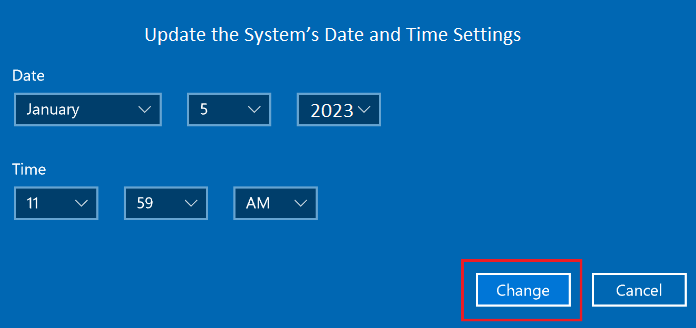
Steps to Implement Solution 1.2:
1. Right-click the clock in the bottom-right corner of the Windows taskbar. Select Adjust date/time. The Date and Time Settings window opens.
2. Switch both Set time automatically and Set time zone automatically to ON – both turn blue when active. Windows immediately synchronizes the clock. Confirm the date and time shown are now correct for your location.
3. Close the settings window. Restart the computer – Start > Power > Restart. After restart, open QuickBooks in single-user mode and retry sending payroll through Employees > Send Payroll Data > Send.
Solution 1.3: Verify the Payroll Service Key and Subscription Status
| Skill Level | Risk Level | Success Probability | Approximate Time |
|---|---|---|---|
| Beginner | None | 80% for subscription-blocked cases – Resolves immediately when an incorrect or expired service key is the cause | 10 minutes |
| Risk ExplanationRe-entering the service key updates only the account registration record in QuickBooks. No payroll data, employee records, or company file content is changed. | Solution ExplanationMultiple verified sources confirm: an incorrect, expired, or mismatched service key causes Intuit’s servers to block all payroll features immediately. The key in QuickBooks must match the key in the original subscription confirmation email from Intuit exactly. | ||
Steps to Implement Solution 1.3:
1. Locate the service key in the original subscription confirmation email Intuit sent when the payroll subscription was purchased or last renewed. If that email is unavailable, sign in to the Intuit account at intuit.com and find the service key in the subscription details.
2. Open QuickBooks and click Employees > My Payroll Service > Manage Service Key. Compare the key shown in QuickBooks against the key from the subscription email. If any digit differs, click Edit, delete the wrong key, type the correct one, and click Next. Confirm the subscription status now shows Active.
3. If the subscription shows Expired: go to Employees > My Payroll Service > Account/Billing Info, sign in, and renew the subscription. After it shows Active, retry sending payroll through Employees > Send Payroll Data > Send.
| Level 2 – Intermediate Fixes |
These solutions modify Windows internet settings, browser security zones, and antivirus exceptions. Follow each step exactly. These fixes address system-side causes that Level 1 solutions do not resolve.
Solution 2.1: Enable TLS 1.2 in Internet Explorer and Configure LAN Settings
| Skill Level | Risk Level | Success Probability | Approximate Time |
|---|---|---|---|
| Intermediate | Low | 75% – Required when TLS settings are the confirmed cause; resolves all Intuit connection failures requiring TLS 1.2 | 15 minutes |
| Risk ExplanationThese are Intuit-mandated settings that affect only how QuickBooks connects to Intuit’s servers. They do not affect personal browsing in any other browser and are fully reversible. | Solution ExplanationIntuit confirmed TLS 1.2 as mandatory for all QuickBooks Desktop connected services starting in 2018. Multiple verified sources confirm QuickBooks uses Internet Explorer’s internal settings for all Intuit server communication regardless of which browser the user opens daily. TLS 1.0 and 1.1 are older versions Intuit no longer accepts – leaving them enabled creates a version conflict. | ||
Steps to Implement Solution 2.1:
1. Close QuickBooks. Press Windows+R, type INETCPL.CPL, and press Enter. The Internet Properties window opens. Click the Connections tab, then click LAN settings. Check Automatically detect settings and confirm the proxy server box is unchecked. Click OK.
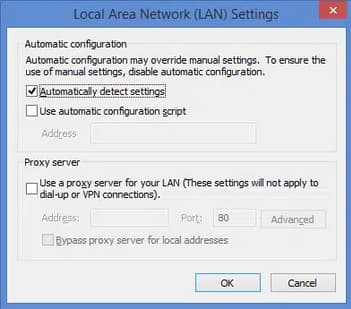
2. Click the Advanced tab. Scroll to the Security section. Confirm Use TLS 1.2 is checked. Remove the tick from Use TLS 1.0 and Use TLS 1.1 if either is checked. Click Apply, then OK.
3. Restart the computer. After restart, open QuickBooks in single-user mode and retry sending payroll through Employees > Send Payroll Data > Send.
Solution 2.2: Add Intuit Domains to Internet Explorer Trusted Sites
| Skill Level | Risk Level | Success Probability | Approximate Time |
|---|---|---|---|
| Intermediate | Low | 60% – Required when Internet Explorer’s security level is blocking the Intuit server connection | 10–15 minutes |
| Risk ExplanationAdding specific Intuit domains to Trusted Sites only lowers the security restriction for those addresses. All other websites remain subject to full security settings. The change is fully reversible. | Solution ExplanationMultiple verified sources confirm Internet Explorer applies a default security level to every address it connects to. A security level set too high for Intuit’s domains blocks QuickBooks from reaching the payroll servers. Adding Intuit’s three key domains to Trusted Sites tells Internet Explorer to allow those connections. | ||
Steps to Implement Solution 2.2:
1. Press Windows+R, type INETCPL.CPL, press Enter. Click the Security tab, then click the Trusted sites icon. Click the Sites button.
2. Add each address and click Add after each: https://quickbooks.intuit.com, then https://payroll.intuit.com, then https://qbdtdownload.intuit.com. Each must include https://. Click Close after adding all three.
3. Click Apply, then OK. Restart the computer. After restart, open QuickBooks in single-user mode and retry sending payroll. These entries remain permanently.
Solution 2.3: Add QuickBooks to Antivirus and Windows Firewall Exceptions
| Skill Level | Risk Level | Success Probability | Approximate Time |
|---|---|---|---|
| Intermediate | Low | 65% – Required when security software is confirmed as blocking the payroll server connection | 20 minutes |
| Risk ExplanationAdding QuickBooks to exceptions creates permission rules only for QuickBooks traffic. All other programs remain fully protected. The computer’s overall security level does not decrease. | Solution ExplanationMultiple verified sources confirm antivirus programs and Windows Firewall can treat QuickBooks’s rapid data upload during payroll transmission as suspicious and block it. The Intuit QuickBooks Community confirms firewall settings as a direct cause of the payroll server error and Error 12029. Targeted exceptions resolve the block without weakening protection for any other activity. | ||
Steps to Implement Solution 2.3:
1. Open the antivirus software and find the Exceptions, Exclusions, or Whitelist section. Add three locations: C:\Program Files\Intuit\QuickBooks [Year]; C:\Users\Public\Public Documents\Intuit\QuickBooks\Company Files; and QBW32.exe from inside the QuickBooks program folder.
2. Open Windows Defender Firewall from the Start menu. Click Allow an app or feature through Windows Defender Firewall. Click Change Settings. Find QuickBooks Desktop in the list and check both Private and Public boxes. If not in the list, click Allow another app, browse to QBW32.exe, click Add, and check both boxes.
3. Click OK to save. Restart the computer and retry sending payroll through Employees > Send Payroll Data > Send.
| Level 3 – Advanced / System-Level Repair |
These solutions repair the digital signature certificate on the main QuickBooks program file and clear the DNS resolver cache. Back up the company file before starting any Level 3 solution.
Solution 3.1: Install the Digital Signature Certificate on QBW32.exe
| Skill Level | Risk Level | Success Probability | Approximate Time |
|---|---|---|---|
| Advanced | Low | 75% – Resolves all server errors caused by an invalid or missing certificate after a QuickBooks software update | 15–20 minutes |
| Risk ExplanationInstalling a certificate only updates the Windows certificate store record for that file. QBW32.exe is not modified, moved, or deleted. No company data or employee records are affected. | Solution ExplanationMultiple verified sources confirm: QBW32.exe is the main QuickBooks file used for all authentication with Intuit’s servers. After a software update replaces it with a newer version, the digital signature must be re-registered in Windows before QuickBooks can authenticate again. Installing it through the Digital Signature tab re-registers it immediately. | ||
Steps to Implement Solution 3.1:
1. Back up the company file first: File > Back Up Company > Create Local Backup. Wait for confirmation. Then close QuickBooks completely.
2. Press Windows+E to open File Explorer. Navigate to C:\Program Files\Intuit\QuickBooks. Right-click QBW32.exe and select Properties. Click the Digital Signature tab. Find Intuit Inc., click it, then click Details > View Certificate > Install Certificate.
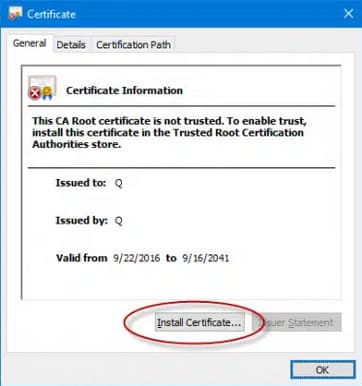
3. Click Next on every screen in the Certificate Import Wizard without changing settings. Click Finish, then OK. Restart the computer. After restart, open QuickBooks in single-user mode and retry sending payroll.
Solution 3.2: Flush the DNS Cache and Run the QuickBooks TLS 1.2 Readiness Tool
| Skill Level | Risk Level | Success Probability | Approximate Time |
|---|---|---|---|
| Advanced | Low to Moderate | 65% – Resolves errors caused by stale network addresses and TLS settings manual changes did not fully correct | 20–30 minutes |
| Risk ExplanationFlushing DNS clears stored network addresses – no data is lost. The TLS 1.2 Readiness Tool scans and corrects system TLS settings automatically and does not modify company data. Back up the company file before running Tool Hub operations. | Solution ExplanationMultiple verified sources confirm a stale DNS cache sends QuickBooks payroll requests to an outdated server address, producing a timeout error even when the internet is working. The QuickBooks TLS 1.2 Readiness Tool inside QuickBooks Tool Hub automatically corrects TLS and .NET Framework settings that manual Internet Explorer changes may not fully address. | ||
Steps to Implement Solution 3.2 – Flush DNS Cache:
1. Back up the company file first. Then press Windows+R, type cmd, hold Ctrl+Shift and press Enter to open the Command Prompt as an administrator. Click Yes if a permission box appears.
2. Type ipconfig /flushdns and press Enter. The screen shows: Successfully flushed the DNS Resolver Cache. Close the window and restart the computer. Retry sending payroll after restart.
Steps to Implement Solution 3.2 – Run TLS 1.2 Readiness Tool:
3. Search for QuickBooks Tool Hub download Intuit in a browser to find the official download. Install it and open the Tool Hub. Click the Installation Issues tab. Click QuickBooks TLS 1.2 Tool in the bottom-right area.
4. Click OK, accept the EULA, click Run. The tool scans and corrects TLS 1.2, .NET Framework, and Internet Explorer settings automatically. Click Exit when complete, restart the computer, and retry sending payroll.
Scenarios Requiring Immediate Intuit Escalation
Stop all troubleshooting and contact Intuit Payroll Support immediately in the following four situations. These scenarios involve Intuit-side problems or account-level configurations that no local fix can resolve.
- Same Error on Every Computer Simultaneously: Contact Intuit Payroll Support and check status.intuit.com. The Intuit QuickBooks Community confirms this is an Intuit server outage – no local change resolves it. Request to be added to the affected users notification list so Intuit updates the business when the outage clears.
- Error Recurs Every Pay Period After All Fixes Applied: The Intuit QuickBooks Community documents a verified case where the error recurred every pay period for eight months, requiring Intuit’s backend engineering team to make a server-side fix each time. Contact Intuit Payroll Support and specifically request escalation to the backend engineering team. Provide the number of pay periods affected and all steps already applied.
- All Level 1, 2, and 3 Fixes Applied and Error Remains: Contact Intuit Payroll Support. Press F2 inside QuickBooks to see the version and release number. Provide the exact error message text and a full list of solutions already applied – Intuit can access the account-level transmission log to identify whether the block is on their servers.
- Payroll Deadline Is Within 24 Hours: Contact Intuit Payroll Support immediately and simultaneously prepare paper checks as a backup so employees are paid on time. State the deadline urgency at the start of the call so the representative prioritizes the case.
Prevention Strategy For QuickBooks payroll service server error
Preventing the payroll service server error requires five habits. These habits address every confirmed cause documented in this article:
- checking Intuit’s server status before troubleshooting,
- always sending payroll in single-user mode,
- verifying TLS 1.2 after every Windows update,
- updating the payroll tax table after every payroll run, and
- renewing the service key before it expires.
- Check Intuit’s Server Status Before Every Troubleshooting Session
The Intuit QuickBooks Community documents businesses that spent hours applying local fixes during an active Intuit outage – every change was unnecessary and some created new problems.
Bookmarking status.intuit.com and checking it first prevents all of that wasted effort. Intuit also posts planned maintenance windows in advance – checking the page before payroll submission days reveals any scheduled downtime before it disrupts a run.
- Always Send Payroll in Single-User Mode
Multiple verified sources confirm payroll in multi-user mode is blocked by Intuit on every attempt – it is a hard block, not an occasional issue. Adding File > Switch to Single-User Mode as a mandatory pre-send step in the payroll workflow eliminates this cause permanently.
The switch takes 30 seconds and prevents the most common recurring cause of the payroll server error from appearing on any future pay period.
- Verify TLS 1.2 Is Still Enabled After Every Windows Update
Multiple verified sources confirm Windows updates can reset Internet Explorer settings including TLS configurations. After every major Windows update, press Windows+R, type INETCPL.CPL, open the Advanced tab, and confirm TLS 1.2 is checked while TLS 1.0 and TLS 1.1 are unchecked.
This two-minute check prevents the most common post-update payroll server error from reaching the next pay run.
- Update the Payroll Tax Table After Every Payroll Run
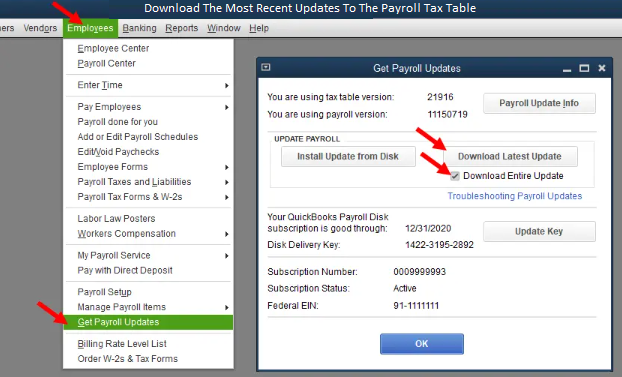
Multiple verified sources confirm Intuit releases payroll tax table updates monthly and whenever a federal or state tax rate changes. Updating through Employees > Get Payroll Updates > Download Entire Update immediately after each payroll run ensures current tax rates on every paycheck – protecting the business from IRS penalty deposits and the cost of amended payroll returns.
- Renew the Payroll Subscription and Re-Enter the Service Key Before It Expires
Multiple verified sources confirm an expired service key blocks all payroll transmission, direct deposit, and tax table updates until the correct key is re-entered. Setting a calendar reminder 30 days before the subscription renewal date provides enough time to renew without disrupting a live payroll run.
After each renewal, immediately verify the new key at Employees > My Payroll Service > Manage Service Key and confirm it matches the renewal confirmation email from Intuit.
Conclusion
The QuickBooks payroll service server error stops all payroll transmission when QuickBooks Desktop cannot establish a working connection to Intuit’s servers. The nine confirmed causes are:
- an Intuit server outage,
- payroll sent in multi-user mode,
- wrong Windows date or time,
- TLS 1.2 not enabled in Internet Explorer,
- an expired or incorrect payroll service key,
- an invalid digital signature certificate on QBW32.exe,
- antivirus or firewall blocking the connection,
- Intuit domains not in the Trusted Sites list, and
- a stale DNS resolver cache.
The correct sequence is: check Intuit’s server status and switch to single-user mode first; verify the service key and correct date and time next; then enable TLS 1.2, add Trusted Sites, and add antivirus exceptions; then install the digital signature certificate and flush the DNS cache using the TLS 1.2 Readiness Tool for system-level failures.
Matching the symptom to the correct cause before any fix prevents hours of wasted changes during an active outage.
Preventing recurrence requires five habits: check Intuit server status before troubleshooting, always send payroll in single-user mode, verify TLS 1.2 after every Windows update, update the tax table after each run, and renew the service key on time. These five habits cover every confirmed cause of the payroll service server error before it can interrupt employee pay.
FAQs
Why does my Firewall or Antivirus block the QuickBooks Payroll Service, and how do I identify the necessary exceptions?
QuickBooks Payroll requires secure, uninterrupted communication with Intuit’s servers to handle functions like tax table updates and direct deposits. Security software can sometimes mistake these connections for unauthorized activity, triggering the Payroll Service Server Error.
To resolve this, you must explicitly allow access for QuickBooks programs and specific communication ports:
- QuickBooks Executables (Programs): Allow access for all primary QuickBooks executable files, such as
QBW32.exe,QBDBMgr.exe, andQBDBMgrN.exe. - Ports: QuickBooks Desktop uses Port 80 and 443 for general secure internet traffic. For multi-user mode and the database manager, specific ports are required, which vary by QuickBooks version. For example:
- QuickBooks Desktop 2020 and later require Port 8019 and a range of others (e.g.,
XXXXX). - Older versions require specific, sequential port numbers (e.g., 56721 for 2021, 56720 for 2020).
- QuickBooks Desktop 2020 and later require Port 8019 and a range of others (e.g.,
What are TLS protocols, and what are the current security requirements for QuickBooks Desktop payroll?
TLS (Transport Layer Security) is the protocol that ensures secure, encrypted communication between your QuickBooks Desktop software and the Intuit servers.
Critical Update: Previous troubleshooting guides suggesting enabling older protocols like TLS 1.0 or 1.1 are obsolete and pose a security risk.
- Current Requirement: Intuit mandates that all QuickBooks Desktop services, including payroll and payments, must use TLS 1.2 or higher for secure communication.
- Action: If you are facing this error, ensure that:
- You are running the latest release of QuickBooks Desktop.
- Your Internet Explorer settings (which QuickBooks uses for its secure backend) have TLS 1.2 checked and TLS 1.0 and 1.1 unchecked in the Internet Options > Advanced tab.
- You are using Internet Explorer 11 or higher.
How often should I download the Payroll Tax Table updates, and why is this critical for preventing errors?
The Payroll Tax Table contains all the necessary data for calculating federal, state, and local payroll taxes accurately. Running payroll with an outdated table is a common cause of connection errors and non-compliance issues.
- Frequency: Intuit releases these updates monthly, or whenever a critical tax change occurs (e.g., new tax laws, rate changes, or form updates).
- Requirement: You must have an active QuickBooks Desktop Payroll subscription to receive these updates.
- Best Practice: It is advised to download the update before processing any new payroll or to enable the automatic updates feature within QuickBooks Desktop.
Why is running QuickBooks in Single-User Mode necessary when sending payroll data?
QuickBooks Desktop operates in two modes: Single-User and Multi-User. The Payroll Service Server Error often occurs when another user or background process is accessing the company file during the transmission of sensitive data.
- Data Integrity: Single-User Mode grants the current user exclusive access to the company file and its network components.
- Connection Stability: Using this mode ensures that the payroll data transmission to the Intuit server is not interrupted by simultaneous user activity or network file locking, which maintains data integrity and connection stability.
- Action: Always switch to File > Switch to Single-User Mode before running the payroll data transmission.
If I use a proxy server on my network, what specific configuration steps must I take to ensure the payroll service connects?
A proxy server acts as an intermediary for internet requests, which can inadvertently block the secure connection needed by QuickBooks Payroll.
To configure QuickBooks correctly, you must:
- Select Computer’s Settings: In the QuickBooks Internet Connection Setup (Help > Internet Connection Setup), choose the option to “Use my computer’s Internet connection settings to establish a connection…”
- Check LAN Settings: Verify your system’s LAN settings (often via Internet Options in Control Panel) to ensure that the proxy server is correctly configured or, if not needed, that the “Use a proxy server for your LAN” box is unchecked.
- Trusted Sites: Add the necessary Intuit payroll domains to your trusted sites list, including:
https://quickbooks.intuit.comhttps://quickbooks.intuit.com/payroll/https://www.intuit.com/
When manually installing a security certificate, why must the store location be set to Current User?
The process of manually resetting a security certificate involves importing it to validate that the QuickBooks executable is trusted to communicate securely.
- Scope and Permissions: Selecting “Current User” during the Install Certificate Wizard ensures the certificate is placed within the security store of the specific Windows user profile currently logged in and running the QuickBooks application.
- Validation: This action provides the necessary permissions for that user’s QuickBooks process to use the certificate for establishing the secure, encrypted connection with the Intuit payroll server, preventing the “Payroll Service Server Error” caused by a revoked or invalid certificate.
What simple troubleshooting steps are most effective before attempting detailed firewall or certificate changes?
Before undertaking complex network or security adjustments, perform these two basic checks, which often resolve connectivity issues caused by temporary faults or system misalignments:
- Reboot the System: Restarting your computer clears temporary glitches, network cache errors, and any processes that may be holding system resources, allowing QuickBooks to start with a clean connection state.
- Verify Date and Time: Incorrect system time or date is a critical problem for secure connections. Security protocols (like TLS 1.2) rely on accurate timestamps for validating server certificates.
- If your system clock is significantly inaccurate, the secure handshake fails, causing the server error. Adjust the time and time zone to be correct and synchronize it with an internet time server.
Disclaimer: The information outlined above for “How to Troubleshooting QuickBooks Payroll Service Server Error – Connection Error” is applicable to all supported versions, including QuickBooks Desktop Pro, Premier, Accountant, and Enterprise. It is designed to work with operating systems such as Windows 7, 10, and 11, as well as macOS.