



QuickBooks Error 6143 is a company file access error that restricts users from opening or working with their company file. Unlike simple installation glitches, Error 6143 belongs to the 6000 series of QuickBooks errors, which are tied to company file handling and network configurations. When this error occurs, QuickBooks encounters difficulty reading or updating the company file, the window might crash, or the software might crash.
Error 6143 can appear in several situations within QuickBooks Desktop, including when opening a company file, restoring a backup, or working in multi‑user mode. In each case, QuickBooks fails to establish a stable connection with the company data, resulting in crashes, freezes, or unexpected shutdowns.
Quickbook generally shows a message stating “QuickBooks has encountered a problem while accessing your company file. Please try again. If the problem continues, note the error code (-6143) and contact support.”.
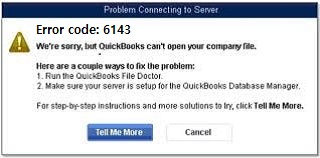
This guide provides a solution framework for resolving QuickBooks Error 6143. It also outlines preventive strategies to safeguard your company files. Investing time in prevention is far less costly than repairing corrupted data later. For professional businesses, consistent QuickBooks maintenance should be treated as a critical financial control activity.
Causes of QuickBooks Error 6143
QuickBooks Error 6143 is primarily a company file access error, but the underlying triggers can vary. Understanding each cause helps in diagnosing the issue correctly and applying the right fix.
1. Corrupted or Damaged Company File
- The most common reason for Error 6143 is corruption in the .QBW company file.
- This can happen due to improper shutdowns, sudden power failures, or malware infections.
- When the file structure is damaged, QuickBooks cannot read or open the data, resulting in the error.
2. Incomplete or Improper QuickBooks Installation
- If QuickBooks Desktop was not installed correctly, or if an update was interrupted, critical program files may be missing or corrupted.
- This prevents QuickBooks from accessing company files properly and can trigger Error 6143 during startup or file operations.
3. Damaged or Deleted Windows Registry Files
- QuickBooks relies on Windows registry entries to locate and run its components.
- If these entries are corrupted, deleted, or incorrectly modified, QuickBooks may fail to open company files and display Error 6143.
- Registry corruption often occurs after failed installations, malware attacks, or manual edits.
4. Antivirus or Firewall Blocking QuickBooks Processes
- Security software sometimes mistakenly blocks QuickBooks from accessing its company files or network resources.
- Firewalls may restrict QuickBooks ports, while antivirus programs may quarantine QuickBooks processes.
- This interference can cause Error 6143 when trying to open or work with files.
5. Incorrect File Name (Spaces or Invalid Characters)
- QuickBooks requires company file names to follow specific formatting rules.
- If the file name contains spaces, special symbols, or unsupported characters, QuickBooks may fail to recognize or open the file.
- Renaming the file to a simpler format often resolves this issue.
6. Network Configuration Issues with ND/TLG Files
- QuickBooks uses ND (Network Data) and TLG (Transaction Log) files to manage multi‑user access and track transactions.
- If these files are corrupted or misconfigured, QuickBooks cannot establish proper connections to the company file.
- This often results in Error 6143, especially in multi‑user environments.
Quick Tabular presentation of Troubleshooting Framework
The table shows the quick summary:
| Level | Solution | Skill Level | Risk Level | Success Probability | Approx. Time | Key Notes |
| Level 1 – Beginner Safe Fixes | Open a Sample Company File | Beginner | Low | Moderate | 10–15 min | Confirms if issue is file-specific or software-related |
| Update QuickBooks Desktop | Beginner | Low | Moderate–High | 15–30 min | Ensures latest bug fixes and stability improvements | |
| Level 2 – Intermediate Fixes | Configure Antivirus & Firewall Ports | Intermediate | Moderate | High | 20–30 min | Add QuickBooks exceptions or temporarily disable firewall |
| Close All QuickBooks Processes | Intermediate | Low | Moderate | 10–15 min | End QBW32.exe via Task Manager to clear conflicts | |
| Open Company File Locally | Intermediate | Low | High | 15–20 min | Copy file to Desktop and open from “No Company Open” window | |
| Clear Spaces in File Name | Intermediate | Low | High | 10 min | Rename company file to remove spaces or invalid characters | |
| Rename ND & TLG Files | Intermediate | Low–Moderate | High | 15–20 min | Forces QuickBooks to recreate fresh configuration files | |
| Level 3 – Advanced / Professional Fixes | Run QuickBooks File Doctor (Tool Hub) | Advanced | Moderate | High | 20–30 min | Repairs company file corruption automatically |
| Verify & Rebuild Data | Advanced | Moderate–High | High | 30–60 min | Repairs structural damage in company file; backup required | |
| Repair/Reinstall QuickBooks | Advanced | High | High | 30–60 min | Fixes installation corruption; requires license reactivation |
Detailed Stepwise Troubleshooting Framework
Beginner-Level Solutions (Everyday Users)
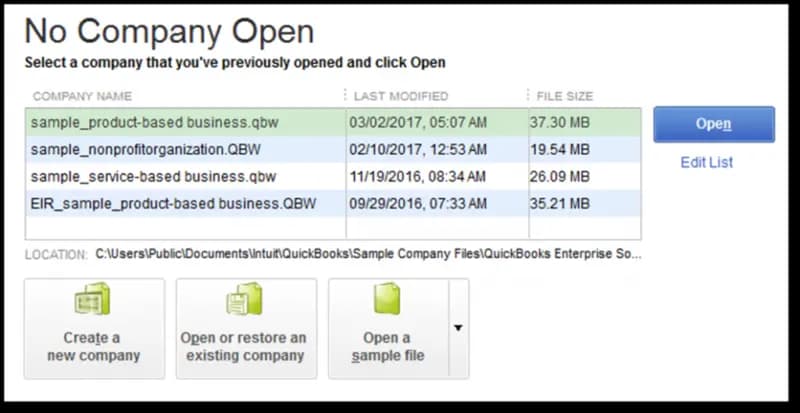
1. Open a Sample Company File
- Go to the No Company Open window.
- Select a file from the list of sample company files.
- Open the file locally.
- If the sample file opens, the issue lies with your company file. If it doesn’t, the problem is with QuickBooks software itself.
2. Clear Spaces in the Company File Name
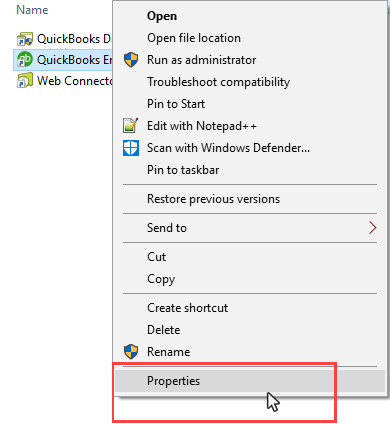
- Right-click the QuickBooks desktop icon and select Properties.
- Click Open File Location to access the QuickBooks folder.
- Locate the company file, right-click, and select Rename.
- Remove any spaces in the file name.
- Save changes and reopen QuickBooks.
Intermediate-Level Solutions (Users Comfortable with File Handling)
3. Open the Company File Locally
- Locate the folder containing the company file.
- Right-click the file with the .QBW extension and select Copy.
- Paste the file onto the desktop.
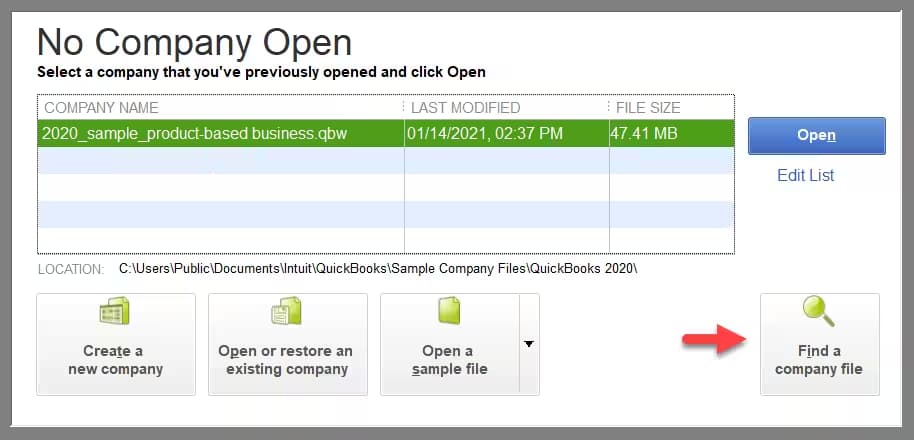
- Hold Ctrl while opening QuickBooks to reach the No Company Open window.
- Select Open or Restore an Existing Company and open the file from the desktop.
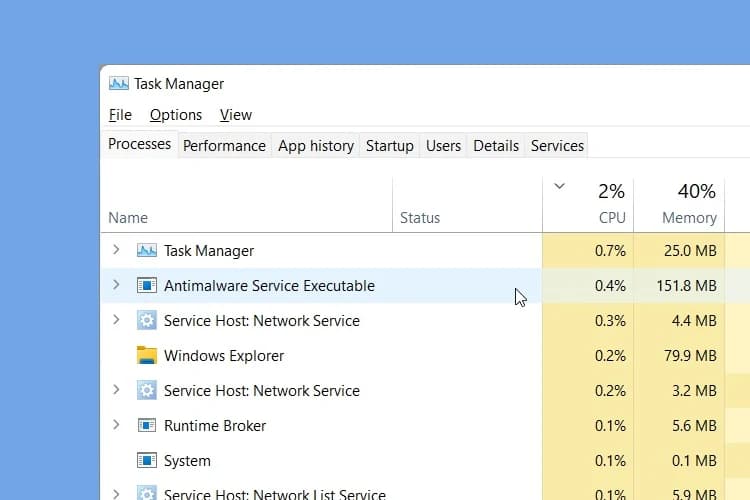
4. Close All QuickBooks Processes
- Log in as an administrator.
- Press Ctrl + Shift + ESC to open Task Manager.
- Go to the Users tab.
- End all processes related to QuickBooks (e.g., QBW32.exe).
- Restart QuickBooks and try opening the file again.
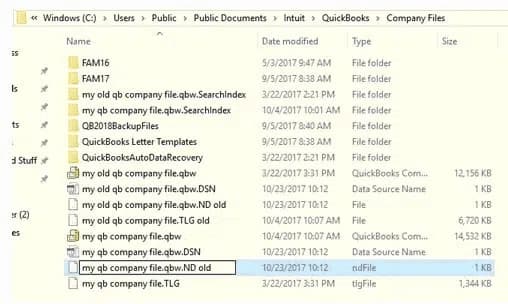
5. Rename .ND and .TLG Files
- Navigate to the folder containing the company file.
- Locate files with .ND and .TLG extensions.
- Right-click each file, select Rename, and add .old at the end (e.g., CompanyFile.nd.old).
- Restart QuickBooks to regenerate these files.
Advanced-Level Solutions (IT Admins / Technicians)
6. Configure Antivirus and Firewall Ports
- Open antivirus software settings.
- Add QuickBooks installation folders as exceptions.
- Configure firewall ports to allow QuickBooks connections.
- If needed, temporarily disable antivirus/firewall and test QuickBooks.
7. Reinstall QuickBooks Desktop
- Uninstall QuickBooks from the system.
- Download the latest version from Intuit’s official site.
- Reinstall QuickBooks and restore the company file.
Important Notes:
- Always backup company files before registry edits or rebuild operations.
- Perform malware scans and disk checks before attempting file repairs.
- Escalate to professional support if multiple steps fail and repeated attempts can worsen corruption.
Prevention Strategy
- Daily Backups: Store locally, externally, and in the cloud.
- Update Discipline: Enable automatic QuickBooks updates; schedule Windows updates off-hours.
- Regular Verification: Run Verify Data weekly to catch corruption early.
- File Naming Best Practices: Avoid spaces or special characters in company file names.
- Network Stability: Host files on dedicated servers; ensure proper shutdown procedures.
Conclusion
QuickBooks Error Code 6143 is triggered by corrupted system files, incomplete installations, or conflicts with antivirus/firewall settings. By following a stepwise troubleshooting approach starting with simple checks like opening a sample file or renaming the company file, moving to intermediate fixes like closing processes and renaming .ND/.TLG files, and finally applying advanced solutions like configuring antivirus/firewall or reinstalling QuickBooks users can resolve the issue effectively.
Hopefully, the information given above will be useful to you. But if you are still facing any kind of issues with your software and need professional assistance regarding accounting, bookkeeping & accounting software-related issues, then feel free to get technical support with us at +1-802-778-9005, or you can email us at support@ebetterbooks.com
FAQs!
If Error 6143 is due to file corruption, how often should I create a manual backup of my QuickBooks company file (.QBW)?
It is recommended to create a manual backup of your QuickBooks company file (.QBW) at least once per week. Additionally, you should always create a new backup immediately before and after performing any major actions, such as installing a new QuickBooks update, performing a major data import, or running the Rebuild Data utility (which is sometimes necessary after fixing a corruption error like 6143).
If the company file is damaged (like in Error 6143), can I still rely on my previous QuickBooks Auto Data Recovery (ADR) files?
Yes, the Auto Data Recovery (ADR) feature is a vital safety net. ADR automatically creates backup copies of your company file and the Transaction Log file (.TLG).
If your primary file is corrupted, you can often use the ADR files (found with the .adr extension) to restore your data to a recent state, minimizing data loss before or during the fix for Error 6143. However, you should always try to restore from a standard manual backup (.QBB) first, if one is available.
Can having multiple versions of QuickBooks (e.g., 2024 and 2023) installed cause company file access errors like 6143?
While QuickBooks is designed to allow multiple versions to co-exist on the same computer, having different versions installed can sometimes complicate file path permissions and lead to conflicts, especially if multiple versions try to access the same related program files or services.
➜Always ensure you are opening your specific company file (.QBW) with the correct, corresponding version of QuickBooks it was last updated in. Opening an older company file with a newer QuickBooks version prompts an update, which should be done with caution and a backup.
Could using a very long file path or special characters in the company file’s folder path trigger or contribute to Error 6143?
Yes, having an overly long path, special characters, or spaces in the company file name or folder path can interfere with QuickBooks’ ability to locate and open the file. Some community‑based guidance (and troubleshooting blogs) report this as a factor for 6143‑type issues.
➜Recommendation: Keep file names and folder paths simple; store the company file in a clean, shallow folder structure (e.g., C:\QBFiles\) rather than deeply nested or network‑shared folders.
If I fix Error 6143 by renaming or moving files, will I lose or corrupt my financial data?
Generally, no as long as you are not deleting the primary data file (.QBW) and you have a valid backup. Renaming auxiliary files (.ND, .TLG) or moving the company file location does not delete transaction or accounting data. This is a standard recommendation in 6143‑resolution guides.
Best practice: Always backup your company file before making structural changes (moving, renaming) so you have a fallback if restoration fails.
When should I run the Rebuild Data utility versus the Verify Data utility in QuickBooks?
These are two key tools for company file maintenance:
➜Verify Data: You should run this first. It scans the company file for structural data issues or corruption (like that which causes Error 6143). If it finds an issue, it will recommend that you run the Rebuild Data utility.
➜Rebuild Data: You should only run this after Verify Data has identified problems. Rebuild Data attempts to repair the issues found in the file structure. Always create a backup (.QBB) immediately before running the Rebuild Data utility.
Disclaimer: The information outlined above for “6 Steps to Fix QuickBooks Error Code 6143 (Company File Issues)” is applicable to all supported versions, including QuickBooks Desktop Pro, Premier, Accountant, and Enterprise. It is designed to work with operating systems such as Windows 7, 10, and 11, as well as macOS.