Excerpt:
QuickBooks Error 1014 arises due to cache issues, causing delayed software response, company file hangs in multi-user mode, or system freezes. This disrupts workflow and demands prompt resolution for seamless accounting operations. Solutions include updating settings via QBW.ini or registry modifications, ensuring QuickBooks' functionality. Resolving this error enhances system performance, minimizes disruptions, and optimizes accounting processes, critical for maintaining operational efficiency in QuickBooks.
 Add As A Preferred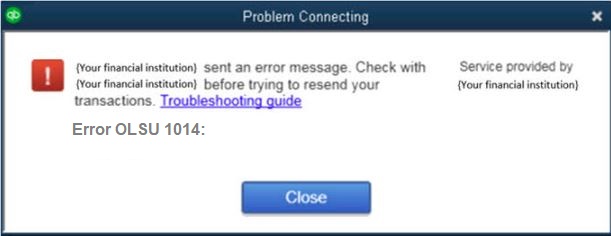
To resolve QuickBooks error 1014, first check your bank’s website for any active service notifications, then deactivate and re-enable online banking for the affected accounts. If the issue continues, update both QuickBooks Desktop and Internet Explorer, and use the QuickBooks Tool Hub to run the “Quick Fix my Program” tool.
QuickBooks Error 1014 (OL and OLSU Bank Feeds Error) is a synchronization failure that originates from corrupted cache data, invalid registry entries, or damaged QBW.ini configurations. This malfunction disrupts the communication link between QuickBooks and financial institutions, leading to delayed responses or banking feed interruptions.
The error often manifests as freezing during multi-user sessions, delayed file access, or unresponsive system behavior. These performance drops interfere with normal accounting operations, making timely resolution essential for data consistency and workflow efficiency.
By addressing cache inconsistencies, repairing registry values, and ensuring system updates, QuickBooks functionality can be fully restored. The following sections provide verified diagnostic methods, configuration adjustments, and preventive maintenance steps to eliminate Error 1014 and enhance system stability.
QuickBooks Error 1014 appears as OLSU-1014, a bank feed error. Intuit’s own documentation ties it to bank connection and download problems, not to damaged program files.
QuickBooks Error 1014 is an OL/OLSU (Online Banking Feed Synchronization) error. It occurs when cache data or registry configurations within Windows become damaged. The error slows QuickBooks’ performance, delays company file loading, and causes freezing during multi-user sessions.
When this error occurs (typically during a Bank Feeds download), users typically see one of these:
This code is documented only through third-party QuickBooks support content in the sources located, most commonly reported on older QuickBooks Desktop versions (2017 and earlier) or accounts using Classic mode bank feeds; no official Intuit article using this exact code/spelling was found, so treat it as unconfirmed until verified directly against Intuit’s Bank Feeds error documentation.
Third-party sourcing only — not confirmed on an official Intuit page.
Symptoms of QuickBooks Error 1014
Addressing these indicators early ensures stable workflow continuity.
Resolving QuickBooks Error 1014 requires correcting corrupted configuration parameters that interfere with cache management and registry synchronization. The following verified solutions provide both automatic and manual methods to restore QuickBooks stability and eliminate OL/OLSU communication failures.
Each method ensures data integrity, system responsiveness, and seamless banking feed connectivity. Below are some steps you’ll be able to follow to fix Error 1014:
This solution focuses on automating QuickBooks configuration repairs by modifying the QBW.ini file. It resets corrupted parameters that affect cache and synchronization functions. Implementing this method ensures stable communication between QuickBooks Desktop and connected banking servers without requiring manual registry access.
This approach reconfigures QuickBooks system preferences and refreshes corrupted cache sequences.
This solution addresses Error 1014 at the system level by verifying cache values and repairing Windows registry entries linked to QuickBooks. Manual adjustments restore accurate system-to-application mapping and remove configuration inconsistencies. It is a comprehensive method recommended for advanced users or IT professionals managing multi-user QuickBooks environments.
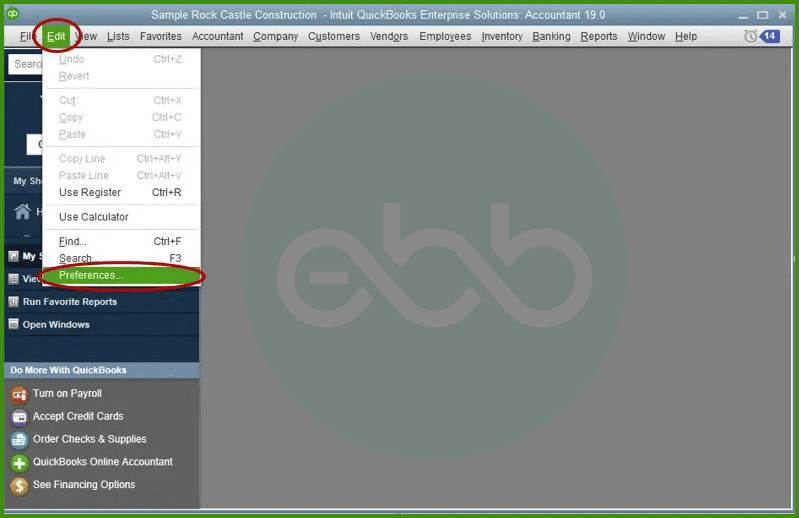
You can also fix the error by switching your application to express mode by going to the edit menu.
To minimize the risk of QuickBooks Error 1014 recurrence, apply the following preventive steps:
Technical Insight: Understanding OL and OLSU Errors
OL and OLSU errors originate from the Online Banking Feed Service in QuickBooks. The 1014 error specifically indicates a failed data exchange handshake between QuickBooks and financial institutions due to a corrupted communication cache or invalid session tokens. By correcting QBW.ini and registry synchronization parameters, the data handshake process is restored, stabilizing the banking module.
QuickBooks Error 1014 is a critical OL/OLSU synchronization malfunction that disrupts the smooth functioning of accounting processes within QuickBooks Desktop. Implementing configuration updates to the QBW.ini file, repairing registry inconsistencies, and maintaining regular cache optimization effectively resolve the issue and prevent recurrence. For sustained performance, periodic system maintenance and timely software updates are strongly recommended.
If professional technical assistance is required for advanced troubleshooting, accounting, or bookkeeping software support, contact our expert team at +1-802-778-9005 or email us at support@ebetterbooks.com.
Future troubleshooting discussions will focus on advanced synchronization recovery techniques and enhanced data protection strategies for QuickBooks Desktop users.
1. Does QuickBooks Error 1014 occur only in multi-user mode?
No. Although QuickBooks Error 1014 often appears when multiple users access the same company file, it can also occur in single-user mode if cache or registry configurations are corrupted. The multi-user condition only amplifies the risk due to simultaneous file access and synchronization requests.
2. How does modifying the QBW.ini file resolve QuickBooks Error 1014?
The QBW.ini file governs application-level configurations for QuickBooks Desktop. When specific parameters in this file become corrupted or incomplete, data caching and synchronization fail. Editing the QBW.ini file reinitializes the system’s communication protocols and rebuilds the path references that allow QuickBooks to connect to online banking feeds correctly.
3. Can registry restoration permanently fix the 1014 error?
Registry restoration can correct the underlying cause of the 1014 error if it was triggered by damaged keys or missing QuickBooks entries. However, long-term resolution depends on maintaining proper system hygiene — including regular updates, cache clearance, and controlled system shutdowns — to prevent future corruption of registry data.
4. What distinguishes QuickBooks Error 1014 from other OL/OLSU errors?
Error 1014 is classified as a “handshake failure” within the OL/OLSU group. It specifically indicates incomplete or timed-out communication between QuickBooks Desktop and the financial institution’s server. Other OL/OLSU errors, such as 1016 or 108, may involve authentication or credential validation issues rather than data caching or registry corruption.
5. Is there a connection between outdated banking certificates and Error 1014?
Yes. When the digital certificates used by financial institutions expire or are not synchronized with QuickBooks, the system may misinterpret the data as invalid, producing Error 1014. Updating the QuickBooks certificate repository or reinstalling the QuickBooks update package restores proper SSL communication with the bank’s server.
6. Does QuickBooks Database Server Manager influence the recurrence of Error 1014?
Yes. An outdated or improperly configured Database Server Manager can cause inconsistent cache indexing and lead to synchronization errors, including Error 1014. Ensuring that the Database Server Manager is updated and that all QuickBooks services run under the same Windows user permissions helps prevent repeated error triggers.
7. What are the most effective preventive maintenance steps after resolving Error 1014?
After resolution, the following actions are recommended:
These steps ensure the stability of the OL/OLSU module and maintain optimal performance.


